Workflow must be in Published state while deleting the Bookings / Work Orders (Dynamics 365 Field Service)Workflow must be in Published state


Recently we were cleaning some of the work orders and related records in one of our environments. However when trying to delete the bookable resource booking record, we were getting the below error. Deleting booking records is required if we want to delete the associated work order record.

A screenshot of a computer error message

AI-generated content may be incorrect.

A screenshot of a computer

AI-generated content may be incorrect.

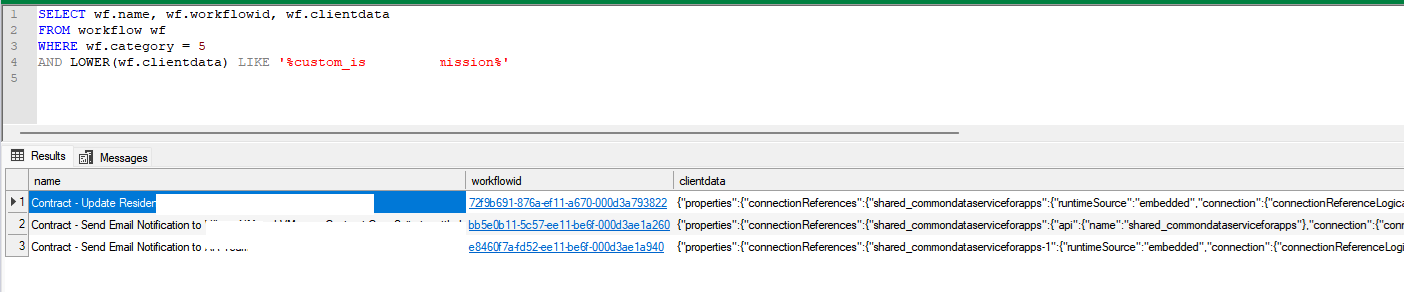
We verified all the processes – workflows, SLA, and also checked the system’s plugin code, but could not figure out what was causing this error.

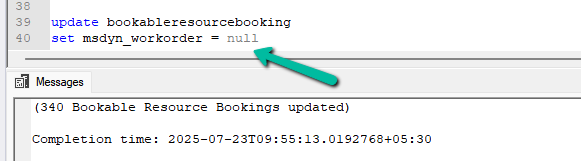
Eventually, to delete the booking records, we cleared the associated work orders first for them.

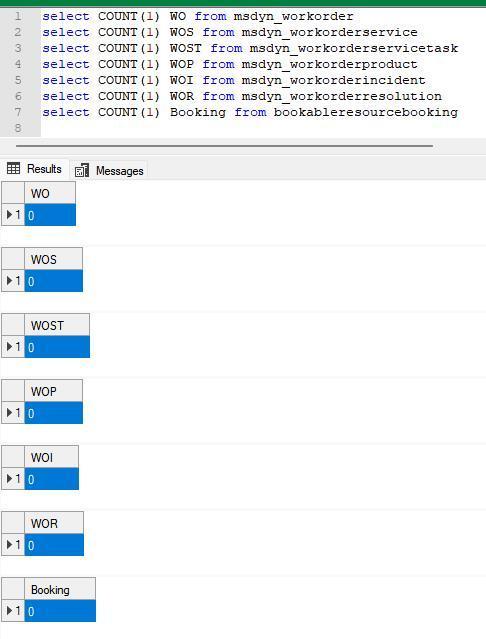
This then allowed us to delete the work orders and associated records

Check for more details on deleting work orders –

Step-by-Step: Deleting Work Orders (Dynamics 365 Field Service)

Hope it helps..

Advertisements

Fix – The FnO Integration solution install failed. HCMScheduling and HCMSchedulingAnchor solutions must be installed. See Field Service documentation for details (Dynamics 365 Field Service)


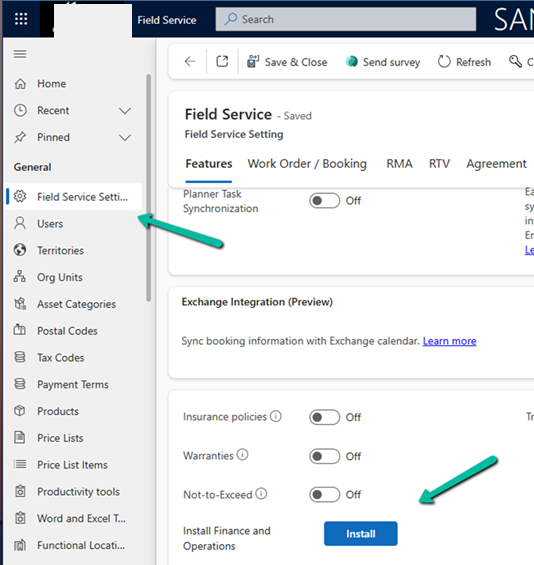
While trying to install Finance and Operations from Field Service Settings, we might encounter the following error.

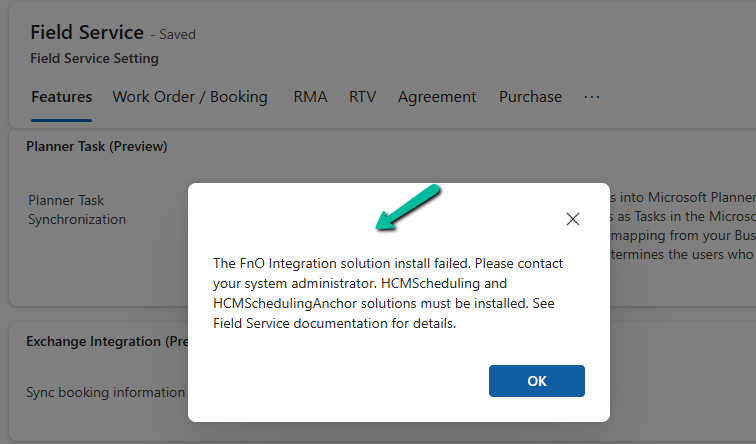
“The FnO Integration solution install failed. Please contact your system administrator. HCMScheduling and HCMSchedulingAnchor solutions must be installed. See Field Service documentation for details.”

A screenshot of a computer

AI-generated content may be incorrect.

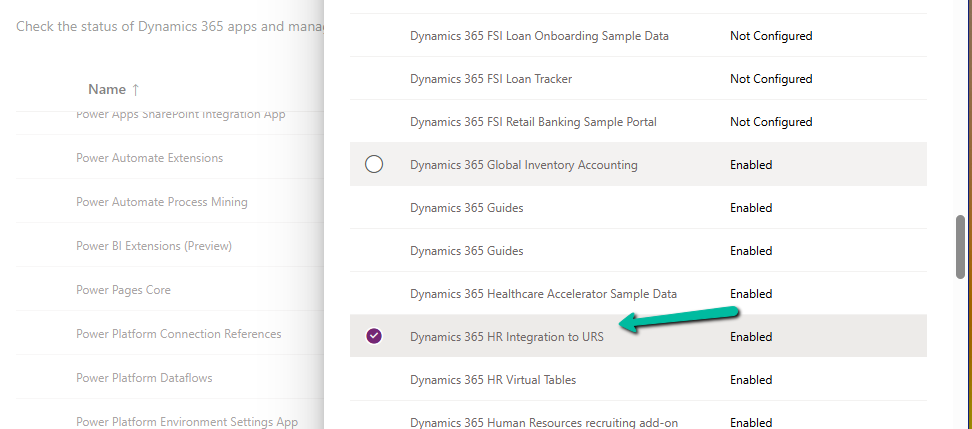
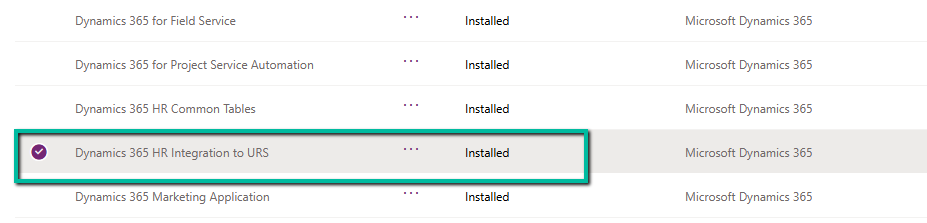
To fix it, we need to install the “Dynamics 365 Human Resources integration to URS” app.

A screenshot of a computer

AI-generated content may be incorrect.

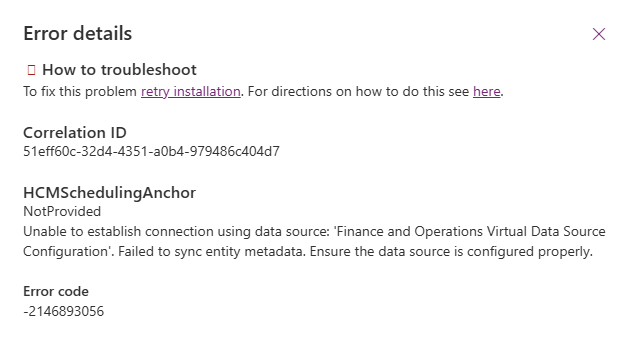
However, while trying to install Dynamics 365 HR Integration to URS app, we got the following error –

HCMSchedulingAnchor

NotProvided

Unable to establish connection using data source: ‘Finance and Operations Virtual Data Source Configuration’. Failed to sync entity metadata. Ensure the data source is configured properly.

A screenshot of a computer

AI-generated content may be incorrect.

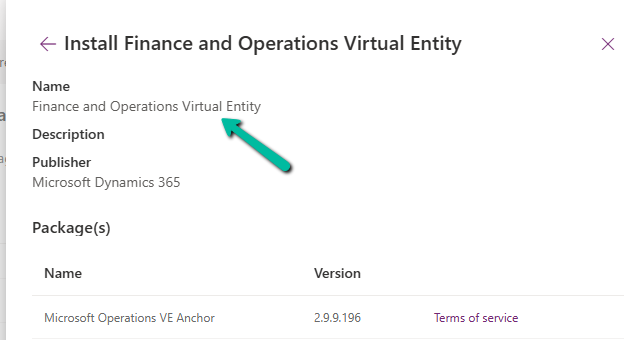
The fix was to install the Finance and Operations Virtual Entity app first.

A screenshot of a computer

AI-generated content may be incorrect.
A close up of words

AI-generated content may be incorrect.

After installing Finance and Operations Virtual Entity, we were able to install the Dynamics 365 HR Integration to URS app successfully.

A screenshot of a computer

AI-generated content may be incorrect.

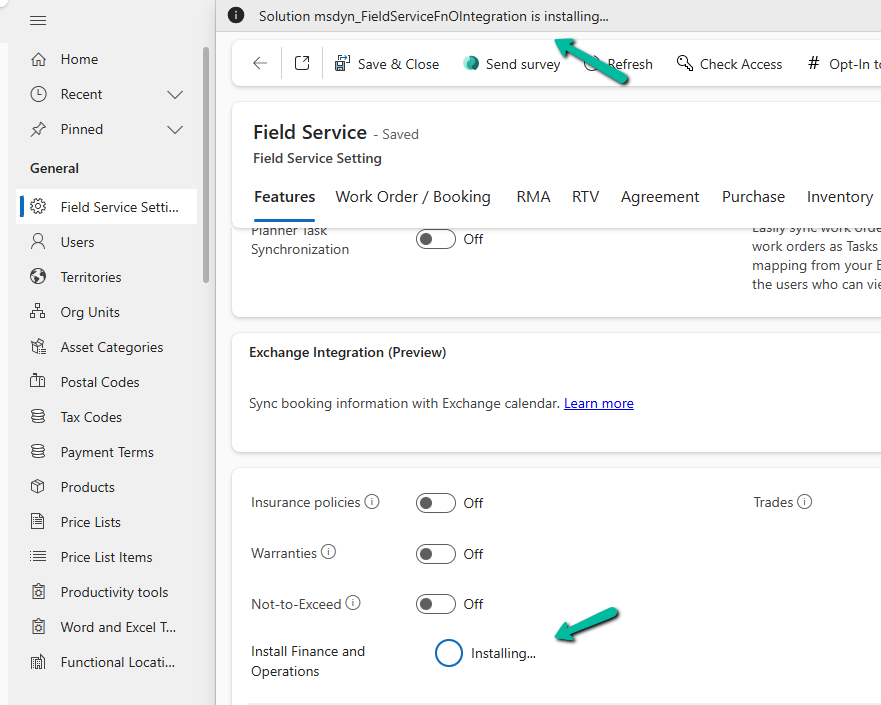
That finally allowed us to install the FnO Integration (msdyn_FieldServiceFnOIntegration) in our Environment.

A screenshot of a computer

AI-generated content may be incorrect.

Hope it helps..

Advertisements

Fixed – The following solution cannot be imported: Dynamics365SupplyChainExtended. Some dependencies are missing – HCM Common (Dynamics 365)


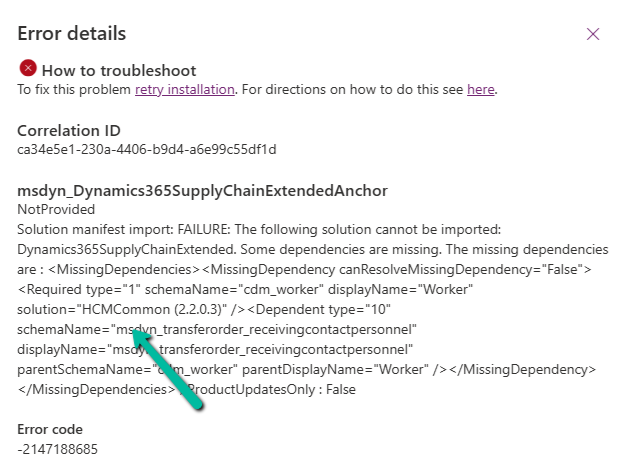
While trying to install the Dual Write Supply Chain Extended Solution, we got the following error.

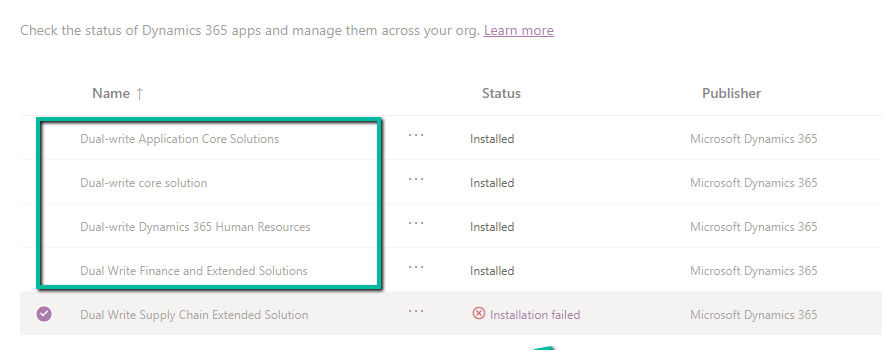
We had below apps already installed before installing the Supply Chain Extended Solution.

  • Dual-Write Application Core Solutions
  • Dual-write core Solution
  • Dual-write Dynamics 365 Human Resources
  • Dual-write Finance and Extended Solutions
A screenshot of a computer

AI-generated content may be incorrect.

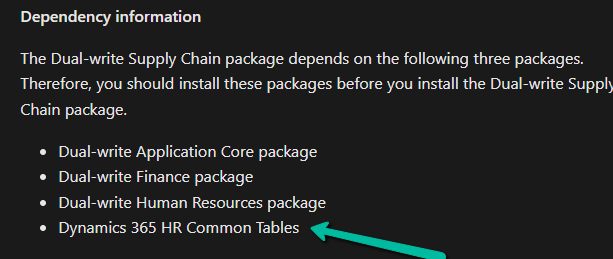
Upon going through the documentation, we realized we were missing one dependent package.

A screen shot of a computer

AI-generated content may be incorrect.

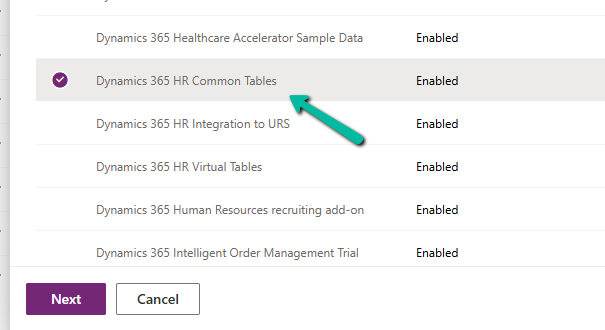
We installed the Dynamics 365 HR Common Tables package first, and then on retrying the installation of Supply Chain package we didn’t get any error.

A screenshot of a computer

AI-generated content may be incorrect.

Hope it helps..
Resolve – This environment can’t be copied because your org (tenant) is over capacity. Request an extension (Dataverse / Dynamics 365)


When trying to overwrite another environment with a copy of Prod, the system prevented the operation due to exceeding tenant capacity limits. This copy operation is subject to environment and storage capacity constraints.

We raised a Microsoft Support Ticket and learned that we can resolve this issue by either purchasing additional storage or requesting free temporary storage to complete the copy operation.

We need to raise another support ticket for temporary storage, that includes below details

  • The amount of storage we need
  • The duration for which it should be available
  • The reason for the request

The maximum duration that can be requested is 6 months.

The maximum storage that can be requested is 200 % of what is purchased.

Thanks to Microsoft, within few mins of raising the support ticket we were provided the additional temporary storage.

We got our environment extended for 6 months with 200 GB additional capacity that allowed us to complete our copy environment.

Also check – https://nishantrana.me/2024/10/15/free-up-storage-space-activitypointerbase-and-workflowlogbase-dataverse-dynamics-365/

Hope it helps..
Advertisements

Using Form fill Assist Toolbar to streamline data entry in Power Apps


We tried the AI Form Filling Assistance feature in model-driven Power Apps and found it very helpful. One part that we liked the most was the toolbar and file (preview). This makes it much easier to fill forms using information from uploaded documents.

To enable this feature, go to:

Environment → Settings → Features → Form fill assist toolbar (AI Form Fill Assistance)

Once enabled, we can simply upload or drag and drop a file — like a PDF, Word document, or image — and the assistant will read the file and suggest values for different form fields.

A screenshot of a computer

AI-generated content may be incorrect.

When we upload / drop a file like a PDF, Word, or image, the assistant reads the file and gives us suggestions to fill the form.

A screenshot of a computer

AI-generated content may be incorrect.

For example, if we upload the following file:

A close-up of a foreign passport

AI-generated content may be incorrect.

We can see that the assistant picks up values like First Name, Last Name, City, and Country, and populates them into our contact record.

Either we can accept all the suggestions using the Accept suggestions button on the tool bar or can select the suggested value for the individual fields by clicking yes next to it.

The assistant works at the tab level. For example, if we switch to the Details tab and upload the same image again, we might see fields like Birthday get populated — depending on what data is available and which fields are present in that tab.

The different file types supported are – .txt, .docx, .csv, .pdf, .png, .jpg, .jpeg, .bmp.

Let us now try uploading the below text file.

A screenshot of a computer

AI-generated content may be incorrect.

We can see it picking the first record and populating the details on the form.

A screenshot of a computer

AI-generated content may be incorrect.

This makes it simple and fast to enter data — especially when we are working with leads, contacts, or records that are usually based on data from documents or scanned forms.

Get more information

Hope it helps..
Advertisements

Favorite your Actions and Connectors for quick retrieval in Cloud Flows (Power Automate)


With this new update in Power Automate, it’s now easier for us to find and use the actions and connectors we need. We can also quickly access tools and AI features while building flows. This helps save time and makes the flow-building experience smoother.

Here is a screenshot of the new connector and action pane in Power Automate, below we have added Dataverse connector and some of its action as favorites.

Earlier, when we clicked on the plus sign (+) to add a new action in our flow, it opened a big list of actions and connectors. It was hard to find the ones we used often, and we had to scroll a lot.

Now, with the new design, things are much easier. We can do the following:

– Mark any connector or action as a ‘Favorite’. These favorites will always show up at the top in a new Favorites section.

– Quickly see useful AI tools like ‘Run a prompt’ or ‘Process documents’ in a special AI section.

– Easily find basic tools like Control, Data Operation, and JSON under the Built-in tools section.

This change helps us find what we need faster. It’s especially useful if we often use the same connectors like Microsoft Dataverse or Excel.

Hope it helps..
Advertisements