Using Focused view in Dynamics 365


Focused view in Dynamics 365 that allows users to view and manage all their records in one place, allowing them to be more productive, as they can stay on track and avoid getting sidetracked by switching between multiple screens to find the information they need.

We can enable and disable it for all the records from the Power Platform Admin Center

A screenshot of a computer

Description automatically generated

Let us select the Focused View for the Cases.

A screenshot of a computer

Description automatically generated

Focused View lists all the records of the view, from where we can select the record, and see its details, within the same screen.

A screenshot of a computer

Description automatically generated

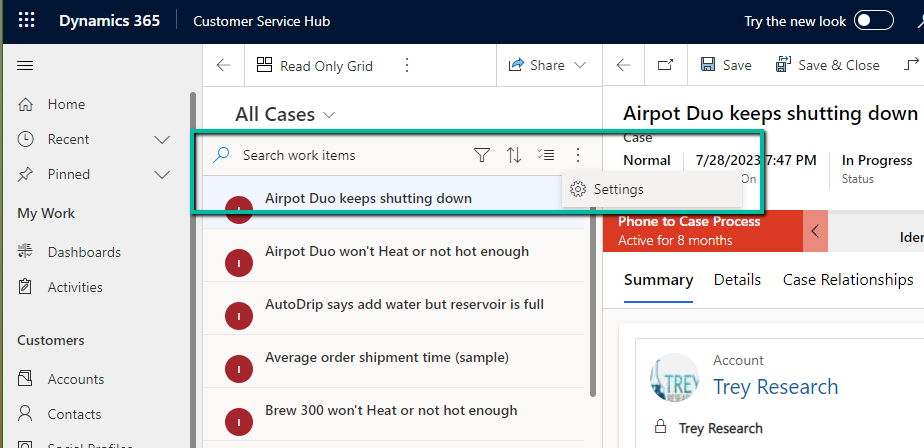
We can search, filter, sort, select multiple records, and further customize it.
A screenshot of a computer

Description automatically generated

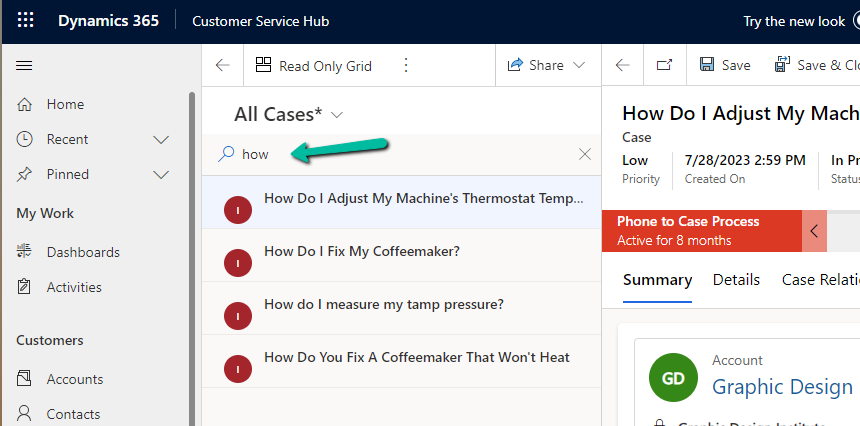
Search –

A screenshot of a computer

Description automatically generated

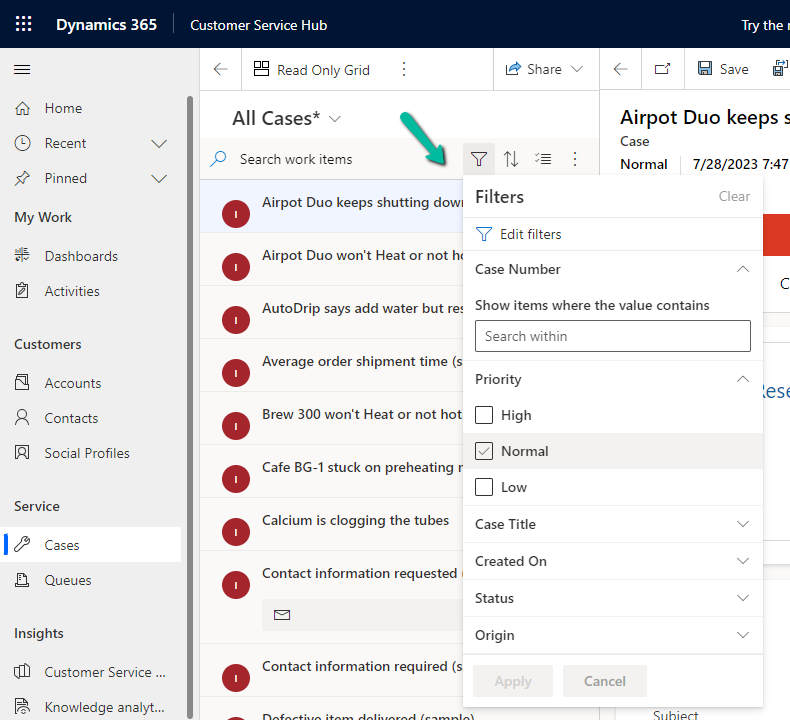
Filter –

A screenshot of a computer

Description automatically generated

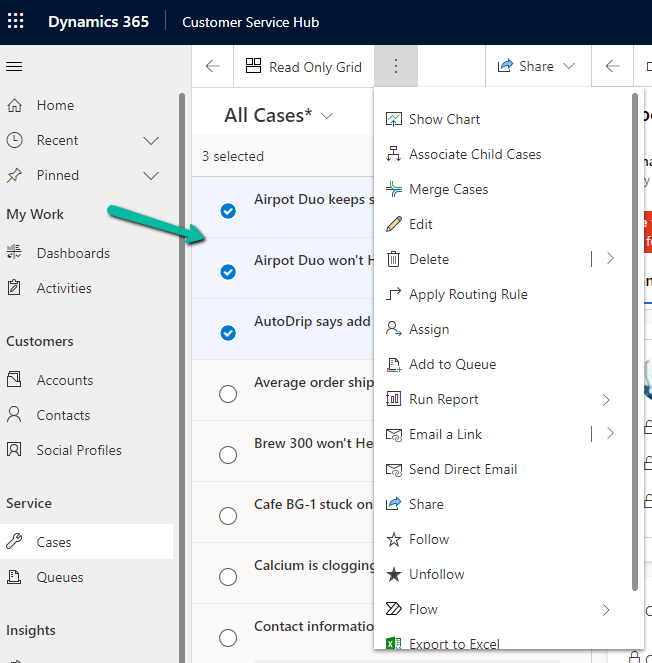
Select multiple records and perform bulk operations –
A screenshot of a computer

Description automatically generated

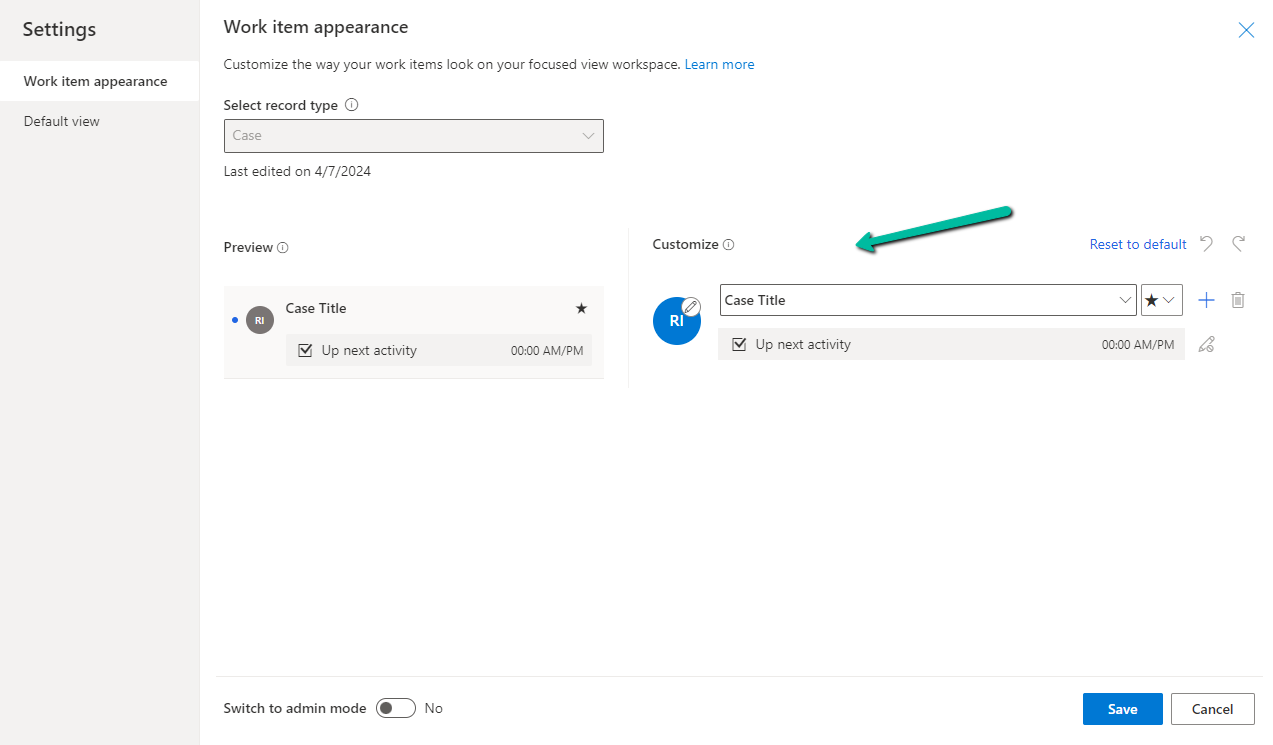
From Settings, we can customize the appearance of it –
A screenshot of a computer

Description automatically generated

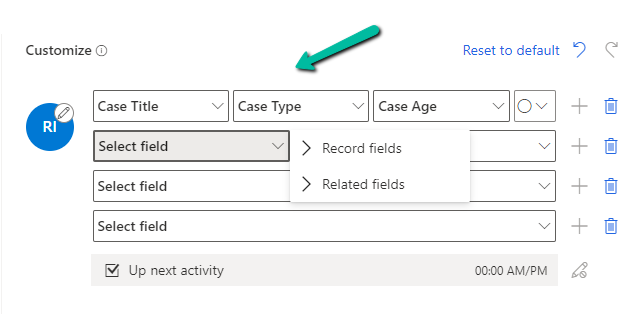
Here we can specify maximum 4 rows and each row can have a maximum of 3 columns added to it, it can be from the same record or the related record.
A screenshot of a computer

Description automatically generated

Here we have updated it as follows

A screenshot of a computer

Description automatically generated

Next, we have admin mode, where we can lock the customization so that users won’t be able to change it.

A screenshot of a computer

Description automatically generated

From the Default View settings, we can specify the tables on which we want focused view as default.

A screenshot of a computer

Description automatically generated

Below we can see the Focused View updated to show Case Title, Case type, Created by, and associated customer’s email address.

A screenshot of a computer

Description automatically generated

Get all the details here

Hope it helps..

Advertisements

Associate activities (Email) with multiple related records – Dataverse / Dynamics 365


This new feature allows associating an activity record with multiple related records or related parties.

For E.g. we might want to associate an email with multiple cases, or with case as well as account and contact records.

It is still in the public preview (April 24) and is only available for Email Activity.

To see it in action, first, we need to add the Related field of type Party List to the form.

We can see the option to add related records of type Account, Case, Contact, Knowledge Articles, Queue, and User to it.

A screenshot of a computer

Description automatically generated

Below we can see multiple records of different tables added to it.

Also, we can see the email record showing up in the timeline of the corresponding related records.

A screenshot of a computer

Description automatically generated

Check more details

Hope it helps..

New Attachment features for Email – Dataverse / Dynamics 365


We can see a few new features added to attachments for email activity as part of 2024 Release Wave 1.

  • We can use drag and drop to add attachments.
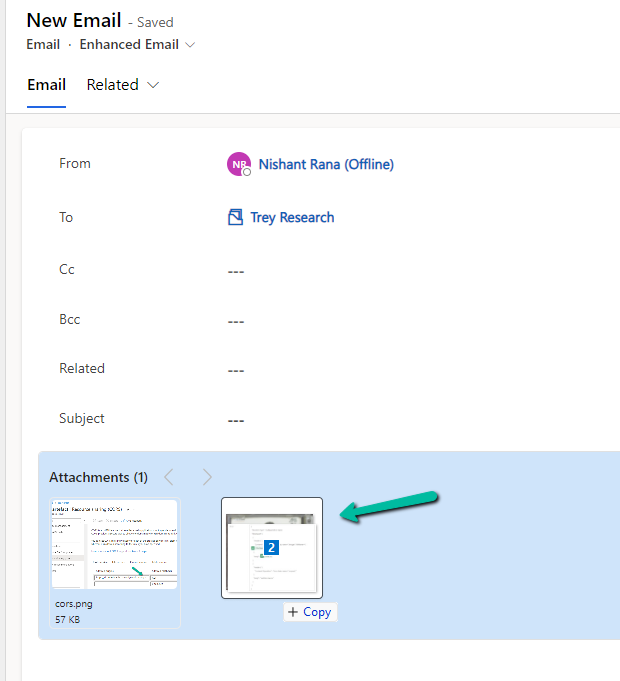
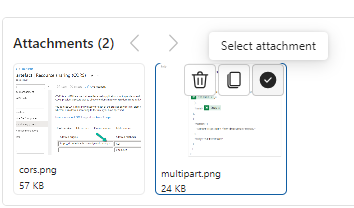
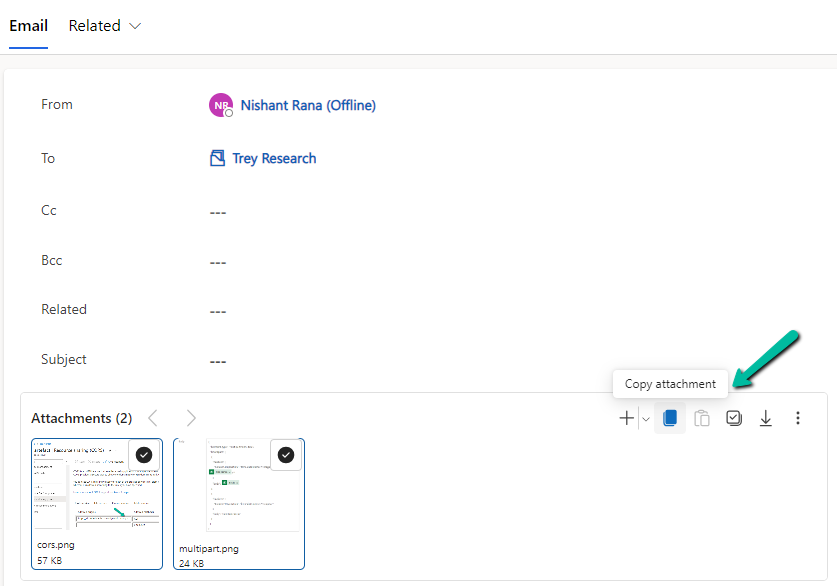
  • Select (Select All) and copy the attachment(s)
A screenshot of a computer

Description automatically generated
A screenshot of a computer

Description automatically generated
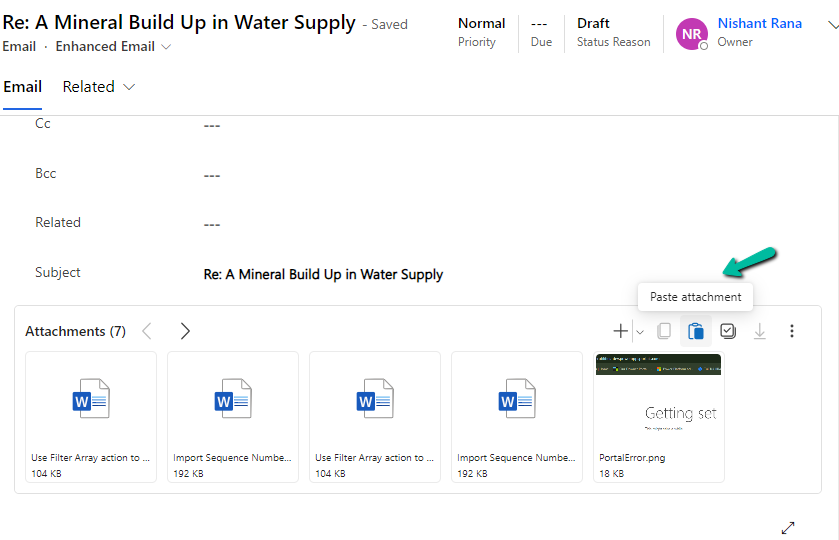
  • And can paste it to another email
A screenshot of a computer

Description automatically generated
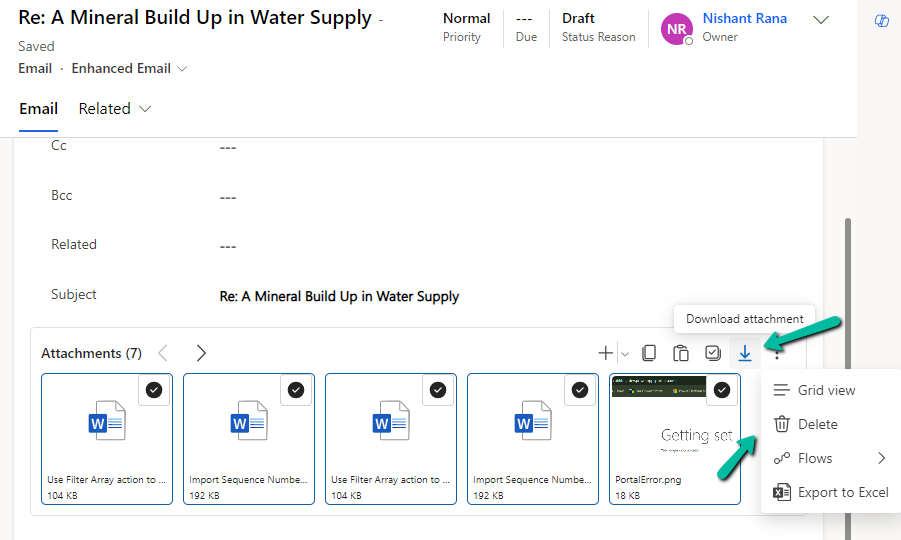
  • Bulk download and delete the attachment(s)
A screenshot of a computer

Description automatically generated
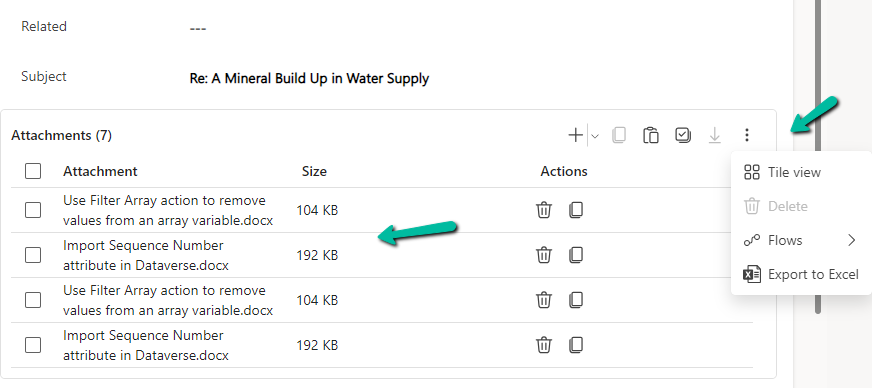
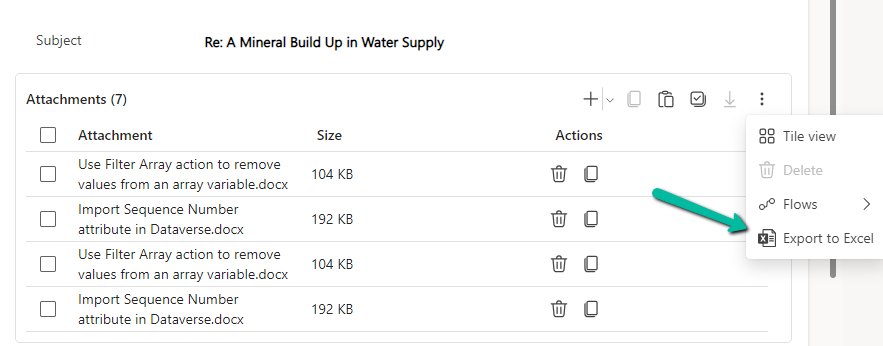
  • We can switch between Tile and Grid view which also shows the size of the attachments.
A screenshot of a computer

Description automatically generated
  • We can export attachments to Excel.
A screenshot of a computer

Description automatically generated
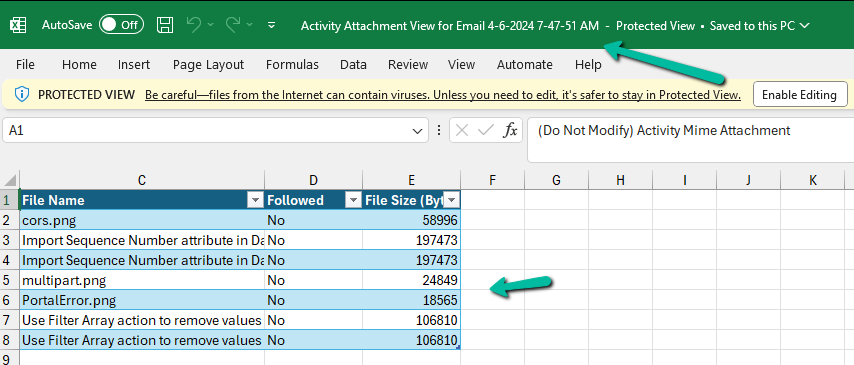
  • The exported Excel file will have the following details
A screenshot of a computer

Description automatically generated

Get all the details here

Hope it helps..

Advertisements

Geofencing unit ‘Mile’ with id: ” cannot be removed – Dynamics 365 Field Service


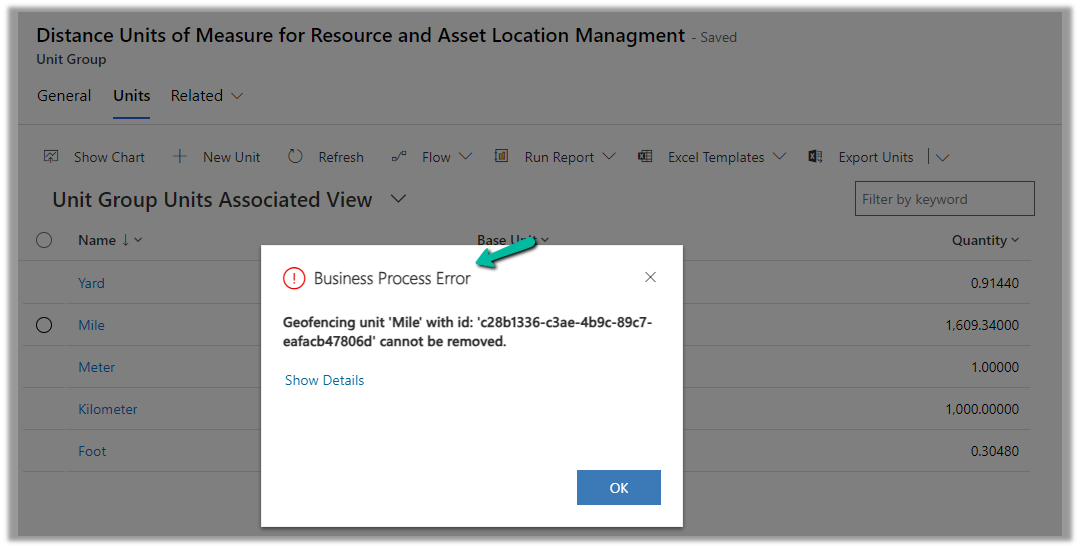
While trying to delete the Unit records related to the “Distance Units of Measure for Resource and Asset Location Management” unit group, we will get the below error

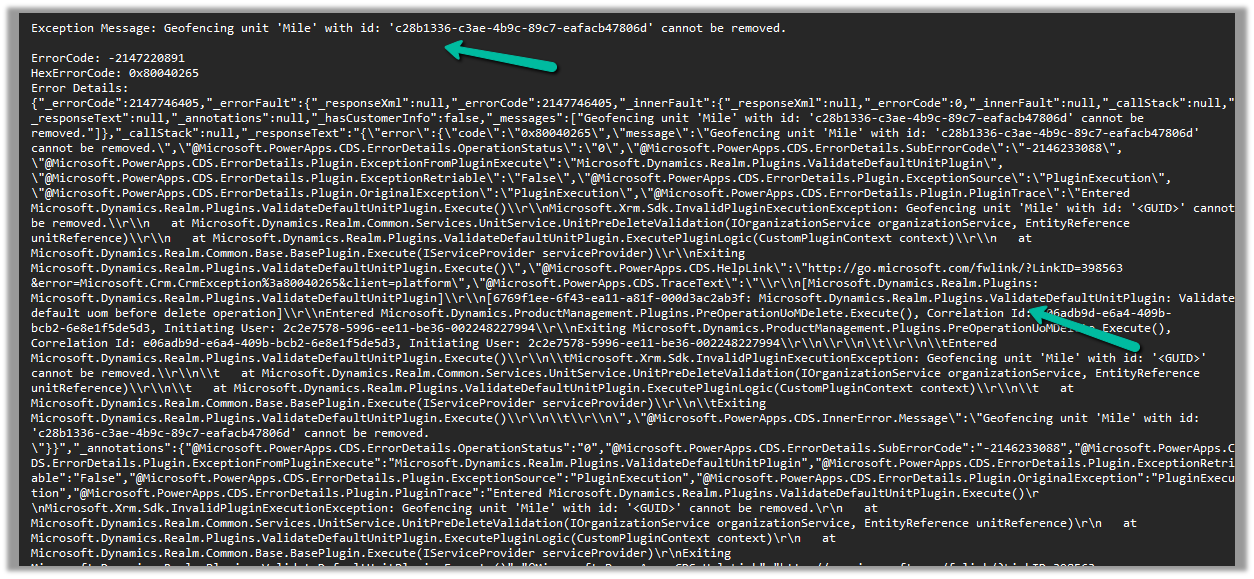
Geofencing unit ‘Mile’ with id: ‘<GUID>’ cannot be removed

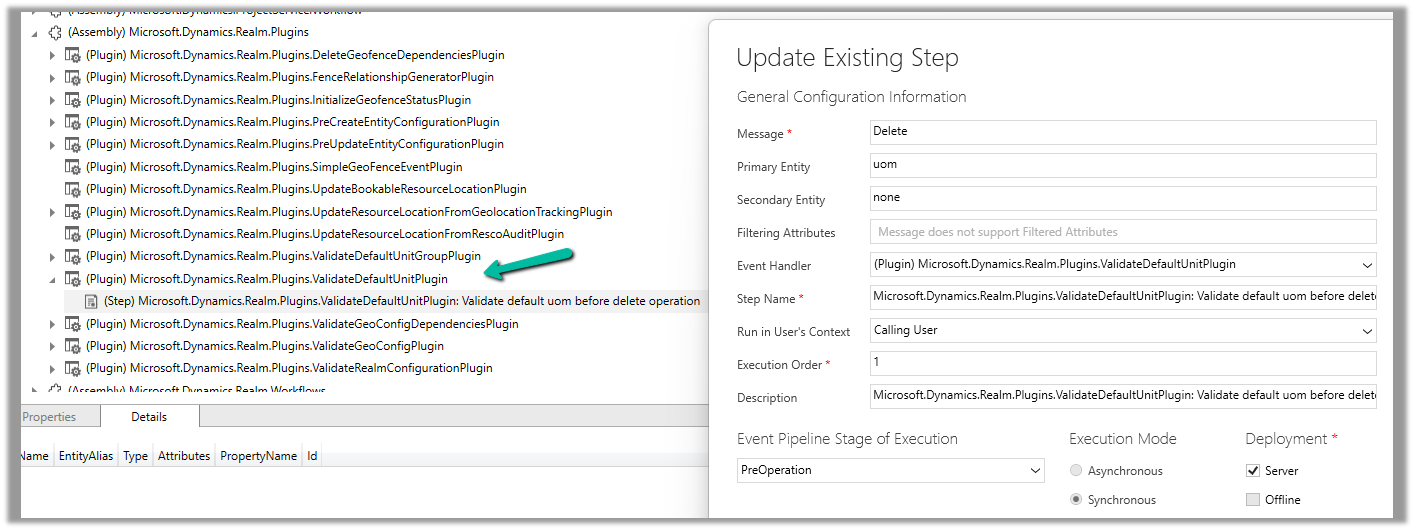
Below is the out of the box plugin that restricts the deletion of the unit

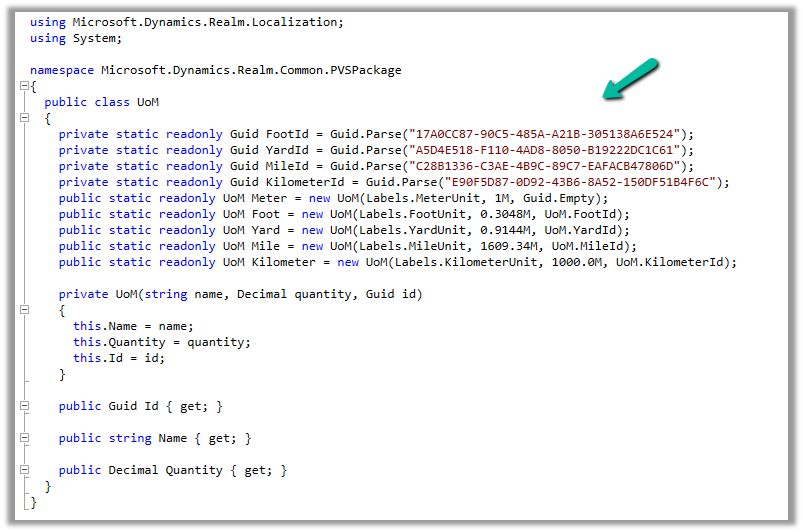
The code for the plugin –

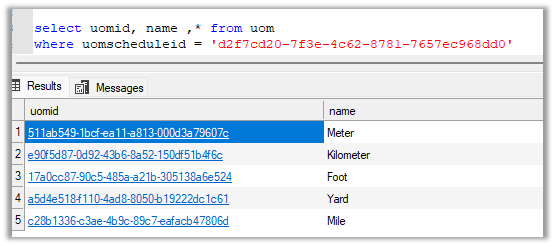
UOM GUIDs –

And the GUIDs within the environment –

To know more about Geofencing.

Hope it helps..
Advertisements

Using Union function to remove duplicates – Power Automate / Dataverse


We recently got the below error in one of our cloud flows, the requirement was to fetch the distinct work orders that have notes with attachments associated with them.

A resource of type ‘Microsoft.Dynamics.CRM.annotation’ was found in a resource set that otherwise has entries of type Microsoft.Dynamics.CRM.msdyn_workorder’. In OData, all entries in a resource set must have a common base type.

This occurs if we try using the aggeration in the Fetch XML queries in the List rows action.

The solution was to rewrite the fetch xml query without using aggregation.

And then next if we want to get the distinct values, we can use the Union function for that.

Here,

we are first adding the GUIDs to the varLstWorkOrderGUID array variable using Append to array variable action

And then applying the Union function – to remove the duplicate from the array.

union(variables(‘varLstWorkOrderGUID’), variables(‘varLstWorkOrderGUID’))

The result –

More on Fetch XML Query

Hope it helps..

Advertisements

Fixed- The XRM workflow table row could not be found error (Power Automate)


Recently while trying to open one of our cloud flows we got the below error.

Error: The XRM workflow table row could not be found.

Inside the Power Automate maker portal for the new designer, we got the below error

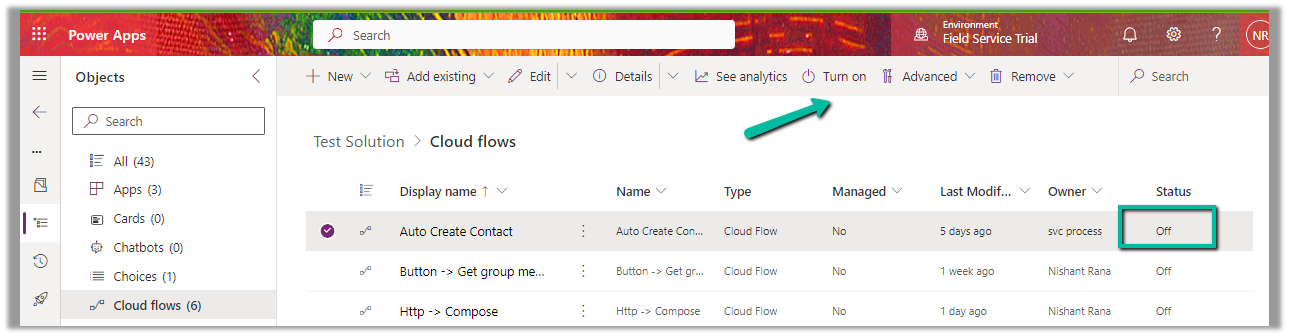
We could see our flows were in the OFF status.

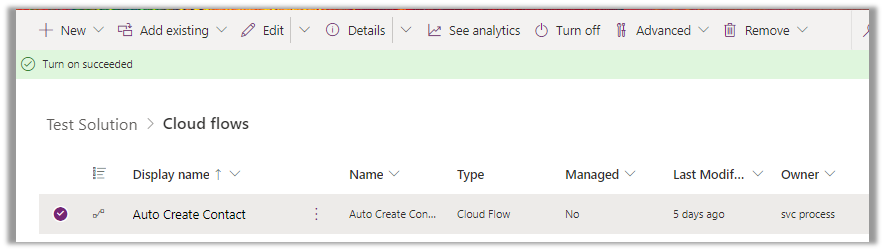
We switched ON the flows, and this fixed the issue for us.

We were able to edit our flow then.

As we recently restored the environment (was deleted), because of which the corresponding ‘Callback Registration’ records might be incorrect or missing. So enabling the flows would have created new entries in the Callback registration records for our flows, which fixed the error.

Please refer- https://rajeevpentyala.com/2021/01/30/callback-registration-expander-system-jobs-waiting-for-resources/

Hope it helps..

Advertisements