Using Parent Context in Dynamics 365 Plugins — Detecting System-Triggered Operations (Dataverse / Dynamics 365)


In this post, we’ll look at how we used the ParentContext property in Dynamics 365 plugins to determine if a plugin execution was triggered by another plugin and perform logic conditionally. This came up in two real-world cases — one where we needed to prevent duplicate Sales Leads created automatically through Event Management, and another where we wanted to match the correct Campaign when a Lead was updated through a Marketing Form submission.

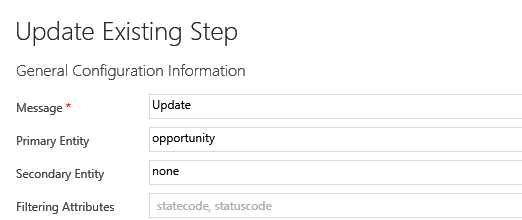
In the first scenario, we had a plugin registered on the Pre-Create of Lead. We wanted to block duplicate Sales Leads only when they were created via CRM’s Event Plugin, not during manual Lead creation. To achieve this, we checked if the plugin execution had a ParentContext. When present, it meant the Lead creation was triggered by another process, not a user. We confirmed it was the system’s Event Plugin by checking the msevtmgt_originatingeventid field (this field will be auto-populated for a lead created by event) and depth. If the Lead was of Enquiry Type “Sales” and had an email address, we checked for duplicates and stopped the creation if one existed. This ensured duplicates were blocked only for system-triggered Leads.

The second case involved the plugin, registered on the Update of Lead. Here, we needed to identify if a Lead update was triggered by a Marketing Form submission (from the msdynmkt_marketingformsubmission table) and only then run our Campaign mapping logic. We used ParentContext to walk up the plugin chain and confirm the origin. Once verified, we called our logic to assign the correct Campaign based on the Region or Village. This made sure the Campaign logic only ran for Leads updated by Marketing automation, not for regular user edits.

In both cases, using ParentContext gave us precise control over when the plugin logic should run. It allowed us to differentiate between user actions and system-triggered updates, avoiding redundant execution and maintaining a cleaner automation flow.

Hope it helps..

Advertisements

Fixed – “Action cannot be performed. This quote is not owned by Dynamics 365 Sales” in Dataverse / Dynamics 365


Recently, while working with Quotes in Dynamics 365 Sales integrated with Supply Chain Management (SCM) through Dual-write, we encountered an interesting error while trying to activate an existing quote.

When attempting to activate Quote, the system threw the following error message:

Checking the Plugin Trace Log, we found the following details:

Entered Microsoft.Dynamics.SCMExtended.Plugins.QuotePreUpdate.Execute(), Correlation Id: 97636eb7-a10c-4503-918f-6dd7b8c1a671, Initiating User: 2953f4a9-ffca-ea11-a812-000d3a6aa8ae

QuoteService: PreUpdate.

Validate calling user $2953f4a9-ffca-ea11-a812-000d3a6aa8ae.

Calling user not DataIntegrator

Feature: Dynamics. AX.Application.SalesQuotationD365SalesFeature; Enabled: True

QuoteService: update from CE.

Validate calling user $2953f4a9-ffca-ea11-a812-000d3a6aa8ae.

Calling user not Dual-write.

SCM plugin exception: Action cannot be performed. This quote is not owned by Dynamics 365 Sales., at Microsoft.Dynamics.SCMExtended.Plugins.Services.QuoteService.ValidateIntegrationOwnerOnStateCodeChange(LocalPluginContext localContext, Guid quoteId)

Interestingly, this issue occurred only for old quote records — the ones created before Dual-write was enabled.

All newly created quotes after enabling Dual-write worked perfectly fine and could be activated without any error.

When comparing both sets of records, we noticed one key difference:

The msdyn_quotationownership (Ownership) field was blank for old quotes, while it was populated for the new ones.

This field plays an important role once Dual-write is enabled. The Microsoft.Dynamics.SCMExtended.Plugins.QuotePreUpdate plugin checks the Ownership field during operations like quote activation to validate the integration source.

If this field is empty, the plugin assumes the quote doesn’t belong to Dynamics 365 Sales and blocks the action, resulting in the error we saw.

Here we simply needed to set the missing ownership field.

A screenshot of a computer

AI-generated content may be incorrect.

To resolve the issue, we bulk updated all old quotes to set the missing Ownership (msdyn_quotationownership) field to Dynamics 365 Sales.

Once updated, the system immediately allowed us to activate quotes successfully — no more errors.

Hope it helps..

Advertisements

Understanding “Block Deletion of Out-of-the-box Attribute Maps” in Dataverse / Dynamics 365


In Dynamics 365, attribute maps define how data flows from one record to another when creating related records. For example, when creating a Contact from an Account, fields like Address, Phone Number, and Website are copied automatically through predefined mappings. These mappings are part of standard Microsoft solutions like Sales, Customer Service, and Marketing.

If we try deleting these out-of-the-box (OOB) mappings, we will encounter an error — the platform restricts the deletion of system mappings to protect standard data flow and solution integrity.

A screenshot of a computer error

AI-generated content may be incorrect.
A screenshot of a computer

AI-generated content may be incorrect.

Using the Block Deletion of Out-of-the-box Attribute Maps feature setting, we can govern this behavior. Navigate to Environment → Settings → Features to locate this option.

A screenshot of a computer

AI-generated content may be incorrect.

When we disable this setting, the platform allows the deletion of OOB mappings.

A screenshot of a computer

AI-generated content may be incorrect.

A screenshot of a computer

AI-generated content may be incorrect.

In some scenarios, it could be applicable, like during lead conversion, where we may want to remove OOB mappings (like Address, Job Title, or Description) to populate these fields using external data. Some organizations use a custom quoting process instead of the OOB Opportunity → Quote flow. They remove the standard attribute maps that automatically copy data into Quote fields to prevent conflicts with their own automation.

However, even if these mappings are deleted, they can reappear when Microsoft pushes future solution updates. The recommendation is to only disable this setting if there is a specific and controlled use case, typically in a non-production environment, and with a backup plan in place. Keeping this setting enabled ensures consistency and prevents loss of important system logic that underpins Dynamics 365’s standard data flow.

Hope it helps..

Advertisements

Flows getting triggered multiple times / missing callbackregistration record – Power Automate / Dataverse


Recently, we observed that one of our flows was getting triggered multiple times in our UAT environment; however, the flow was working properly in our Development environment.

A screenshot of a computer

AI-generated content may be incorrect.

On comparing the flows trigger, we didn’t find any differences.

A screenshot of a computer

AI-generated content may be incorrect.

However, when checking for the callbackregistration record, we observed that for the Dev env, we had the callbackregistration record available.

A screenshot of a computer

AI-generated content may be incorrect.

However, it was missing for our UAT environment.

A screenshot of a computer

AI-generated content may be incorrect.

Turning the flow on and off didn’t create the corresponding callbackregistration record.

https://nishantrana.me/2025/09/02/fixed-flow-not-getting-triggered-incorrect-callback-registration-record-power-automate-dataverse/

Eventually, we deleted the trigger and recreated it in the UAT.

A screenshot of a computer

AI-generated content may be incorrect.

After recreating the trigger, we could see our flow getting triggered only once as expected.

A screenshot of a computer

AI-generated content may be incorrect.

However, we also noticed that the name of the callbackregistration record was not just the GUID, but it also had MTA suffixed to it in our UAT.

daf9fae3-a405-ee11-8f6e-00224817f864:MTA

A screenshot of a computer

AI-generated content may be incorrect.

So may this record was already existing and had an incorrect filter expression, which got fixed when we deleted and created a new trigger.

We also deleted this callbackregistration record, and turned our flow on and off. This created a new callbackregistration record with the same MTA suffixed to it.

A screenshot of a computer

AI-generated content may be incorrect.

So the solution here could be to find the callbackregistration record either with a GUID or with MTA suffixed to it, delete the record found, and turn the flow on and off.

Hope it helps..

Advertisements

JavaScript Gotcha: Why [x == (a || b)] Fails


Recently we observed that our JavaScript code was not working as expected.

Now when we write conditions in JavaScript, it’s natural to want to check if a variable equals one of multiple values. A common mistake is to write the condition like this:

if (loanType == (CareFeeDeferralFeesShort || CareFeeDeferralFeesLong)) {
    // do something
}

At first glance, it seems like this would check if ‘loanType’ is equal to either ‘CareFeeDeferralFeesShort’ or ‘CareFeeDeferralFeesLong’`’. Unfortunately, that’s not what JavaScript actually does.

The ‘||’ operator in JavaScript doesn’t return a boolean. Instead, it returns the first truthy value it encounters.

For example:

console.log(1 || 2); // 1

console.log(0 || 2); // 2

So in our case:

If ‘CareFeeDeferralFeesShort’ is ‘1’, then ‘(CareFeeDeferralFeesShort || CareFeeDeferralFeesLong)’ becomes ‘1’.

If it’s ‘0’ (falsy), then the expression becomes ‘CareFeeDeferralFeesLong’.

This means the condition effectively reduces to checking only one value, not both.

The right way is to compare the variable separately against both values:

if (loanType == CareFeeDeferralFeesShort ||
    loanType == CareFeeDeferralFeesLong) {
    // do something
}

Here, JavaScript evaluates each equality independently:

‘loanType == CareFeeDeferralFeesShort’

‘loanType == CareFeeDeferralFeesLong’

If either is true, the whole condition passes.

Takeaway

(x == (a || b)) is not the same as `x == a || x == b`.

Hope it helps..

Advertisements

What are Partial Merges in Business Process Flow (BPF), and what can we do about it – Dataverse / Dynamics 365


Let’s take an example.

Suppose we have the following Business Process Flow (BPF) for Leads:

If the Lead Type = Grade A, we want the Grade A Details stage to appear. For other grades (B, C, D), we skip that stage and continue. So far, this is simple.

A screenshot of a computer

AI-generated content may be incorrect.

Now, say we have a new business requirement :

For Grade D, the process should only have the Initial Review and its own Closed stage. For Grades B and C, the process should follow Other Details + Closed.

To handle this, we added a condition:

If Lead Type = B or C → go to Other Details

Else (Grade D) → go directly to Grade D (Closed)

A computer screen shot of a computer

AI-generated content may be incorrect.

However, when we try to connect the B/C path to Other Details, the D path (Closed) also gets merged into it.

A screenshot of a computer
AI-generated content may be incorrect.
This is because of the way branching works in BPF.

Dataverse does not support “partial merges.” That means we can’t end one branch early and merge another branch later. If we merge one branch, Dataverse forces all branches to merge into the same stage.

A screenshot of a computer

AI-generated content may be incorrect.

One Branch Ends, One Branch Merges (Not Supported) – If we try to design a BPF where one branch terminates in its own last stage while the other continues and merges into a later stage, the platform will not allow it.

There are two ways to solve this:

Option 1: Repeat the stages : Instead of trying to merge one path and end another, duplicate the stages where needed.

For example, create a separate Other Details and Closed stage for Grades B and C.

A computer screen shot of a computer

AI-generated content may be incorrect.

Option 2: Simplify with fields / scripts

If we don’t want to repeat too many stages, we can:

Move the Lead Type field and Grade A Details fields into the Initial Review stage. Use business rules or form logic to show/hide those fields based on Lead Type. Delete the extra Grade A Details stage.

Update the condition so that the flow only needs one condition (A/B/C vs D).

A computer screen shot of a computer screen

AI-generated content may be incorrect.

Key Takeaway –

In Dataverse BPF:

One branch ending while another merges is not supported.

Either all branches merge or each branch must have its own end stage.

The solution is to repeat stages where needed, or simplify the design using fields and conditions.

Hope it helps..

Advertisements