Data Migration of Quote and Quote Product – few key points (Dataverse/Dynamics 365/ SSIS)


Below are the different out-of-the-box statecode and statuscode for the Quote table.

Status (statecode)

Status Reason (statuscode)

0 (Draft)

1 (Inprogress)

1 (Active)

2 (Inprogress)

3 (Open)

2 (Won)

4 (Won)

3 (Closed)

5 (Lost)

6 (Canceled)

7 (Revised)

Now if we are trying to migrate Quote records that are in either 2(Won) or 3(Closed) status (statecode), our package will fail and we will get the below error.

{“error”:{“code”:”0x80040233″,”message”:”Quote can’t be closed because it is in Draft state. Only Active Quote can be closed. Please activate the Quote and then try to close it.”}} -batchresponse_aa072eca-fd15-4067-8f2b-41f7b3dfad1c– )System.Net.WebException

This is because we cannot directly create the Quote record with the status either Won or Closed.

It will create those records with the status Draft instead.
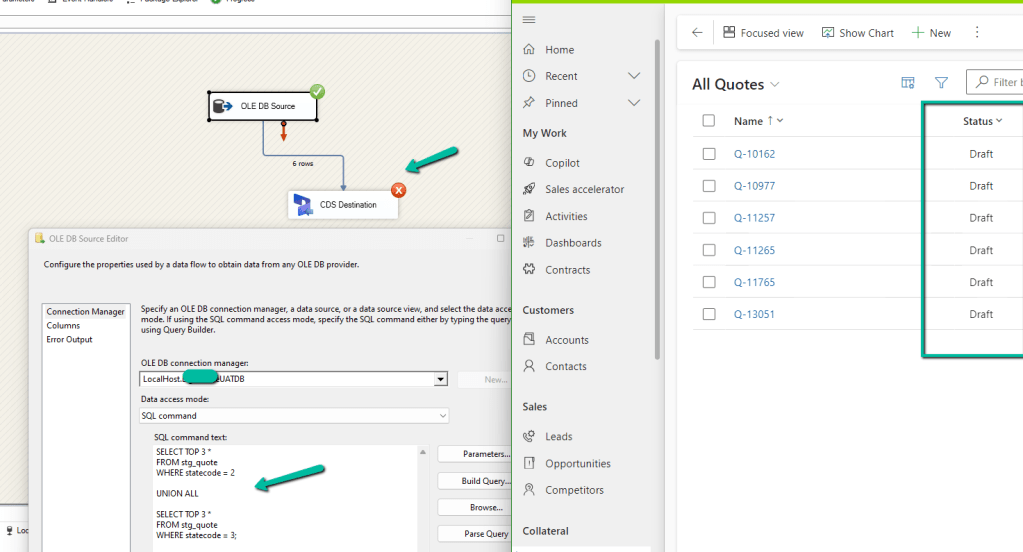
However we can create Quote records with either Draft or Active status, we will not get the above error.

Now another point to be considered is, if we are moving the quote product record also, is that we cannot associate the quote product to a quote if it is in Active or Closed / Won status, it has to be draft status for the quote product to be associated.

If we try adding / associate Quote Product to either an Active or Closed Quote, we will get the below error –

A screenshot of a computer

Description automatically generated

: The remote server returned an error: (400) Bad Request. (Error Type / Reason: BadRequest, Detailed Message: {“error”:{“code”:”0x80043b09″,”message”:”The detail cannot be updated because the parent is not editable.“}})System.Net.WebException (Status Reason: BadRequest): The remote server returned an error: (400) Bad Request.”

And as expected with Draft Quote we can associate quote products.
A screenshot of a computer

Description automatically generated

So basically if we are planning to migrate Quote and Quote Product to Dataverse/Dynamics 365

  • First, move all the Quote with status as Draft (i.e. do not map statecode and statuscode)
  • Then associate Quote Product to it. (also certain fields are only available for update and not create, you could run update Quote Product package to update those fields)
  • Next, we can update all the Quote as Active (along with any other fields that are available only for update and not create), and then run another update package to update the actual statecode and statuscode values as now from the Active status we could move to draft or closed status without any issues.

And also please check the CRM Migration Starter Kit for further details and guidance.

https://www.kingswaysoft.com/blog/2020/12/17/Announcing-Migration-Starter-Pack-v40-for-Microsoft-CDS-and-Dynamics-365CRM

Hope it helps..

Advertisements

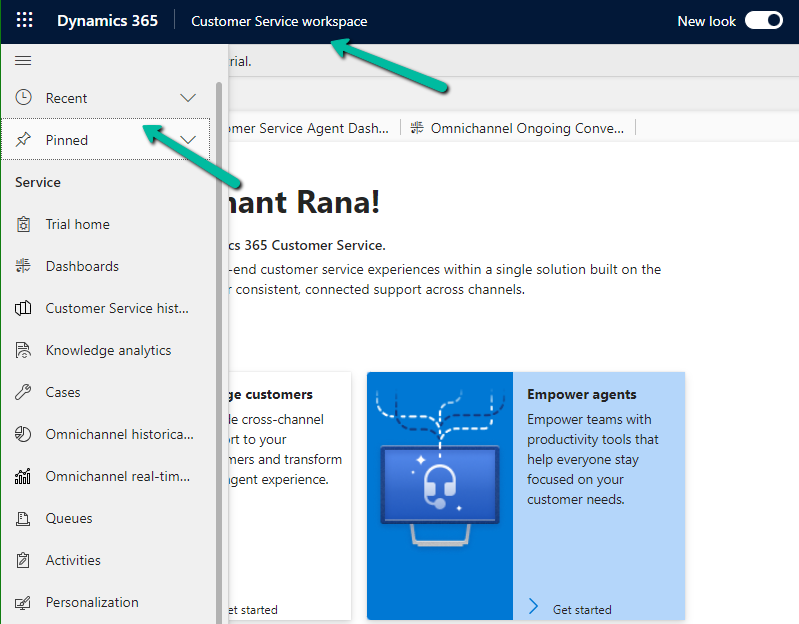
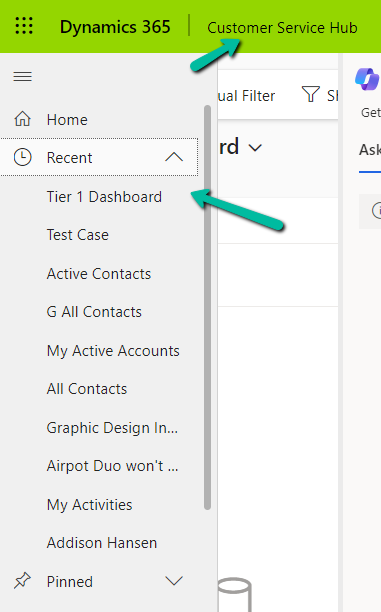
Recent and Pinned options are available now for multi-session app’s sitemap (e.g. Customer Service Workspace)


As we would have observed now we have the Recent and and Pinned records option available for the Customer Service workspace app.

A screenshot of a computer

Description automatically generated

The users can see the same Recent and Pinned records while moving between the Customer Service workspace and Customer Service Hub app, giving a consistent experience.

Recent :

Pinned :

Get all the details.

Hope it helps..
Advertisements

Fixed – CRM service call returned an error: An error has occurred when retrieving metadata for CRM entity ‘table’: The source argument contains duplicate keys – Dataverse/ Dynamics 365 / SSIS


Recently while trying to retrieve OptionSet Metadata using our favorite KingswaySoft SSIS Toolkit we got the below error.

Same error for prod also – [CDS Source [2]] Error: An error occurred with the following error message: “KingswaySoft.IntegrationToolkit.DynamicsCrm.CrmServiceException: CRM service call returned an error: An error has occurred when retrieving metadata for CRM entity ‘copilotexamplequestion’: The source argument contains duplicate keys. (SSIS Integration Toolkit for Microsoft Dynamics 365, v23.2.2.32701 – DtsDebugHost, v16.0.5270.0)System.ArgumentException.  : The source argument contains duplicate keys.”.

More on Metadata Source in CDS Source Component – https://www.kingswaysoft.com/blog/2022/10/18/Introducing-the-Metadata-Source-Type-in-CRMCDS-Source-Component

Interestingly we were getting this issue while running the package in the UAT and Production environment, it was working fine for the Dev environment. Also, it was OOB Table and we could compare and see it to be the same across all the environments.

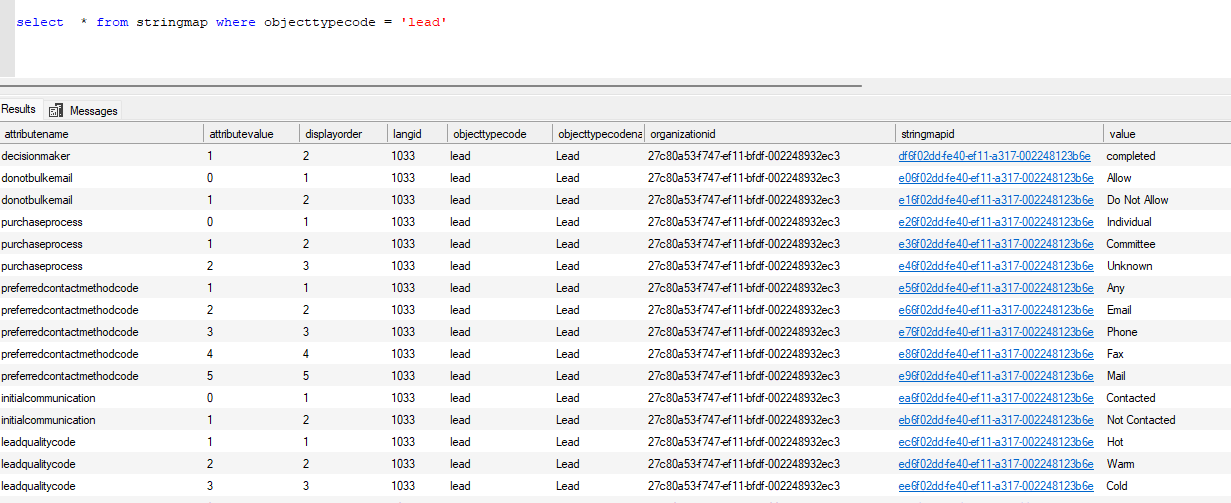
Well, the way we could progress here is to query and get the required details from the stringmap table.

e.g.

A screenshot of a computer

Description automatically generated

Hope it helps..
Advertisements

Fixed – CRM service call returned an error: The number of decimal places on quantity needs to be 0 or less for Quote Product (Dynamics 365 / Dataverse/SSIS)


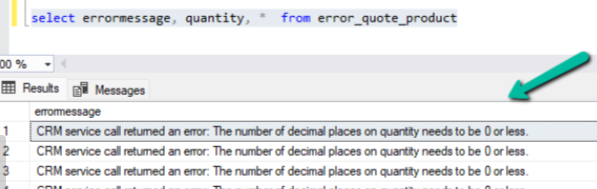
While running an SSIS Package that creates Quote Product records, we got the below error –

CRM service call returned an error: The number of decimal places on quantity needs to be 0 or less

If we see the decimal places seem to be specified properly for the quantity field in the source file as we had other records created properly from the source.

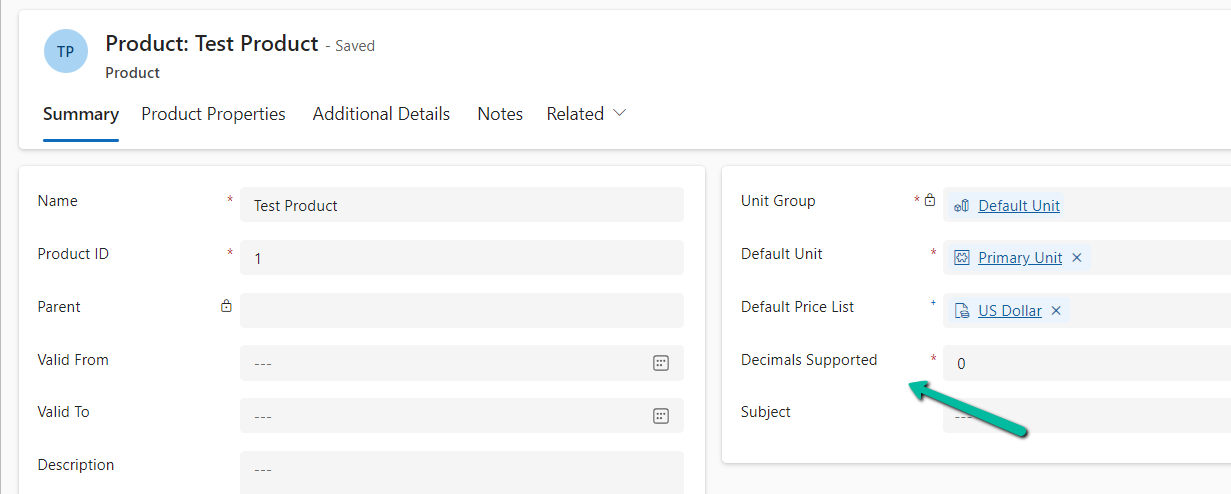
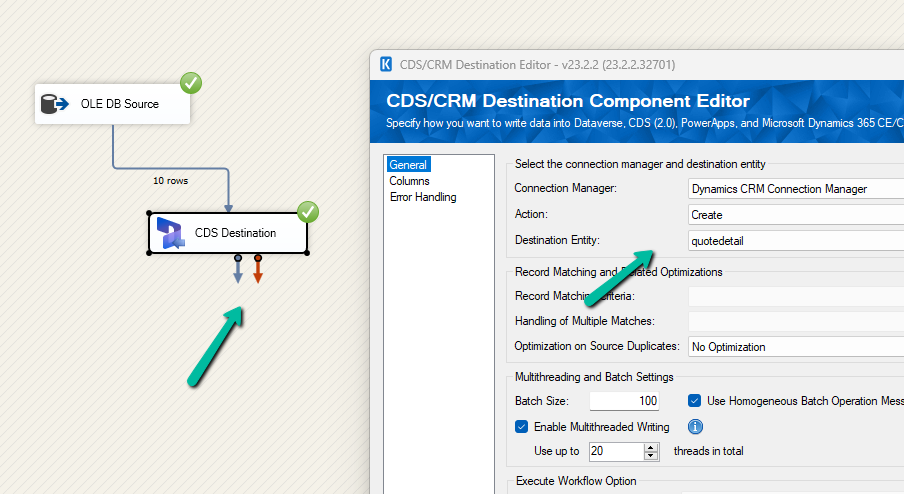
Well this occurs when we try to add Quote Product and specify decimal precision in quantity which is more than what has been specified in the associate product.

Below we can see the decimal supported is 0 for the product associated to the quote product record.

A screenshot of a computer

Description automatically generated

To fix this problem, either we have to increase the decimal supported value or remove decimal precision from the quantity in the quote product based on the product in question.

Hope it helps..
Advertisements

New features added in Grid– Dataverse / Dynamics 365


With Release Wave 2, we can see the below features added to Grid.

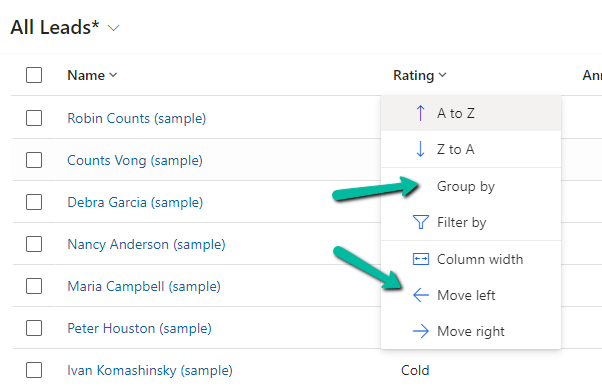
The option to Group By, Column Width, Move Left and Move Right.

A screenshot of a computer

Description automatically generated

Group By (Rating) –

A screenshot of a computer

Description automatically generated

Move Left and Move Right as expected will move the selected column accordingly. Not only that we can also Drag and Drop the columns, here we have dragged the Rating column as the 1st column.

A screenshot of a computer

Description automatically generated

Column Width – allows us to specify the preferred width of the column.

A screenshot of a computer

Description automatically generated

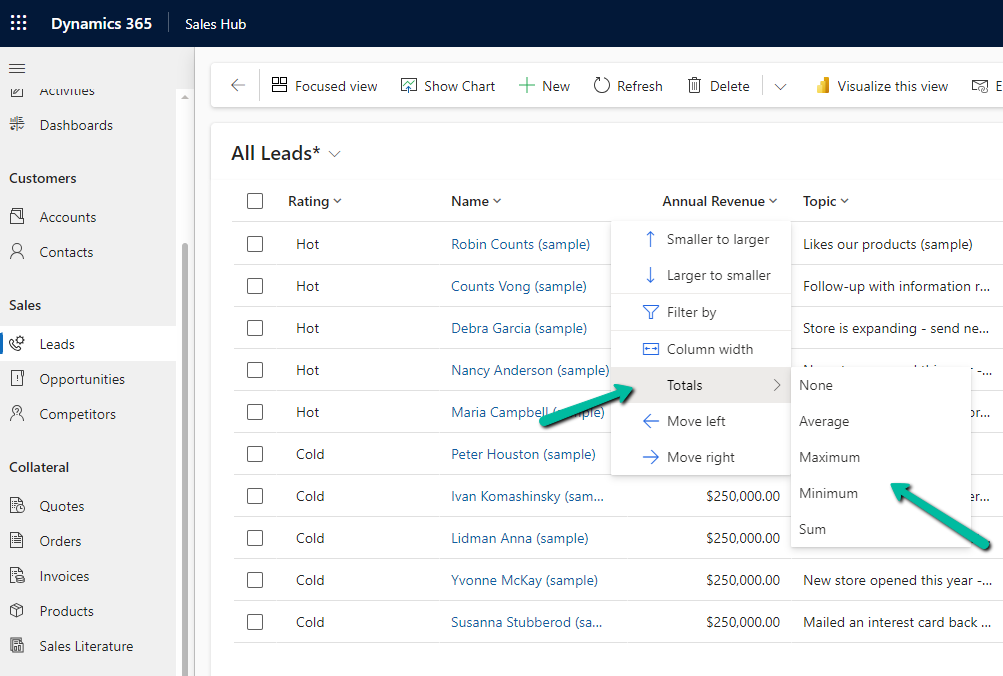
Totals > None, Average, Maximum, Minimum, Sum.

For the numerical column, Annual Revenue in this case we get the option to calculate the total

A screenshot of a computer

Description automatically generated

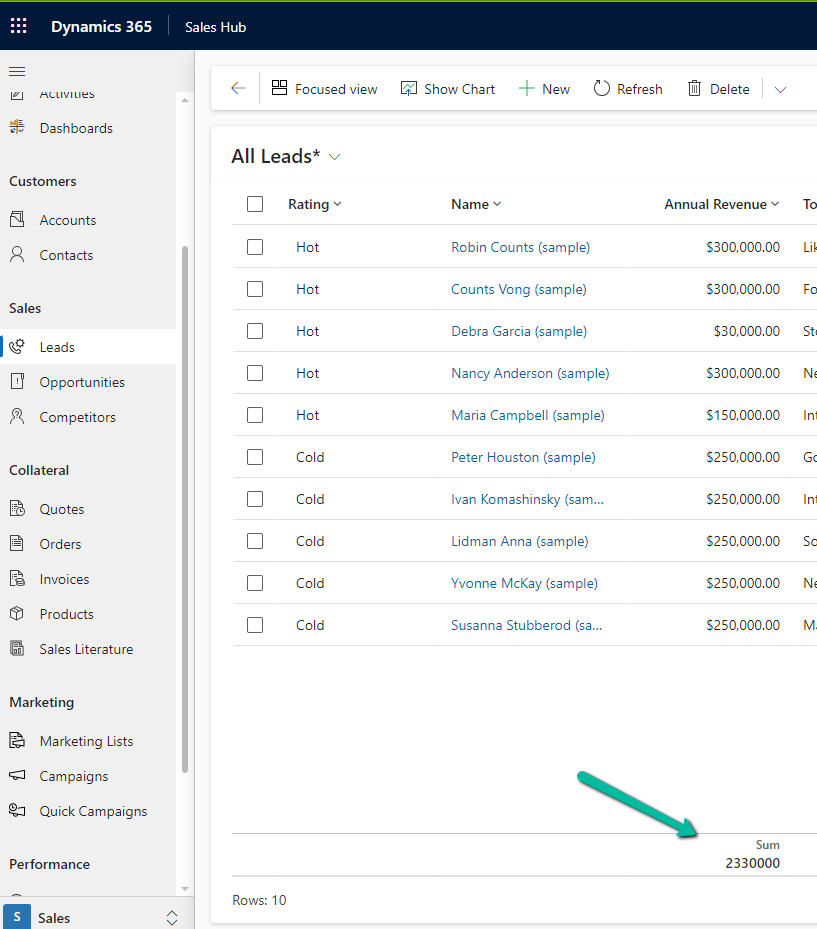
Selecting Total > Sum, adds a row at the bottom, showing the total sum

A screenshot of a computer

Description automatically generated

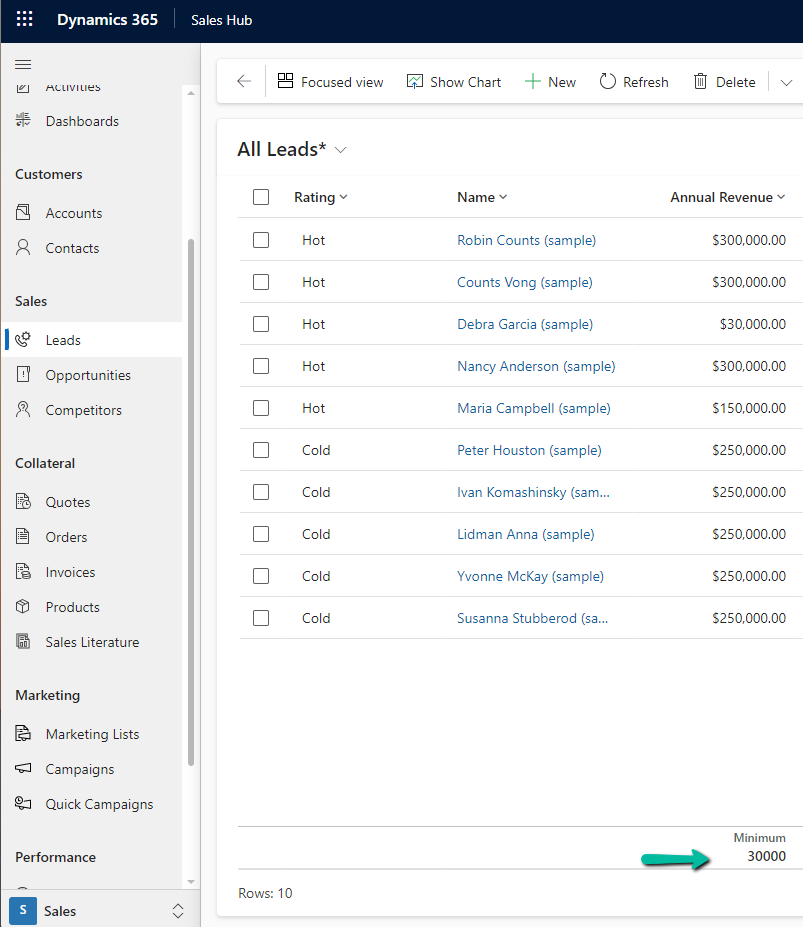
Similarly selecting minimum shows the minimum value.

A screenshot of a computer

Description automatically generated

Hope it helps..

Advertisements

Hide / Show Legacy App (Dynamics 365 – Custom) from Everyone and / or Admin – Model-Driven App / Dynamics 365


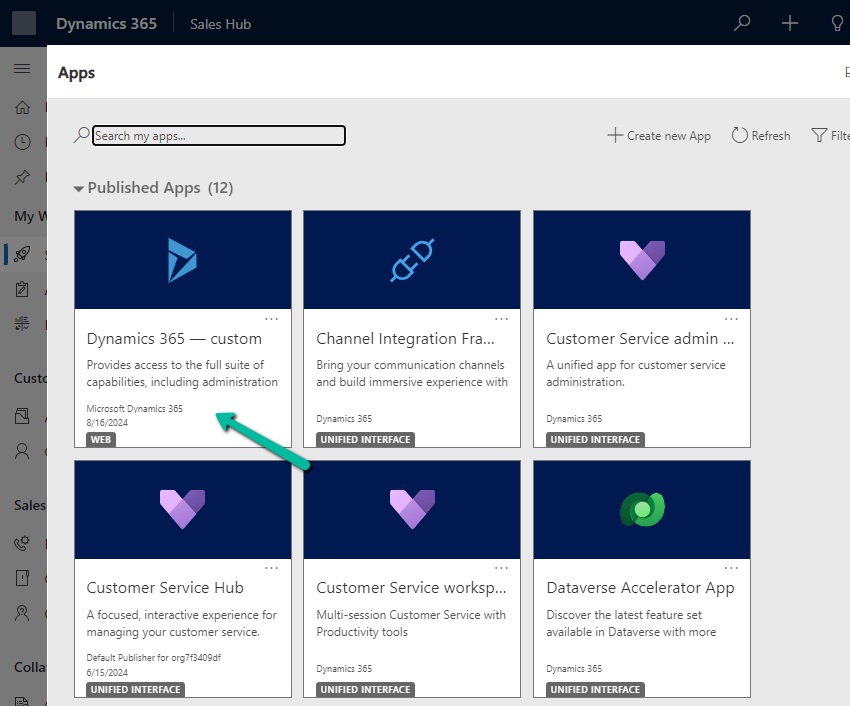
From the Power Platform Admin Center for a particular Environment, through Settings >> Product >> Behaviour >> Show legacy app for admins option, we can control visibility of the Legacy App (Dynamics 365 – Custom) for admins.

If Show legacy app for admins = On –

A screenshot of a computer

Description automatically generated

An admin can see the app

A screenshot of a computer

Description automatically generated

By setting it to Off

A screenshot of a computer

Description automatically generated

We can see the app hidden for the admins also.

A screenshot of a computer

Description automatically generated

The aim is that all the users including admin must use only the modern, model-driven apps.

Get more details

Hope it helps..

Advertisements