NEW YEAR, NEW “YOU”


Sapna Rana Rawat's avatarSapna's Yoga Diary

Are you planning for new year resolution and thinking on how you can make 2019 a “happy year”? It all begins and ends with ‘YOU’ so, see how you can improve on your weaknesses, your relationships, and most importantly your “Health and wellbeing”. Make your resolution to create a better version of “You”. Following are a few things which will help you gain the maximum this year, take a look:

  • Show Gratitude: All begins from here, remember all the good times of the year and be thankful you got to witness such moments. You don’t remember every moment, the ones you do are really special, so say it aloud, “THANK YOU”!


  • The act of Giving: This is what I learned from my husband and the popular author Deepak Chopra. This year plan to give more, in fact, whenever you meet anyone, give that person something, it could be a…

View original post 361 more words

The new model-driven form designer (WYSISYG) in PowerApps for Model-driven apps (Dynamics 365 CE) Preview


The new model-driven form designer (Preview) has some nice features added to it like

  • Searching for fields in the form

  • Tree View showing visual hierarchy of the controls for quick view and navigation inside the form.

The icon also makes it easy to identify the data type of the field.

  • We can also check and configure how the UI would render for different type of client application

  • Property Pane for the type of control selected which allows us to quickly update the properties unlike selecting the field and then clicking on Change Properties which will open the dialog box.

Few things that we could not found are

  • Ability to select and position fields and sections.
  • Sub Grid control are not available on the form for configuration.
  • No Header.
  • Footer is available but we cannot add fields to it.
  • No Business Rules or Form Properties dialog box.
  • No Enable Security Roles option

  • No field explorer or Relationship explorer so cannot create new fields or relationships.

Get more details here

https://powerapps.microsoft.com/en-us/blog/introducing-the-new-wysiwyg-model-driven-form-designer-public-preview/

As Microsoft mentions it is just a start and they’d keep adding the remaining functionality, let us wait.

Hope it helps..

{knowhow} How to edit the Dynamics 365 App for Outlook screen


Debajit's avatarDebajit's Dynamic CRM Blog

Recently there was a requirement to change the Dynamics 365 App for Outlook screen. Basically when you set up the default App for Outlook, the Sitemap contains just the Activities and the Dashboards.

image

However the customer wanted to show the Accounts and some other custom entities there as well in the menu. So how do we include it?

It’s quite obvious that the change needs to be in the SiteMap. However how can I change the Sitemap of the App for Outlook screen? Strangely enough that’s one unexplored area and surprisingly even consultants working day in day out on CRM tends to miss out on this.

To modify the app UI, perform the below steps.

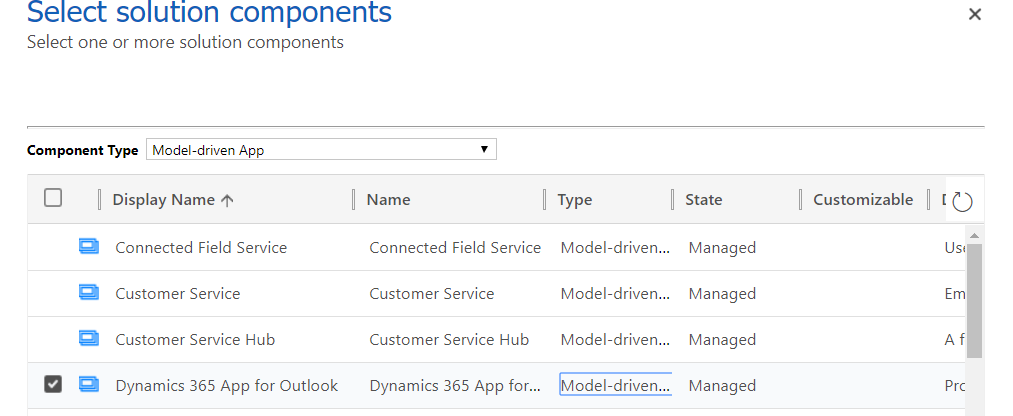
Open up your solution that you are working on and go to Model driven apps.

image

Add the Dynamics 365 App for Outlook app from the list of Apps.

image

Now it’s just like modifying any other…

View original post 48 more words

Embedding Canvas App on a Model-Driven App’s Form (Preview) – Passing list of related records as context


Similarly to passing the current record as context to the embedded canvas app, we can pass the list of related records as context.

Let us see how it works step by step.

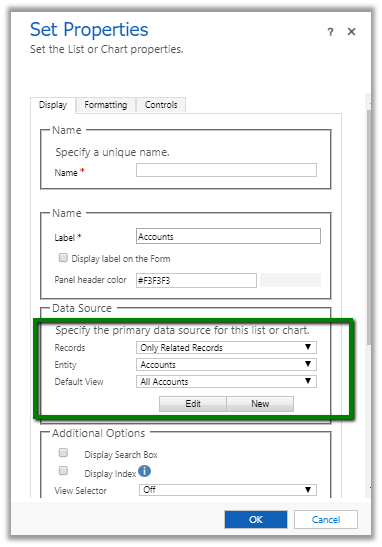
Open the form for customization and insert\edit an existing Sub-Grid control and select Canvas App for the Add Control option.

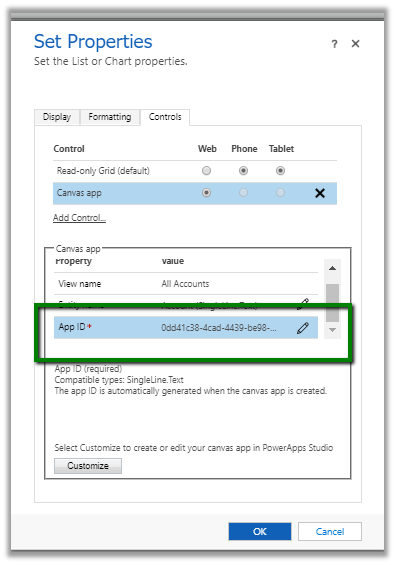
Select the option Web for the canvas app. Here clicking on Customize will open the PowerApps studio for creating\editing the app.

Here View Name shows All Accounts the Default View selected in the Data Source section of the Display tab of the properties dialog box.

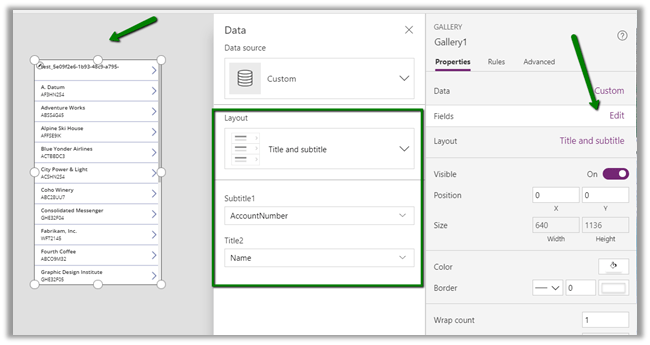
Clicking on Customize opens the PowerApps Studio as shown below. Here ModelDrivenFormIntegration is the special control which provides us the contextual data from our form.

Click on Edit, specify the layout and select from the available fields of the entity for the layout.

Go to App Settings à Advanced Settings and turn on the “Enable app embedding user experience”

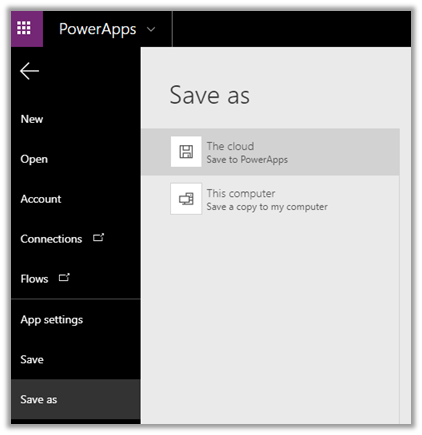
Save the app in the Cloud, this will also publish the app.

This will auto-generate the App ID and auto-fill it in the Set Properties dialog box of the Sub Grid control.

Save and publish the form.

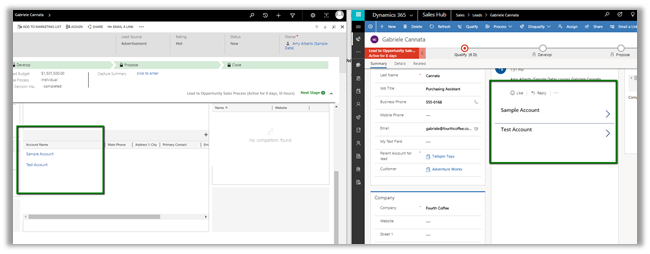
We can see our canvas app embedded in the Unified client interface as shown below in the right.

Also à

Hope it helps..

Embedding Canvas App on a Model-Driven App’s Form (Preview)


Login to Dynamics 365 CE, open any of the Entity’s form and either pick any of the existing single line of a text field or sub-grid control or add one to the form.

We will use Single Line of Text if we want to pass the current record as context and Sub-Grid if we want to pass the list of related records as context.

In this post, we will first see how to pass the current record as context.

For this let us open Lead form and select Topic field which is a single line of text for customization (Change Properties).

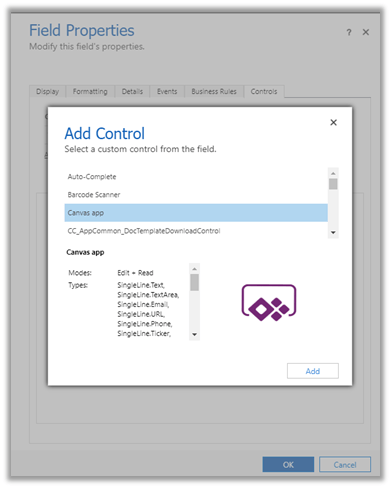
Select Controls tab, and click on Add Control and choose Canvas app.
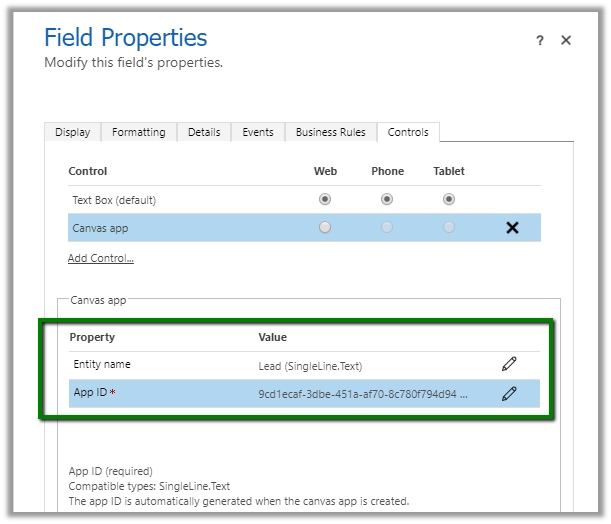
Here Entity name is auto-populated by the selected Entity and although it seems editable, changing it will have no effect.

App ID is auto-generated on creation of canvas app.
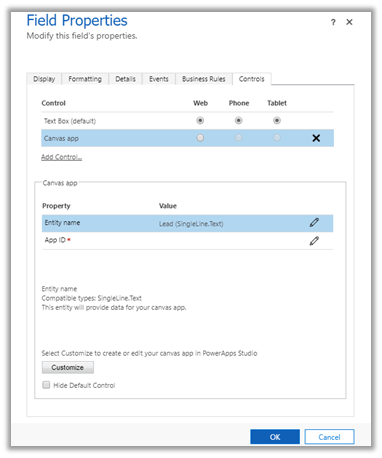

Let us click on Customize to create our canvas app. This opens the PowerApps Studio.

ModelDrivenFormIntegration is the special control which provides us the contextual data from our form.
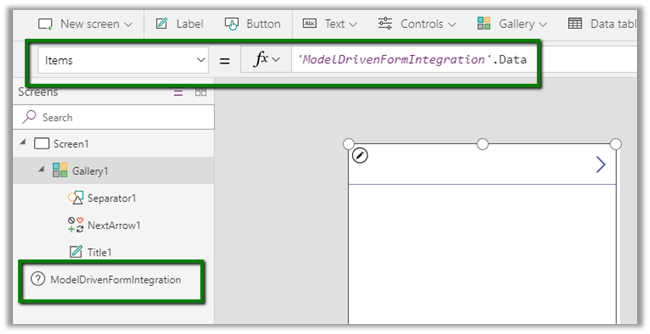
Clicking on Edit for the Fields property for the gallery1 control opens a pane that shows all the fields from our lead entity.
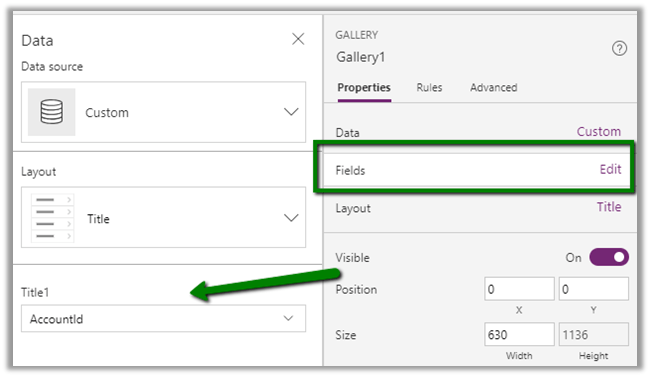
Let us change the Layout to Title, subtitle, and body and set Body1 to the description, Subtitle1 to Fullname and Title2 to Subject.

Now before saving and publishing the app, go to File à App Settings à Advanced Settings
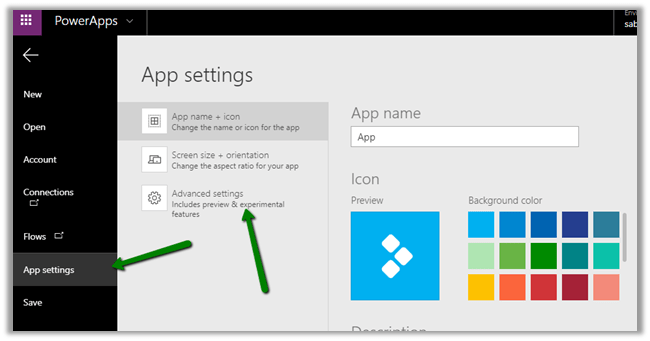
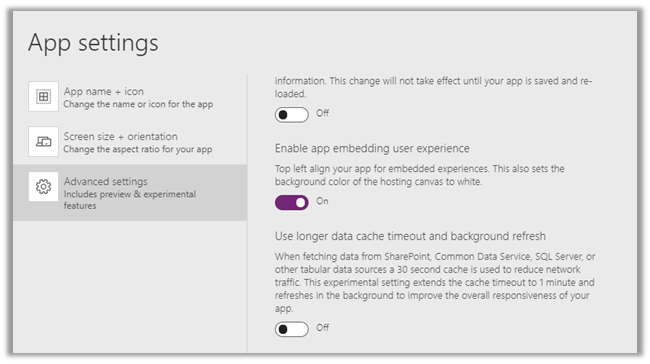
Set Enable app embedding user experience as On.
Save the App to the Cloud. This also publishes the app.
Back in our form editor, we can see the App ID auto-populated
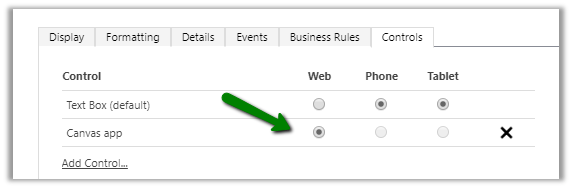
Select Web option for the Canvas App in the Controls Tab.
Click on Ok to close the form, followed by Save and Publish.

We can see the Canvas App in the form in the Unified Client Interface

Although the app doesn’t make much sense, it gives an idea on how to configure things for embedding it within form. This feature really opens up infinite possibilities.

Get all the details here

https://powerapps.microsoft.com/en-us/blog/enrich-your-model-driven-forms-with-embedded-canvas-apps-public-preview/

https://docs.microsoft.com/en-us/powerapps/maker/model-driven-apps/pass-current-embedded-canvas-app

https://docs.microsoft.com/en-us/powerapps/maker/model-driven-apps/embed-canvas-app-in-form

Hope it helps..

How to use special date operators (last-month for ex) in OData and MS Flow


Phani Rajasekhar's avatarPhani Rajasekhar

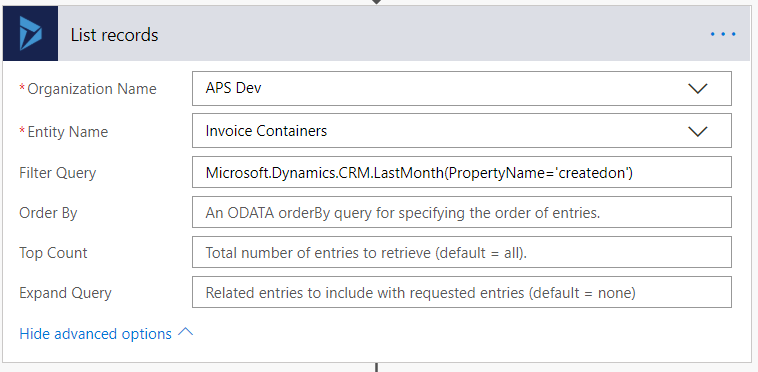
Today we got a requirement to fetch all the records that are created in the last month by using MS Flow. We can do this by using “Dynamics 365 List records” action and we have to provide OData filter query for this action. I tried to use the same “last-month” operator that we use in the fetch xml. But this will not work for OData query. We need to use “LastMonth” function for this as defined in this link. The below are the examples to use these date functions.

In OData Query

?$filter=Microsoft.Dynamics.CRM.LastMonth(PropertyName=@p1)&@p1=’createdon’

In MS Flow

Hope it is useful….

View original post