App Switcher, Back option and other changes in Dynamics 365 – 2020 Release Wave 2


Below are some of the updates in the product as part of 2020 Release Wave 2.

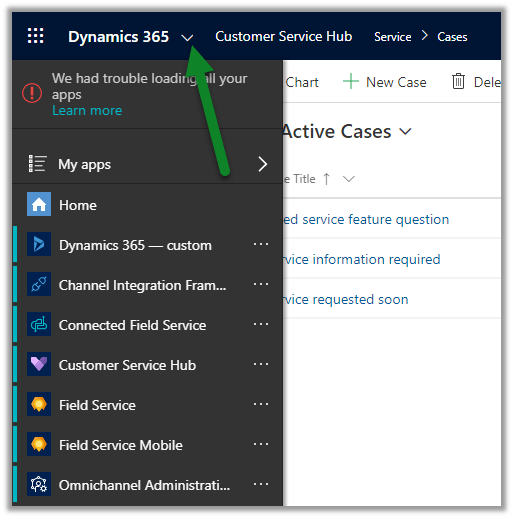
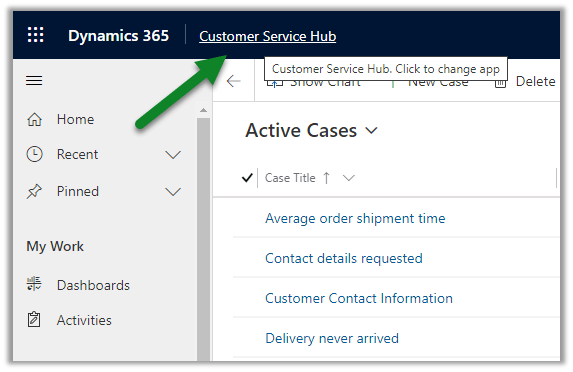
  • To switch between the Dynamics 365 Apps, we need to click on down arrow icon next to Dynamics 365.

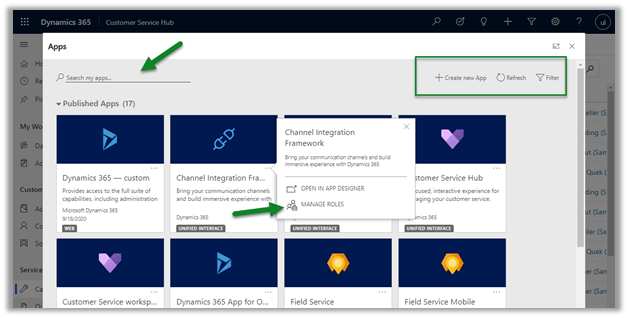
With 2020 Release Wave 2, we can click on the app name i.e. which opens up the pop-up windows listing all the apps.

We can search, create a new app, assign roles, filter etc.

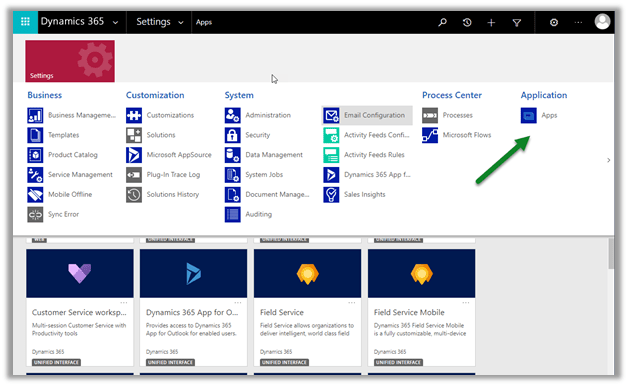
Earlier to access the same we had to navigate to Advanced Settings à Apps

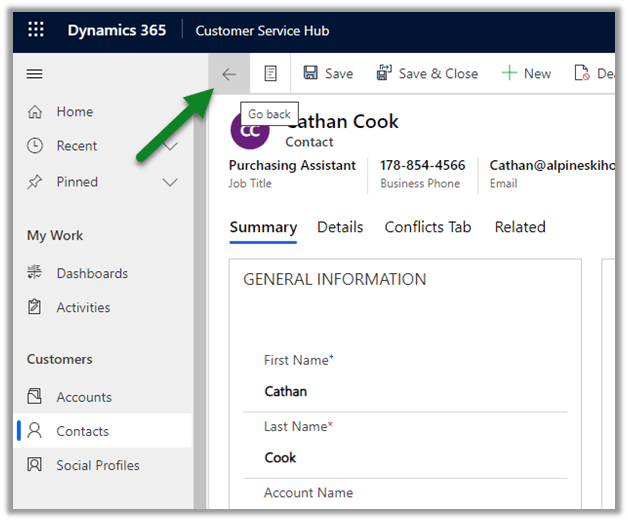
  • Next is the change in the Breadcrumb navigation

Is now seems to be replaced with the back button functionality

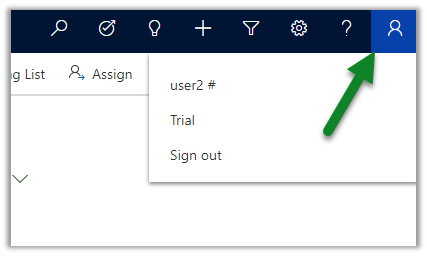
  • Also the User Account menu has also been updated earlier,

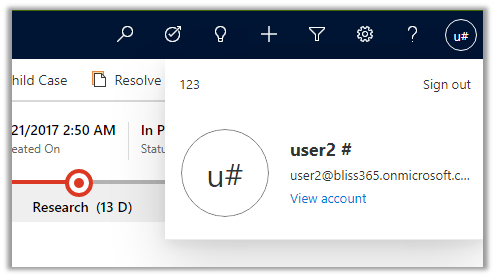
and now in 2020 Release Wave 2

View account takes user to the My Account page in Office 365

MyAccount

Check other blog posts on Release 2020 Wave 2

Hope it helps..

Azure AD – How to create your own SAML-based application using new Azure Portal


Tsuyoshi Matsuzaki's avatartsmatz

With new Azure Portal (https://portal.azure.com/), Azure AD provides very flexible SAML-based configuration, but some folks ask me where to do that ?
In this post, I show you the answer for this question using some bit of SAML-based federation sample code of PHP and Node.js.

Note : For the settings using Azure Classic Portal (Azure Management Portal), see my previous posts “Azure AD Web SSO with PHP (Japanese)” and “Azure AD Web SSO with Node.js (Japanese)“.

Settings with Azure Portal

First of all, I’ll  show you how the SAML settings page is improved by new Azure Portal.

When you want to register your own SAML-based application, select “Azure Active Directory” in Azure Portal, click “Enterprise applications” menu, and push “add” button.
You can select a lot of pre-defined (registered) applications (like Salesforce, Google, etc), but you click “Non-gallery application” link on top…

View original post 1,843 more words

Queue Item details change in Dynamics 365 – 2020 Release Wave 2


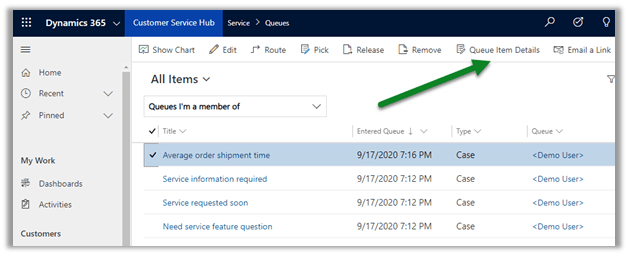
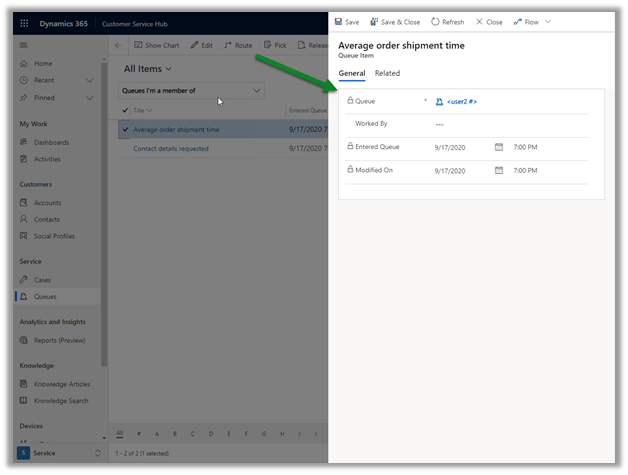
Queue Item details for a Queue Item earlier used to open in a new window.

Thus losing the context

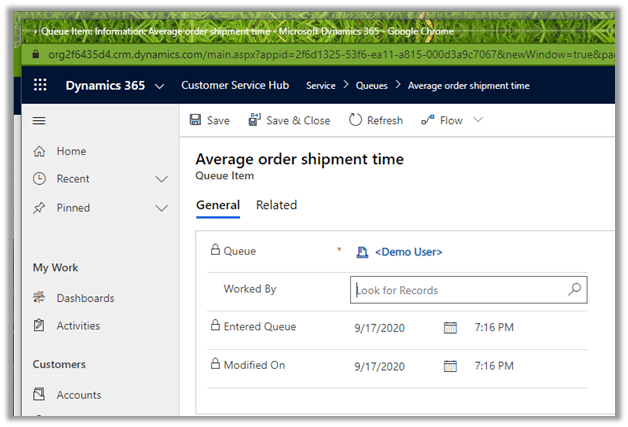
2020 Release Wave 2 provides an immersive experience for the agents, as the queue item details open in the context of the parent window.

Small but nice update for the agents.

Check other blog posts on Release 2020 Wave 2

Refer to below articles to understand more on Queues

MB2-714 (Microsoft Dynamics CRM 2016 Customer Service) : Queue Management

https://www.itaintboring.com/dynamics-crm/working-with-queues-in-dynamics/

https://carldesouza.com/releasing-queue-item-behavior-in-dynamics-365/

Hope it helps..

#PowerBI – External Tool – Open Power BI Report Builder – part 1


Erik Svensen's avatarErik Svensen - Blog about Power BI, Power Apps, Power Query

As you may have noticed I have blogged twice about the new awesome feature in Power BI Desktop where we can build our own external tool buttons in Power BI Desktop.

Here is a link to the previous posts.

  • Analyze in Excel (link)
  • Open in Tableau (link)

One perhaps forgotten member in Power BI is the Power BI Report Builder – aka – Paginated reports – and even though it requires a premium capacity or Power BI embedded A-SKU to publish/share reports – I thought it might be interesting to see if we could link the local pbix file to the Report Builder.

I will write a part 2 where the external tool will support if the desktop file is connected to an Azure Analysis Server or Power BI Dataset as well.

You can download the free Power BI Report Builder from here.

How to…

View original post 369 more words

Using SQL Server Management Studio to deploy and run SSIS package in Azure Data Factory


In our previous post, we created the SSIS Catalog (SSISDB) in Azure and deployed the SSIS package using SSDT.

Supported version for SSDT – SQL Server Data Tools to deploy SSIS package to Azure.

  • For Visual Studio 2017, version 15.3 or later.
  • For Visual Studio 2015, version 17.2 or later.

In this post, we’d use SSMS to deploy the packages in Azure.

Connect to the Azure SQL Server

Expand the Integration Services Catalog, right-click the Projects folder, and select the Deploy Project option.

Enter the source details in the deployment wizard

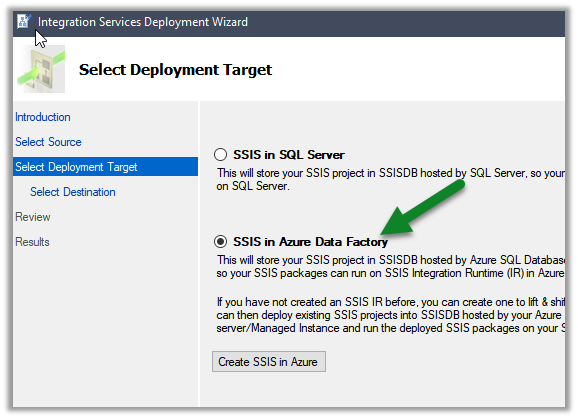
Select the option SSIS in Azure Data Factory

Select the existing or create a new folder for the project

Click on Deploy after successful validation and review.

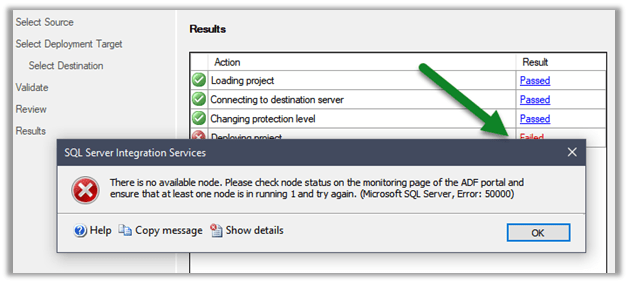
Here in our case, it failed with the below message

There is no available node. Please check node status on the monitoring page of the ADF portal and ensure that at least one node is in running 1 and try again. (Microsoft SQL Server, Error: 50000)

The error is because the Azure-SSIS Integration runtime is in the status Stopped.

navigate to your Azure Data Factory instance, and start the runtime.

After around 10 minutes or so the service would be up and running.

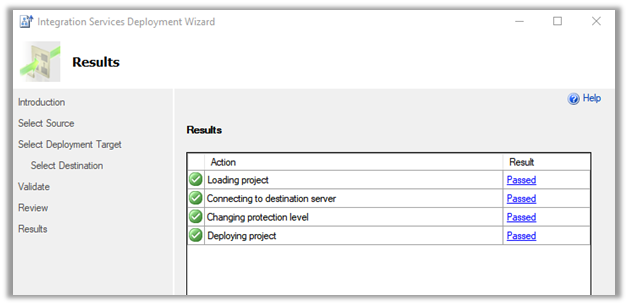
This time deployment is successful.

We can see the packages available within the pipeline.

Hope it helps..

How to – Deploy and run SSIS Integration Toolkit for Dynamics 365 on Azure Data Factory (KingswaySoft)


In the previous post, we saw how to deploy and run SSIS packages on the cloud.

Here we take it one step further and will deploy and run the SSIS packages that use KingswaySoft’ s SSIS Integration Toolkit components.

Here we will need an Azure Subscription, where we will host the SSISDB, followed by provisioning Azure-SSIS Integration runtime instance.

We will also need the Azure Blob Storage account along with Azure Storage Explorer to upload the installation files of the SSIS Integration Toolkit.

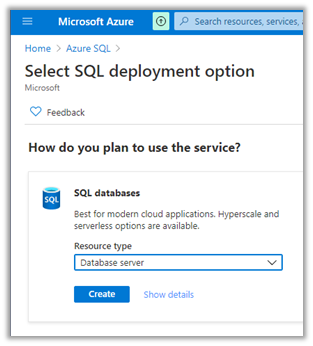
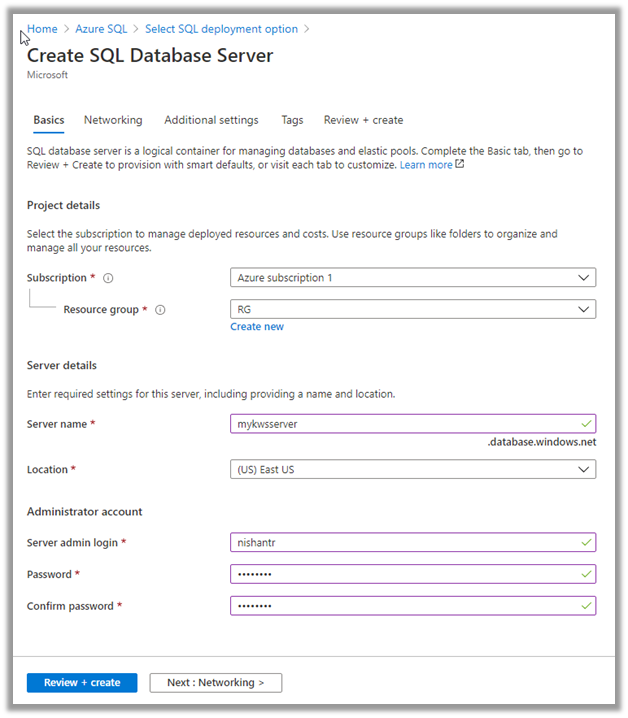
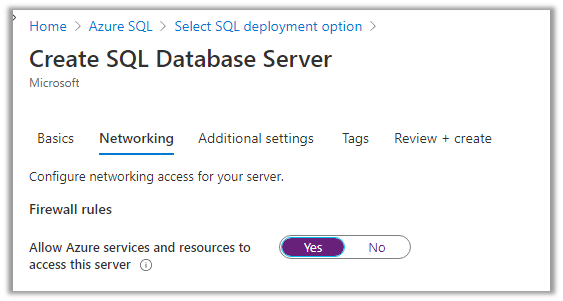
Let us first start by creating an Azure SQL Server instance.
We have specified the below details.
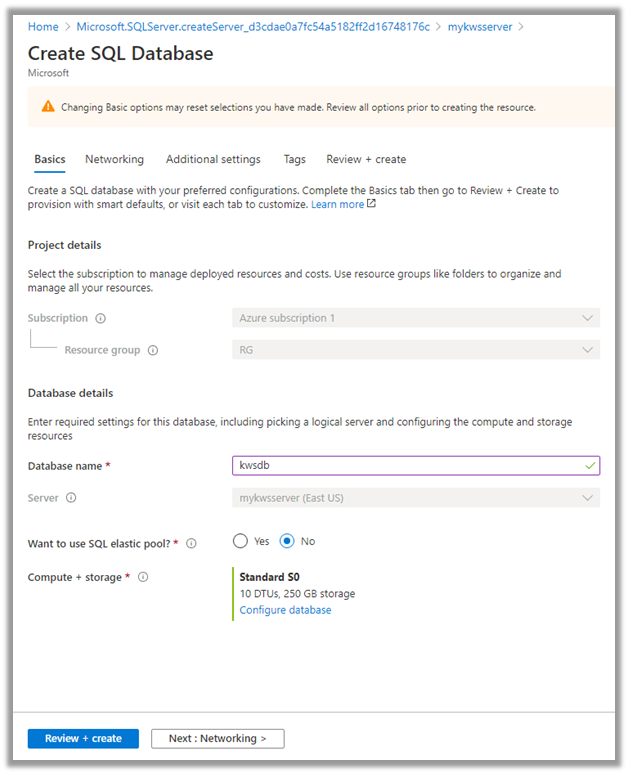
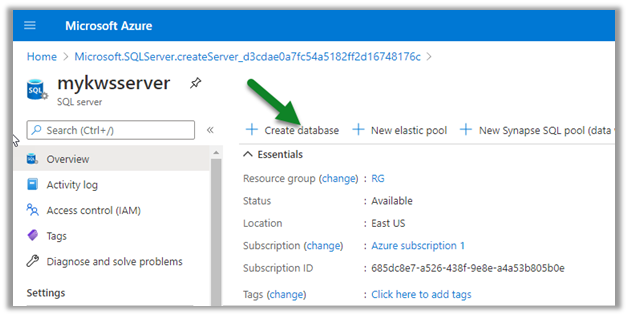
Now next create the database inside the server.
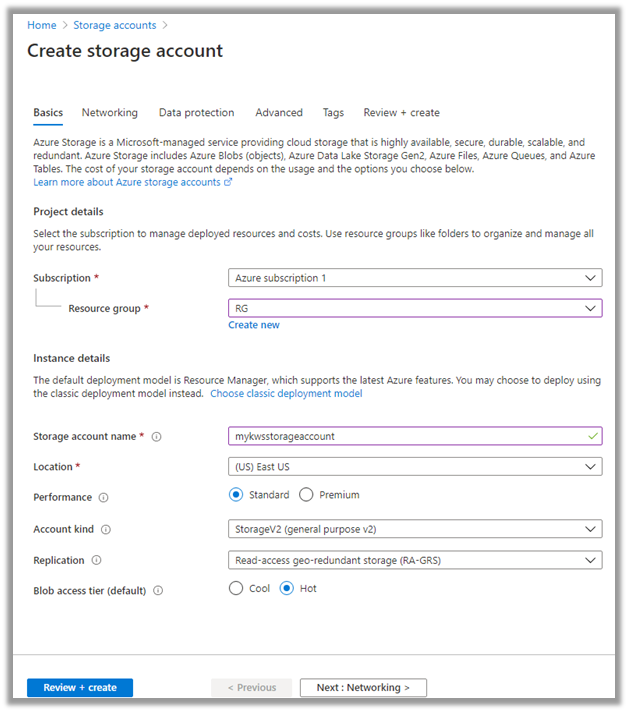
Now with Azure SQL Server and Database created, the next step is to create the Storage account.
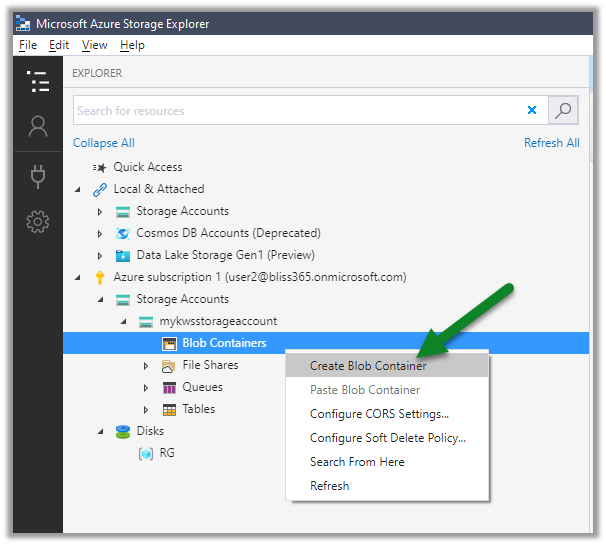
With the Azure Storage created, now let us connect to Azure using the Azure Storage Explorer.

Create a new blob container in the Azure Storage account created.
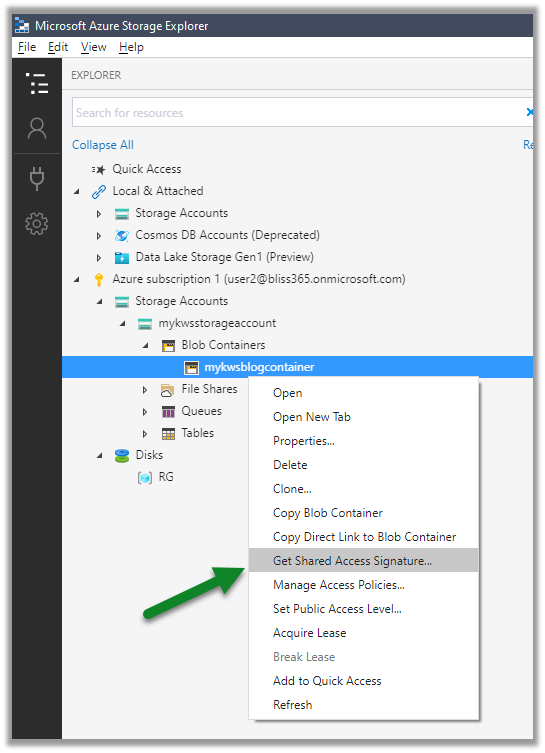
For the blob container created, right-click and select Get Shared Access Signature
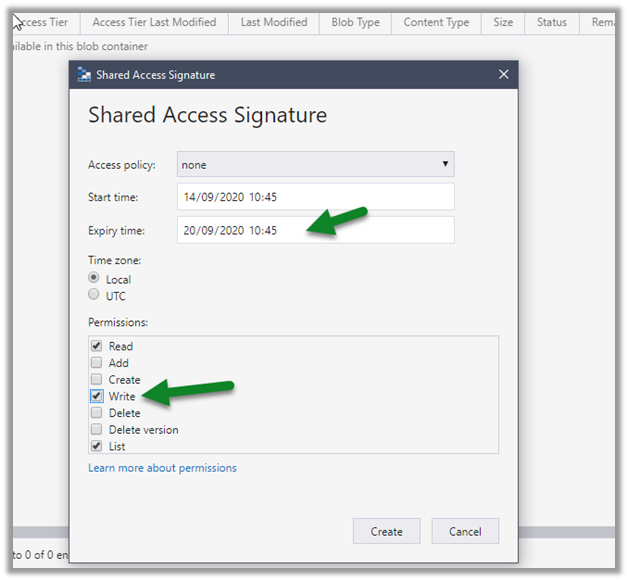
Specify the expiry time along with Write permissions, this is for logging purpose when the Azure-SSIS IR is being provisioned.
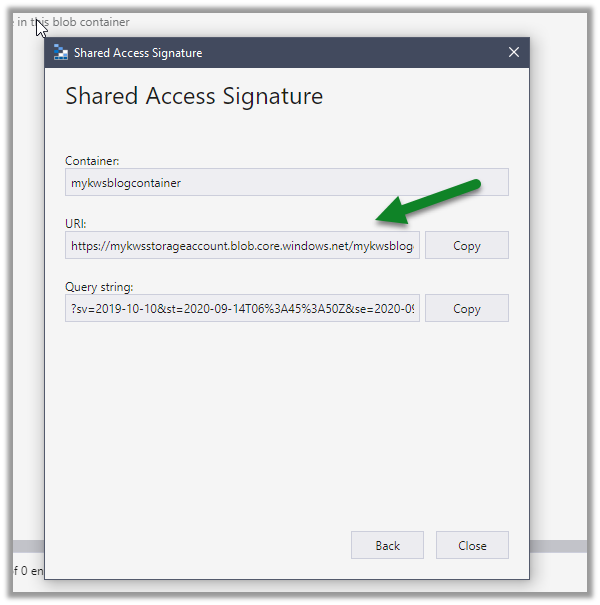
Copy the URL (it will be used in the PowerShell script later)
Now let us get the installation files and programs from the KingswaySoft Shared Blob Container, which we’d place in the blob container we just created.

https://kingswaysoftgeneral.blob.core.windows.net/ssis-integration-toolkit-ultimate?st=2019-07-04T16%3A10%3A25Z&se=2059-07-05T16%3A10%3A00Z&sp=rl&sv=2018-03-28&sr=c&sig=LAGvouFpkZHEk%2BH8%2B0pK%2FDNg7B3jPUf%2FJ91%2BJ%2FEeKg0%3D

Right-click Storage Accounts and select Connect to Azure Storage
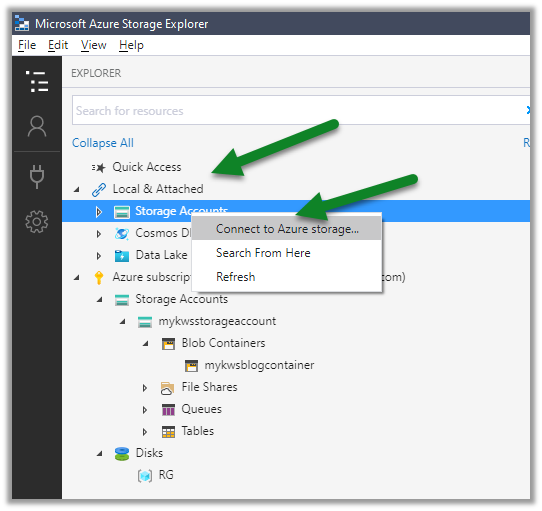
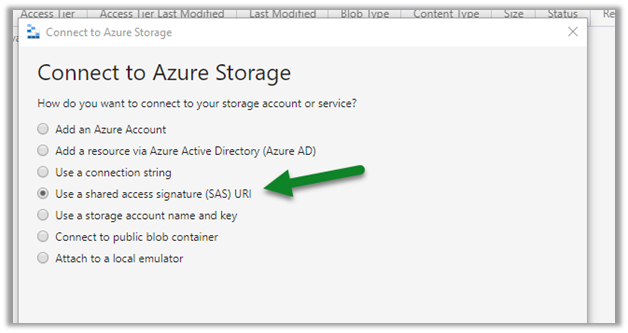
Select Use a shared access signature (SAS) URI
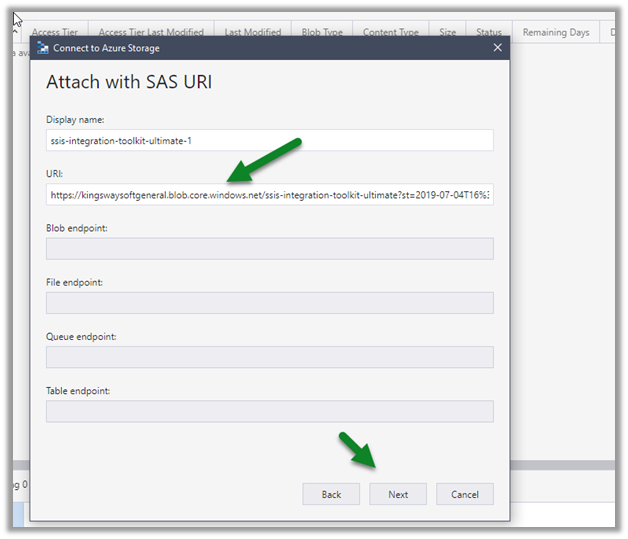
Paste the KingswaySoft blob container URL.
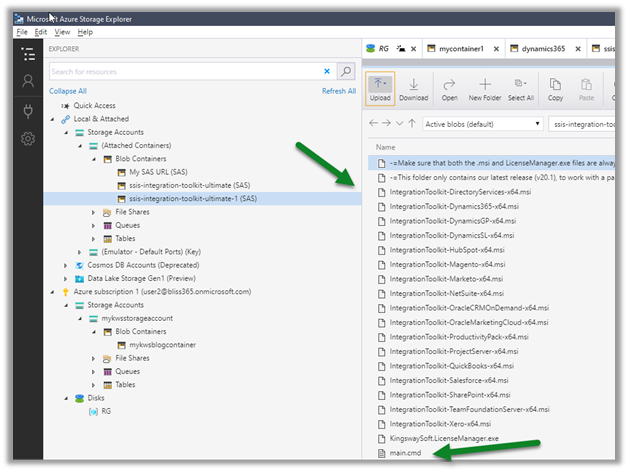
We can see the below contents added to the blob container.
Select all and copy all the files.
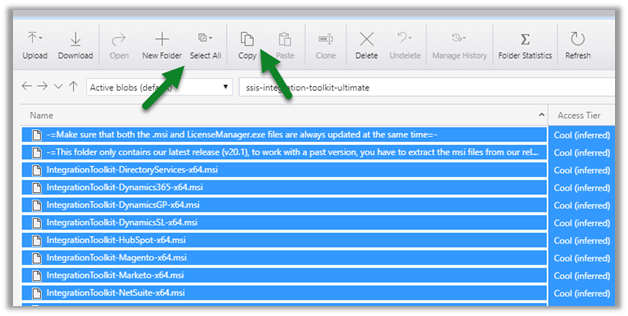
Paste it in the blob container we had created earlier.
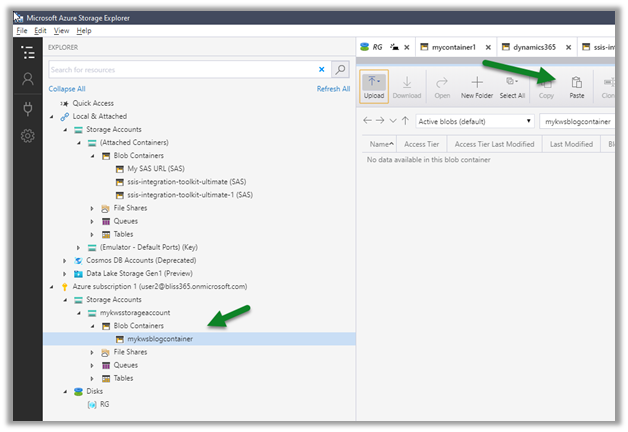
With things now setup, let us get the PowerShell script to provision the Azure-SSIS Integration Runtime Initializations.ps1 and update it.

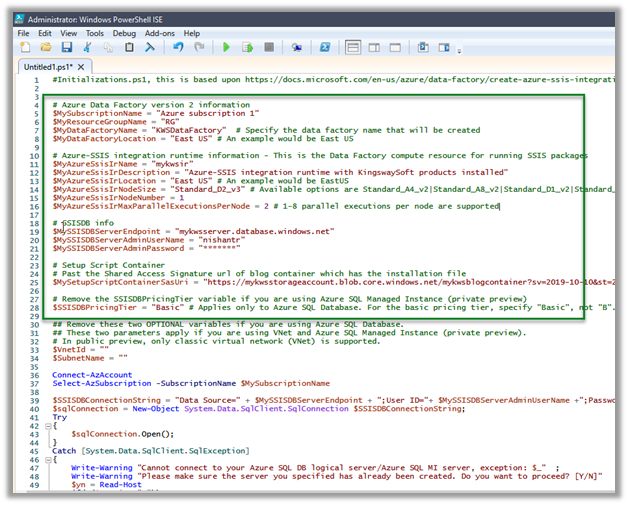
Specify the appropriate values and run the script. Get the Azure PowerShell.

Also, make sure to update the firewall rules to allow the client to connect.
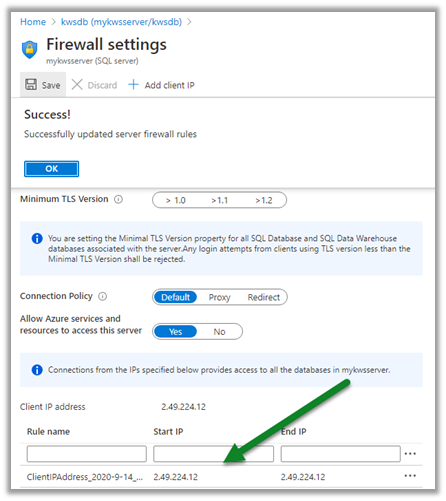
Update the PowerShell Script appropriately
We can check the status as shown below.
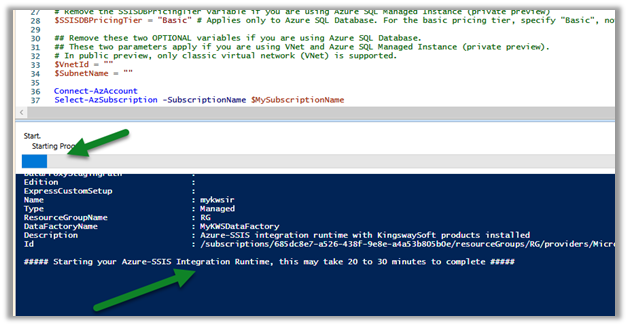
In parallel, we can see our Azure Data Factory created with the integration runtime, which is in Starting status.
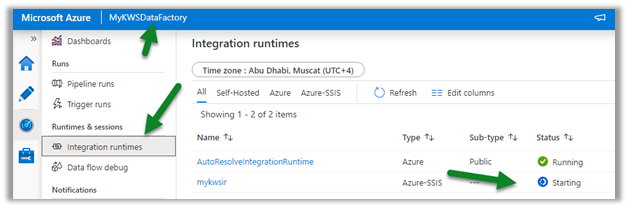
After a few minutes, we will have integration runtime up and running.

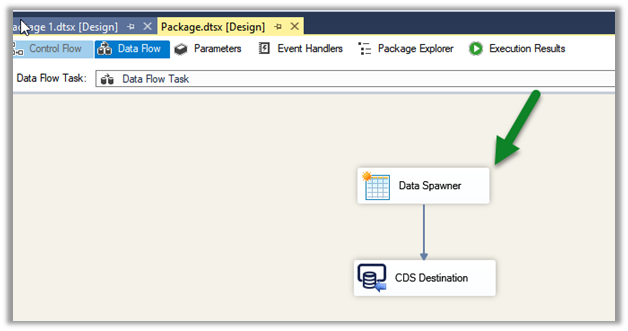
Below is our SSIS Package that we would be deploying to the cloud.

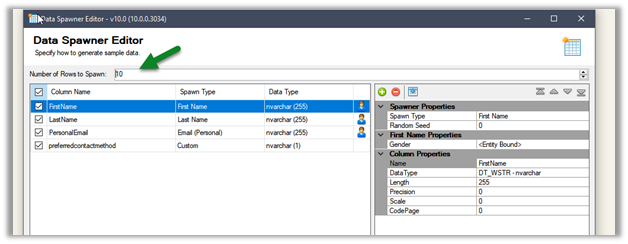
It uses Data Spawner Component to generate test data for Contacts and the CDS Destination component to create those records inside CDS.
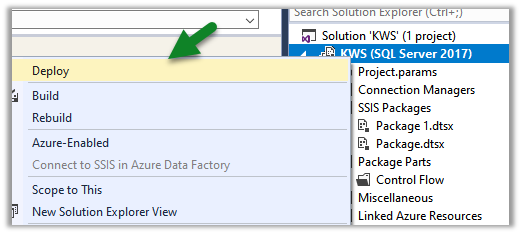
Right-click the integration project and select Deploy
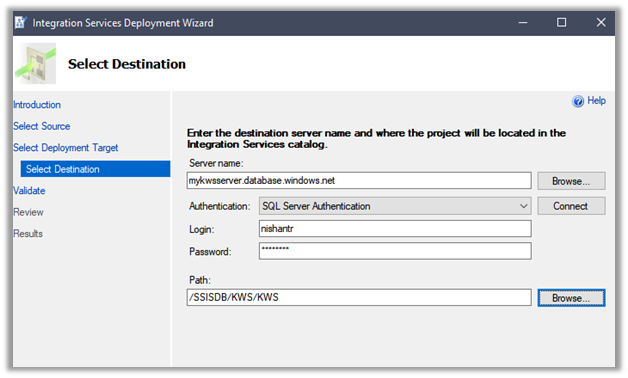
Specify connection details along with Path
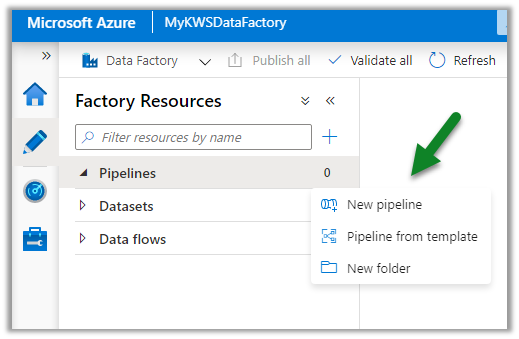
After successful deployment, let us create a new pipeline inside the Azure Data Factory.
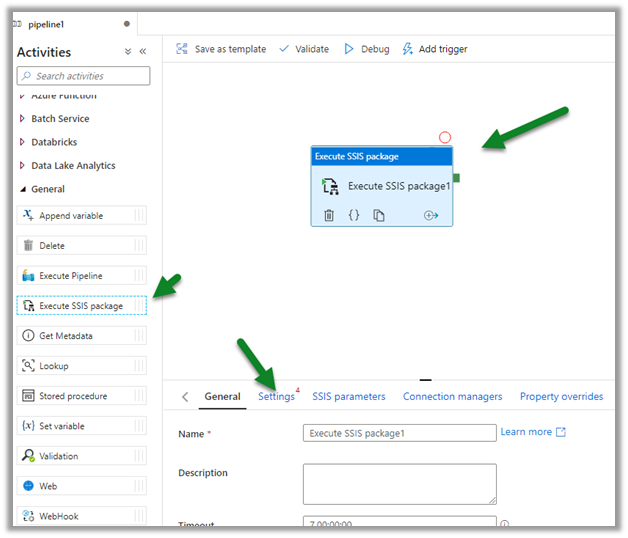
Drag and drop the Execute SSIS Package and click on the Settings tab.
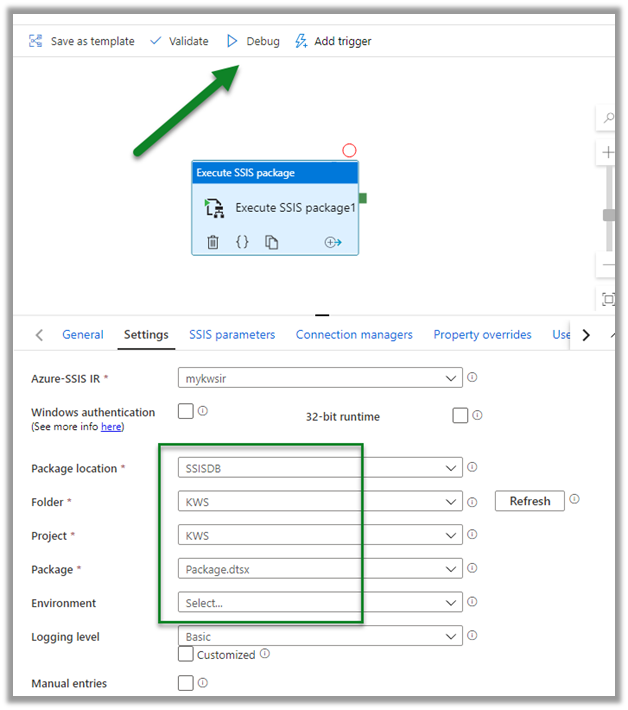
Connect to the package deployed followed by Validate and Debug to test the pipeline.
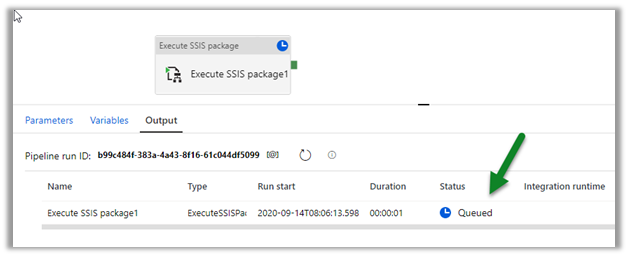
The pipeline will be in Queued status
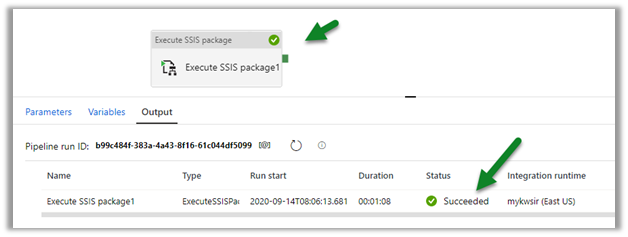
After successful execution,
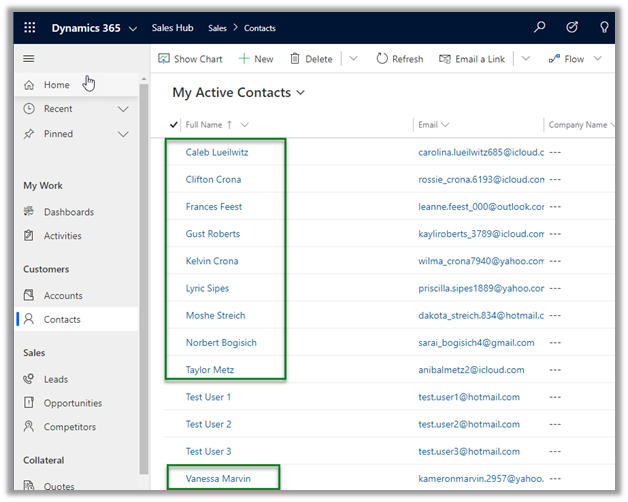
navigate to our Dynamics 365 Sales Hub

We can see 10 contact records created by the SSIS Package.
Hope it helps..

Advertisements