Create Segments using Customer Insights and Execute with Dynamics 365 Marketing


Virendra Agrawal's avatarVirendra Agrawal's Blog

In my previous posts, I mentioned about how we can leverage Customer Insights build unique customer profiles, create measures / KPI and display the demographics in Dynamics 365 Apps using customer card add-in.

To continue this series of posts on Customer Insights, let’s talk about what we can do with Segments.

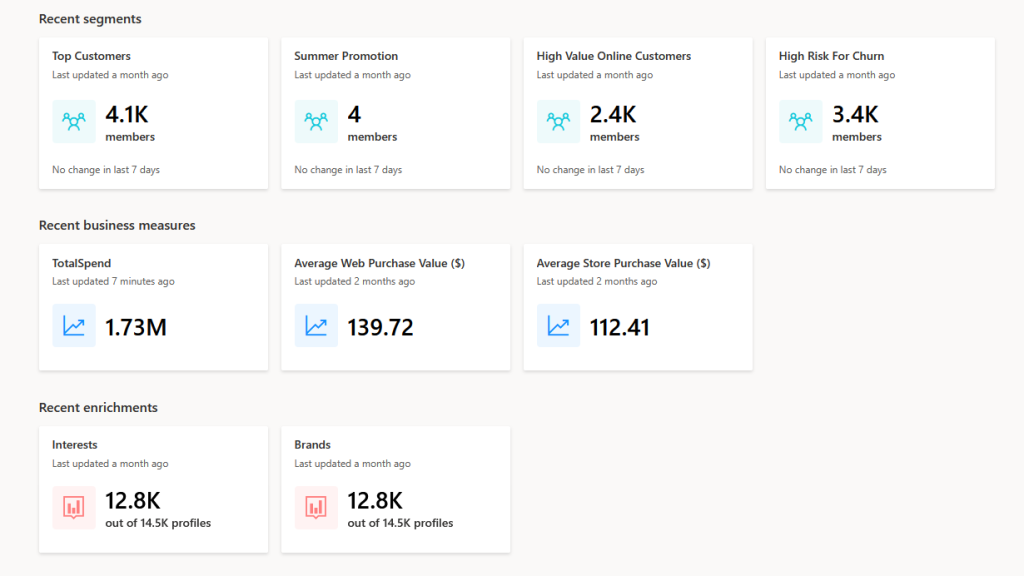
This post is about using those unique profiles & KPI to build segments and extend these segments to execute marketing campaigns / customer journeys using Dynamics 365 Marketing.  We’ll target to achieve the following:


View original post 891 more words

Using KingswaySoft Azure Blob Storage component with Dynamics 365


KingswaySoft provides 3 components specific to Azure Blog Storage

  • Azure Blob Connection Manager
  • Azure Blob Storage Source
  • Azure Blob Storage Destination

Check other blog posts on SSIS

https://nishantrana.me/2020/10/16/ssis-kingswaysoft-and-dynamics-365/

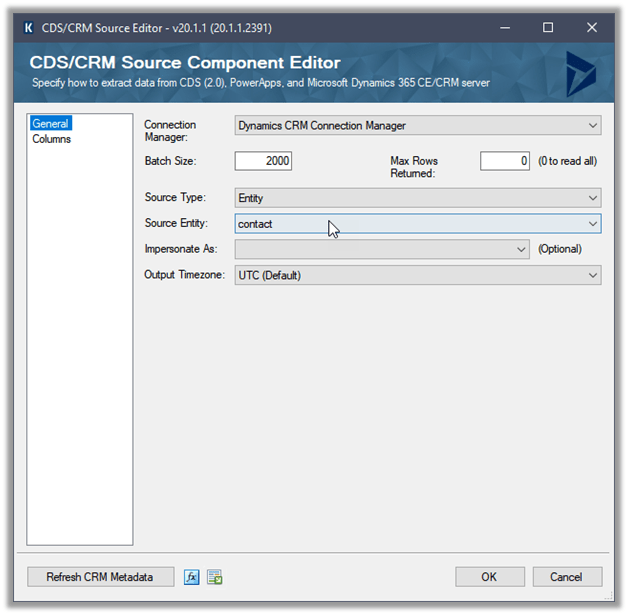
Let us take a simple example where we are extracting \ reading contact data from Dynamics 365 \ CDS and saving it as a text file in Azure Blob Storage.

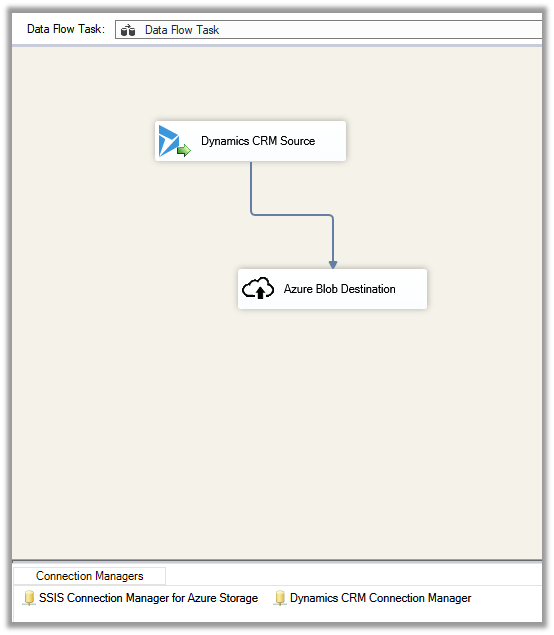
Create a new SSIS Package, and drag the Dynamics CRM Source component to it.

(Define the connection to Dynamics CRM instance using Dynamics CRM Connection Manager)

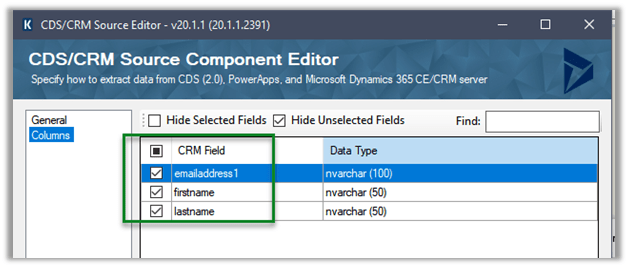
We have selected emailaddress1, first name, and the last name attributes.

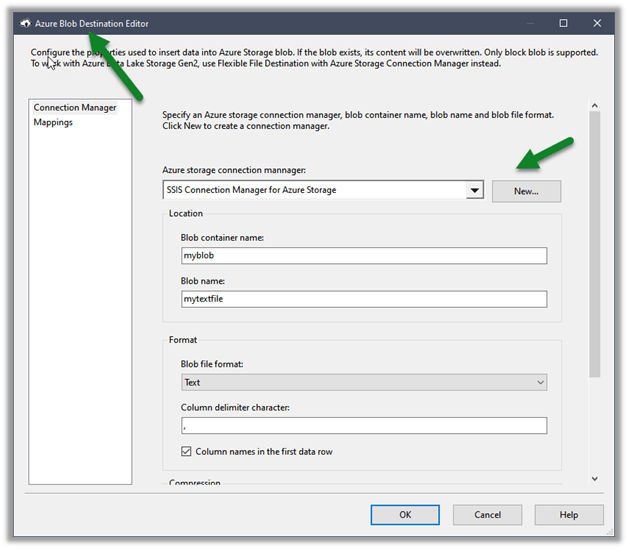
Next drag an Azure Blob Destination Component, we will first define the connection to Azure Storage first

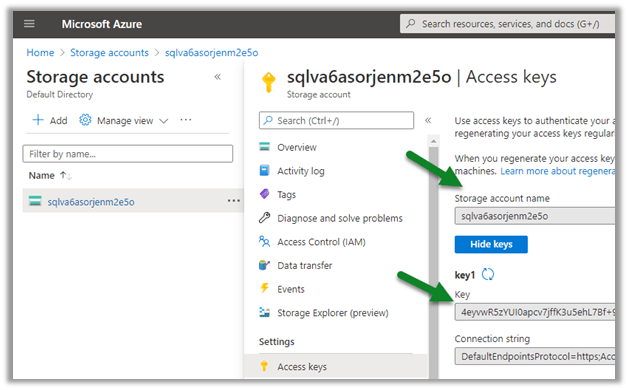
Navigate to the Access keys in the existing Storage account to get the account name and the key (or create a new Storage account)

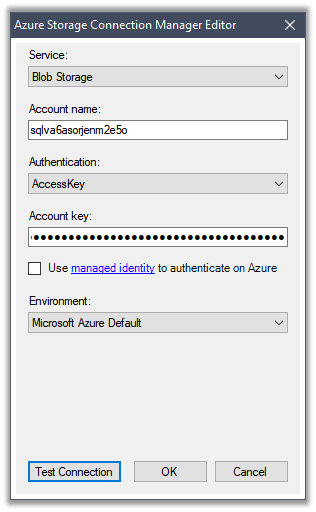
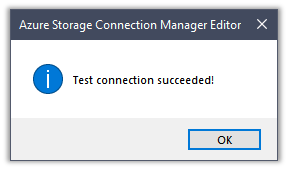
Paste the values and test the connection.

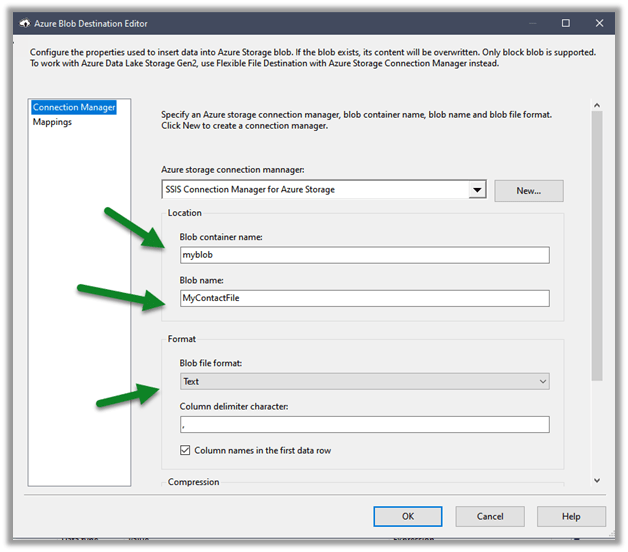
Below we have specified the name of the existing Blob Container, the name of the file to be created there along with the format.

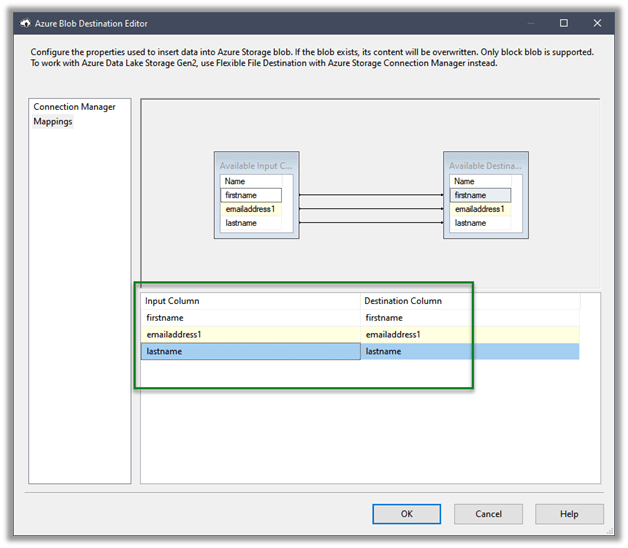
The mapping column will have the mappings defined

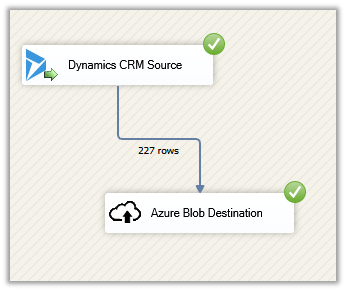
Let us execute the package

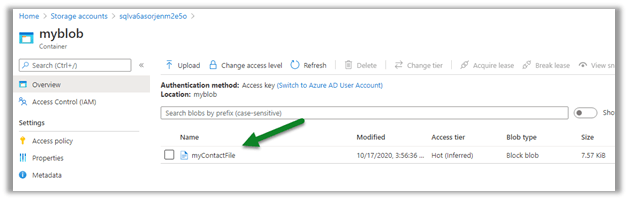
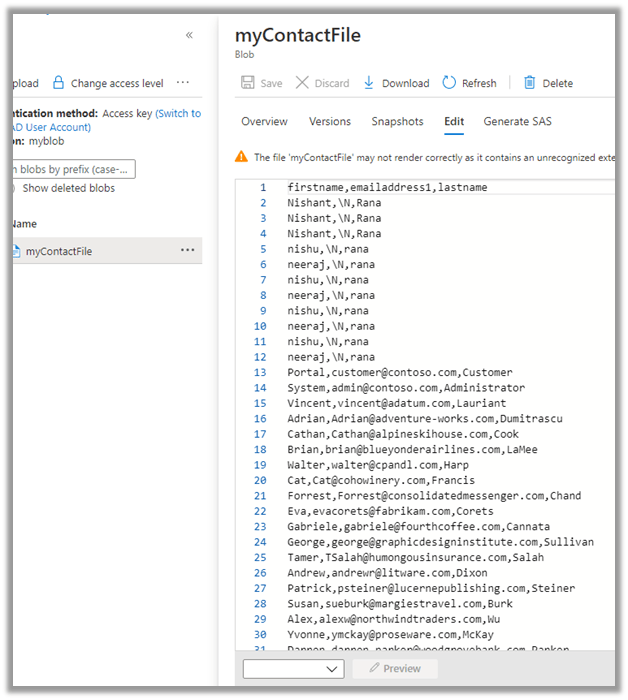
We can see the file created in the Blob storage

We can see it populated with the source columns specified in CRM Source component.

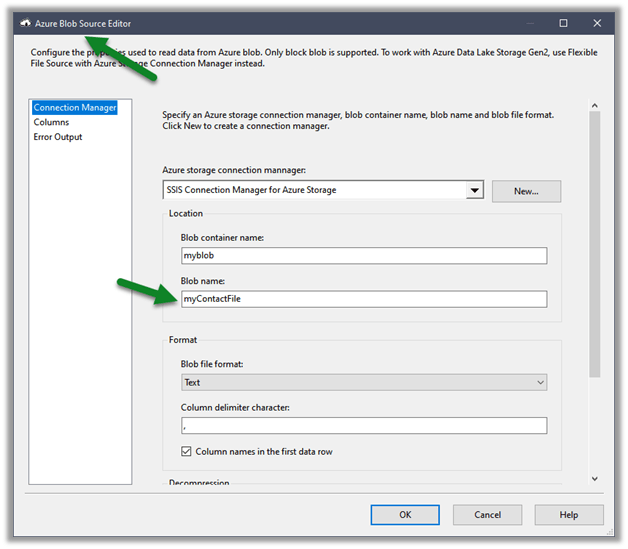
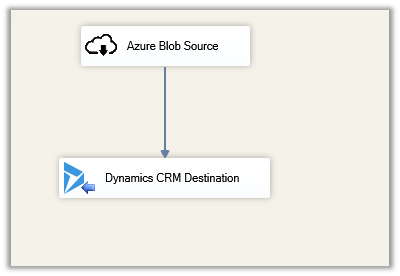
Similarly using the Azure Blog Source component, we can read the files and can use it for any destination component including Dynamics 365 Destination.

Hope it helps..

Connect to Dynamics 365 through Script Component – SSIS


For complex data migration requirements, usually we’d be using 3rd party tools like KingswaySoft or Scribe, or Informatica as they already have components (connection, transformation, source, destination etc.) built for Dynamics 365 instead of building our own.

Check other posts on data migration https://nishantrana.me/2020/10/16/ssis-kingswaysoft-and-dynamics-365/

https://nishantrana.me/2020/05/19/data-migration-in-dynamics-365-key-considerations/

For some simple / basic requirements instead of using 3rd party tools, we can write our own packages – script components that consumes Dynamics 365 service.

In this post, we’d see how can we consume Organization Service inside the Script Component.

We are taking a very simple example, where our source is a text file having contact records with just 2 columns’ first name and last name.
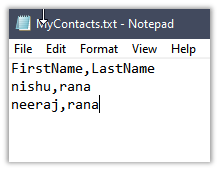
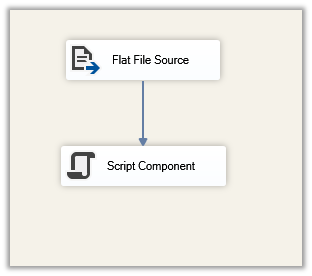
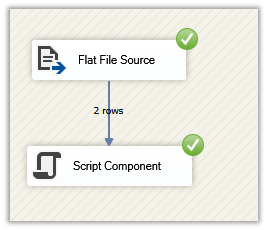
Let us create a new package, add a data flow task and drag Flat File Source and Script Component to it.
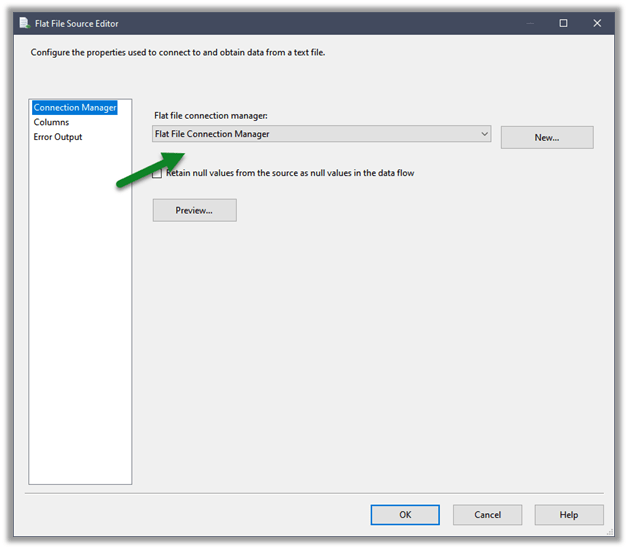
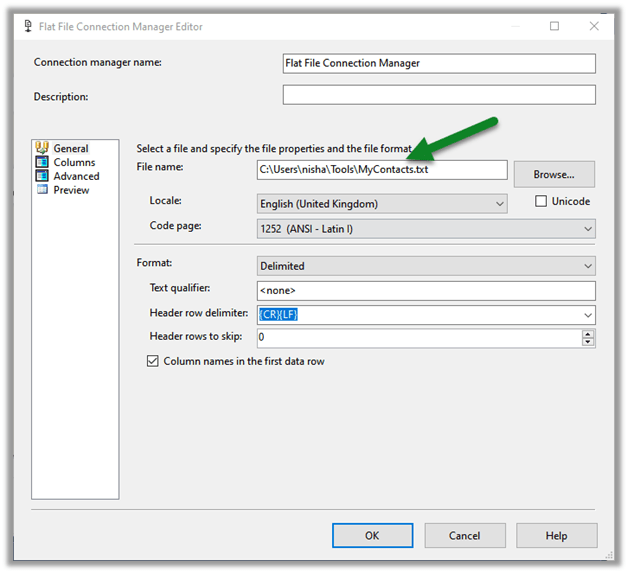
Specify the connection for the Flat File that points to the Contact.txt file.
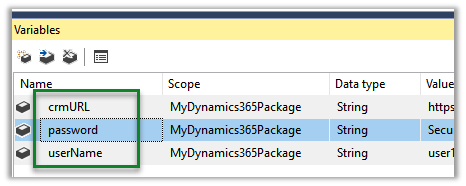
Specify 3 Variables that we would be using inside the Script Component.
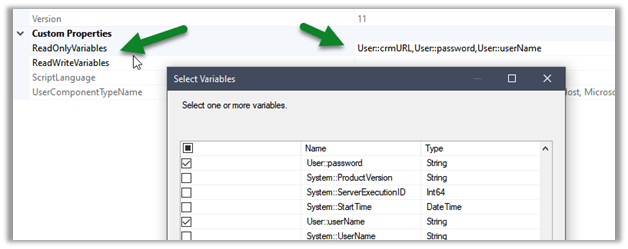
Double click the Script Component, and select the variables defined
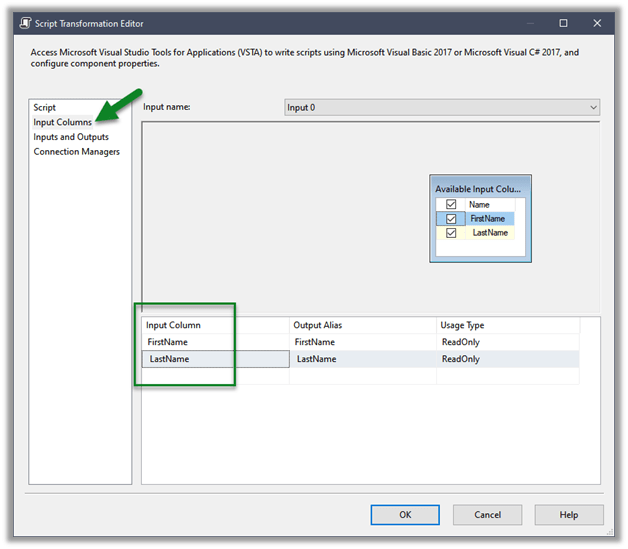
Select the input columns that we are getting from the source text files
Click on Edit Script which opens the Visual Studio

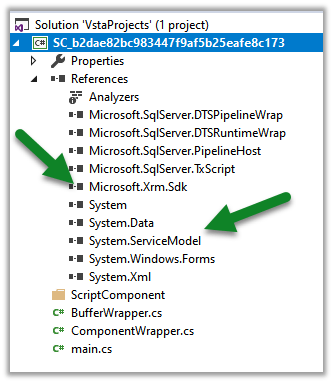
Add references to

  • Microsoft.Xrm.Sdk
  • System.ServiceModel

Also, add the Microsoft.Xrm.Sdk.dll to the GAC.

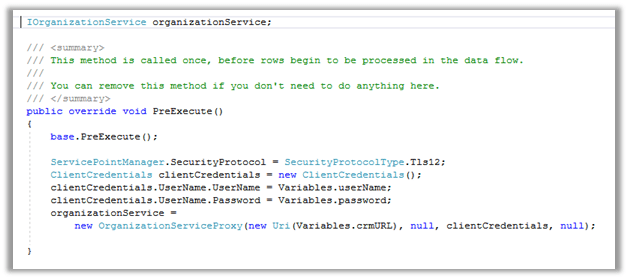
Specify the connection using the variable as shown below in the PreExecute method
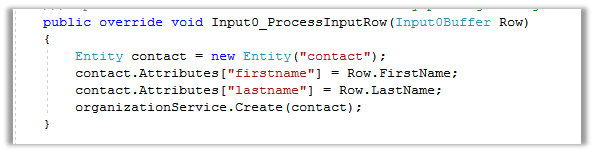
Process each row in the ProcessInputRow method and create the contact record.
Build and close the VSTA (Visuals Studio Tools for Application) project and run the package.
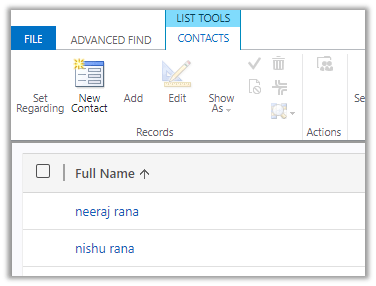
After successful execution, we can see the records created inside Dynamics 365
Hope it helps..

SSIS (KingswaySoft) and Dynamics 365


Fixed – CRM service call returned an error: An error has occurred when retrieving metadata for CRM entity ‘table’: The source argument contains duplicate keys – Dataverse/ Dynamics 365 / SSIS

Recently while trying to retrieve OptionSet Metadata using our favorite KingswaySoft SSIS Toolkit we got the below error. Same error for prod also – [CDS Source [2]] Error: An error occurred with the following error message: “KingswaySoft.IntegrationToolkit.DynamicsCrm.CrmServiceException: CRM service call returned an error: An error has occurred when retrieving metadata for CRM entity ‘copilotexamplequestion’: The…

Using xMultiple along with User Multiplexing for improved performance – KingswaySoft SSIS Integration Toolkit (Dataverse / Dynamics 365)

Let us continue our previous post, where we observed performance improvements by using User Multiplexing Now let us try making use of the xMultiple feature (CreateMultiple, UpdateMultiple, and CreateMultiple messages) of the CRM / CDS Destination Component. We have updated the Batch Size to 100 to trigger the xMultiple However this time we got the…

How to –Upload files to File Column / Attribute in SSIS from Azure Blog Storage – KingswaySoft (Dynamics 365 / CRM)

Below are a few ways we can upload files to the File Column type field using KingswaySoft’ s Integration Toolkit and Premium Flat File Source and Premium Derived column which are part of the SSIS Productivity Pack of KingswaySoft https://nishantrana.me/2022/03/17/how-to-upload-files-from-file-column-attribute-using-ssis-kingswaysoft-dynamics-365-crm/ Using the Import column – https://nishantrana.me/2022/08/10/how-to-upload-files-to-file-column-attribute-using-ssis-kingswaysoft-and-import-column-dynamics-365-crm/ Using the Script Component – https://nishantrana.me/2022/08/09/how-to-use-script-component-to-upload-files-to-file-column-attribute-in-ssis-kingswaysoft-dynamics-365-crm/ Here instead of…

How to – Use Import Column to Upload files to File Column / Attribute in SSIS KingswaySoft(Dynamics 365 / CRM)

A few weeks back had posted on how to upload files to the File Column type field using KingswaySoft’ s Integration Toolkit and Premium Flat File Source and Premium Derived column which are part of the SSIS Productivity Pack of KingswaySoft https://nishantrana.me/2022/03/17/how-to-upload-files-from-file-column-attribute-using-ssis-kingswaysoft-dynamics-365-crm/ Here we will see an example of achieving the same without using the…

How to – Use Script Component to Upload files to File Column / Attribute in SSIS – KingswaySoft (Dynamics 365 / CRM)

A few weeks back had posted on how to upload files to the File Column type field using KingswaySoft’ s Integration Toolkit and Premium Flat File Source and Premium Derived column which are part of the SSIS Productivity Pack of KingswaySoft https://nishantrana.me/2022/03/17/how-to-upload-files-from-file-column-attribute-using-ssis-kingswaysoft-dynamics-365-crm/ Here we will see an example of achieving the same without using the…

Something went wrong. Please refresh the page and/or try again.

Fixed – Unable to Login to Dynamics CRM or An unsecured or incorrectly secured fault was received from the other party. See the inner FaultException for the fault code and detail


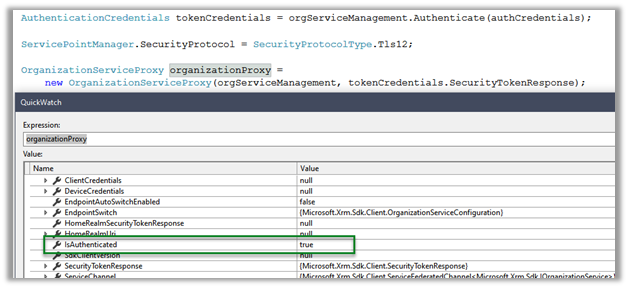
We might get below error while trying to consume Organization Service through the client application

  • Unable to Login to Dynamics CRM

  • An unsecured or incorrectly secured fault was received from the other party. See the inner FaultException for the fault code and detail.

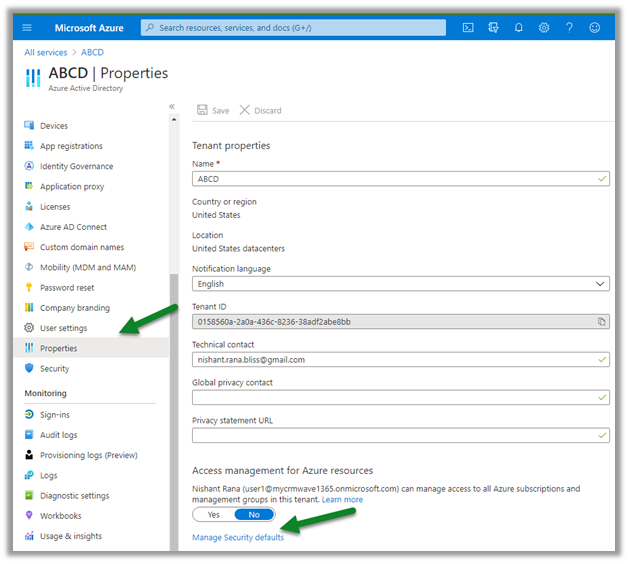
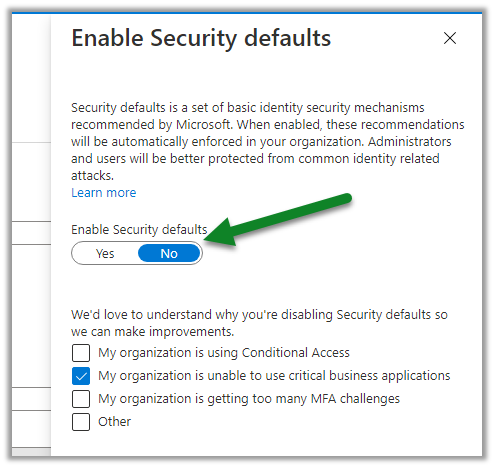
Chances are the Security Defaults are enabled on the account you are using.

https://docs.microsoft.com/en-us/azure/active-directory/fundamentals/concept-fundamentals-security-defaults

If not required, login to

https://portal.azure.com/

Select Azure Active Directory > Properties > Manage Security Roles

And disable it

This time the connection will be successful.

Try below as well –

SecurityProtocolType.TLS12 –

https://nishantrana.me/2018/10/20/unable-to-login-to-dynamics-crmorganizationwebproxyclient-is-nullorganizationwebproxyclient-is-null-error-while-using-crmserviceclient/

https://nishantrana.me/2018/04/24/unable-to-login-to-dynamics-crmorganizationserviceproxy-is-null-error-while-using-crmserviceclient/

Server Clock out of sync –

https://nishantrana.me/2011/12/13/an-unsecured-or-incorrectly-secured-fault-was-received-from-the-other-party-see-the-inner-faultexception-for-the-fault-code-and-detail/

MFA –

https://nishantrana.me/2020/05/07/an-unsecured-or-incorrectly-secured-fault-was-received-from-the-other-party-see-the-inner-faultexception-for-the-fault-code-and-detail-while-trying-to-connect-using-xrmtoolbox/

Hope it helps..

Advertisements

How to create Measures using Dynamics 365 Customer Insights


Virendra Agrawal's avatarVirendra Agrawal's Blog

In my previous post, we talked about ingesting the data from various sources with the help of different Dynamics Power Query Connectors and use this data to perform unification in Customer Insights and build a unique customer profile (Part 1 and Part 2).

In continuation of the previous posts, let’s see how we can ingest the purchase (eCommerce or POS) data associated with these unique customer profiles to build various measures in Customer Insights.

Before we begin, let’s understand what measures are and how these are useful.

Measures represent as the “Key Performance Indicators” (KPI’s) that we can define to keep a track of our Customer or Business performance. By setting these KPI’s or measures, we can set goals that we would want to achieve, monitor the actual outcomes from the unified customer profile within Customer Insights and act whenever needed to ensure we meet the goals.

Prerequisites:

View original post 1,205 more words