Using KingswaySoft Azure Blob Storage component with Dynamics 365


KingswaySoft provides 3 components specific to Azure Blog Storage

  • Azure Blob Connection Manager
  • Azure Blob Storage Source
  • Azure Blob Storage Destination

Check other blog posts on SSIS

https://nishantrana.me/2020/10/16/ssis-kingswaysoft-and-dynamics-365/

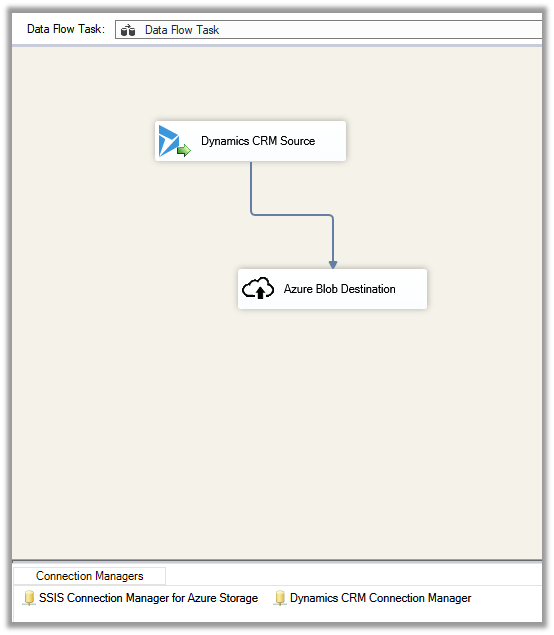
Let us take a simple example where we are extracting \ reading contact data from Dynamics 365 \ CDS and saving it as a text file in Azure Blob Storage.

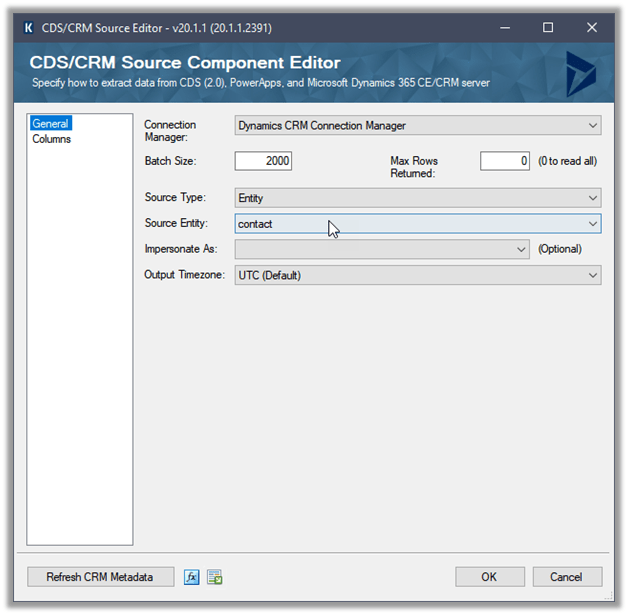
Create a new SSIS Package, and drag the Dynamics CRM Source component to it.

(Define the connection to Dynamics CRM instance using Dynamics CRM Connection Manager)

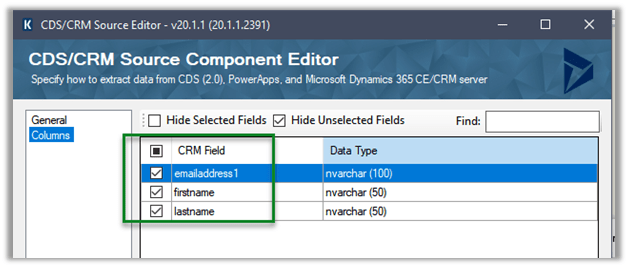
We have selected emailaddress1, first name, and the last name attributes.

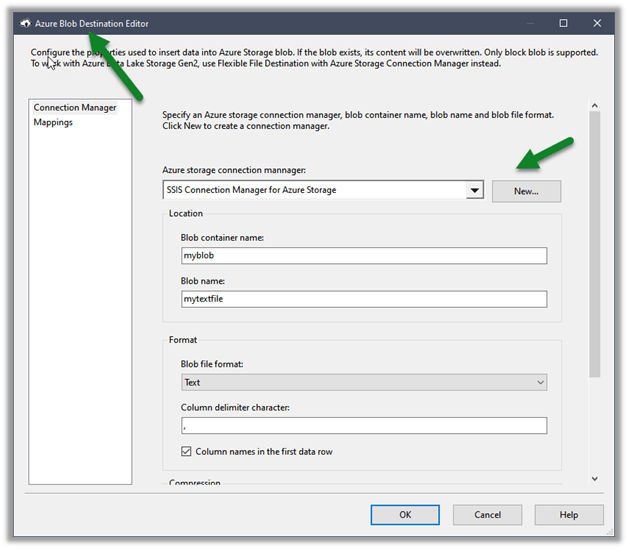
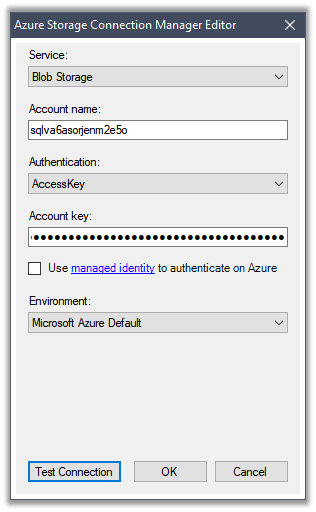
Next drag an Azure Blob Destination Component, we will first define the connection to Azure Storage first

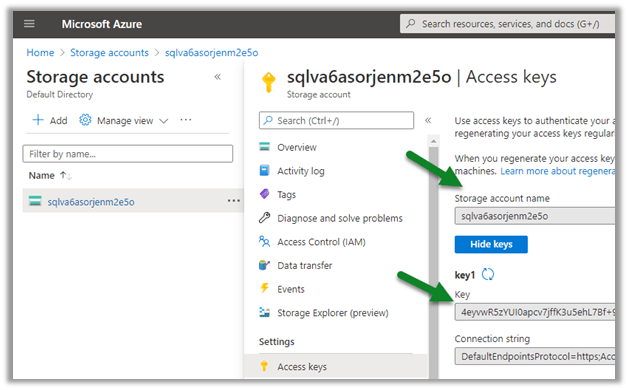
Navigate to the Access keys in the existing Storage account to get the account name and the key (or create a new Storage account)

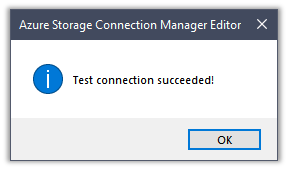
Paste the values and test the connection.

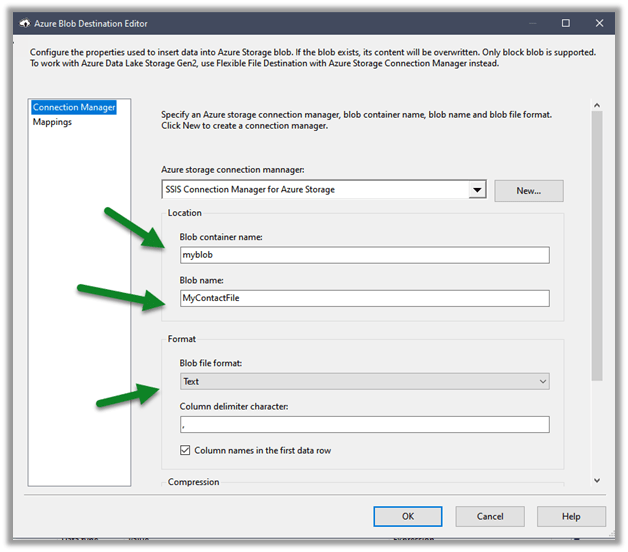
Below we have specified the name of the existing Blob Container, the name of the file to be created there along with the format.

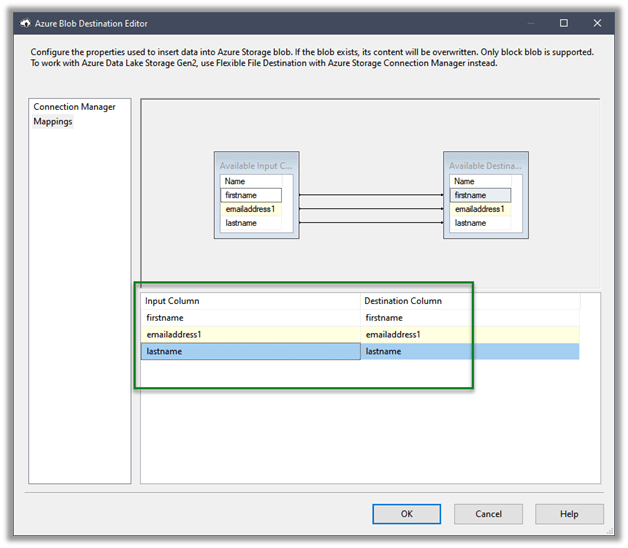
The mapping column will have the mappings defined

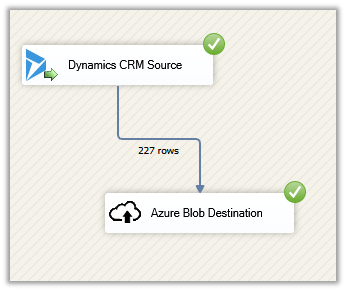
Let us execute the package

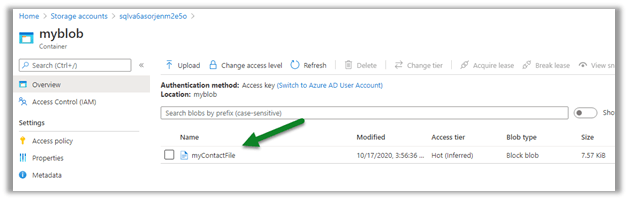
We can see the file created in the Blob storage

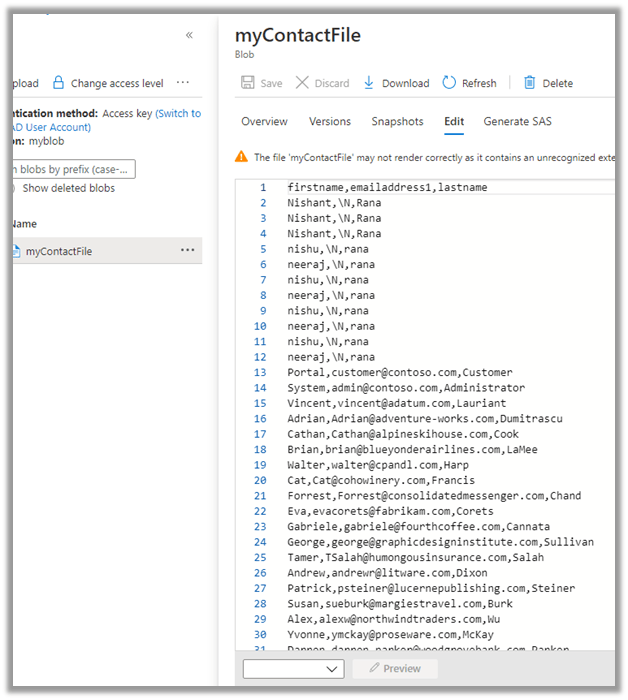
We can see it populated with the source columns specified in CRM Source component.

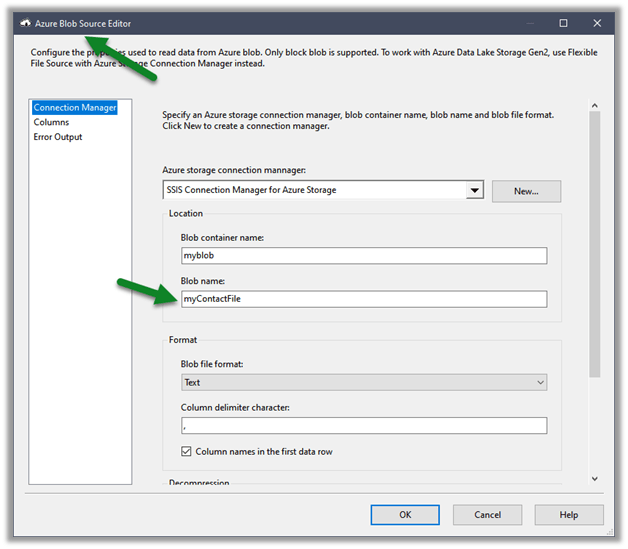
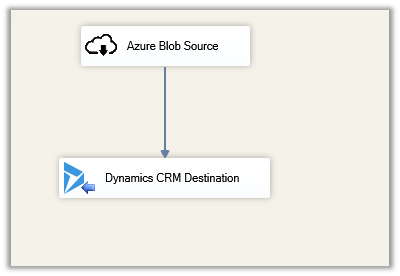
Similarly using the Azure Blog Source component, we can read the files and can use it for any destination component including Dynamics 365 Destination.

Hope it helps..

Connect to Dynamics 365 through Script Component – SSIS


For complex data migration requirements, usually we’d be using 3rd party tools like KingswaySoft or Scribe, or Informatica as they already have components (connection, transformation, source, destination etc.) built for Dynamics 365 instead of building our own.

Check other posts on data migration https://nishantrana.me/2020/10/16/ssis-kingswaysoft-and-dynamics-365/

https://nishantrana.me/2020/05/19/data-migration-in-dynamics-365-key-considerations/

For some simple / basic requirements instead of using 3rd party tools, we can write our own packages – script components that consumes Dynamics 365 service.

In this post, we’d see how can we consume Organization Service inside the Script Component.

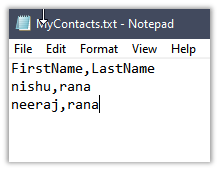
We are taking a very simple example, where our source is a text file having contact records with just 2 columns’ first name and last name.

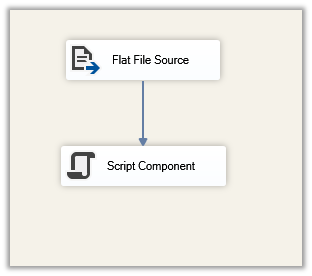
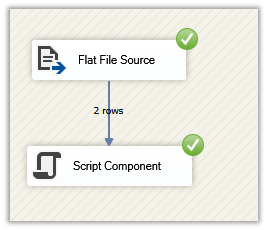
Let us create a new package, add a data flow task and drag Flat File Source and Script Component to it.

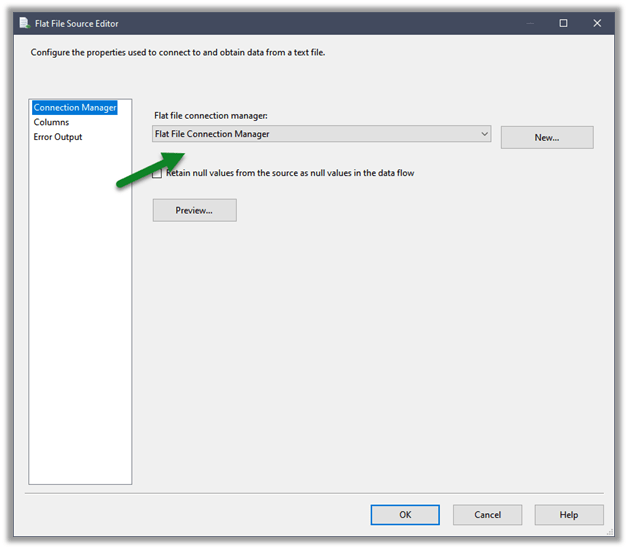
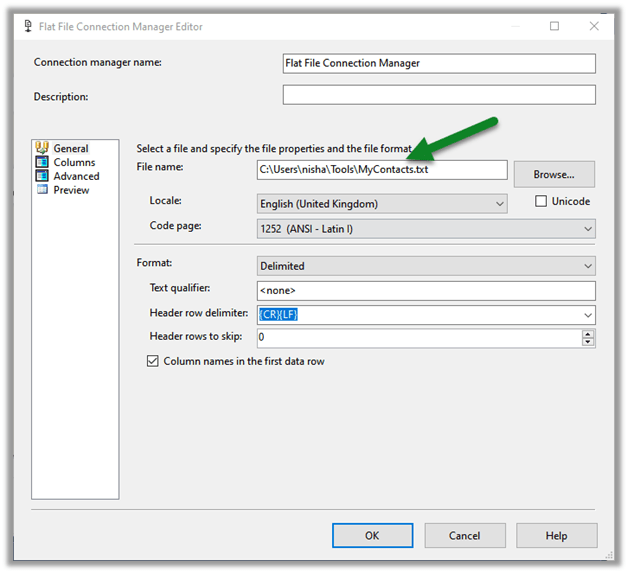
Specify the connection for the Flat File that points to the Contact.txt file.

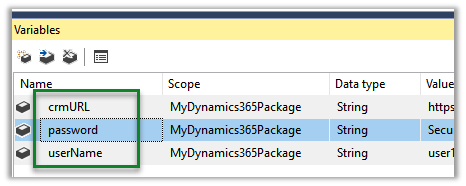
Specify 3 Variables that we would be using inside the Script Component.

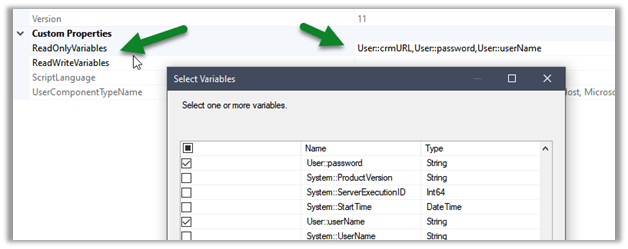
Double click the Script Component, and select the variables defined

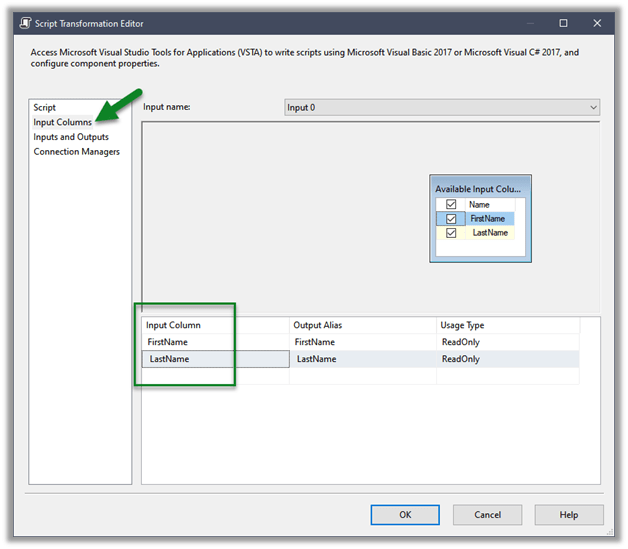
Select the input columns that we are getting from the source text files

Click on Edit Script which opens the Visual Studio

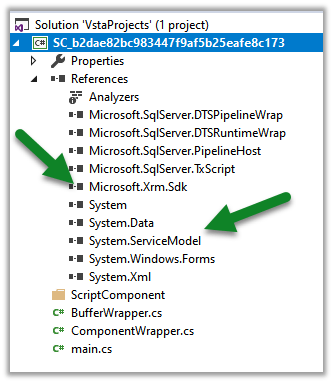
Add references to

  • Microsoft.Xrm.Sdk
  • System.ServiceModel

Also, add the Microsoft.Xrm.Sdk.dll to the GAC.

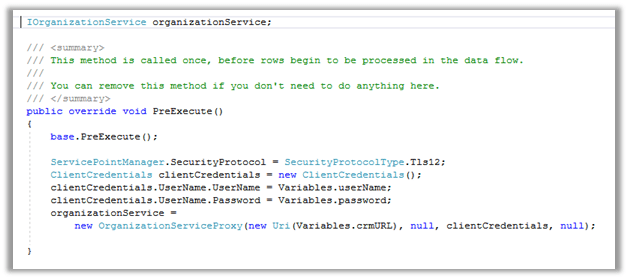
Specify the connection using the variable as shown below in the PreExecute method

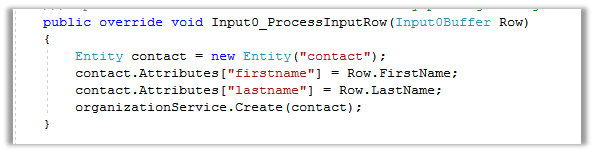
Process each row in the ProcessInputRow method and create the contact record.

Build and close the VSTA (Visuals Studio Tools for Application) project and run the package.

After successful execution, we can see the records created inside Dynamics 365

Hope it helps..

How to – Deploy and run SSIS Integration Toolkit for Dynamics 365 on Azure Data Factory (KingswaySoft)


In the previous post, we saw how to deploy and run SSIS packages on the cloud.

Here we take it one step further and will deploy and run the SSIS packages that use KingswaySoft’ s SSIS Integration Toolkit components.

Here we will need an Azure Subscription, where we will host the SSISDB, followed by provisioning Azure-SSIS Integration runtime instance.

We will also need the Azure Blob Storage account along with Azure Storage Explorer to upload the installation files of the SSIS Integration Toolkit.

Let us first start by creating an Azure SQL Server instance.
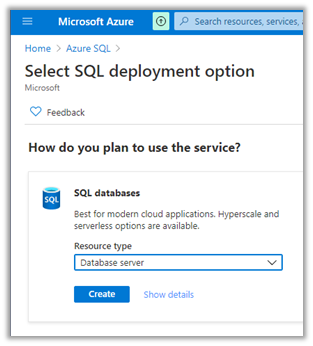
We have specified the below details.
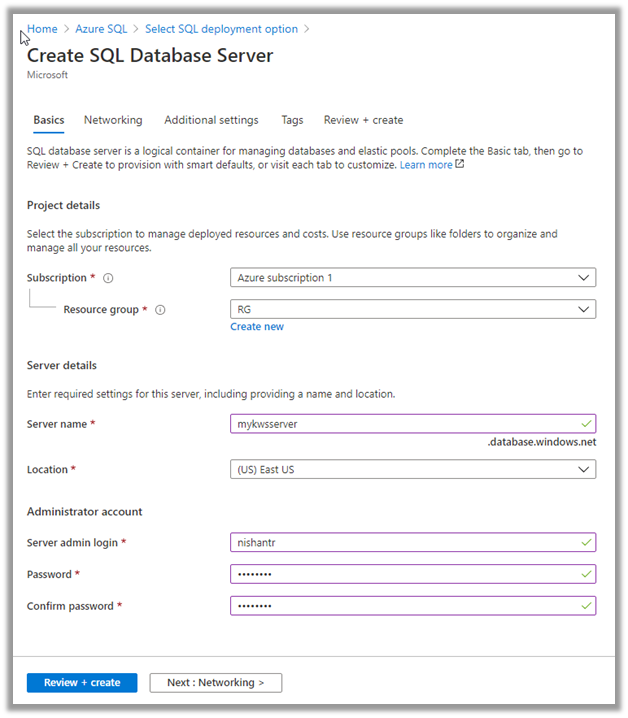
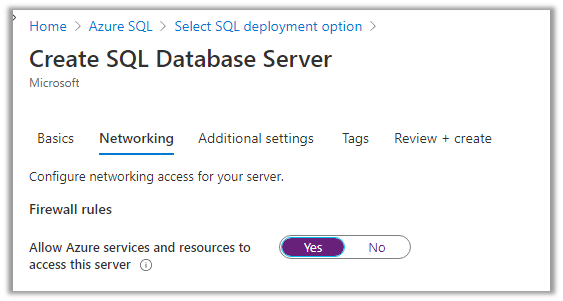
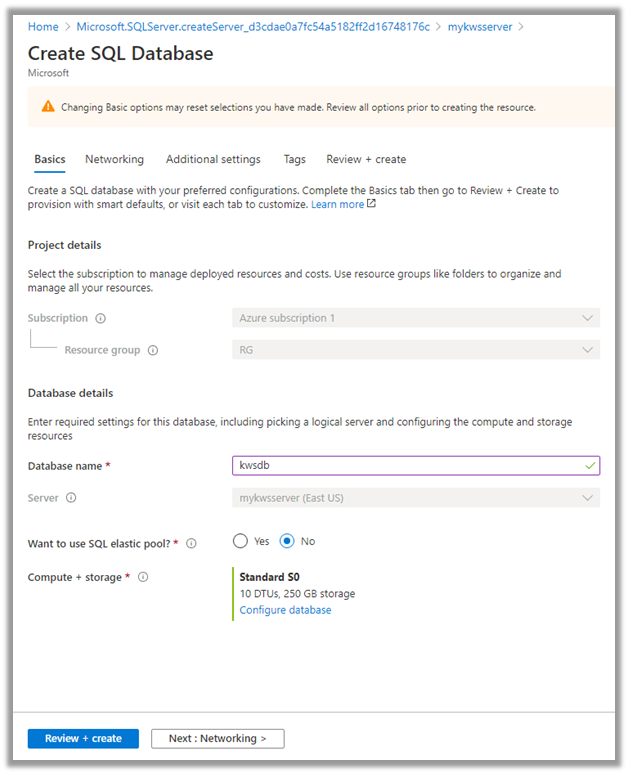
Now next create the database inside the server.
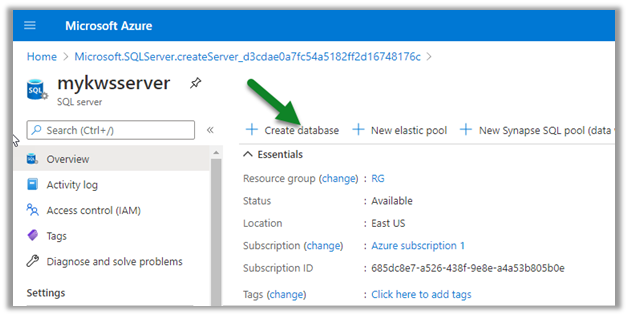
Now with Azure SQL Server and Database created, the next step is to create the Storage account.
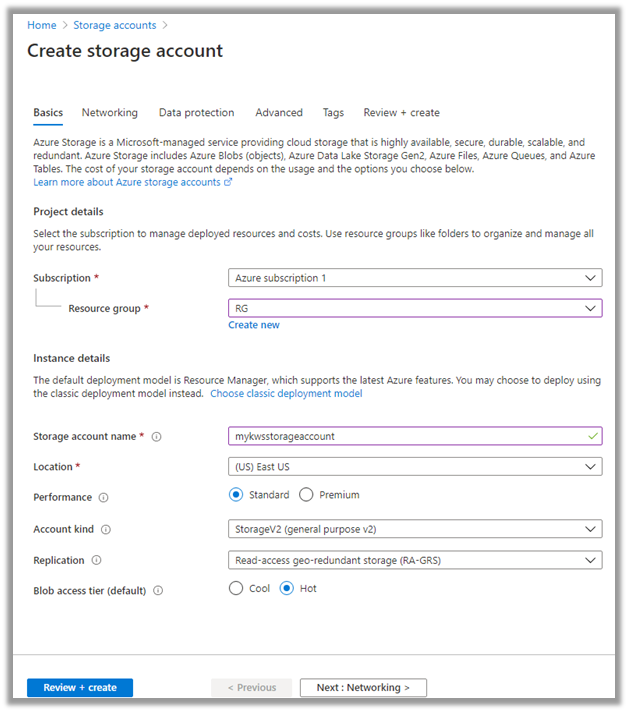
With the Azure Storage created, now let us connect to Azure using the Azure Storage Explorer.

Create a new blob container in the Azure Storage account created.
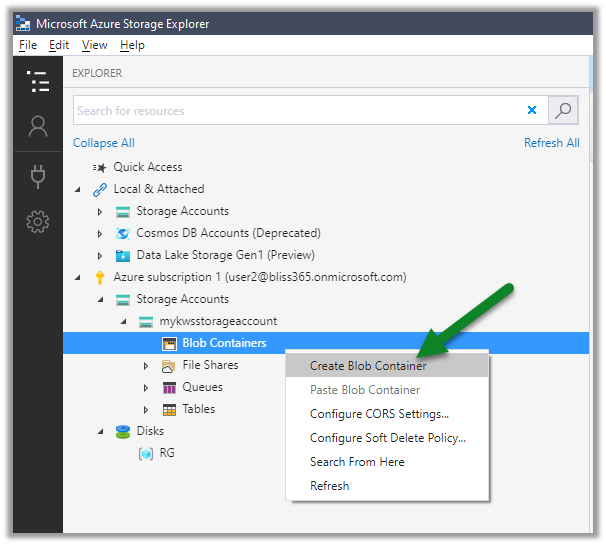
For the blob container created, right-click and select Get Shared Access Signature
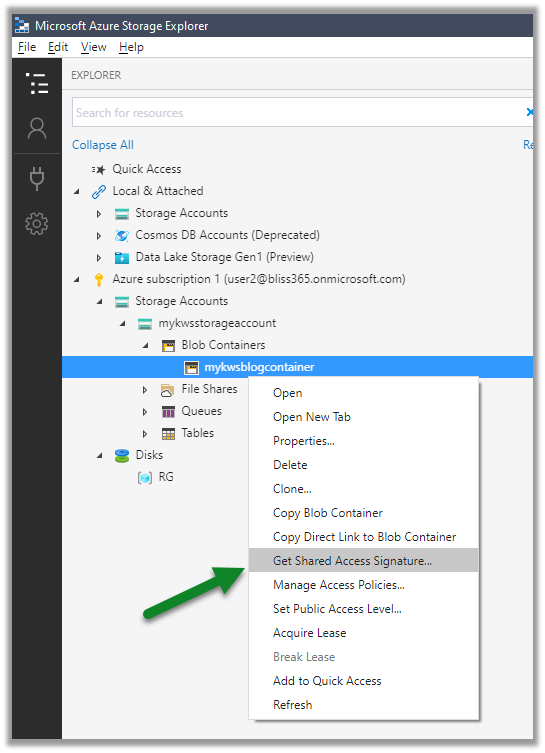
Specify the expiry time along with Write permissions, this is for logging purpose when the Azure-SSIS IR is being provisioned.
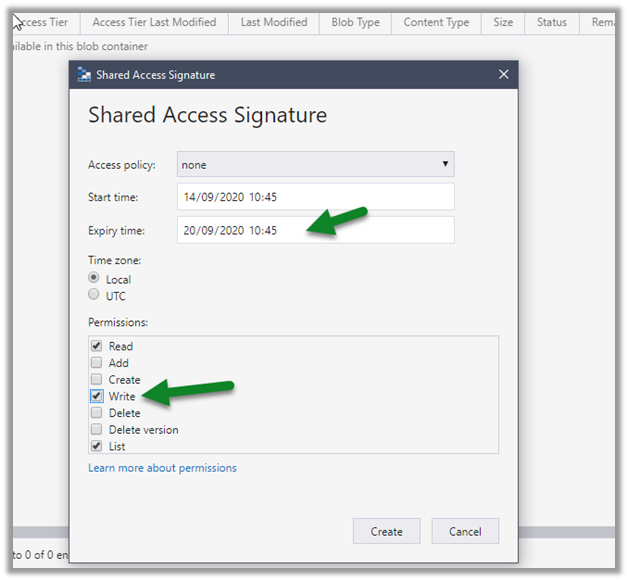
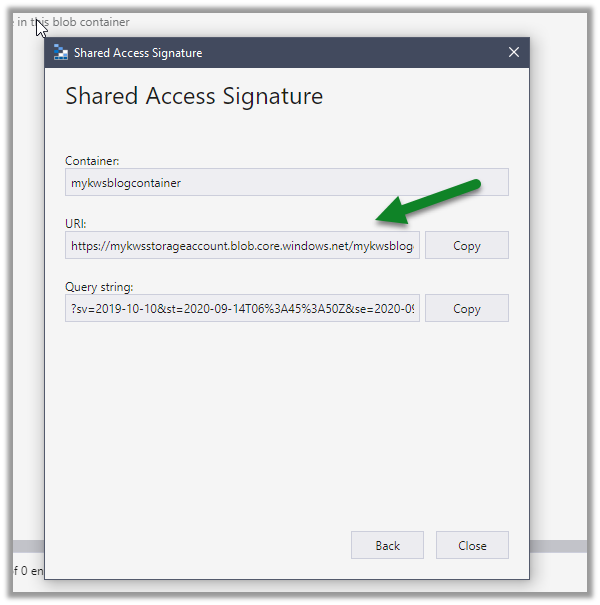
Copy the URL (it will be used in the PowerShell script later)
Now let us get the installation files and programs from the KingswaySoft Shared Blob Container, which we’d place in the blob container we just created.

https://kingswaysoftgeneral.blob.core.windows.net/ssis-integration-toolkit-ultimate?st=2019-07-04T16%3A10%3A25Z&se=2059-07-05T16%3A10%3A00Z&sp=rl&sv=2018-03-28&sr=c&sig=LAGvouFpkZHEk%2BH8%2B0pK%2FDNg7B3jPUf%2FJ91%2BJ%2FEeKg0%3D

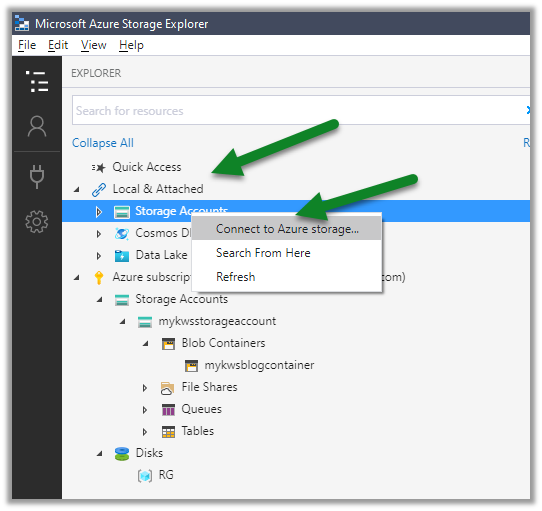
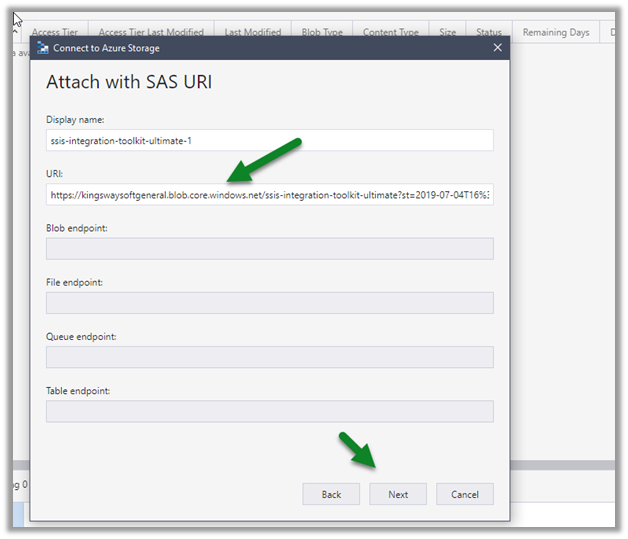
Right-click Storage Accounts and select Connect to Azure Storage
Select Use a shared access signature (SAS) URI
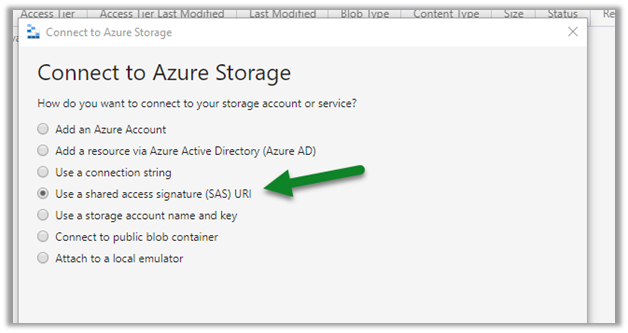
Paste the KingswaySoft blob container URL.
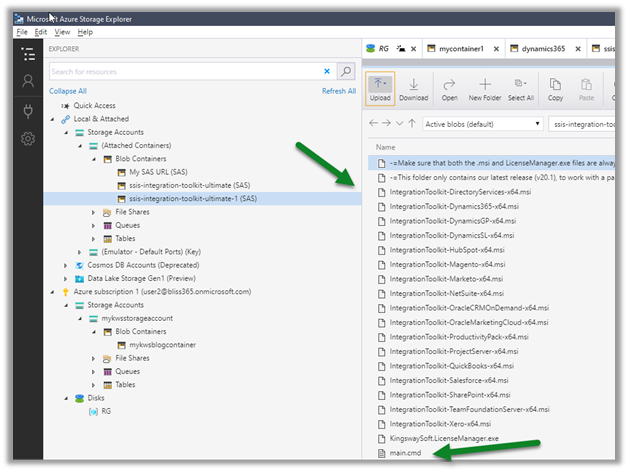
We can see the below contents added to the blob container.
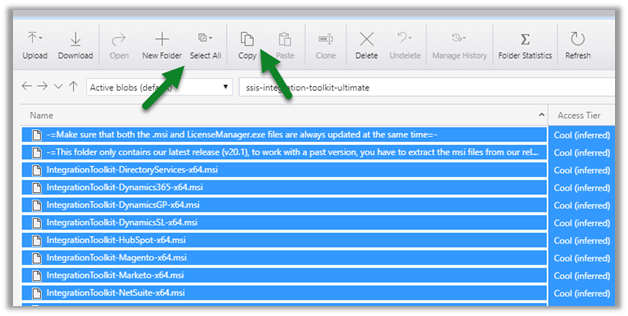
Select all and copy all the files.
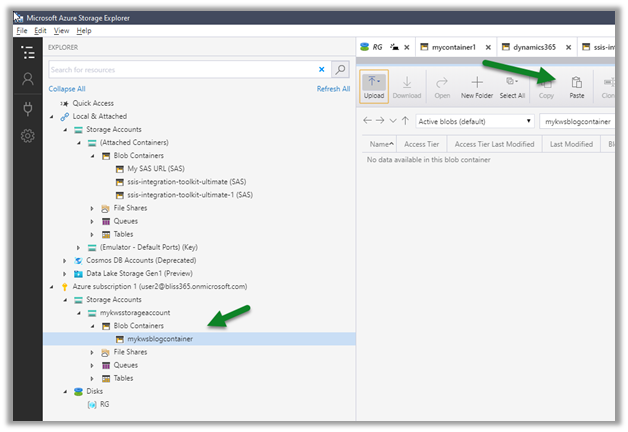
Paste it in the blob container we had created earlier.
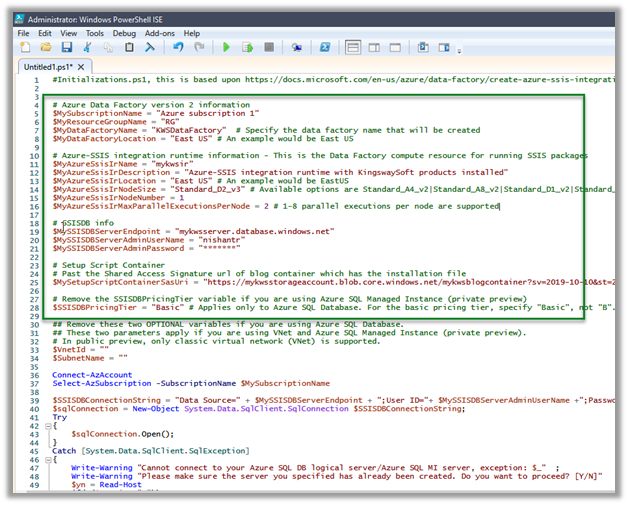
With things now setup, let us get the PowerShell script to provision the Azure-SSIS Integration Runtime Initializations.ps1 and update it.

Specify the appropriate values and run the script. Get the Azure PowerShell.

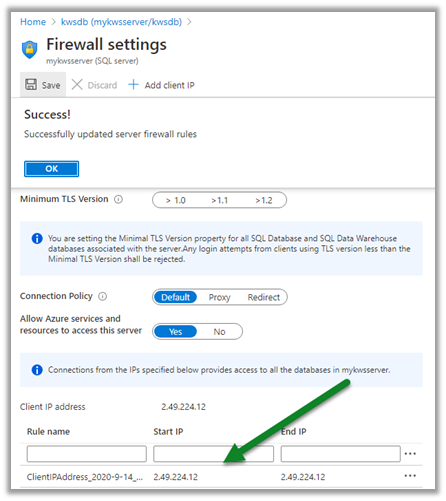
Also, make sure to update the firewall rules to allow the client to connect.
Update the PowerShell Script appropriately
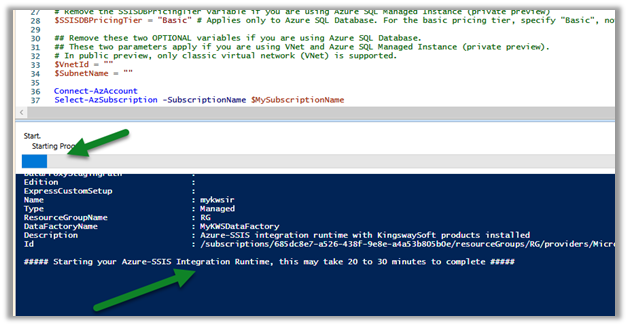
We can check the status as shown below.
In parallel, we can see our Azure Data Factory created with the integration runtime, which is in Starting status.
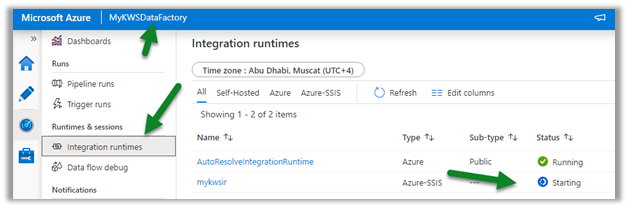
After a few minutes, we will have integration runtime up and running.

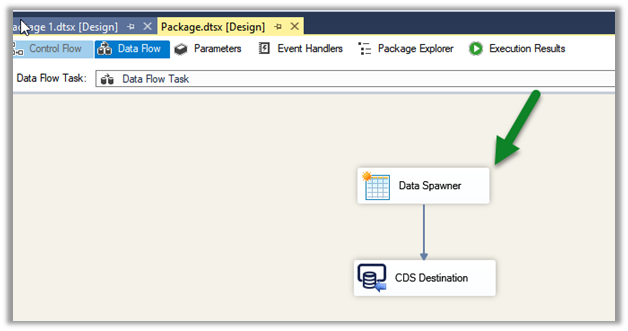
Below is our SSIS Package that we would be deploying to the cloud.

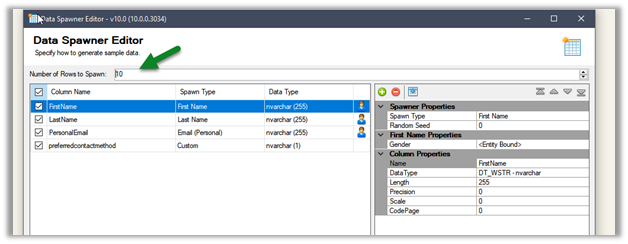
It uses Data Spawner Component to generate test data for Contacts and the CDS Destination component to create those records inside CDS.
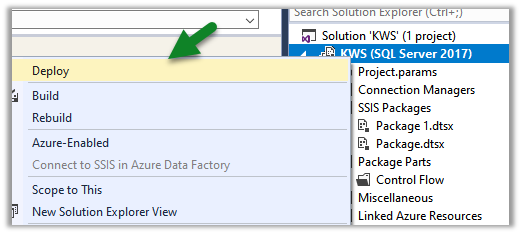
Right-click the integration project and select Deploy
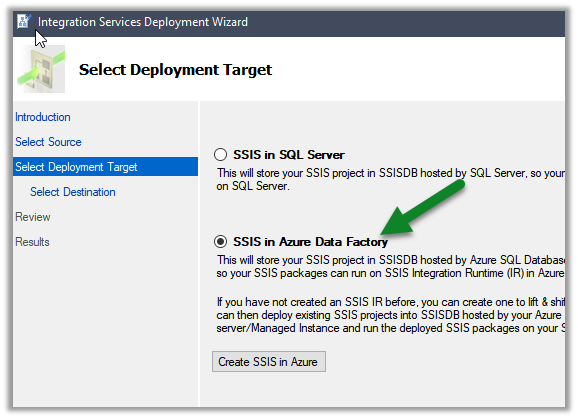
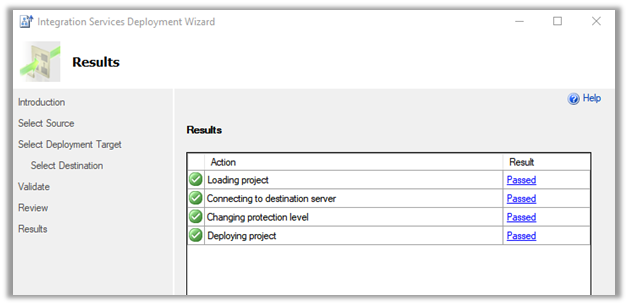
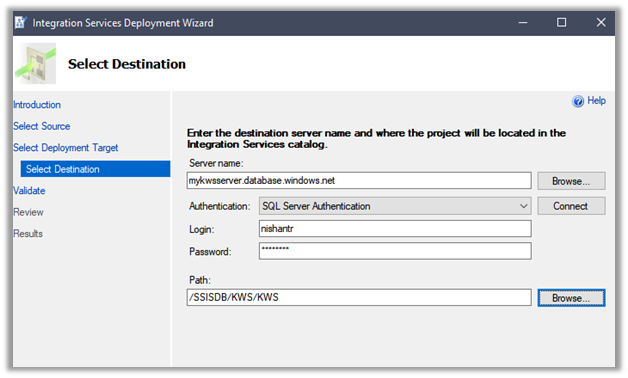
Specify connection details along with Path
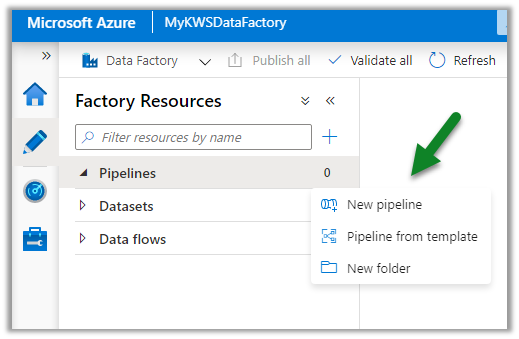
After successful deployment, let us create a new pipeline inside the Azure Data Factory.
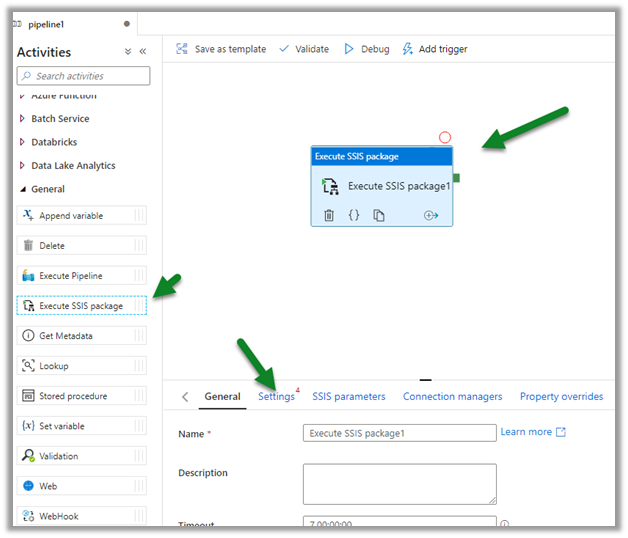
Drag and drop the Execute SSIS Package and click on the Settings tab.
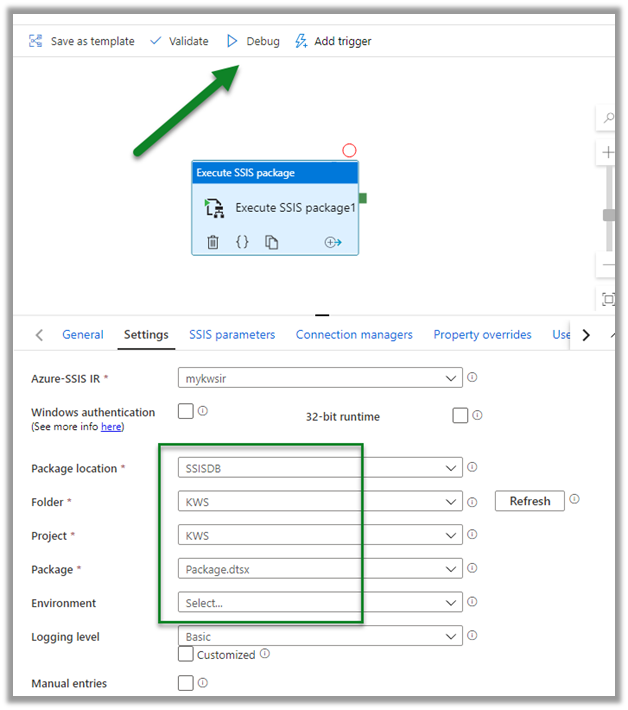
Connect to the package deployed followed by Validate and Debug to test the pipeline.
The pipeline will be in Queued status
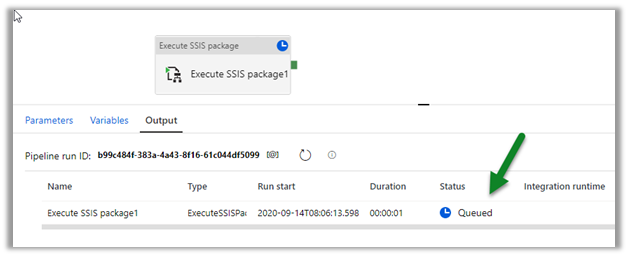
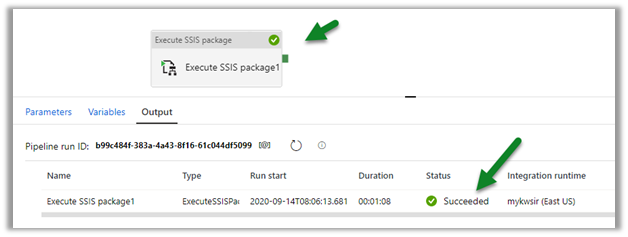
After successful execution,
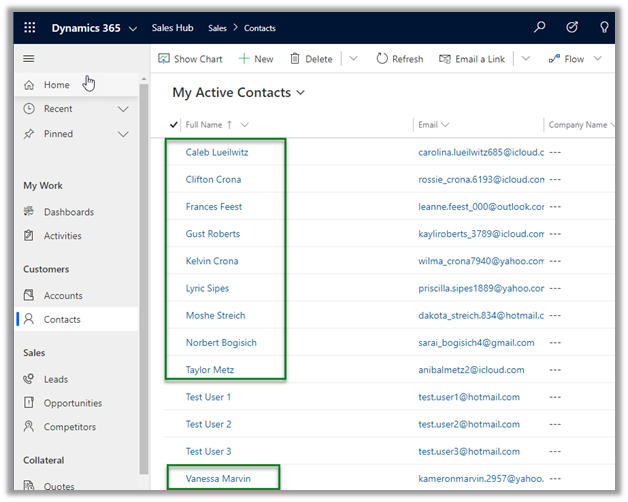
navigate to our Dynamics 365 Sales Hub

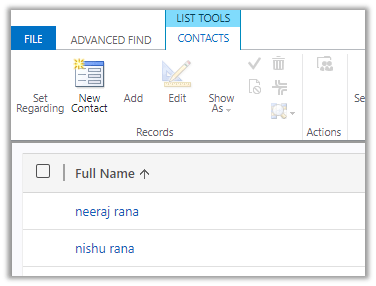
We can see 10 contact records created by the SSIS Package.
Hope it helps..

Advertisements