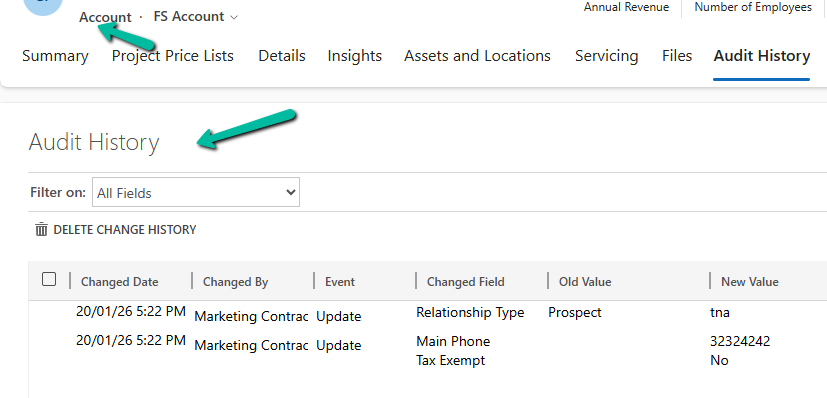
Recently, we ran into an issue where the Audit History page stopped loading on the form. Interestingly, the problem was limited only to the Account forms.
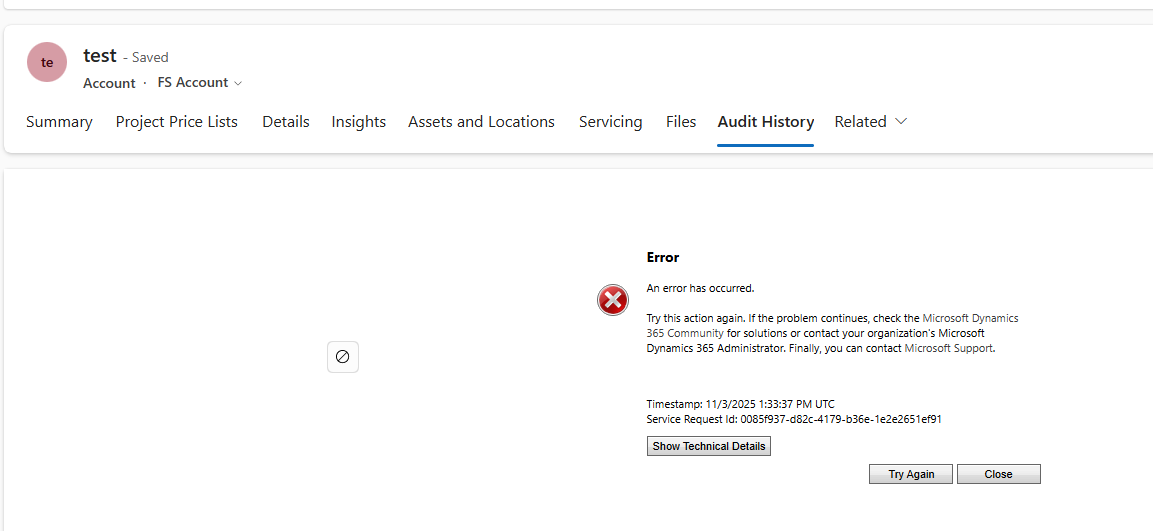
Whenever we tried to open Audit History, we received the generic error below:
An error has occurred.
Try this action again. If the problem continues, check the Microsoft Dynamics 365 Community for solutions or contact your organization’s Microsoft Dynamics 365 Administrator. Finally, you can contact Microsoft Support.
To investigate further, we raised a Microsoft Support ticket. After reviewing the issue, Microsoft informed us that the problem was likely related to a custom control used on the Account form. They shared the Form ID (GUID) along with the control classidF9A8A302-114E-466A-B582-6771B2AE0D92, which corresponds to that custom control.
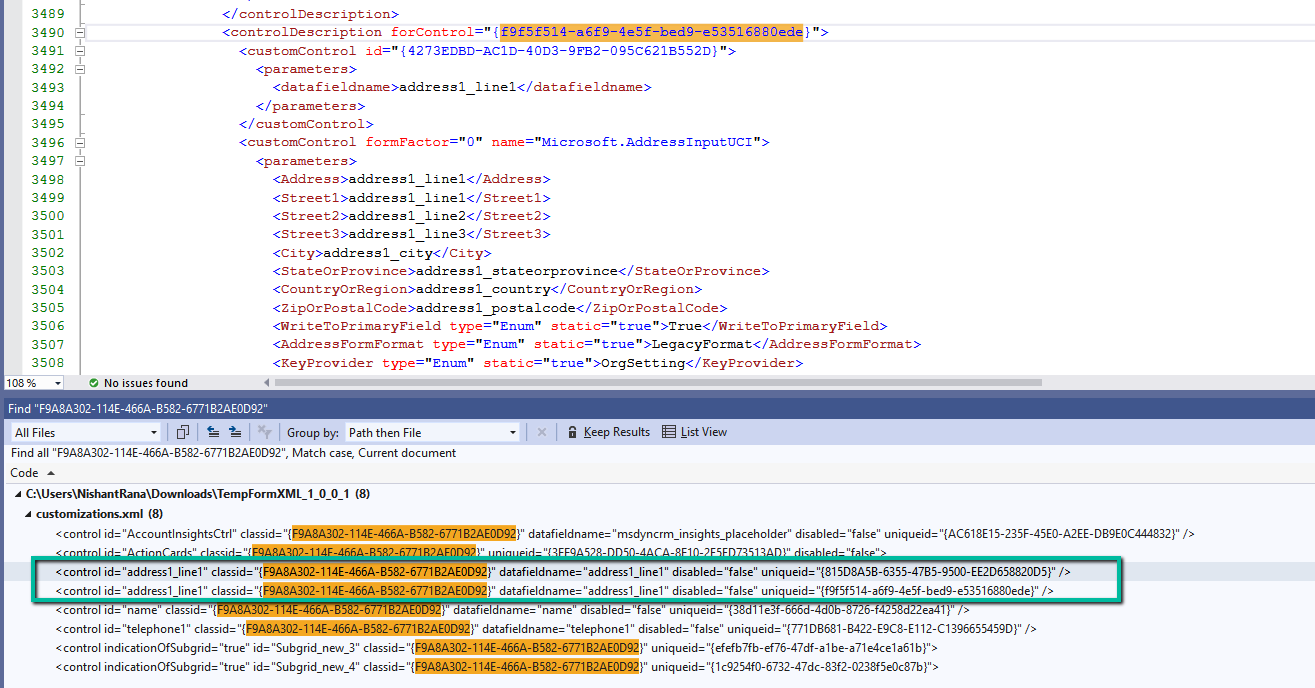
Microsoft asked us to inspect the Form XML of the affected Account form. Specifically, they advised searching for all controls that use the given classid and carefully reviewing the uniqueid property of each control. We were also asked to verify that there were no case mismatches in the GUIDs and that every uniqueid had a matching entry in the controldescription section of the Form XML.
To identify the correct form, we used a SQL4CDS query to retrieve the Form Name and Form ID.
For easier analysis, we created a temporary solution, added the affected Account form to it, exported the solution, and opened the Form XML.
While reviewing the Form XML, we found six instances of the control using the specified classid. For five of these controls, the uniqueid had a corresponding entry in the controldescription section. However, one control was missing this mapping. The problematic uniqueid was 815D8A5B-6355-47B5-9500-EE2D658820D5.
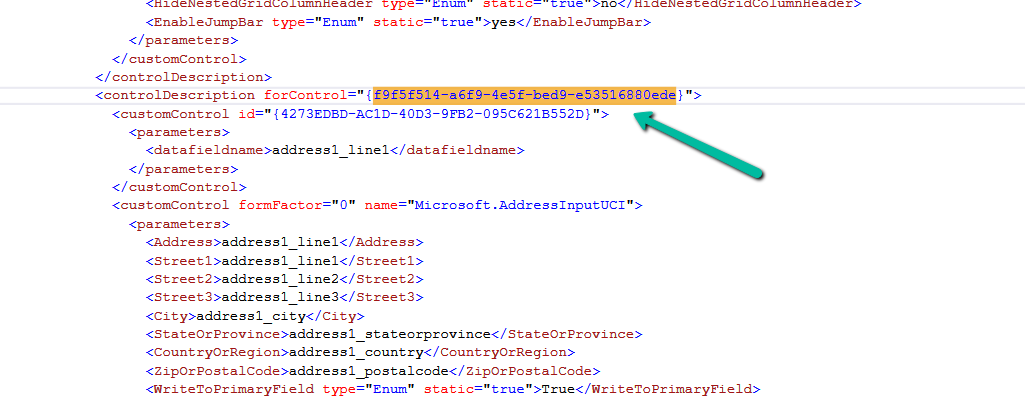
To resolve the issue, we updated this uniqueid to match an existing and valid one already present for the address1_line1 control, which was f9f5f514-a6f9-4e5f-bed9-e53516880ede. After making the change, we zipped the solution, imported it back into the environment, and published the updates.
We had a business requirement to block the closing of a Quote as Lost under certain conditions. Instead of leaving the quote in an Active state, we wanted the system to explicitly move it back to Draft and show a clear error message to the user explaining why the close action was not allowed.
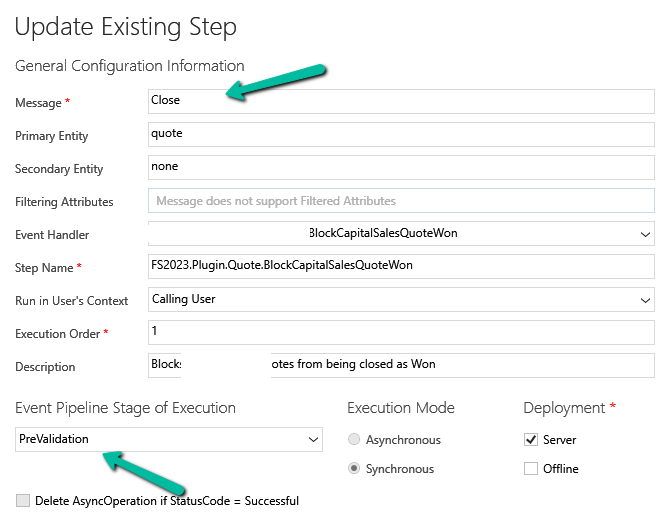
We initially registered our plugin on the Close message in the PreOperation stage. The logic was simple: detect the Lost status, set the quote back to Draft, and throw an exception to cancel the close operation.
The plugin executed exactly as expected. However, the result was not what we intended. Although the quote closure was blocked, the quote never moved to Draft. This happened because PreOperation runs inside the same transaction as the Close message. When we threw an InvalidPluginExecutionException, Dataverse rolled back everything in that transaction, including our SetStateRequest.
To fix this, we moved the same plugin logic to the PreValidation stage, and the behavior immediately changed. PreValidation runs outside the main transaction, before Dataverse starts processing the Close request. This allowed us to:
Update the quote state to Draft
Throw an exception to cancel the Close
Keep the quote in Draft without rollback
Sample Code for reference –
using Microsoft.Xrm.Sdk;
using Microsoft.Xrm.Sdk.Messages;

public class BlockQuoteCloseAndRevertToDraft : IPlugin
{
    public void Execute(IServiceProvider serviceProvider)
    {
        var context =
            (IPluginExecutionContext)serviceProvider.GetService(typeof(IPluginExecutionContext));

        if (!context.InputParameters.Contains("QuoteClose") ||
            !context.InputParameters.Contains("Status"))
            return;

        var status = (OptionSetValue)context.InputParameters["Status"];

        // Custom Lost status value
        const int LostStatusValue = 100000001;

        if (status.Value != LostStatusValue)
            return;

       // other business logic / check, return if not valid else continue and throw exception

        var quoteClose = (Entity)context.InputParameters["QuoteClose"];
        var quoteRef = quoteClose.GetAttributeValue<EntityReference>("quoteid");

        if (quoteRef == null)
            return;

        var serviceFactory =
            (IOrganizationServiceFactory)serviceProvider.GetService(typeof(IOrganizationServiceFactory));
        var service = serviceFactory.CreateOrganizationService(context.UserId);

        service.Execute(new SetStateRequest
        {
            EntityMoniker = new EntityReference("quote", quoteRef.Id),
            State = new OptionSetValue(0),   // Draft
            Status = new OptionSetValue(1)   // Draft status
        });

        throw new InvalidPluginExecutionException(
            "This quote cannot be closed at this stage and has been reverted to Draft."
        );
    }
}
Accidental data deletion in Dataverse happens more often than we expect. A bulk delete job, an incorrect Power Automate flow, or incorrect manual delete can remove important records in seconds. Instead of restoring the environment, Dataverse provides a much better alternative: the Restore message, which allows us to recover deleted records programmatically.
The Restore message works only if the Recycle Bin is enabled for the table before the record is deleted. If the recycle bin is disabled, deleted records are permanently removed and cannot be recovered using the SDK.
When a record is deleted, Dataverse moves it to the recycle bin. We can query these deleted records using RetrieveMultiple with DataSource = “bin” and then pass the deleted record’s ID to the Restore message. The restore operation recreates the record using the same record ID.
Sample Console App –
The following console app retrieves deleted Case (incident) records from the recycle bin and restores them using the Restore message.
static void Main(string[] args)
{
    Console.WriteLine("Restore Deleted Records started.");

    string connString = @"AuthType=OAuth;
Username=your.user@tenant.onmicrosoft.com;
Password=********;
Url=https://yourorg.crm.dynamics.com/;
AppId=00000000-0000-0000-0000-000000000000;
RedirectUri=app://58145b91-0c36-4500-8554-080854f2ac97/";

    var serviceClient = new CrmServiceClient(connString);
    var service = serviceClient.OrganizationWebProxyClient
        ?? throw new Exception("Organization service not available");

    // Retrieve deleted records from recycle bin
    QueryExpression query = new QueryExpression("incident")
    {
        ColumnSet = new ColumnSet("title"),
        DataSource = "bin",
        TopCount = 50
    };

    var deletedCases = service.RetrieveMultiple(query);

    if (deletedCases.Entities.Count == 0)
    {
        Console.WriteLine("No deleted records found.");
        return;
    }

    foreach (var deletedCase in deletedCases.Entities)
    {
        Guid caseId = deletedCase.Id;
        string title = deletedCase.GetAttributeValue<string>("title") ?? "Case";

        // Prepare entity for restore
        Entity caseToRestore = new Entity("incident", caseId);
        caseToRestore["title"] = title + " (Restored)";

        // Restore using Restore message
        OrganizationRequest restoreRequest = new OrganizationRequest("Restore");
        restoreRequest["Target"] = caseToRestore;

        service.Execute(restoreRequest);

        Console.WriteLine($"Restored record: {caseId}");
    }

    Console.WriteLine("Deleted records restored successfully.");
}
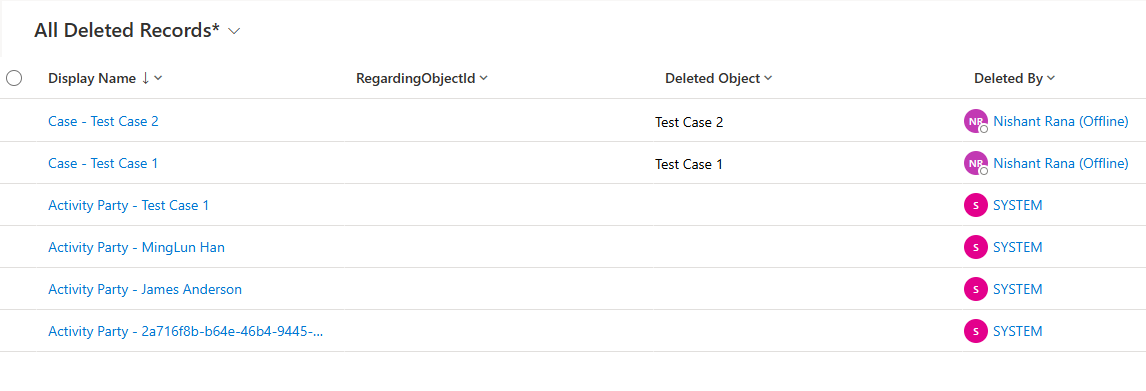
E.g., we have the following deleted case, and its related records in our recycle bin.
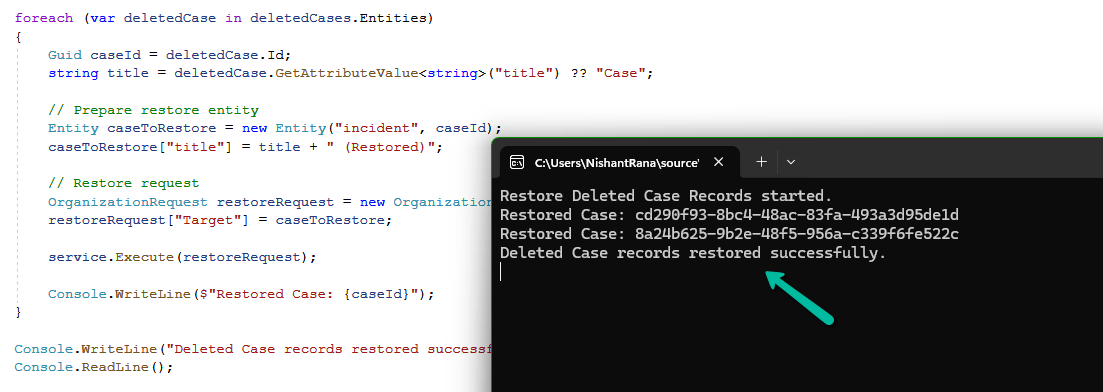
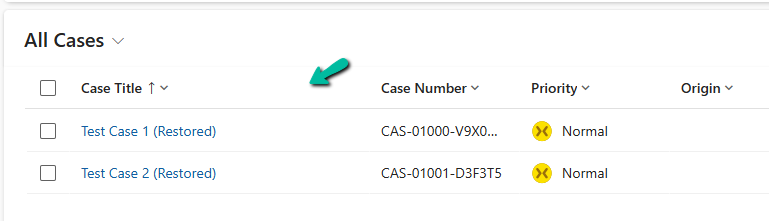
On running our console app, we can see our deleted case records restored.
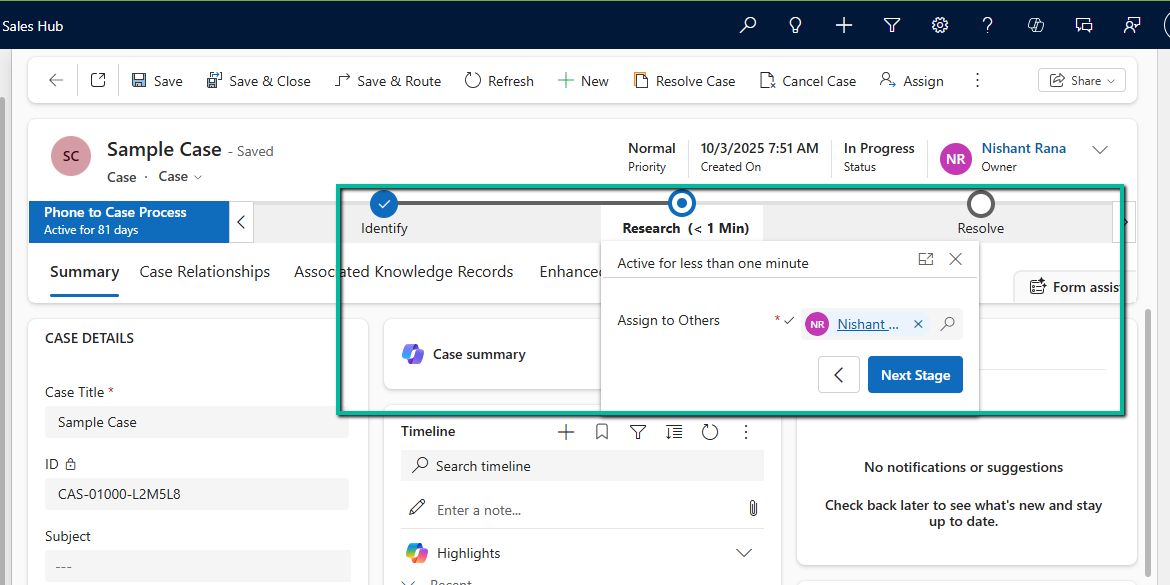
In earlier posts, we looked at how to move a Business Process Flow (BPF) stage and finish the process by directly updating the BPF entity instance. In this post, we’ll use RetrieveProcessInstancesRequest and RetrieveActivePathRequest to move a Business Process Flow to its final stage and finish it, using the Phone to Case Process as a reference.
A Business Process Flow defines not just stages, but also valid paths through those stages. Instead of assuming which stage comes next, we can ask Dataverse for the active path of the current process instance. This makes the logic more resilient to future changes, such as reordering stages or adding conditional paths.
By using the active path:
We avoid hard-coding stage IDs
We ensure the stage we move is to valid for the process
We can construct a correct traversed path directly from platform metadata.
Step 1: Retrieve the Active BPF Instance
The first step is to identify the active Business Process Flow instance for the Case. We do this using RetrieveProcessInstancesRequest, which returns all BPF instances associated with the record, ordered based on modifiedon. The most recently modified bpf instance will be the one active in the record.
The response contains all stages in the active path, in the correct order. From this data, we build the complete traversed path by iterating through every stage returned and collecting their processstageid values.
var traversedPathList = new List<string>();
foreach (var stage in pathResp.ProcessStages.Entities)
{
    traversedPathList.Add(
        ((Guid)stage.Attributes["processstageid"]).ToString()
    );
}

string completeTraversedPath = string.Join(",", traversedPathList);
This approach guarantees that the traversedpath reflects the exact path defined by the process configuration, rather than a manually constructed sequence.
Step 3: Move the BPF to the Final Stage
We then get the last stage’s GUID and use it to update activestageid of the BPF instance along with the traversed path.
Guid finalStageId =
    (Guid)pathResp.ProcessStages.Entities.Last()
        .Attributes["processstageid"];

var updateBpf = new Entity("phonetocaseprocess", processInstanceId)
{
    ["activestageid"] = new EntityReference("processstage", finalStageId),
    ["traversedpath"] = completeTraversedPath
};

orgService.Update(updateBpf);
Step 4: Finish (Deactivate) the Business Process Flow
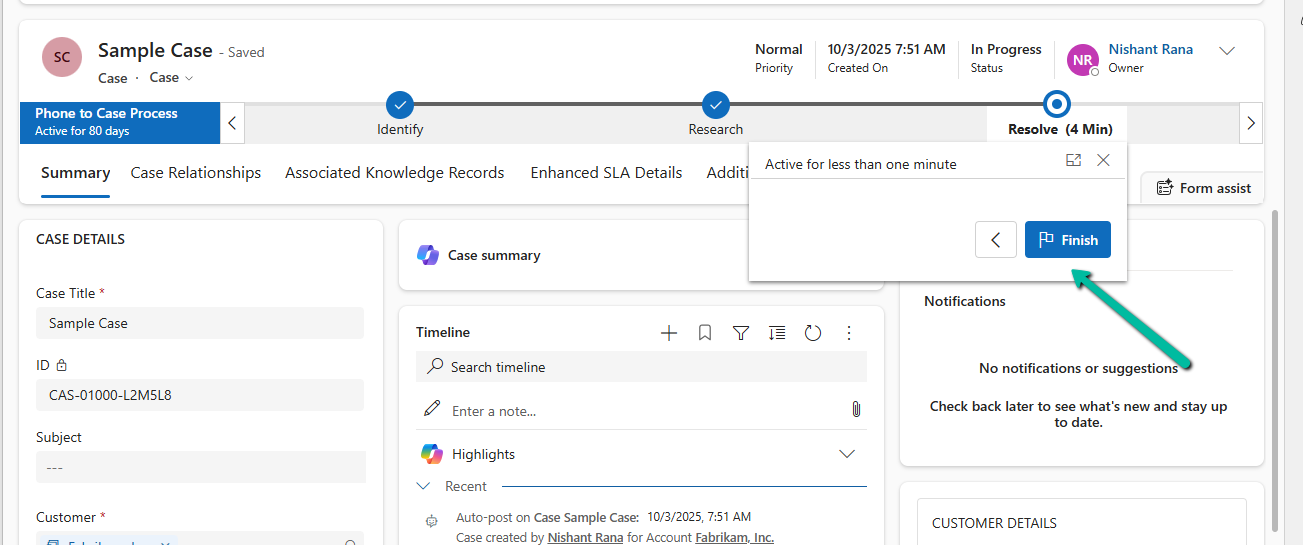
Reaching the final stage does not automatically complete the process. To mirror the Finish button in the UI, we explicitly mark the BPF instance as inactive and finished.
var finish = new Entity("phonetocaseprocess", processInstanceId)
{
    ["statecode"] = new OptionSetValue(1),   // Inactive
    ["statuscode"] = new OptionSetValue(-1)  // Finished
};

orgService.Update(finish);
After this update, the Business Process Flow appears as Completed in the UI and can no longer be progressed.
Helper method –
public static void MoveBpfToFinalStageAndFinish(
    IOrganizationService service,
    Guid primaryRecordId,
    string primaryEntityLogicalName,
    string bpfSchemaName,
    string expectedBpfName)
{
    // Step 1: Retrieve active BPF instance
    var processInstanceRequest = new RetrieveProcessInstancesRequest
    {
        EntityId = primaryRecordId,
        EntityLogicalName = primaryEntityLogicalName
    };

    var processInstanceResponse =
        (RetrieveProcessInstancesResponse)service.Execute(processInstanceRequest);

    if (!processInstanceResponse.Processes.Entities.Any())
        return;

    var bpfInstance = processInstanceResponse.Processes.Entities.First();
    var processInstanceId = bpfInstance.Id;

    // Optional safety check – ensure correct BPF
    if (!bpfInstance.Attributes.Contains("name") ||
        bpfInstance["name"].ToString() != expectedBpfName)
        return;

    // Step 2: Retrieve active path
    var pathRequest = new RetrieveActivePathRequest
    {
        ProcessInstanceId = processInstanceId
    };

    var pathResponse =
        (RetrieveActivePathResponse)service.Execute(pathRequest);

    if (pathResponse.ProcessStages.Entities.Count == 0)
        return;

    // Step 3: Build traversed path from active path
    var traversedPathList = new List<string>();
    foreach (var stage in pathResponse.ProcessStages.Entities)
    {
        traversedPathList.Add(
            ((Guid)stage["processstageid"]).ToString()
        );
    }

    string traversedPath = string.Join(",", traversedPathList);

    // Final stage = last stage in active path
    Guid finalStageId =
        (Guid)pathResponse.ProcessStages.Entities.Last()["processstageid"];

    // Step 4: Move BPF to final stage
    var updateBpf = new Entity(bpfSchemaName, processInstanceId)
    {
        ["activestageid"] = new EntityReference("processstage", finalStageId),
        ["traversedpath"] = traversedPath
    };

    service.Update(updateBpf);

    // Step 5: Finish (deactivate) the BPF
    var finishBpf = new Entity(bpfSchemaName, processInstanceId)
    {
        ["statecode"] = new OptionSetValue(1),   // Inactive
        ["statuscode"] = new OptionSetValue(2)  // Finished (verify in org)
    };

    service.Update(finishBpf);
}
In the previous post, we explored how to move a Business Process Flow (BPF) to the next stage using a console application, with the Phone to Case Process as a working example. Advancing the BPF stage, however, is only part of the lifecycle. Even after the flow reaches its final stage, it remains active until it is explicitly finished. In the Dynamics 365 UI, this is done by clicking the Finish button. In this post, we’ll continue from where the previous one left off and look at how to finish (deactivate) and reactivate the same Phone to Case Business Process Flow programmatically using C#.
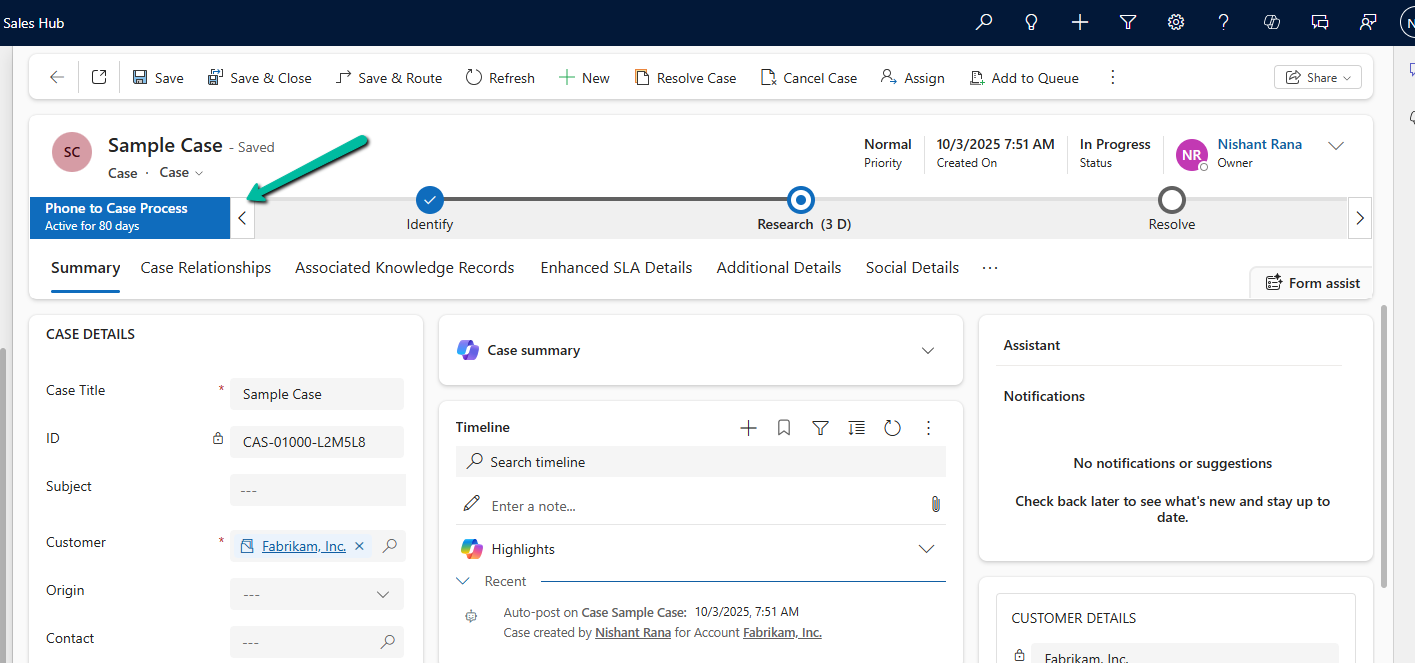
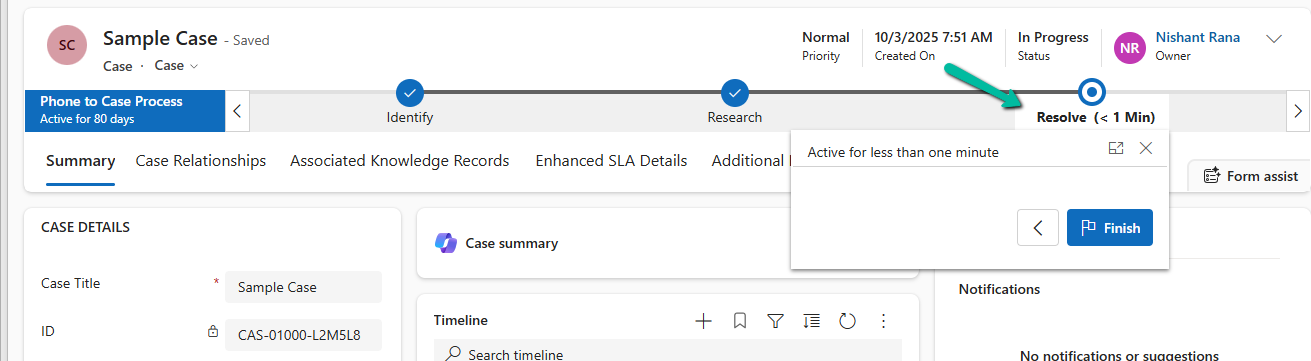
Below we can see the BPF in the last stage Resolve but not yet finished.
Each Business Process Flow is backed by its own Dataverse table. For the Phone to Case Process, this table is phonetocaseprocess. When a Case enters the BPF, a corresponding record is created in this table, representing the BPF instance. This record has its own lifecycle, independent of the Case itself. Finishing a BPF means setting this instance to an Inactive state. Simply moving the BPF to the Resolve stage does not finish the process; the instance remains active until its state is explicitly updated.
var processInstanceId = bpfInstance.Id;
var processEntityLogicalName = "phonetocaseprocess";

// Finish (Deactivate) the BPF
var finishBpf = new Entity(processEntityLogicalName, processInstanceId)
{
    ["statecode"] = new OptionSetValue(1),   // Inactive
    ["statuscode"] = new OptionSetValue(-1)  // Finished (verify value in your org)
};

service.Update(finishBpf);
After this update, the Business Process Flow is marked as Completed in the UI, and the Finish button is no longer available. This mirrors the result of clicking Finish manually.
In certain scenarios—such as testing, data correction, or reprocessing a record—we may need to reactivate a finished Business Process Flow. This can be done by setting the BPF instance back to an Active state.
var reactivateBpf = new Entity(processEntityLogicalName, processInstanceId)
{
    ["statecode"] = new OptionSetValue(0),   // Active
    ["statuscode"] = new OptionSetValue(-1)
};

service.Update(reactivateBpf);
Reusable Helper Method to Move Next, Finish and Reactivate a BPF –
public static void UpdateBpfStageAndState(
    IOrganizationService service,
    string bpfSchemaName,
    string primaryEntityLookupField,
    Guid primaryRecordId,
    Guid targetStageId,
    bool finishBpf = false,
    bool reactivateBpf = false)
{
    // 1. Retrieve the BPF instance
    var query = new QueryExpression(bpfSchemaName)
    {
        ColumnSet = new ColumnSet("activestageid", "traversedpath", "statecode")
    };
    query.Criteria.AddCondition(primaryEntityLookupField, ConditionOperator.Equal, primaryRecordId);

    var instances = service.RetrieveMultiple(query);
    if (!instances.Entities.Any())
        return;

    var bpfInstance = instances.Entities.First();

    // 2. Move the BPF to the target stage
    var updateStage = new Entity(bpfSchemaName, bpfInstance.Id);

    updateStage["activestageid"] =
        new EntityReference("processstage", targetStageId);

    var traversedPath = bpfInstance.GetAttributeValue<string>("traversedpath");
    updateStage["traversedpath"] = string.IsNullOrEmpty(traversedPath)
        ? targetStageId.ToString()
        : $"{traversedPath},{targetStageId}";

    service.Update(updateStage);

    // 3. Finish (Deactivate) the BPF if requested
    if (finishBpf)
    {
        var finish = new Entity(bpfSchemaName, bpfInstance.Id)
        {
            ["statecode"] = new OptionSetValue(1),   // Inactive
            ["statuscode"] = new OptionSetValue(-1)  // Finished (verify in your org)
        };

        service.Update(finish);
    }

    // 4. Reactivate the BPF if requested
    if (reactivateBpf)
    {
        var reactivate = new Entity(bpfSchemaName, bpfInstance.Id)
        {
            ["statecode"] = new OptionSetValue(0),   // Active
            ["statuscode"] = new OptionSetValue(-1)
        };

        service.Update(reactivate);
    }
}
In Dynamics 365, Business Process Flows are usually progressed by users through the UI. However, in scenarios like data migration, bulk remediation, or backend automation, we may need to move a BPF stage programmatically. Here we will cover one of the ways we can advance the Business Process Flow to the next stage using a C# console application, with a Case example used only as a reference.
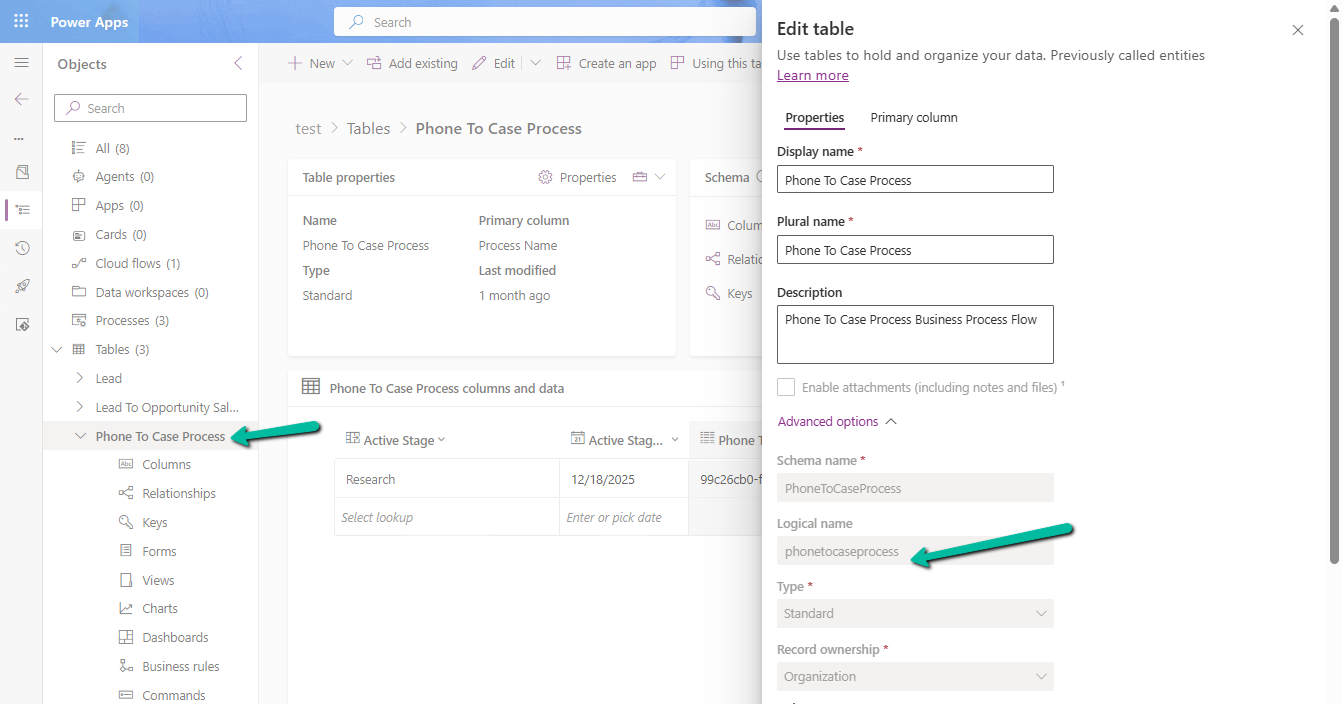
Every Business Process Flow in Dataverse is backed by its own table, created when the process is published. The table name is derived from the process schema name and stores one record per entity instance participating in the flow.
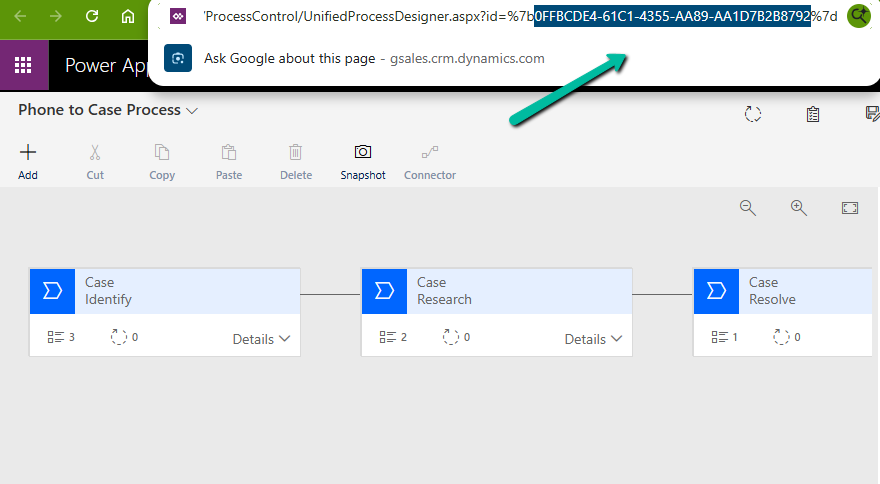
Below is the table for the Phone To Case Process with schema name – phonetocaseprocess
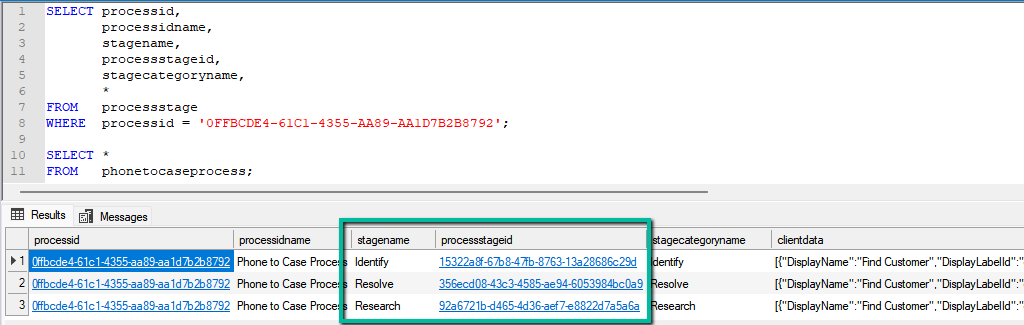
We can get the stagename and the processstageid for the business process flow from the processstage table, passing the GUID of the business process flow.
SELECT processid,
       processidname,
       stagename,
       processstageid,
       stagecategoryname,
       *
FROM   processstage
WHERE  processid = '0FFBCDE4-61C1-4355-AA89-AA1D7B2B8792';
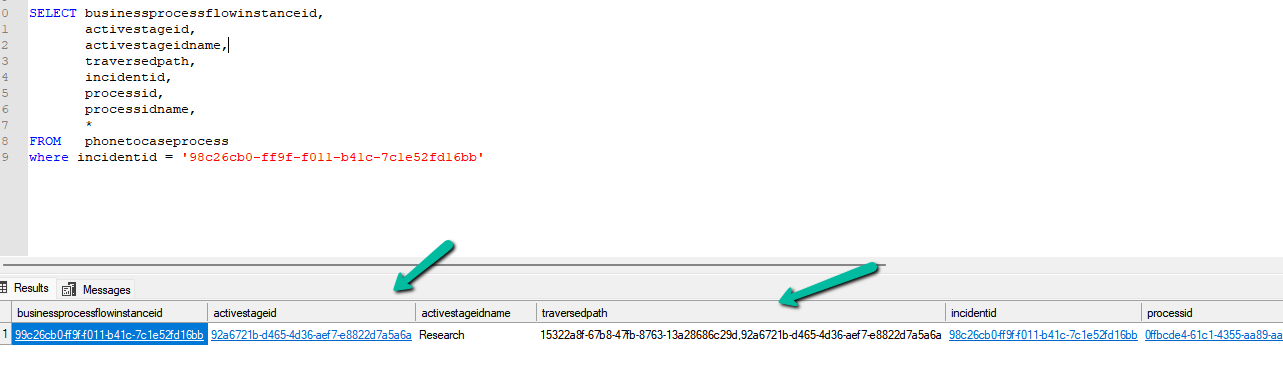
Regardless of the entity, two columns control stage movement: activestageid, which represents the current stage, and traversedpath, which stores a comma-separated list of all stage IDs the record has passed through. When moving a BPF programmatically, both values must be updated together to ensure the UI reflects the change correctly. The table will also include the column referring to the record it is associated with; in our example, it is incidentid.
The traversedpathvalue must be constructed as a comma-separated list of processstageid values, preserving the exact order in which stages are completed, with each newly reached stage appended to the end of the existing path.
SELECT businessprocessflowinstanceid,
       activestageid,
       activestageidname,
       traversedpath,
       incidentid,
       processid,
       processidname,
       *
FROM   phonetocaseprocess
where incidentid = '98c26cb0-ff9f-f011-b41c-7c1e52fd16bb'
At a high level, the process is always the same. We first identify the correct BPF table, then retrieve the BPF instance associated with the primary record. Next, we update the activestageid to point to the next stage and append that stage ID to the existing traversedpath. Finally, we persist the update back to Dataverse. Because this logic runs outside the UI, it bypasses stage validations and required-field enforcement, making it ideal for backend utilities but something that should be used carefully.
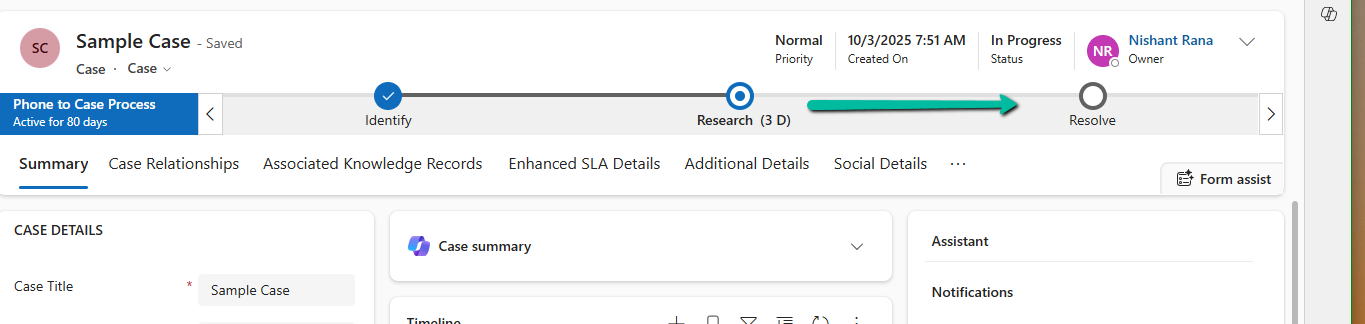
Below is our sample code that moves the case record from the Research stage to the Resolve stage.
Sample Code
 static void Main(string[] args)
        {
            Console.WriteLine("MoveCaseBpfToResolve started.");
            // CRM connection
            string connString = @"AuthType=OAuth;
            Username=abc.onmicrosoft.com;
            Password=xyz;
            Url=https://abc.crm.dynamics.com/;
            AppId=51f81489-12ee-4a9e-aaae-a2591f45987d;
            RedirectUri=app://58145b91-0c36-4500-8554-080854f2ac97/";

            var service = new CrmServiceClient(connString);

            var bpfSchemaName = "phonetocaseprocess";

            var caseId = "98c26cb0-ff9f-f011-b41c-7c1e52fd16bb";
            var resolveStageId = new Guid("356ecd08-43c3-4585-ae94-6053984bc0a9");

            // Query the BPF instance for the Case
            var query = new QueryExpression(bpfSchemaName)
            {
                ColumnSet = new ColumnSet("activestageid", "traversedpath")
            };
            query.Criteria.AddCondition("incidentid", ConditionOperator.Equal, caseId);

            var instances = service.RetrieveMultiple(query);

            if (!instances.Entities.Any())
            {
                Console.WriteLine("No BPF instance found for the Case. Exiting.");
                return;
            }

            var bpfInstance = instances.Entities.First();


            var updateBpf = new Entity(bpfSchemaName)
            {
                Id = bpfInstance.Id
            };
            // Set active stage to Resolve
            updateBpf["activestageid"] = new EntityReference("processstage", resolveStageId);
            // Update traversed path
            var traversedPath = bpfInstance.GetAttributeValue<string>("traversedpath");
            updateBpf["traversedpath"] = $"{traversedPath},{resolveStageId}";
            service.Update(updateBpf);

            Console.WriteLine("BPF successfully moved to Resolve stage.");
            Console.WriteLine("MoveCaseBpfToResolve completed.");
        }














 Nishant Rana's Weblog