Using ValueRule to hide “Add New” Button for an entity’s subgrid in CRM 2011


Hi,

Suppose we have to disable “Add New related record” button for a SubGrid of a custom entity A. The condition is that it should get disabled based on the value of one of the option set in the form (of Custom entity B) to which it is associated with.

AddNewStandard button is the one which we need to refer to do that.

In the ValueRule  new_approvalstatus field is an optionset with the corresponding value (2233770000) for which we want to disable the button in the ribbon.

We can use the below RibbonDiffXml to achieve that.

   <RibbonDiffXml>
        <CustomActions>
          <CustomAction Id="MyOrg_CustomAction" Location="Mscrm.SubGrid.new_promotiondefinition.AddNewStandard">
            <CommandUIDefinition>
              <Button Id="Mscrm.SubGrid.new_promotiondefinition.AddNewStandard" Command="MyOrg_Command" Sequence="20"
LabelText="$Resources(EntityDisplayName):Ribbon.SubGrid.AddNew" Alt="$Resources(EntityDisplayName):Ribbon.SubGrid.AddNew" Image16by16="/_imgs/ribbon/NewRecord_16.png" Image32by32="/_imgs/ribbon/newrecord32.png" TemplateAlias="o1" ToolTipTitle="$Resources(EntityDisplayName):Mscrm_SubGrid_EntityLogicalName_MainTab_Management_AddNewStandard_ToolTipTitle" ToolTipDescription="$Resources(EntityDisplayName):Mscrm_SubGrid_EntityLogicalName_MainTab_Management_AddNewStandard_ToolTipDescription" />
            </CommandUIDefinition>
          </CustomAction>
          <HideCustomAction Location="Mscrm.SubGrid.new_promotiondefinition.AddExistingStandard" HideActionId="Mscrm.SubGrid.new_promotiondefinition.AddExistingStandard.HideAction" />
        </CustomActions>
        <Templates>
          <RibbonTemplates Id="Mscrm.Templates"></RibbonTemplates>
        </Templates>
        <CommandDefinitions>
          <CommandDefinition Id="MyOrg_Command">
            <EnableRules>
              <EnableRule Id="MyOrg_CustomEnableRule" />
            </EnableRules>
            <DisplayRules></DisplayRules>
            <Actions></Actions>
          </CommandDefinition>
        </CommandDefinitions>
        <RuleDefinitions>
          <TabDisplayRules />
          <DisplayRules />
          <EnableRules>
            <EnableRule Id="MyOrg_CustomEnableRule">
              <ValueRule Default="true"  Field="new_approvalstatus" InvertResult="true" Value="223770000"/>
            </EnableRule>
          </EnableRules>
        </RuleDefinitions>
        <LocLabels />
      </RibbonDiffXml>

The thing to remember is that it will override the existing command definition and the rules and actions defined in it. So here we would need to copy those displayrules, enablerules and actions if we want those functionality.

Hope it helps.

Account Search based on account name through a ribbon button on account grid in CRM 2011


Hi,

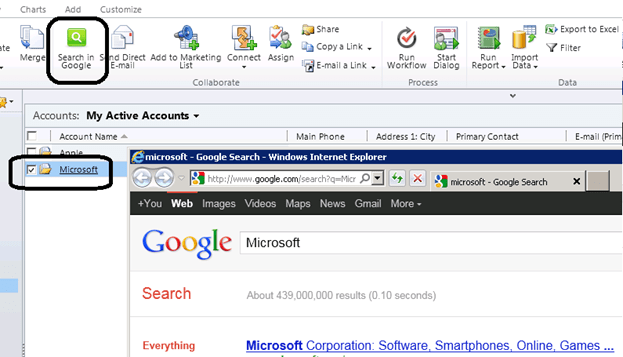
Just created a simple managed solution that will show a button on Account’s grid. It will only get enabled when only one record is selected in grid otherwise it would remain disabled.

For that we can use SelectionCountRule in our EnableRule definition.

On click of button we are calling a JavaScript function and passing guid of the record selected using CrmParameter as the part of JavaScriptFunction Action.

The JavaScript function uses that guid, makes a OData call and retrieves the account name and passes that account name as a query parameter to google search url and uses window.open method to open the page.

RibbonDiffXml for that:-

<RibbonDiffXml>
        <CustomActions>
          <CustomAction Id="MyOrg.CustomAction" Location="Mscrm.HomepageGrid.account.MainTab.Collaborate.Controls._children" Sequence="1">
            <CommandUIDefinition>
              <Button Id="MyOrg.Button" ToolTipTitle="Search in Google" ToolTipDescription="Search detail of the account selected" Command="MyOrg.Command" Sequence="1" LabelText="Search in Google" Alt="Search in Google" Image16by16="$webresource:new_search16" Image32by32="$webresource:new_search32" TemplateAlias="o1" />
            </CommandUIDefinition>
          </CustomAction>
        </CustomActions>
        <Templates>
          <RibbonTemplates Id="Mscrm.Templates"></RibbonTemplates>
        </Templates>
        <CommandDefinitions>
          <CommandDefinition Id="MyOrg.Command">
            <EnableRules>
              <EnableRule Id="MyOrg.EnableRule"></EnableRule>
            </EnableRules>
            <DisplayRules />
            <Actions>
              <JavaScriptFunction Library="$webresource:new_search" FunctionName="search">
                <StringParameter Value="Guid Selected"></StringParameter>
                <CrmParameter Value="SelectedControlSelectedItemIds"></CrmParameter>
              </JavaScriptFunction>
            </Actions>
          </CommandDefinition>
        </CommandDefinitions>
        <RuleDefinitions>
          <TabDisplayRules />
          <DisplayRules />
          <EnableRules>
            <EnableRule Id="MyOrg.EnableRule">
              <SelectionCountRule AppliesTo="SelectedEntity" Maximum="1" Minimum="1"></SelectionCountRule>
            </EnableRule>
          </EnableRules>
        </RuleDefinitions>
        <LocLabels />
 </RibbonDiffXml>
 

JavaScript:-

function search(message,value)
{
var  Id = value;
var serverUrl = Xrm.Page.context.getServerUrl();
var ODataPath = serverUrl + "/XRMServices/2011/OrganizationData.svc";

var retrieveAccountReq = new XMLHttpRequest();
retrieveAccountReq.open("GET", ODataPath + "/AccountSet(guid'" + Id + "')", false);
retrieveAccountReq.setRequestHeader("Accept", "application/json");
retrieveAccountReq.setRequestHeader("Content-Type", "application/json; charset=utf-8");

retrieveAccountReq.onreadystatechange = function () {
  retrieveAccountReqCallBack(this);
 };

retrieveAccountReq.send();
}

function retrieveAccountReqCallBack(retrieveAccountReq) {

  if (retrieveAccountReq.readyState == 4) {
  if (retrieveAccountReq.status == 200) {

 var accountName = eval('('+retrieveAccountReq.responseText+')').d.Name;
 window.open("http://www.google.com/search?q="+accountName);
}
  else {
     alert("Call Failed.");
  }
 }
}

The managed solution:-

https://nishantrana.me/wp-content/uploads/2011/10/accountsearch_1_0_0_0_managed.doc

Just change the extension to zip from doc.

Hope it helps!


Custom Ribbon Button to get the Guid of the record in CRM 2011


Update :- Works for CRM 2013 as well.

Hi,

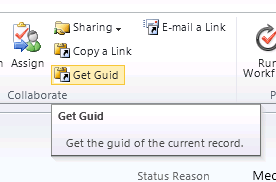
Normally to get the guid we need to click on “Copy a link” button and then get id from the url, so just thought of creating a custom button that only copies the guid.

Clicking on Get Guid button will copy the id to the clipboard

RibbonDiffXml:-

 <RibbonDiffXml>
    <CustomActions>
      <CustomAction Id="Sample.all.form.GetGuid.CustomAction"
                    Location="Mscrm.Form.{!EntityLogicalName}.MainTab.Collaborate.Controls._children"
                    Sequence="75">
        <CommandUIDefinition>
          <Button Id="Sample.{!EntityLogicalName}.form.GetGuid.Button"
                  Command="Sample.form.GetGuid"
                  Sequence="61"
                  LabelText="$LocLabels:Sample.all.GetGuid.LabelText"
                  ToolTipTitle="$LocLabels:Sample.all.GetGuid.LabelText"
                  ToolTipDescription="$LocLabels:Sample.all.GetGuid.ToolTip"
                  TemplateAlias="o2"
                  Image16by16="/_imgs/ribbon/copyshortcut16.png"
                  Image32by32="/_imgs/ribbon/copyshortcut32.png" />
        </CommandUIDefinition>
      </CustomAction>
    </CustomActions>
    <Templates>
      <RibbonTemplates Id="Mscrm.Templates"></RibbonTemplates>
    </Templates>
    <CommandDefinitions>
      <CommandDefinition Id="Sample.form.GetGuid">
        <EnableRules>
          <EnableRule Id="Mscrm.FormStateNotNew" />
        </EnableRules>
        <DisplayRules />
        <Actions>
          <JavaScriptFunction FunctionName="getGuid"
                              Library="$webresource:new_formActions" >
            <CrmParameter Value="FirstPrimaryItemId" />
          </JavaScriptFunction>
        </Actions>
      </CommandDefinition>
    </CommandDefinitions>
    <RuleDefinitions>
      <TabDisplayRules />
      <DisplayRules />
      <EnableRules />
    </RuleDefinitions>
    <LocLabels>
      <LocLabel Id="Sample.all.GetGuid.LabelText">
        <Titles>
          <Title languagecode="1033" description="Get Guid" />
        </Titles>
      </LocLabel>
      <LocLabel Id="Sample.all.GetGuid.ToolTip">
        <Titles>
          <Title languagecode="1033" description="Get the guid of the current record." />
        </Titles>
      </LocLabel>
    </LocLabels>
  </RibbonDiffXml>

Download the managed solution here ( Change the extension to zip from doc).

https://nishantrana.me/wp-content/uploads/2011/10/getguidapplicationribbon_1_0_0_0_managed.doc

Hope it helps.

Adding the existing Add Notes button to Actions Tab for Incident Entity Ribbon in CRM 2011


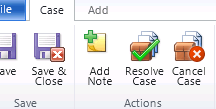
We had a requirement to add the Add Note button to Actions tab for incident entity.

Location="Mscrm.Form.incident.MainTab.Actions.Controls._children"
Defines the location where we want to add the Add Notes button.

Below is the RibbonDiffXml we used to achieve that.

<RibbonDiffXml>
<CustomActions>
<CustomAction Id="MoveAddNoteCustomAction" Location="Mscrm.Form.incident.MainTab.Actions.Controls._children" Sequence="1">
<CommandUIDefinition>
<Button Id="Mscrm.Form.incident.AddNote" ToolTipTitle="$Resources:Mscrm_Form_Other_Related_Document_AddNote_ToolTipTitle"
Sequence="1"
ToolTipDescription="$Resources(EntityDisplayName):Ribbon.Tooltip.AddNote" Command="Mscrm.AddNoteToPrimaryRecord"
LabelText="$Resources:Ribbon.HomepageGrid.Add.Document.AddNote" Alt="$Resources:Ribbon.HomepageGrid.Add.Document.AddNote"
Image16by16="/_imgs/ribbon/AddNote_16.png" Image32by32="/_imgs/ribbon/noteyellowadd32.png" TemplateAlias="o1" />
</CommandUIDefinition>
</CustomAction>
</CustomActions>
<Templates>
<RibbonTemplates Id="Mscrm.Templates"></RibbonTemplates>
</Templates>
<CommandDefinitions />
<RuleDefinitions>
<TabDisplayRules />
<DisplayRules />
<EnableRules />
</RuleDefinitions>
<LocLabels />
</RibbonDiffXml>

Hope it helps.

Adding a button to Document Locations Tab in CRM 2011


After we have configured SharePoint List Component for CRM 2011, and enabled it for the entities, we will have a “documents” link on the left navigation pane of the record. The ribbon will have two buttons Add Location and Edit Location over there.

If we need to add our own button over there, we need to make changes to the “Application Ribbons” in our solution file.

The final output

And the RibbonDiffXML for that

<RibbonDiffXml>
<CustomActions>
<CustomAction Id="AMS_DocumentButton" Location="Mscrm.DocumentsTab.Locations.Controls._children" Sequence="30">
<CommandUIDefinition>
<Button
Id="B_MyFirstButton"
Command="Cmd_JavaScript"
LabelText="My First Button"
ToolTipTitle="My First Button Tool Tip Title"
ToolTipDescription="My First Button Tool Tip Description"
TemplateAlias="o1"
Image16by16="/_imgs/ribbon/saveandclose16.png"
Image32by32="/_imgs/ribbon/saveandclose32.png"/>
</CommandUIDefinition>
</CustomAction>
</CustomActions>
<Templates>
<RibbonTemplates Id="Mscrm.Templates"></RibbonTemplates>
</Templates>
<CommandDefinitions>
<CommandDefinition Id="Cmd_JavaScript">
<EnableRules/>
<DisplayRules/>
<Actions>
<JavaScriptFunction
Library="$webresource:new_test"
FunctionName="testDoc">
</JavaScriptFunction>
</Actions>
</CommandDefinition>
</CommandDefinitions>
<RuleDefinitions>
<TabDisplayRules />
<DisplayRules />
<EnableRules />
</RuleDefinitions>
<LocLabels />
</RibbonDiffXml>

Hope it helps.