CRM Shortcut in CRM 2011 Dialogs


Hi I was just wondering how we can use CRM Shortcut radio button option that appears in Insert Hyperlink dialog box of Dialogs in CRM 2011.

After searching for it, I found the following post which says that we should ignore that button as it won’t be there in the final release.

http://social.microsoft.com/Forums/en/crm2011beta/thread/d012ae9e-4bc5-4bdb-ae6f-c58da16882dc

Hope it helps !

Sample code to add a custom group to lead form in CRM 2011


For adding a custom group to a lead form we can make use of the following sample code.

Just replace the lead with your entity’s schema name to use it

<RibbonDiffXml>

<CustomActions>

<CustomAction
Id=Sample.lead.form.CustomGroup.MaxSize.CustomAction
Location=Mscrm.Form.lead.MainTab.Scaling._children
Sequence=120>

<CommandUIDefinition>

<MaxSize
Id=Sample.lead.form.CustomGroup.MaxSize
GroupId=MyLeadCustomGroup
Sequence=21
Size=LargeLarge/>

</CommandUIDefinition>

</CustomAction>

<CustomAction
Id=MyLeadCustomAction
Location=Mscrm.Form.lead.MainTab.Groups._children
Sequence=110>

<CommandUIDefinition>

<Group
Id=MyLeadCustomGroup
Title=My Lead Custom Group
Sequence=39
Template=Mscrm.Templates.Flexible2>

<Controls
Id=MyCustomControls>

<Button
Id=MyCustomButton1
Sequence=10
LabelText=My Custom Button1
ToolTipTitle=My Custom Button1
ToolTipDescription=My Custom Button1
TemplateAlias=o1/>

</Controls>

</Group>

</CommandUIDefinition>

</CustomAction>

</CustomActions>

<Templates>

<RibbonTemplates
Id=Mscrm.Templates/>

</Templates>

<CommandDefinitions>

</CommandDefinitions>

<RuleDefinitions>

<TabDisplayRules/>

<DisplayRules/>

<EnableRules/>

</RuleDefinitions>

<LocLabels/>

</RibbonDiffXml>


Hope it helps!


Showing Custom Button on Update in CRM 2011


Now let us built on our existing example of adding custom button and adding JavaScript to it.

https://nishantrana.wordpress.com/2010/11/04/adding-my-first-custom-button-in-crm-2011/

https://nishantrana.wordpress.com/2010/11/04/using-javascript-in-a-custom-button-in-crm-2011/

Get the solution file here

http://www.box.net/shared/m9q9otkqfg

Now we want our button to appear only in case of Update form, while creating a new record it shouldn’t appear.

For this we need to first define a DisplayRule in RuleDefinitions.

<RuleDefinitions>

<TabDisplayRules/>

<DisplayRules>


<DisplayRule
Id=MyRule>

<FormStateRule
State=Create
InvertResult=true />

</DisplayRule>

</DisplayRules>

<EnableRules/>

</RuleDefinitions>

This rule we will refer in our CommandDefinition for our button.

<CommandDefinitions>

<CommandDefinition
Id=Cmd_JavaScript>

<EnableRules>

<EnableRule
Id=Mscrm.Enabled/>

</EnableRules>


<DisplayRules>

<DisplayRule
Id=MyRule></DisplayRule>

</DisplayRules>

<Actions>

<JavaScriptFunction
Library=$webresource:new_MyJavaScript
FunctionName=HelloWorld>

</JavaScriptFunction>

</Actions>

</CommandDefinition>

</CommandDefinitions>

Now after importing and publishing it

The final RibbonDiffXml looks like this

<RibbonDiffXml>

<CustomActions>

<CustomAction
Id=CA_MyFirstButton
Location=Mscrm.Form.account.MainTab.Save.Controls._children
Sequence=31>

<CommandUIDefinition>

<Button
Id=B_MyFirstButton
Command=Cmd_JavaScript
LabelText=My First Button
ToolTipTitle=My First Button Tool Tip Title
ToolTipDescription=My First Button Tool Tip Description
TemplateAlias=o1
Image16by16=/_imgs/ribbon/saveandclose16.png
Image32by32=/_imgs/ribbon/saveandclose32.png/>

</CommandUIDefinition>

</CustomAction>

</CustomActions>

<Templates>

<RibbonTemplates
Id=Mscrm.Templates/>

</Templates>

<CommandDefinitions>

<CommandDefinition
Id=Cmd_JavaScript>

<EnableRules>

<EnableRule
Id=Mscrm.Enabled/>

</EnableRules>

<DisplayRules>

<DisplayRule
Id=MyRule>

</DisplayRule>

</DisplayRules>

<Actions>

<JavaScriptFunction
Library=$webresource:new_MyJavaScript
FunctionName=HelloWorld>

</JavaScriptFunction>

</Actions>

</CommandDefinition>

</CommandDefinitions>

<RuleDefinitions>

<TabDisplayRules/>

<DisplayRules>

<DisplayRule
Id=MyRule>

<FormStateRule
State=Create


InvertResult=true />

</DisplayRule>

</DisplayRules>

<EnableRules/>

</RuleDefinitions>

<LocLabels/>

</RibbonDiffXml>

Hope it helps !

Using JavaScript in a custom button in CRM 2011


Now let us built on our existing example of adding custom button.

https://nishantrana.wordpress.com/2010/11/04/adding-my-first-custom-button-in-crm-2011/

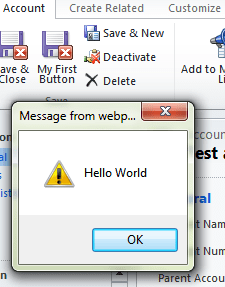
Now on click of the button I want to show alert message “Hello World” i.e. call JavaScript.

This is our existing Button Definition

<Button
Id=B_MyFirstButton
LabelText=My First Button
ToolTipTitle=My First Button Tool Tip Title
ToolTipDescription=My First Button Tool Tip Description
TemplateAlias=o1
Image16by16=/_imgs/ribbon/saveandclose16.png
Image32by32=/_imgs/ribbon/saveandclose32.png/>

(Add a new Jscript web resource to the solution named MyJavaScript)

function HelloWorld() {

alert(‘Hello World’);

}

Now add a Command attribute to Button

    <Button Id=”B_MyFirstButton


Command=”Cmd_JavaScript


                            LabelText=”My First Button ToolTipTitle=”My First Button Tool Tip Title ToolTipDescription=”My First Button Tool Tip Description TemplateAlias=”o1 Image16by16=”/_imgs/ribbon/saveandclose16.png Image32by32=”/_imgs/ribbon/saveandclose32.png“/>

Now we need to define this Command.

This is how we can define it

<CommandDefinitions>

<CommandDefinition
Id=Cmd_JavaScript>

<EnableRules/>

<DisplayRules/>

<Actions>


<JavaScriptFunction
Library=$webresource:new_MyJavaScript
FunctionName=HelloWorld>

</JavaScriptFunction>

</Actions>

</CommandDefinition>

</CommandDefinitions>

However if we zip and import this solution, the button would appear disabled.

To enable it we need to add EnableRule to it.

<CommandDefinitions>

<CommandDefinition
Id=Cmd_JavaScript>


<EnableRules>

<EnableRule
Id=Mscrm.Enabled/>

</EnableRules>

<DisplayRules/>

<Actions>

<JavaScriptFunction
Library=$webresource:new_MyJavaScript
FunctionName=HelloWorld>

</JavaScriptFunction>

</Actions>

</CommandDefinition>

</CommandDefinitions>

Now after importing and publishing it

The final RibbonDiffXml looks like this

<RibbonDiffXml>
<CustomActions>
<CustomAction
Id="CA_MyFirstButton"
Location="Mscrm.Form.account.MainTab.Save.Controls._children"
Sequence="31">
<CommandUIDefinition>
<Button
Id="B_MyFirstButton"
Command="Cmd_JavaScript"
LabelText="My First Button"
ToolTipTitle="My First Button Tool Tip Title"
ToolTipDescription="My First Button Tool Tip Description"
TemplateAlias="o1"
Image16by16="/_imgs/ribbon/saveandclose16.png"
Image32by32="/_imgs/ribbon/saveandclose32.png"/>
</CommandUIDefinition>
</CustomAction>
</CustomActions><Templates>
<RibbonTemplates
Id="Mscrm.Templates"/>
</Templates>
<CommandDefinitions>
<CommandDefinition
Id="Cmd_JavaScript">
<EnableRules>
<EnableRule
Id="Mscrm.Enabled"/>
</EnableRules>
<DisplayRules/>
<Actions>
<JavaScriptFunction
Library="$webresource:new_MyJavaScript"
FunctionName="HelloWorld">
</JavaScriptFunction>
</Actions>
</CommandDefinition>
</CommandDefinitions>
<RuleDefinitions>
<TabDisplayRules/>
<DisplayRules/>
<EnableRules/>
</RuleDefinitions>
<LocLabels/>
</RibbonDiffXml>

Hope it helps!

Adding my first custom button in CRM 2011


Suppose we want to add a button next to “Save & Close” button in Account Entity’s form.

To do that we need to define a CustomAction child element to CustomActions element within RibbonDiffXml.

Export the solution containing the account entity.

Attributes for CustomAction are

ID– Give it any unique id.

Location– For defining location we first need to find out the id for Save group within the MainTab of the form and then append _children to it.

_children needs to be defined to add a custom button to an existing group.

Open the accountribbon.xml file within

.. sdk\samplecode\cs\client\ribbon\exportribbonxml\exportedribbonxml\

There we can find the following info.


<Groups Id=”Mscrm.Form.account.MainTab.Groups“>


<Group Id=”
Mscrm.Form.account.MainTab.Save Command=”Mscrm.Enabled Sequence=”10 Title=”$Resources:Ribbon.Form.MainTab.Save Image32by32Popup=”/_imgs/ribbon/save32.png Template=”Mscrm.Templates.Flexible2“>


<Controls Id=”
Mscrm.Form.account.MainTab.Save.Controls“>


<Button Id=”Mscrm.Form.account.SaveAsComplete ToolTipTitle=”$Resources:Ribbon.Form.MainTab.Save.SaveAsComplete ToolTipDescription=”$Resources(EntityDisplayName):Ribbon.Tooltip.SaveAsComplete Command=”Mscrm.SavePrimaryActivityAsComplete Sequence=”10 LabelText=”$Resources:Ribbon.Form.MainTab.Save.SaveAsComplete Alt=”$Resources:Ribbon.Form.MainTab.Save.SaveAsComplete Image16by16=”/_imgs/ribbon/SaveAsCompleted_16.png Image32by32=”/_imgs/ribbon/SaveAsCompleted_32.png TemplateAlias=”o1
/>

Sequence : For sequence first find out the sequence defined for Save & Close button.

<Button Id=”Mscrm.Form.account.SaveAndClose ToolTipTitle=”$Resources:Mscrm_Form_Other_MainTab_Save_SaveAndClose_ToolTipTitle ToolTipDescription=”$Resources(EntityDisplayName):Ribbon.Tooltip.SaveAndClose Command=”Mscrm.SaveAndClosePrimary
Sequence=”30″
LabelText=”$Resources:Ribbon.Form.MainTab.Save.SaveAndClose Alt=”$Resources:Ribbon.Form.MainTab.Save.SaveAndClose Image16by16=”/_imgs/ribbon/saveandclose16.png Image32by32=”/_imgs/ribbon/saveandclose32.png TemplateAlias=”o1
/>

So now our CustomAction should look like this

<CustomAction Id=”CA_MyFirstButton Location=”Mscrm.Form.account.MainTab.Save.Controls._children Sequence=”31“>

Now we next need to define CommandUIDefinition and Button child element to our CustomAction

<CommandUIDefinition>

<Button
Id=B_MyFirstButton


LabelText=My First Button


ToolTipTitle=My First Button Tool Tip Title


ToolTipDescription=My First Button Tool Tip Description


TemplateAlias=o1


Image16by16=/_imgs/ribbon/saveandclose16.png


Image32by32=/_imgs/ribbon/saveandclose32.png

/>

</CommandUIDefinition>

Here we are using the existing icon of Save and Close button.

Save the file, zip it as a part of the solution and import and publish it.

Final definition should look something like this. 

<RibbonDiffXml>
<CustomActions>
<CustomAction
 Id="CA_MyFirstButton"
 Location="Mscrm.Form.account.MainTab.Save.Controls._children"
 Sequence="31">
<CommandUIDefinition>
<Button
 Id="B_MyFirstButton"
 LabelText="My First Button"
 ToolTipTitle="My First Button Tool Tip Title"
 ToolTipDescription="My First Button Tool Tip Description"
 TemplateAlias="o1"
 Image16by16="/_imgs/ribbon/saveandclose16.png"
 Image32by32="/_imgs/ribbon/saveandclose32.png"/>
</CommandUIDefinition>
</CustomAction>
</CustomActions>
<Templates>
<RibbonTemplates
 Id="Mscrm.Templates"/>
</Templates>
<CommandDefinitions/>
<RuleDefinitions>
<TabDisplayRules/>
<DisplayRules/>
<EnableRules/>
</RuleDefinitions>
<LocLabels/>
</RibbonDiffXml>

Hope it helps !

New Types in CRM 2011


CRM 4.0 Type CRM 2011 Type
   
CrmBoolean Boolean
DynamicEntity[] EntityCollection
CrmDateTime DateTime
CrmDecimal Decimal
CrmFloat Double
CrmNumber Integer
Lookup, Owner, Customer EntityReference
CrmMoney Money
Activityparty[] ActivityParty[]
Key, UniqueIdentifier Guid
String String
Status ,Picklist OptionSetValue