Fix: NodeRunner.exe processes consume lots of RAM (memory) and CPU


tjenho's avatarTjen Sharepoint Blog

I started SharePoint 2013 development recently. Initially, I only got dual core CPU and 4 GB RAM and as you probably know, it runs very slow. I’m not curious about it cause I expect the performance when you install SharePoint 2013 with less than minimum recommended hardware specification.

Issue

Then .. I fed up with it and upgrade the RAM to 8 GB, but funny things my development box is still runs very slow. I looked into my task manager and found something like below. Several NodeRunner.exe processes consume lots of Memory and CPU.
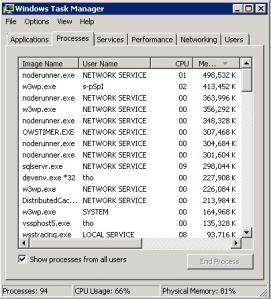
TaskManagerNodeRunner

Solution

  1. Open SharePoint 2013 Management Shell and type in:
    Set-SPEnterpriseSearchService -PerformanceLevel Reduced
  2. Open NodeRunner process configuration file below in Notepad
    C:Program FilesMicrosoft Office Servers15.0SearchRuntime1.0noderunner.exe.config.
    Update <nodeRunnerSettings memoryLimitMegabytes=”0″ />.
    This is the configuration to limit NodeRunner process memory usage, replace to acceptable number like 100 or 150.
  3. Restart SharePoint Search Host Controller service.
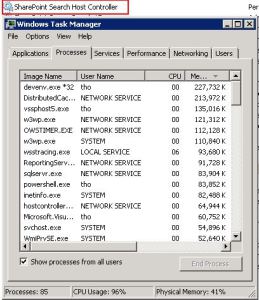
    TaskManagerNodeRunner2

NOTE: I’ve…

View original post 52 more words

Missing Activities and Closed Activities navigation bar item on Form during customization.


Hi,

Recently we had to reorder the navigation link that appears for one of our entities form. Basically we wanted Activities and Closed Activities to be the last one there in the left navigation pane.

However while opening our form for customization, the links for the activities were missing.

This blog post came to our rescue

http://blog.customereffective.com/blog/2011/09/how-to-get-the-microsoft-crm-closed-activities-nav-bar-link-back-if-you-delete-it.html

Hope it helps.

CRM 2013 – The Upgraded Metadata Browser


CRM 2013 – The Upgraded Metadata Browser

salimadamon's avatarSalim Adamon - Dynamics 365 Blog

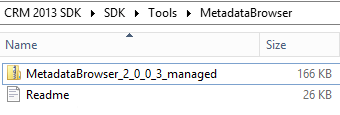
I was playing around the new CRM 2013 SDK and thought I’d spend some time one the revamped metadata browser. Like in the CRM 2011 SDK, the Metadata browser is provided as a Managed Solution located in the folder “Your SDK FolderToolsMetadataBrowser”

Once you’ve installed the solution in your CRM application, you have to open it in order to get the links to the Metadata web resources in the configuration page.

The Metadata Browser now has two pages:

  • Metadata Browser (displays a master/detail view of all the entities in the system)
  • Entity Metadata Browser (displays details about a selected entity)

The key features of the tools are highlighted in the configuration page (see copy below). It is extremely helpful for developers, lightweight built on HTML/JavaScript and has a lot of nice features (details below). So if were looking for an alternative to the popular Silverlight Metadata browser built…

View original post 227 more words

“Could not open a connection to SQL Server” error while installing CRM 2011 Server


Faced the same issue while installing CRM 2013.

Rajeev Pentyala's avatarRajeev Pentyala – Technical Blog on Power Platform, Azure and AI

Hi,

You may come across below exception while installing CRM 2011 Server.

“Named Pipes Provider, error: 40 – Could not open a connection to SQL Server “

Scenario :-

  • You have a standalone machine “VM 1”, with SQL Server 2008  application
  • You have another machine “VM 2”, where you are trying to install “CRM Server” by pointing to the SQL Server on “VM 1”
  • Installation wizard throws the “Could not connect to….” exception in the midway

Reason :-

  • Remote connection was not enabled on SQL Server machine

Fix :-

  • Connect to the machine where SQL Server 2008  installed
  • Open the “Sql Server Configuration Manager” (i.e.,  Start –> All Programs –> Microsoft SQL Server 2008 R2 –> Configuration Tools)
  • Enable “Named Pipes” protocol (Refer below screen)

Enable &quot;Named Pipes&quot; protocol

  • Restart the “MSSQLSERVER” service (Go to “Run -> Services.msc”)

Restart &quot;MSSQLSERVER&quot; service

  • Resume the installation.

Hope it helps 🙂

View original post

An item with the same key has already been added error while importing solution in CRM 2013


Hi,

Recently while importing a solution from dev environment to test environment we were getting this error.

This error occurs when we have some kind of mismatch among the attribute in both the environment for e.g. same attribute is created in both the environment with different datatype.

After comparing the dev and test environment, we realized that the Schema Name for one of the field was different in dev environment.

i.e. lss_Client_agress_to_LSSContract in test and lss_client_agress_to_lsscontract in dev

So we removed the field from form and deleted it in our dev environment.

After that import worked properly.

Hope this helps

Refreshing the Web Resource in CRM 2013.


In one of our Entity’s Form we were using HTML Web Resource and this HTML web resource was showing values of the attributes in that form.

Now in CRM 2011, after we save the record the form reloads and so our web resource was picking up the new values saved.

However in CRM 2013, on save, as the form doesn’t reload, the values were not getting updated in the HTML Web Resource.

So the solution was to refresh the Web Resource using Jscript on the On Save event of the form.


function refreshWebResArea() {

var webResArea = Xrm.Page.ui.controls.get("WebResource_Name");

webResArea.setSrc(webResArea.getSrc());
}

Hope it helps.