Cross-domain iframe requests are blocked in Office 365 SharePoint Online.


Hi,

I was currently working on some integration tasks between SharePoint 2013 online and CRM 2011 online. Here we wanted to use one of the search pages configured in SharePoint 2013 online inside an iframe of Case form in CRM 2011 online.

SharePoint 2013 online and CRM 2011 online were part of different Office 365 domain. After specifying the url for the iframe we got the following error

Found the following kb article

http://support.microsoft.com/kb/2795602

Then tried hosting the SharePoint 2010 online search page that is part of same domain in which CRM 2011 online is. That worked properly.

Hope it helps.

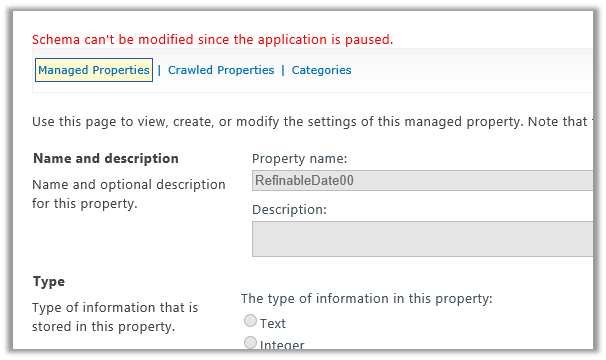
Schema can’t be modified since the application is paused error in SharePoint 2013 online.


Hi,

I was getting the this error while trying to map Managed Property to Crawled Property, in this case

RefinableDate00 to ows_ArticleStartDate.

I was not sure why this error was coming. Searched for the answer but couldn’t find one. So tried the same thing after some time. And surprisingly it worked and it didn’t give the error.

So anybody facing this issue, should better relax and wait for application to come out of the paused state.

BTW, if anybody knows what does the error exactly mean share your knowledge please.

Bye.


Wonderful tips and tricks for Visual Studio 2012

Best Bet or Promoted Results in SharePoint 2013


Hi,

Let us take scenario where for a particular search term (parental in our case) we want to show a particular document as the top link to the user in the results.

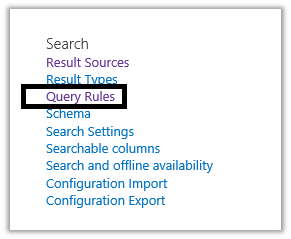
For this we need to configure Query Rules in SharePoint 2013.

Go to Site Settings à Query Rules

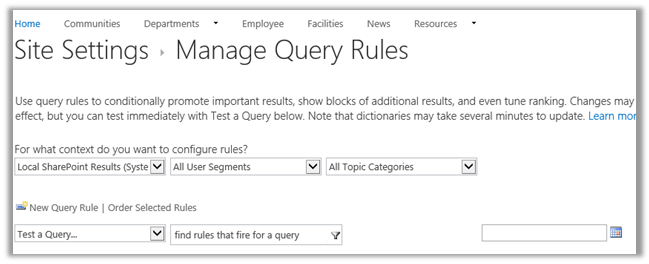
Here we have selected “Local SharePoint Results” for the context on which the Query Rule will run.

Next click New Query Rule to create a new query rule

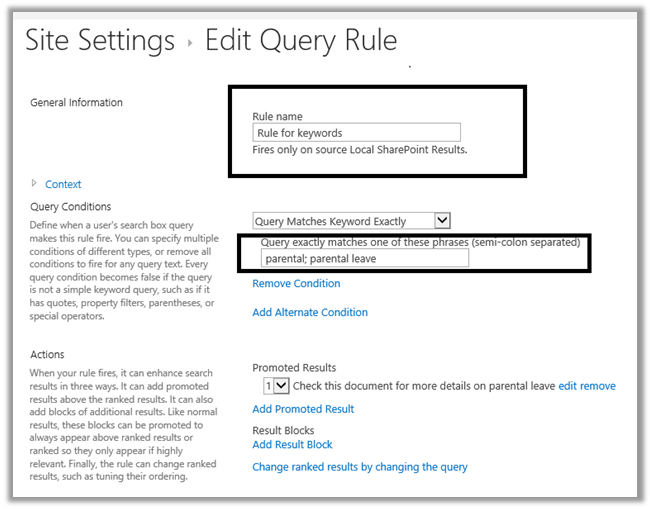
Give name to the rule and specify the condition

For e.g. if the query matches either parental or parental leave then show promoted results.

Click on Add Promoted Results to configure the promoted result.

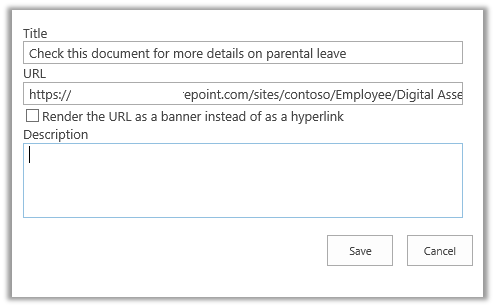
Here in the Add Promote Result box we have specified the Title for the promoted result and also the URL of the word document that should show up in the search result

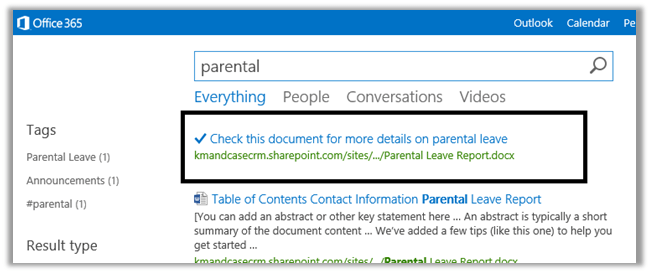
Save it and search with the term parental

The result

Hope it helps.

Adding refiner count in Refinement Web Part in SharePoint 2013.


Hi,

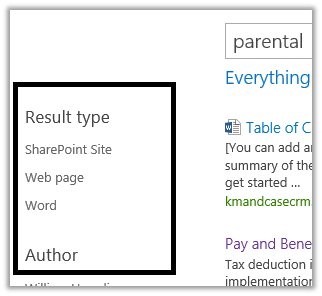
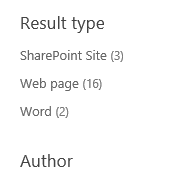
Out of the box the Refinement web part shows the different filters, but it doesn’t show the number of count for the results.

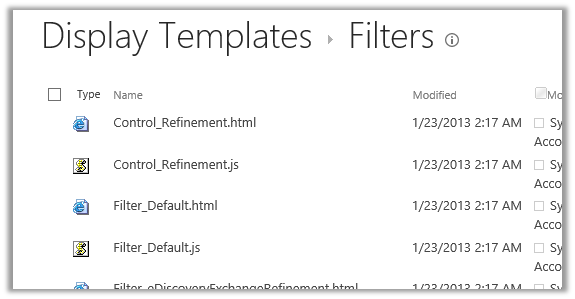
For this we need to modify Filter_Default.html page that is being used by these filters.

Go to the master page gallery

https://test.sharepoint.com/sites/contoso/_catalogs/masterpage/Forms/AllItems.aspx

Select Display Template à Filters à Filter_Default.html

Download the file

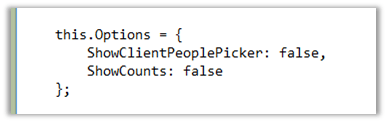
Make the following change in it

Change the ShowCounts to true and upload the file.

Do the search again and we will see the count

Hope it helps.

The ‘label’ attribute is not declared error while importing solution in CRM 2011


Hi,

We got this “The ‘label’ attribute is not declared” while importing one of our solutions in CRM 2011. It gave the following details for the error

ame” /><attribute name=”parentcustomerid” /><attribute name=”telephone1″ /><attribute name=”emailaddress1″ /><attribute name=”statecode” /><order attribute=”fullname” descending=”false” /><link-entity name=”postfollow” from=”regardingobjectid” to=”contactid” alias=”aa”><filter type=”and”><condition attribute=”ownerid” operator=”eq-userid” /></filter></link-entity><attribute name=”contactid” /></entity></fetch></fetchxml><LocalizedNames><LocalizedName description=”Contacts I Follow” languagecode=”1033″ /></LocalizedNames><Descriptions><Description description=”Contacts that you follow.” languagecode=”1033″ /></Descriptions></savedquery></savedqueries></SavedQueries><Visualizations><visualization><savedqueryvisualizationid>{889CE563-1263-E211-8BE5-984BE17C6693}</savedqueryvisualizationid><datadescription><datadefinition><fetchcollection><fetch mapping=”logical” aggregate=”true”><entity name=”contact”><attribute groupby=”true” alias=”_CRMAutoGen_groupby_column_Num_0″ name=”address1_city” label=”City” /><attribute alias=”_CRMAutoGen_aggregate_column_Num_0″ name=”fullname” aggregate=”countcolumn” /></entity></fetch></fetchcollection><categorycollection><category alias=”_CRMAutoGen_groupby_column_Num_0″><measurecollection><measure alias=”_CRMAutoGen_aggregate_column_Num_0″ /></measurecollection></category></categorycollection></datadefinition></datadescription><presentationdescription><Chart Palette=”None” PaletteCustomColors=”149,189,66; 197,56,52; 55,118,193; 117,82,160; 49,171,204; 255,136,35; 168,203,104; 209,98,96; 97,142,206; 142,116,178; 93,186,215; 255,155,83″><Series><Series ChartType=”Bar” IsValueShownAsLabel=”True” Color=”purple” BackGradientStyle=”TopBottom” BackSecondaryColor=”112, 142, 50″ Font=”{0}, 9.5px” LabelForeColor=”59, 59, 59″ CustomProperties=”PointWidth=0.75, MaxPixelPointWidth=40, DrawingStyle=Wedge”></Series></Series><ChartAreas><ChartArea BorderColor=”White” BorderDashStyle=”Solid”><AxisY LabelAutoFitMinFontSize=”8″ TitleForeColor=”59, 59, 59″ T

We saw one attribute tag with label attribute in it. Removing the label attribute and importing the solution back resolved the issue.

Hope it helps