The request for security token could not be satisfied because authentication failed error in CRM while developing Visual Web Part in SharePoint 2013.


Hi,

We recently developed a Visual Web Part which was using OrganizationService to interact with CRM.

We were initially using Network Credentials for OrganizationService and were setting appropriate username, password and domain. Later we changed it to Default Credentials and set the AppPool identity of the SharePoint portal’s app pool to a CRM User with appropriate access. It was then we started getting this error.

The reason was SharePoint web configuration settings has Identity Impersonation set as true.

If impersonation is set as true, then IIS uses the ‘NT AUTHORITY\IUSR’ but if disabled IIS will run under whatever account been set in the identity pool.

So one way of fixing the issue was setting impersonation as false.

Hope it helps.


Fix: NodeRunner.exe processes consume lots of RAM (memory) and CPU


tjenho's avatarTjen Sharepoint Blog

I started SharePoint 2013 development recently. Initially, I only got dual core CPU and 4 GB RAM and as you probably know, it runs very slow. I’m not curious about it cause I expect the performance when you install SharePoint 2013 with less than minimum recommended hardware specification.

Issue

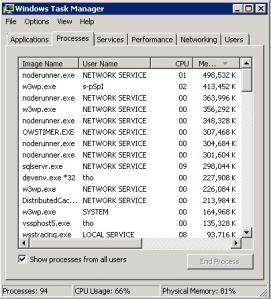
Then .. I fed up with it and upgrade the RAM to 8 GB, but funny things my development box is still runs very slow. I looked into my task manager and found something like below. Several NodeRunner.exe processes consume lots of Memory and CPU.

TaskManagerNodeRunner

Solution

  1. Open SharePoint 2013 Management Shell and type in:
    Set-SPEnterpriseSearchService -PerformanceLevel Reduced
  2. Open NodeRunner process configuration file below in Notepad
    C:Program FilesMicrosoft Office Servers15.0SearchRuntime1.0noderunner.exe.config.
    Update <nodeRunnerSettings memoryLimitMegabytes=”0″ />.
    This is the configuration to limit NodeRunner process memory usage, replace to acceptable number like 100 or 150.
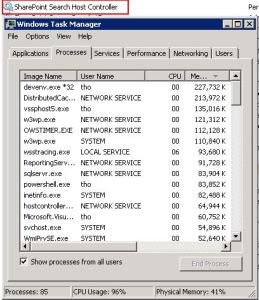
  3. Restart SharePoint Search Host Controller service.
    TaskManagerNodeRunner2

NOTE: I’ve…

View original post 52 more words

Simple example of configuring Enterprise library Caching Block.


Download the Enterprise Library 5 from here

http://www.microsoft.com/en-in/download/details.aspx?id=15104

Create a new windows application.

We need the configuration information to setup the caching.

Open the EntLib Configuration console.

Open the app.config file of the windows application created.

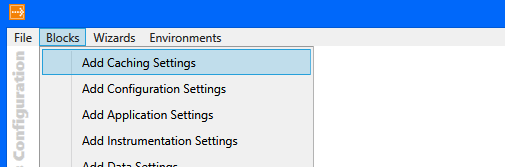
Select Blocks à Add Caching Settings

It will add the required configuration information to the config file of the windows application.

Sample code implementing Caching block to save dictionary object in Cache.


public static class Configuration
{
public static Dictionary<string, string> GetConfigSettings()
{
// get the cache manager
ICacheManager cacheManager = CacheFactory.GetCacheManager();
var configSettings = (Dictionary<string, string>)cacheManager["configSettings"];

if (configSettings == null)
{
configSettings = new Dictionary<string, string>();
configSettings.Add("key1", "value1");
configSettings.Add("key2", "value2");

// add the dictionary object
cacheManager.Add("configSettings", configSettings);
}
else
{
// get from the configsettings object from the cache
configSettings = (Dictionary<string, string>) cacheManager["configSettings"];
}

return configSettings;
}
}

Bye.


PlatformNotSupportedException error while writing unit test for SharePoint 2013.


Hi,

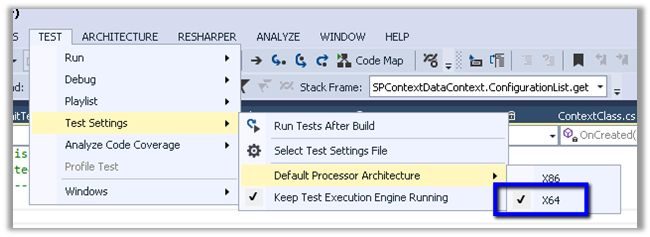
Got the below error while writing unit test.

The solution was to set the Default Processor Architecture of the test project to X64.

Hope this helps.

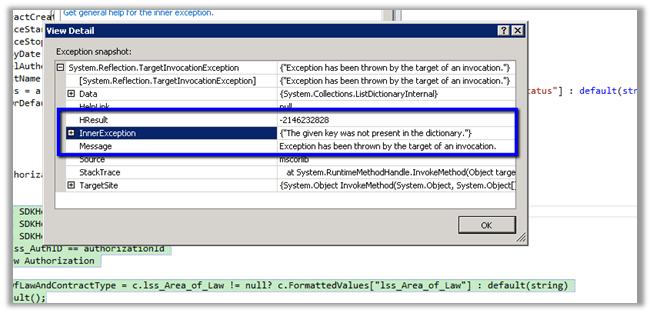
Fixed – The given key was not present in the dictionary error while using FormattedValues in LINQ in CRM 2013.


Hi,

I was getting the following exception while trying to get the text for an option set field named area of law in linq.

The query with joins


var authorization = (from a in
SDKHelper.XrmServiceContext.lss_AuthorizationSet 
join c in SDKHelper.XrmServiceContext.lss_contractSet on a.lss_ContractId.Id equals c.Id

join l in

SDKHelper.XrmServiceContext.lss_lawyerSet on c.lss_LawyerId.Id equals l.Id

where a.lss_AuthID == authorizationId

select
new
Authorization
{

AreaOfLawAndContractType = c.lss_Area_of_Law != null? c.FormattedValues[“lss_area_of_law”] : default(string)

}).FirstOrDefault();

return authorization;


The fix was instead of using FormattedValues collection of related entity in join, we need to use the FormattedValues collection of the primary entity.


var authorization = (from a in
SDKHelper.XrmServiceContext.lss_AuthorizationSet

join c in
SDKHelper.XrmServiceContext.lss_contractSet on a.lss_ContractId.Id equals c.Id

join l in
SDKHelper.XrmServiceContext.lss_lawyerSet on c.lss_LawyerId.Id equals l.Id

where a.lss_AuthID == authorizationId

select
new
Authorization

{

AreaOfLawAndContractType = c.lss_Area_of_Law != null? a.FormattedValues[“lss_area_of_law”] : default(string)

}).FirstOrDefault();


return authorization;


Hope it helps.

Missing Activities and Closed Activities navigation bar item on Form during customization.


Hi,

Recently we had to reorder the navigation link that appears for one of our entities form. Basically we wanted Activities and Closed Activities to be the last one there in the left navigation pane.

However while opening our form for customization, the links for the activities were missing.

This blog post came to our rescue

http://blog.customereffective.com/blog/2011/09/how-to-get-the-microsoft-crm-closed-activities-nav-bar-link-back-if-you-delete-it.html

Hope it helps.