Update Business Process Flow Stage using Excel Import with Power Automate – Dataverse / Dynamics 365


In some business scenarios, we might need to update the Business Process Flow (BPF) stage of a record during an Excel import — especially during data migration or bulk record manipulation. In this blog post, we’ll walk through how to set a desired BPF stage (based on the stage name) and automatically move the record to that stage using Power Automate.

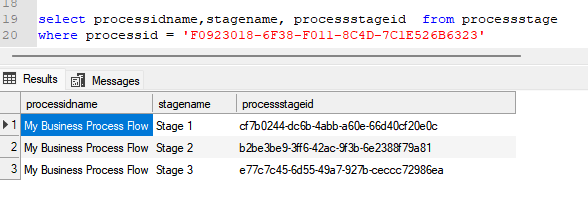
We’re working with a custom Dataverse table called Test(cr1a7_test) and a Business Process Flow named My Business Process Flow, which includes the following stages:

“select processidname,stagename, processstageid from processstage where processid = [processGUID]”
A screenshot of a computer

AI-generated content may be incorrect.

Our goal is to allow users to specify the stage name (e.g., “Stage 2”) through Excel import, and have a Power Automate flow update the record’s BPF instance to the corresponding stage automatically.

For this –

  • We’ll add a field called the Desired BPF Stage choice field on our table to store the desired stage name.
  • We’ll create a Power Automate flow that triggers on create or update.
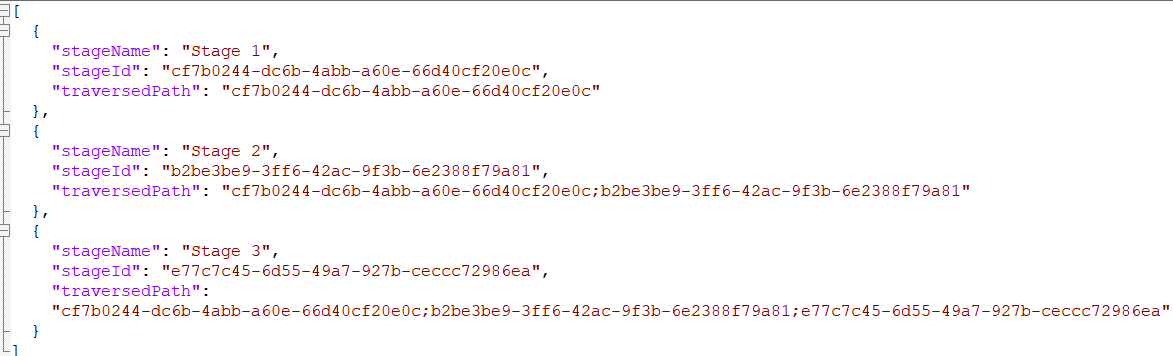
  • We’ll maintain a static JSON mapping of stage names to stage IDs and their traversed paths.
  • We’ll look up the corresponding stage ID and traversed path from the JSON.
  • We’ll fetch the BPF instance for the record.
  • We’ll update the BPF instance with the new active stage and traversed path.

Below is how we can define our JSON structure for mapping, which we will store either in a variable inside Power Automate or save as an environment variable.
A computer code on a white background

AI-generated content may be incorrect.

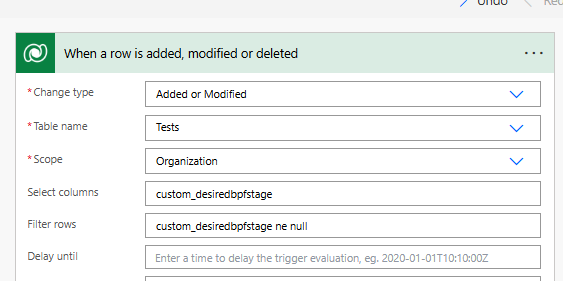
Trigger – When a row is added or modified.
A screenshot of a computer

AI-generated content may be incorrect.

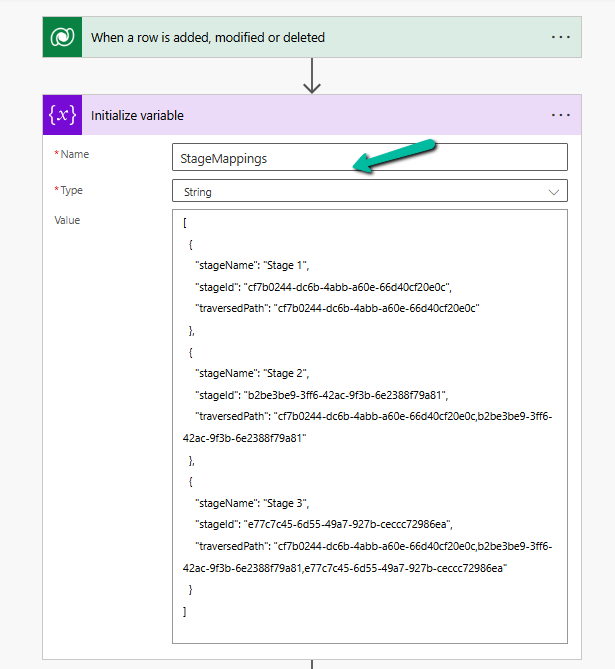
Initialize Variable with JSON mapping
A screenshot of a computer

AI-generated content may be incorrect.

Parse JSON – using the sample data

A screenshot of a computer

AI-generated content may be incorrect.

Use a “Filter array” action to find the object where stageName matches custom_desiredbpfstage.

A screenshot of a computer

AI-generated content may be incorrect.

Initialize variables to store the Stage ID and traversed path.

  • first(body(‘Filter_array’))?[‘stageId’]
  • first(body(‘Filter_array’))?[‘traversedPath’]
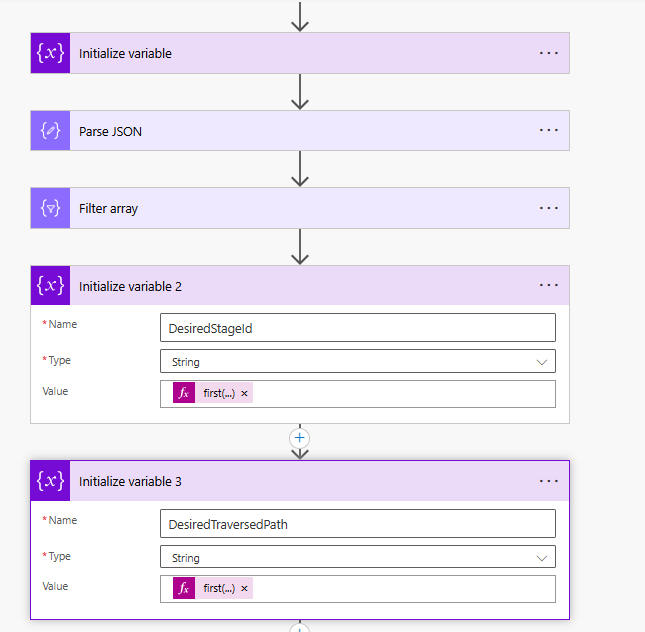
A screenshot of a computer

AI-generated content may be incorrect.

Use List Rows to check if BPF Instance exists or not, if not we will create it or update it.

  • length(outputs(‘List_rows’)?[‘body/value’]) > 0
A screenshot of a computer

AI-generated content may be incorrect.

Update or Create a new BPF instance associated with the record.

A screenshot of a computer

AI-generated content may be incorrect.

Below we can see the user specifying the Stage 3 value for the Desired BPF Stage column in the Excel to be imported.
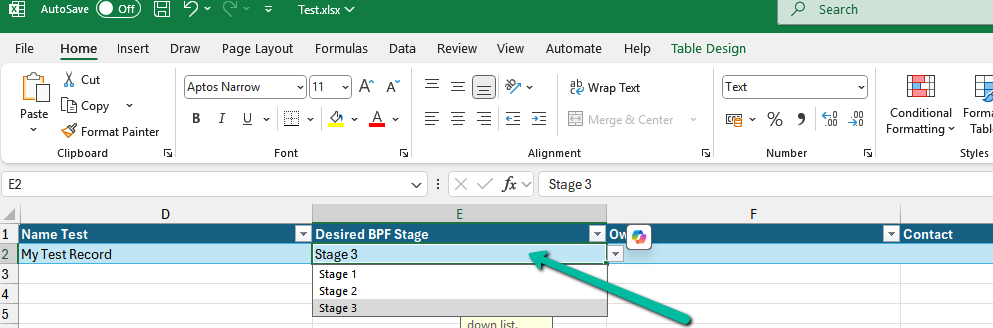
A screenshot of a computer

AI-generated content may be incorrect.

We can see the Excel imported successfully.

A screenshot of a computer

AI-generated content may be incorrect.

Below we can see our flow running successfully.
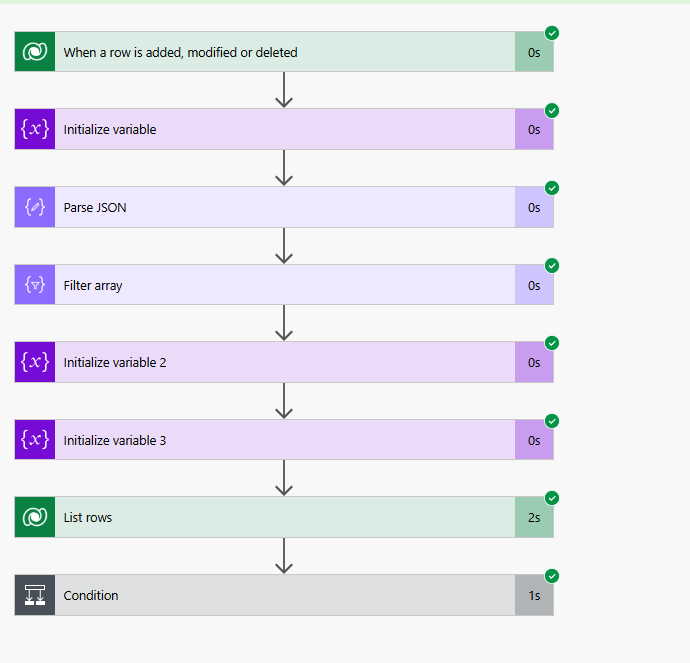
A screenshot of a computer

AI-generated content may be incorrect.

And the record in Stage 3 of the BPF.

A screenshot of a computer

AI-generated content may be incorrect.

Hope it helps..

Advertisements

Discover more from Nishant Rana's Weblog

Subscribe to get the latest posts sent to your email.

Unknown's avatar

Author: Nishant Rana

I love working in and sharing everything about Microsoft.NET technology !

One thought on “Update Business Process Flow Stage using Excel Import with Power Automate – Dataverse / Dynamics 365”

Please share your thoughts

This site uses Akismet to reduce spam. Learn how your comment data is processed.

Discover more from Nishant Rana's Weblog

Subscribe now to keep reading and get access to the full archive.

Continue reading

Power Platform Puzzles

D365 CRM, Power Platform Tips &Tricks

Power Spark

Power Spark By Shrangarika

Van Carl Nguyen

Exploration of Power Platform

My Trial

It is my experience timeline.

Power⚡Thomas

Sharing my knowledge and experience about the Microsoft Power Platform.

Arpit Power Guide

a guide to powering up community

Welcome to the Blog of Paul Andrew

Sponsored by Cloud Formations Ltd

Deriving Dynamics 365

Deriving Solutions and features on Power Platform/Dynamics 365

The CRM Ninja

Thoughts & musings from a Microsoft Business Applications Ninja!

D CRM Explorer

Learn about Microsoft Dynamics CRM Power Platform customization and implementation and other cool stuffs

Stroke // Jonas Rapp

I know pre-stroke. I will improve who I was.

Power Melange

Power Melange By Shalinee

Clavin's Blog - PPUG.ORG

AI - Power Automate - Power Apps - SharePoint Online - Azure - Nintex - K2 - Artificial Intelligence

Sat Sangha Salon

An Inquiry in Being

The Indoencers

The Influencers & Influences of Indian Music

Monika Halan's blog

Hand's-free money management

D365 Demystified

A closer look at Microsoft Dynamics 365.

Microsoft Mate (msftmate) - Andrew Rogers

Experienced consultant primarily focused on Microsoft Dynamics 365 and the Power Platform

Manmit Rahevar's Blog

One Stop Destination for Microsoft Technology Solutions

MG

Naturally Curious

Brian Illand

Power Platform and Dynamics 365

Steve Mordue

The Professional Paraphraser

Subwoofer 101

Bass defines your home theater

SQLTwins by Nakul Vachhrajani

SQL Server tips and experiences dedicated to my twin daughters.

Everything D365

Discovering Azure DevOps and D365 Business Applications

Tech Wizard

Lets do IT Spells

XRM Tricks (Power Platform & Dynamics CRM )

Power Platform & Dynamics CRM

CRM TIPS BY PRM

Mail to crmtipsbyprm@gmail.com for queries and suggestions

nijos.dev

Giving back to the community what I have learned

Power Platform Learning

Your Go-To Resource for Power Apps, Power Automate & More

xrm CRM Dynamics

Dynamics CRM Technical & Functional Info

Dynamics 365 Blogs - Explained in unique way

Sometimes you need to look at things from different perspective.