

In earlier posts, we looked at how to move a Business Process Flow (BPF) stage and finish the process by directly updating the BPF entity instance. In this post, we’ll use RetrieveProcessInstancesRequest and RetrieveActivePathRequest to move a Business Process Flow to its final stage and finish it, using the Phone to Case Process as a reference.
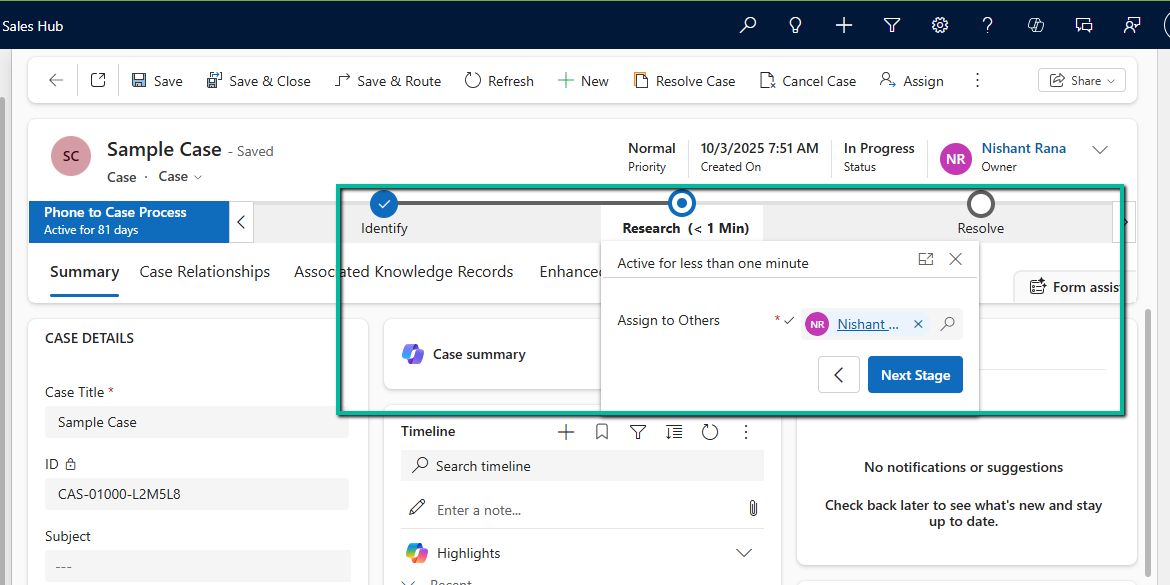
A Business Process Flow defines not just stages, but also valid paths through those stages. Instead of assuming which stage comes next, we can ask Dataverse for the active path of the current process instance. This makes the logic more resilient to future changes, such as reordering stages or adding conditional paths.
By using the active path:
- We avoid hard-coding stage IDs
- We ensure the stage we move is to valid for the process
- We can construct a correct traversed path directly from platform metadata.
Step 1: Retrieve the Active BPF Instance
The first step is to identify the active Business Process Flow instance for the Case. We do this using RetrieveProcessInstancesRequest, which returns all BPF instances associated with the record, ordered based on modifiedon. The most recently modified bpf instance will be the one active in the record.
RetrieveProcessInstancesRequest processInstanceRequest =
    new RetrieveProcessInstancesRequest
    {
        EntityId = caseId,
        EntityLogicalName = "incident"
    };

RetrieveProcessInstancesResponse processInstanceResponse =
    (RetrieveProcessInstancesResponse)orgService.Execute(processInstanceRequest);
Step 2: Retrieve the Active Path and Build the Traversed Path
Instead of guessing stage progression, we retrieve the active path using RetrieveActivePathRequest.
RetrieveActivePathRequest pathReq =
    new RetrieveActivePathRequest { ProcessInstanceId = processInstanceId };

RetrieveActivePathResponse pathResp =
    (RetrieveActivePathResponse)orgService.Execute(pathReq);
The response contains all stages in the active path, in the correct order. From this data, we build the complete traversed path by iterating through every stage returned and collecting their processstageid values.
var traversedPathList = new List<string>();
foreach (var stage in pathResp.ProcessStages.Entities)
{
    traversedPathList.Add(
        ((Guid)stage.Attributes["processstageid"]).ToString()
    );
}

string completeTraversedPath = string.Join(",", traversedPathList);
This approach guarantees that the traversedpath reflects the exact path defined by the process configuration, rather than a manually constructed sequence.
Step 3: Move the BPF to the Final Stage
We then get the last stage’s GUID and use it to update activestageid of the BPF instance along with the traversed path.
Guid finalStageId =
    (Guid)pathResp.ProcessStages.Entities.Last()
        .Attributes["processstageid"];

var updateBpf = new Entity("phonetocaseprocess", processInstanceId)
{
    ["activestageid"] = new EntityReference("processstage", finalStageId),
    ["traversedpath"] = completeTraversedPath
};

orgService.Update(updateBpf);
Step 4: Finish (Deactivate) the Business Process Flow
Reaching the final stage does not automatically complete the process. To mirror the Finish button in the UI, we explicitly mark the BPF instance as inactive and finished.
var finish = new Entity("phonetocaseprocess", processInstanceId)
{
    ["statecode"] = new OptionSetValue(1),   // Inactive
    ["statuscode"] = new OptionSetValue(-1)  // Finished
};

orgService.Update(finish);
After this update, the Business Process Flow appears as Completed in the UI and can no longer be progressed.
Helper method –
public static void MoveBpfToFinalStageAndFinish(
    IOrganizationService service,
    Guid primaryRecordId,
    string primaryEntityLogicalName,
    string bpfSchemaName,
    string expectedBpfName)
{
    // Step 1: Retrieve active BPF instance
    var processInstanceRequest = new RetrieveProcessInstancesRequest
    {
        EntityId = primaryRecordId,
        EntityLogicalName = primaryEntityLogicalName
    };

    var processInstanceResponse =
        (RetrieveProcessInstancesResponse)service.Execute(processInstanceRequest);

    if (!processInstanceResponse.Processes.Entities.Any())
        return;

    var bpfInstance = processInstanceResponse.Processes.Entities.First();
    var processInstanceId = bpfInstance.Id;

    // Optional safety check – ensure correct BPF
    if (!bpfInstance.Attributes.Contains("name") ||
        bpfInstance["name"].ToString() != expectedBpfName)
        return;

    // Step 2: Retrieve active path
    var pathRequest = new RetrieveActivePathRequest
    {
        ProcessInstanceId = processInstanceId
    };

    var pathResponse =
        (RetrieveActivePathResponse)service.Execute(pathRequest);

    if (pathResponse.ProcessStages.Entities.Count == 0)
        return;

    // Step 3: Build traversed path from active path
    var traversedPathList = new List<string>();
    foreach (var stage in pathResponse.ProcessStages.Entities)
    {
        traversedPathList.Add(
            ((Guid)stage["processstageid"]).ToString()
        );
    }

    string traversedPath = string.Join(",", traversedPathList);

    // Final stage = last stage in active path
    Guid finalStageId =
        (Guid)pathResponse.ProcessStages.Entities.Last()["processstageid"];

    // Step 4: Move BPF to final stage
    var updateBpf = new Entity(bpfSchemaName, processInstanceId)
    {
        ["activestageid"] = new EntityReference("processstage", finalStageId),
        ["traversedpath"] = traversedPath
    };

    service.Update(updateBpf);

    // Step 5: Finish (deactivate) the BPF
    var finishBpf = new Entity(bpfSchemaName, processInstanceId)
    {
        ["statecode"] = new OptionSetValue(1),   // Inactive
        ["statuscode"] = new OptionSetValue(2)  // Finished (verify in org)
    };

    service.Update(finishBpf);
}
Get all the details here
Hope it helps..
Discover more from Nishant Rana's Weblog
Subscribe to get the latest posts sent to your email.
Share It -


 Nishant Rana's Weblog
One thought on “Advancing and Finishing a BPF Using RetrieveProcessInstancesRequest and RetrieveActivePathRequest (Dataverse / Dynamics 365)”