
In the previous post, we explored how to move a Business Process Flow (BPF) to the next stage using a console application, with the Phone to Case Process as a working example. Advancing the BPF stage, however, is only part of the lifecycle. Even after the flow reaches its final stage, it remains active until it is explicitly finished. In the Dynamics 365 UI, this is done by clicking the Finish button. In this post, we’ll continue from where the previous one left off and look at how to finish (deactivate) and reactivate the same Phone to Case Business Process Flow programmatically using C#.
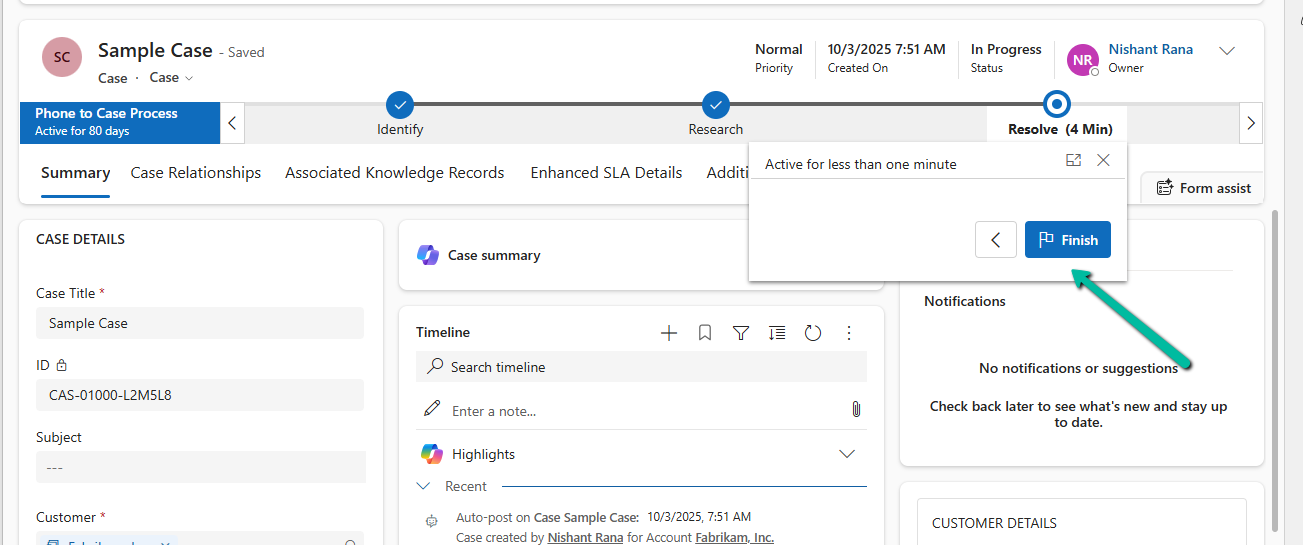
Below we can see the BPF in the last stage Resolve but not yet finished.
Each Business Process Flow is backed by its own Dataverse table. For the Phone to Case Process, this table is phonetocaseprocess. When a Case enters the BPF, a corresponding record is created in this table, representing the BPF instance. This record has its own lifecycle, independent of the Case itself. Finishing a BPF means setting this instance to an Inactive state. Simply moving the BPF to the Resolve stage does not finish the process; the instance remains active until its state is explicitly updated.
var processInstanceId = bpfInstance.Id;
var processEntityLogicalName = "phonetocaseprocess";

// Finish (Deactivate) the BPF
var finishBpf = new Entity(processEntityLogicalName, processInstanceId)
{
    ["statecode"] = new OptionSetValue(1),   // Inactive
    ["statuscode"] = new OptionSetValue(-1)  // Finished (verify value in your org)
};

service.Update(finishBpf);
After this update, the Business Process Flow is marked as Completed in the UI, and the Finish button is no longer available. This mirrors the result of clicking Finish manually.

In certain scenarios—such as testing, data correction, or reprocessing a record—we may need to reactivate a finished Business Process Flow. This can be done by setting the BPF instance back to an Active state.
var reactivateBpf = new Entity(processEntityLogicalName, processInstanceId)
{
    ["statecode"] = new OptionSetValue(0),   // Active
    ["statuscode"] = new OptionSetValue(-1)
};

service.Update(reactivateBpf);
Reusable Helper Method to Move Next, Finish and Reactivate a BPF –
public static void UpdateBpfStageAndState(
    IOrganizationService service,
    string bpfSchemaName,
    string primaryEntityLookupField,
    Guid primaryRecordId,
    Guid targetStageId,
    bool finishBpf = false,
    bool reactivateBpf = false)
{
    // 1. Retrieve the BPF instance
    var query = new QueryExpression(bpfSchemaName)
    {
        ColumnSet = new ColumnSet("activestageid", "traversedpath", "statecode")
    };
    query.Criteria.AddCondition(primaryEntityLookupField, ConditionOperator.Equal, primaryRecordId);

    var instances = service.RetrieveMultiple(query);
    if (!instances.Entities.Any())
        return;

    var bpfInstance = instances.Entities.First();

    // 2. Move the BPF to the target stage
    var updateStage = new Entity(bpfSchemaName, bpfInstance.Id);

    updateStage["activestageid"] =
        new EntityReference("processstage", targetStageId);

    var traversedPath = bpfInstance.GetAttributeValue<string>("traversedpath");
    updateStage["traversedpath"] = string.IsNullOrEmpty(traversedPath)
        ? targetStageId.ToString()
        : $"{traversedPath},{targetStageId}";

    service.Update(updateStage);

    // 3. Finish (Deactivate) the BPF if requested
    if (finishBpf)
    {
        var finish = new Entity(bpfSchemaName, bpfInstance.Id)
        {
            ["statecode"] = new OptionSetValue(1),   // Inactive
            ["statuscode"] = new OptionSetValue(-1)  // Finished (verify in your org)
        };

        service.Update(finish);
    }

    // 4. Reactivate the BPF if requested
    if (reactivateBpf)
    {
        var reactivate = new Entity(bpfSchemaName, bpfInstance.Id)
        {
            ["statecode"] = new OptionSetValue(0),   // Active
            ["statuscode"] = new OptionSetValue(-1)
        };

        service.Update(reactivate);
    }
}
Hope it helps..
Discover more from Nishant Rana's Weblog
Subscribe to get the latest posts sent to your email.
Share It -


 Nishant Rana's Weblog
2 thoughts on “Finishing (Deactivating) and Reopening a Business Process Flow Using C# Console App (Dataverse / Dynamics 365)”