

The new insert template dialog box adds features to quickly find and insert the appropriate email template.
For the below email record, we have a contact, account, and user type record selected in To (Regarding), click on Insert Template to open the dialog box.
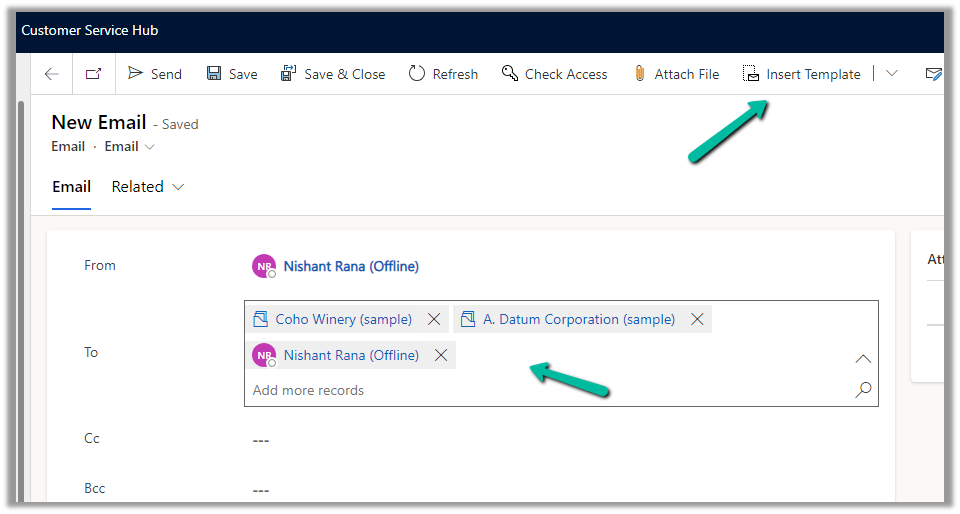
The new dialog box allows selecting the view for filtering the email templates.
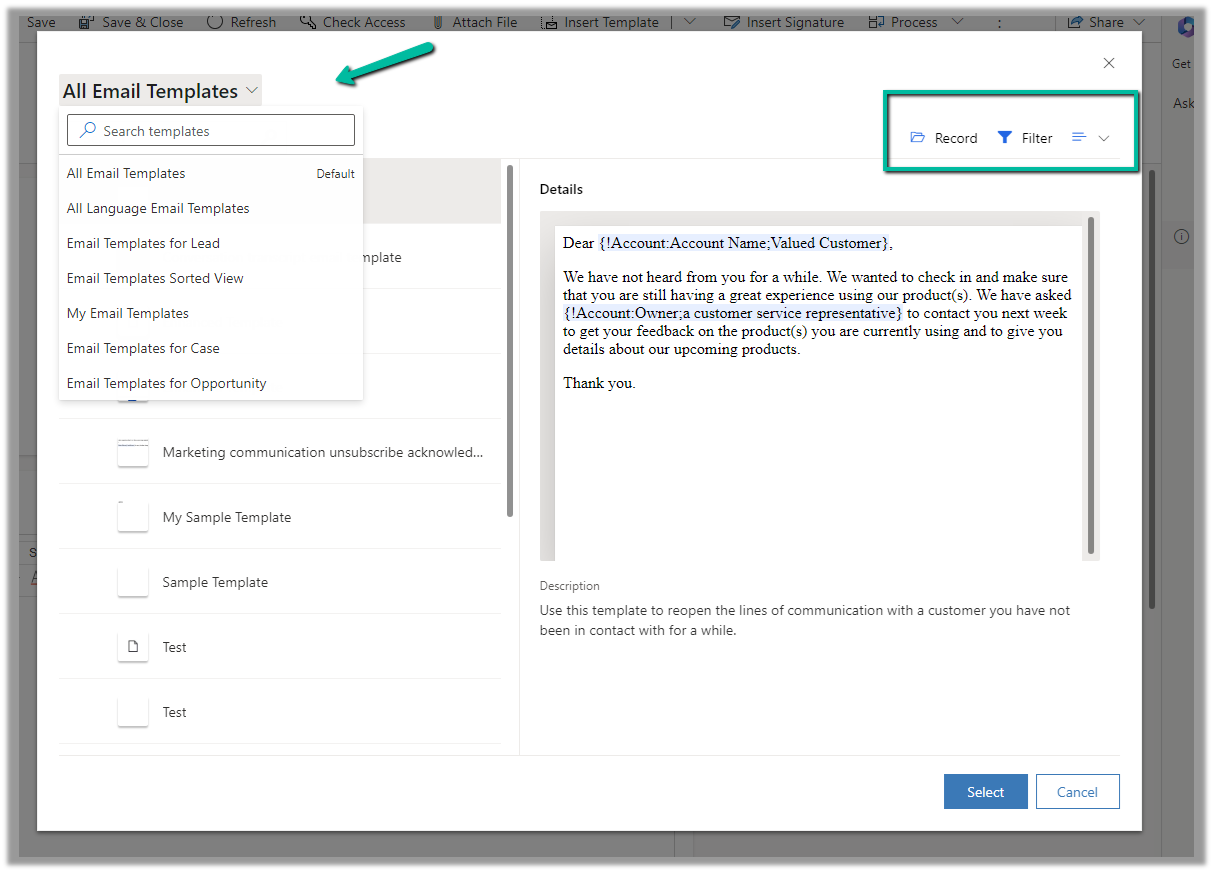
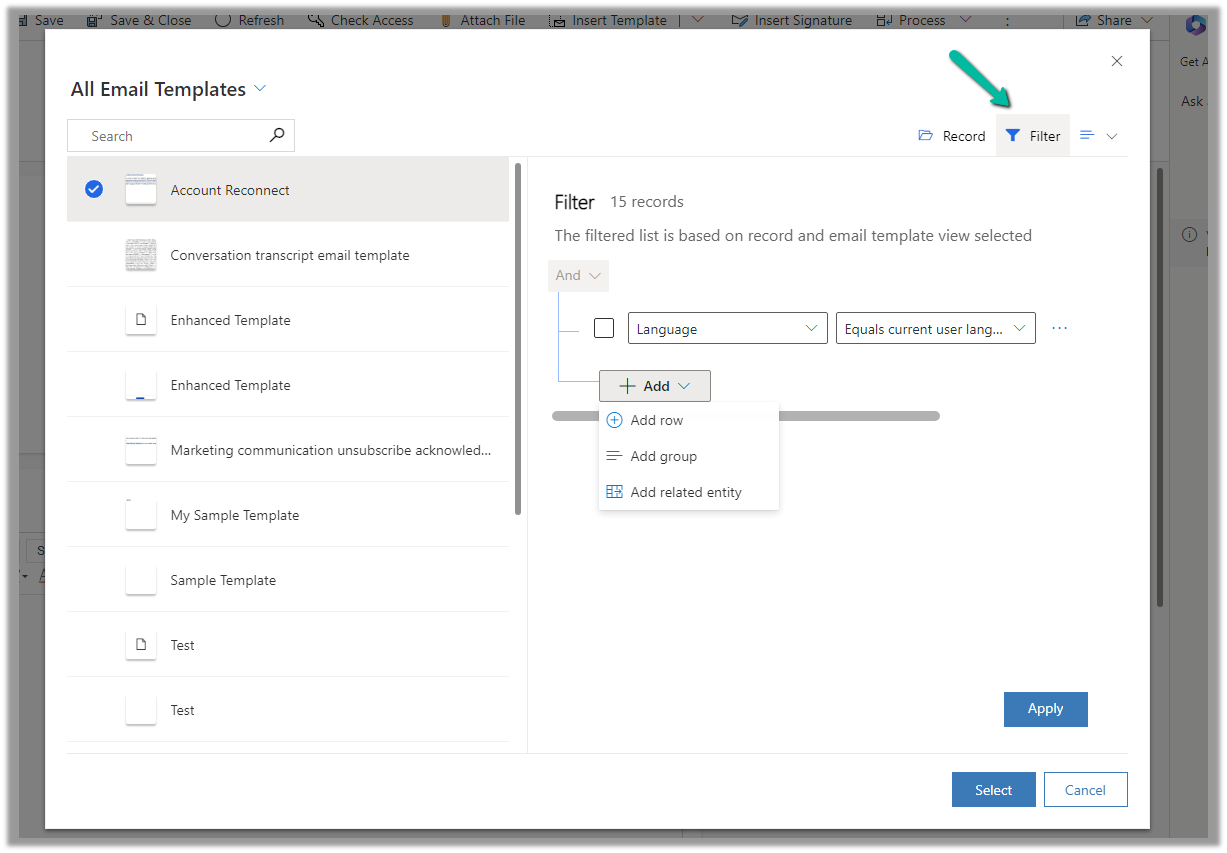
Clicking on Filter shows the filter for the selected view, and allows updating the filter to find the required template.
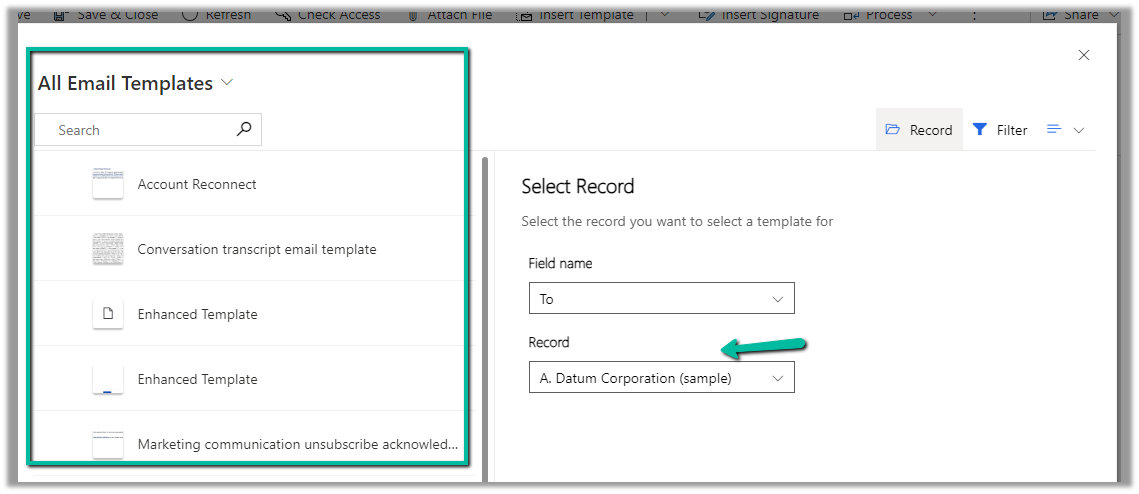
The Record options allow filtering the views based on the record type specified in the To (Regarding)

Selecting the A. Datum Corporation (Sample) account record, filters the view to show email templates related to the account.
We can also specify the type of view – either List (default), Grid, or Tiles.

From Advanced Settings >> System Settings >> Email tab, we can control these options i.e. specify the default view, and show and hide for Record and Filter options.
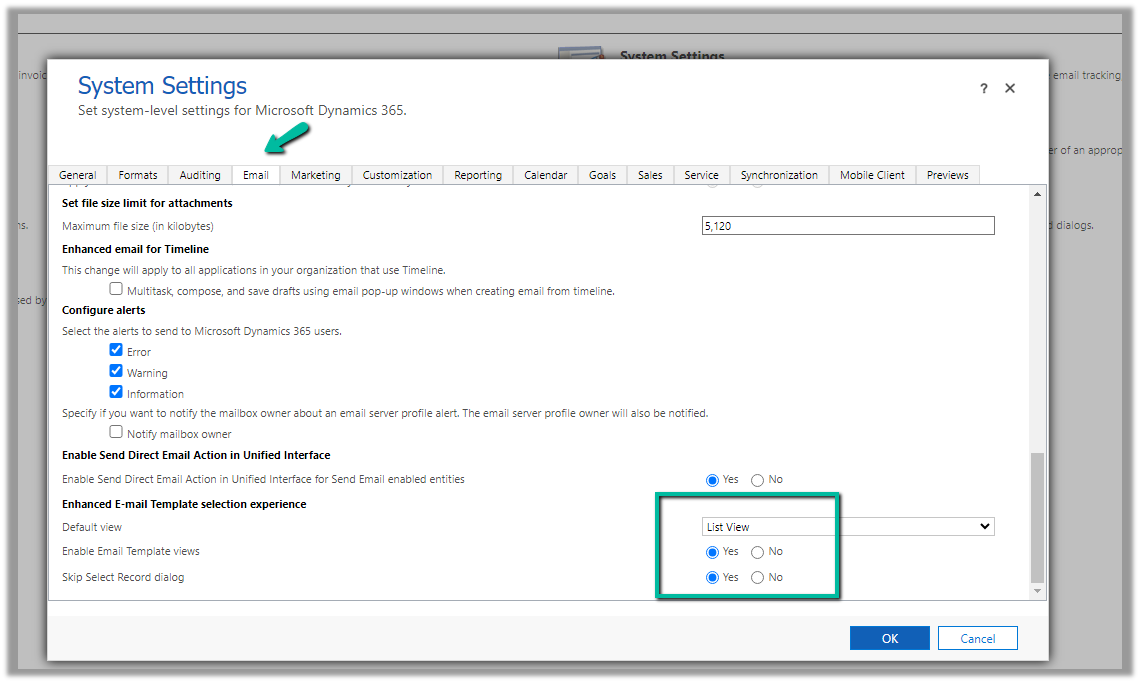
The enhanced email template selection is enabled for default for Customer Service Workspace and Customer Service Hub Apps.
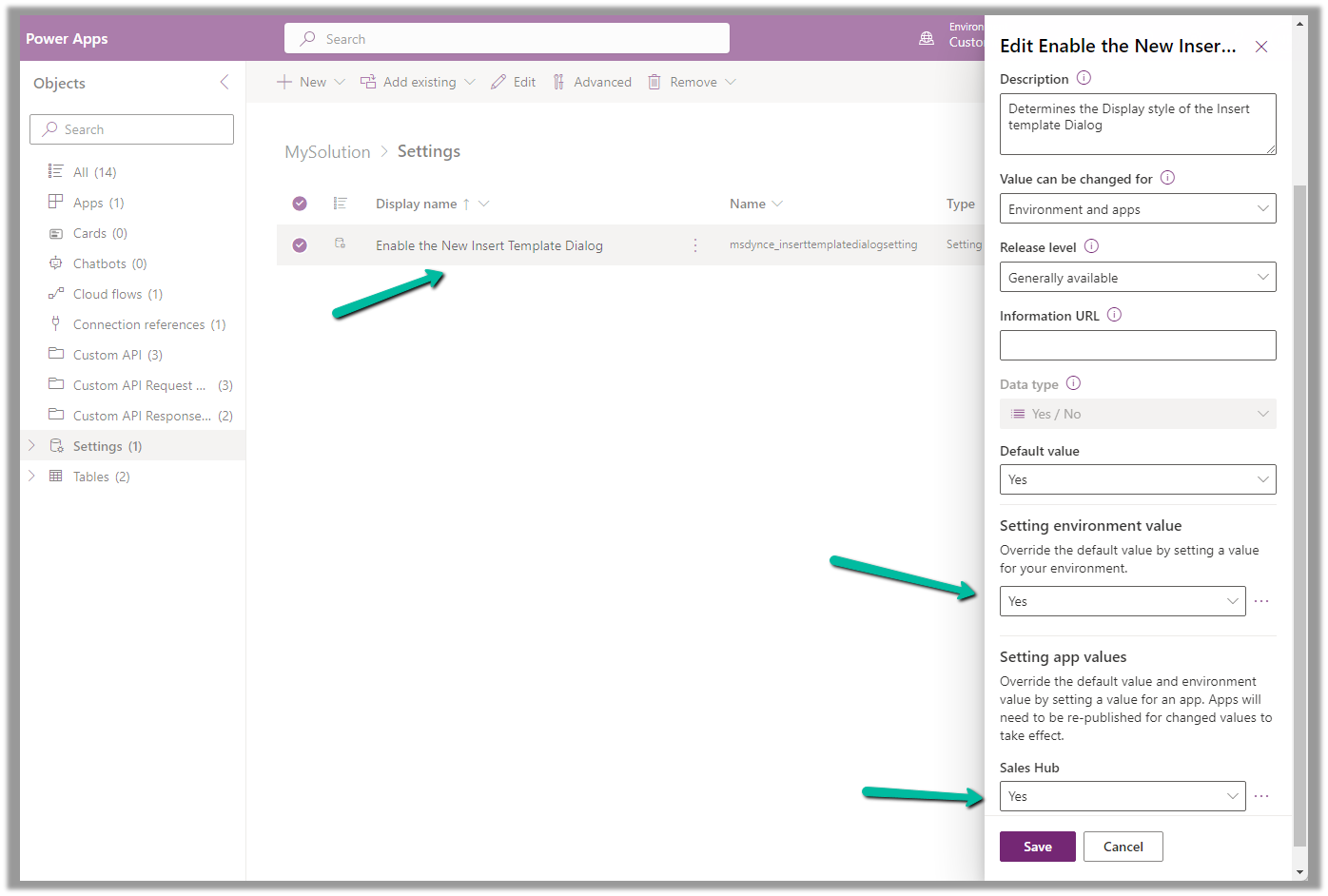
To enable it for other Model-driven apps, add and enable the following setting “Enable the New Insert Template Dialog” in the solution.
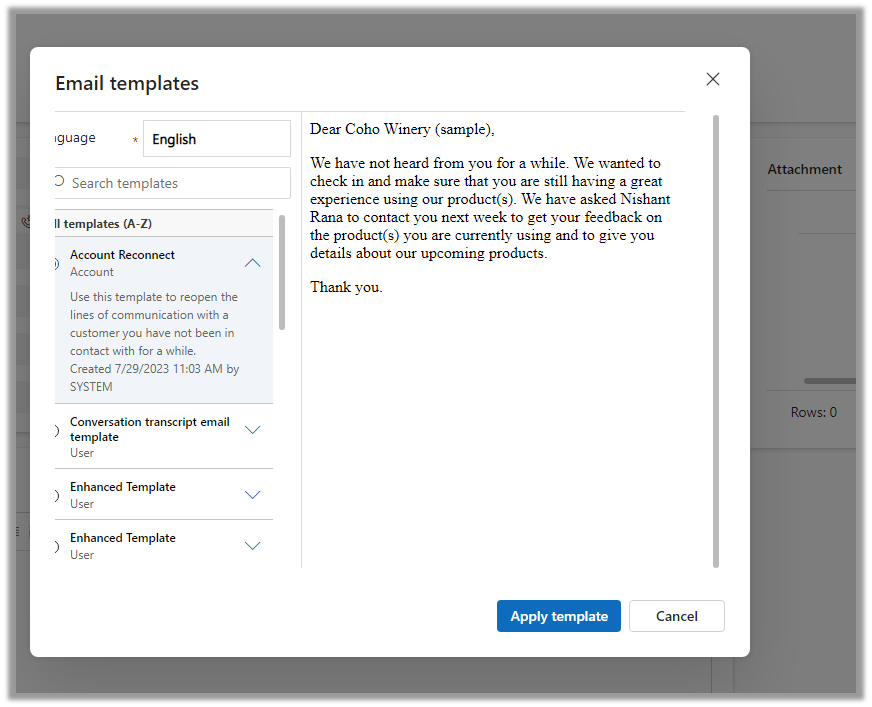
Below is how the old Insert Email Template dialog box looks
Get more details here
Hope it helps..
Discover more from Nishant Rana's Weblog
Subscribe to get the latest posts sent to your email.
Share It -


 Nishant Rana's Weblog
One thought on “Find email templates faster with the new Insert Template dialog – Dynamics 365 / Dataverse”