
-
Open the SharePoint Site and create a custom Web Part Page using SharePoint Designer 2013

-
Edit the created page in Advanced Mode
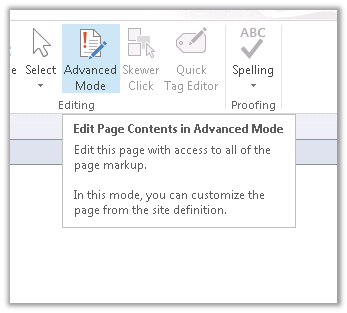
-
Add the AllowFraming tag to the web part page to allow the page to be iframed from within CRM’s Form
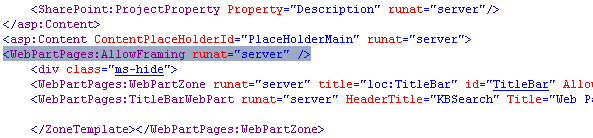
Select preview in browser

-
Select Page à Edit Page
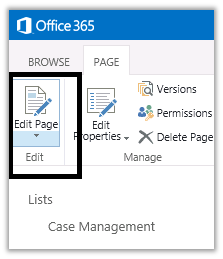
-
Add Search Web Parts
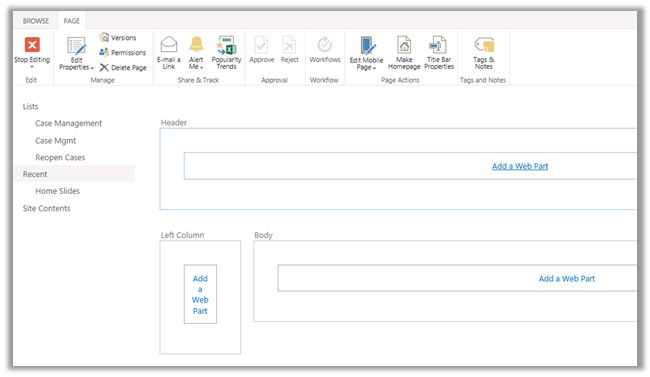
-
Search Box in the Header
-
Refinement in the Left Column
-
Search Results in the Body
-
Note the url of the Custom Search Page
https://xyz.sharepoint.com/sites/contoso/Search/SitePages/KBSearch.aspx
-
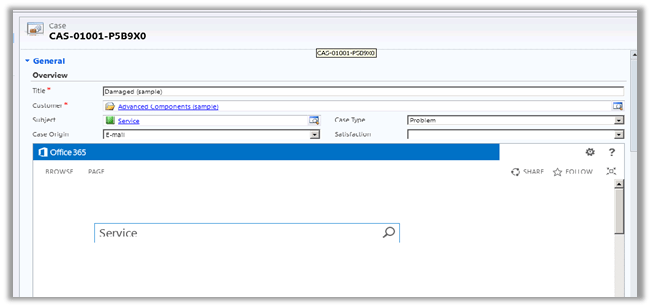
Now we can use the above url in the Iframe within our CRM. Here k would be the query string parameter to which search keyword would be passed. We can dynamically set the value of the parameter k through JavaScript in the onload of a particular entity’s form to display the corresponding results in the CRM.
https://xyz.sharepoint.com/sites/contoso/Search/SitePages/KBSearch.aspx?k=searchTerm
-
Search page within Case Form in CRM
Hope it helps.
Discover more from Nishant Rana's Weblog
Subscribe to get the latest posts sent to your email.
Share It -


 Nishant Rana's Weblog