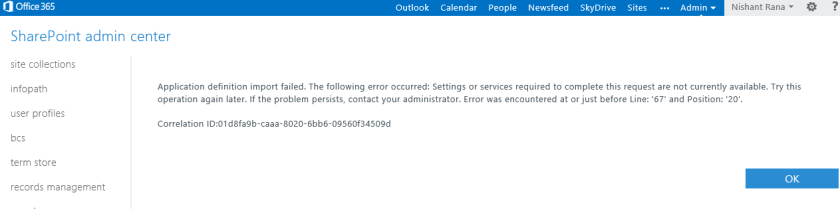
“Application definition import failed. The following error occurred: Settings or services required to complete this request are not currently available” error while importing BDC model file in SharePoint 2013 online.


Hi,

I created a BDC model file for one of my projects (Using SharePoint Designer 2010) and now when I am trying to import it in SharePoint 2013 online (Office 365 Preview) environment I am getting the below error.


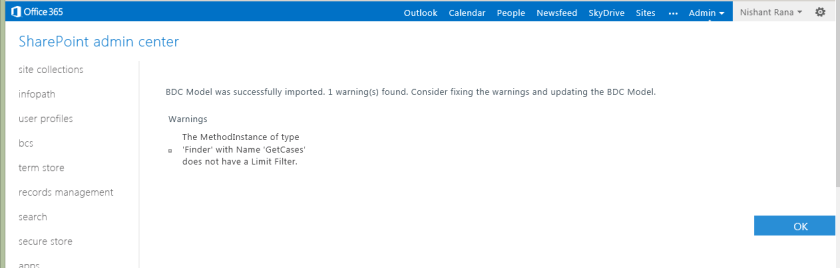
And the surprising part is I am able to import the same file without any issues in my other Office 365 preview environment.

Not sure why I am getting the above, may be the service is down as the message suggests for that particular environment or something. Will post the solution if I am able to find one.

Bye.

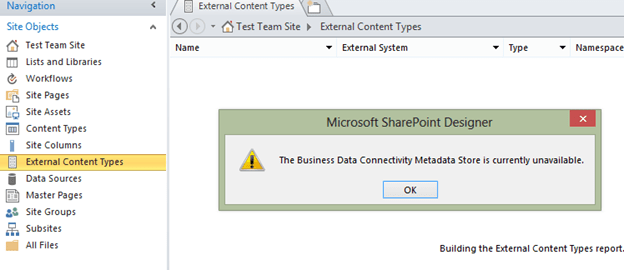
“The Business Data Connectivity Metadata Store is currently unavailable” error in SharePoint Designer 2013 Preview


Hi,

I recently wrote a WCF service as a wrapper over CRM 2011 online and hosted it in Azure. The intent was to use this WCF service as BCS connection to integrate CRM 2011 online with SharePonit 2013 online. I tested the service with WCF Test Client and it was working fine.

The next step was to create an External Content Type in SharePoint Designer 2013. On selecting the External Content Types link inside SharePoint designer I kept getting the below error.

Next I used SharePoint Designer 2010 to connect to the SharePoint 2013 online site. There it didn’t throw the Metadata Store is currently available error.

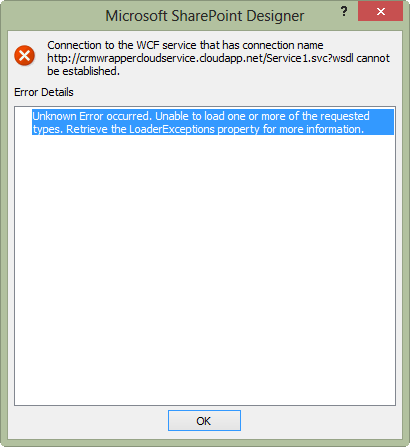
However I kept getting the following error while trying to create a new external content type.

The workaround was to connect to SharePoint 2010 online site through SharePoint Designer 2010 and then generating the BCS Model from therein using our Azure Hosted WCF Service.

Hope it helps.


“Turn on Developer Feature” for “Napa” Office 365 Development Tools in SharePoint 2013 online.


Hi,

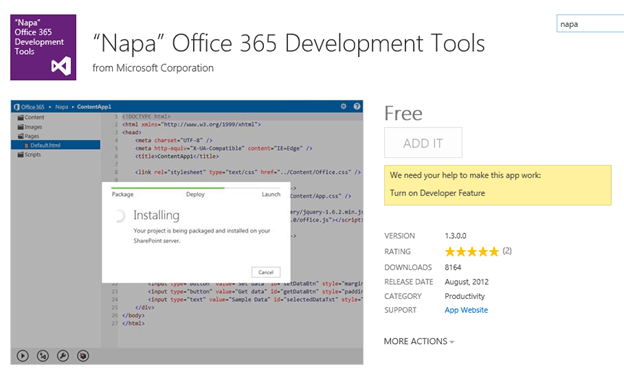
I was trying to add Napa app for developing apps for SharePoint 2013 online and got the below message.

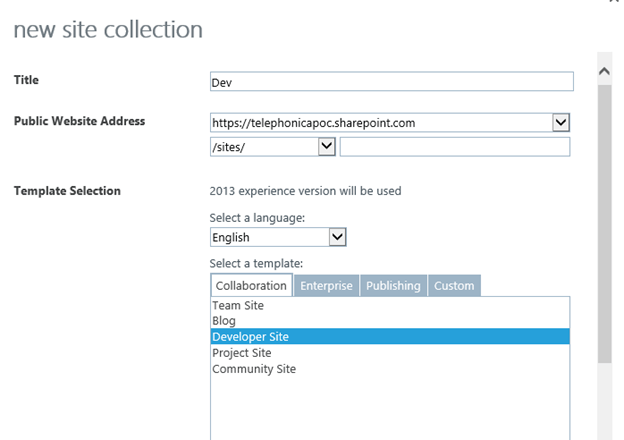
To get it enabled we need to have a Developer Site.

So we need to create a new private site collection with Developer Site as template

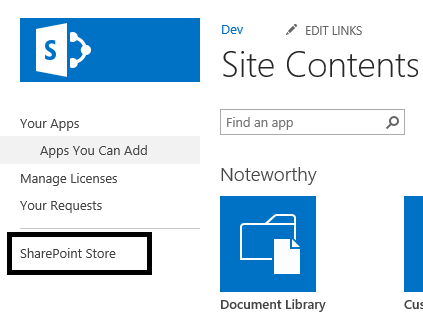
Open the site collection then à Go to Site Contents àSelect Add an App

Select SharePoint Store

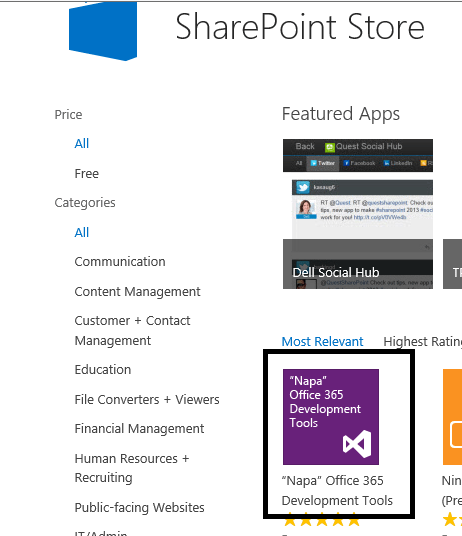
Select Napa app from there

Login with your Hotmail account and add the App to the site collection.

Hope it helps.

Simple integration between CRM 2011 online and SharePoint 2013 online.


Hi,

I was recently working on a POC that required us to show a kind of integration between CRM 2011 online and SharePoint 2013 online. Basically here based on the case record opened in CRM we wanted to show associated information in the SharePoint 2013 website (could be wiki page, documents, web page etc.) within an iframe of the Case form.

So we first created an Office 365 Preview account for SharePoint 2013.

http://www.microsoft.com/office/preview/en/office-365-enterprise

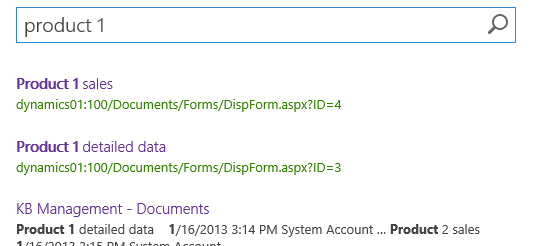
Added few documents to it and created a custom search result page.

Here the nice thing about SharePoint 2013 is the Document Preview feature. Hover over the search results and user will be able to see the preview of the same.

Here the search term is passed in the query parameter k

https://xxx.sharepoint.com/search/Pages/results.aspx?k=product1

So we simply had to use the same URL in the IFrame inside CRM and in the onload, change the url to add our own value for k query parameter to show respective search results within CRM’s form IFrame.

We already had a CRM 2011 online (trial) instance created in Office 365 online, unfortunately it had SharePoint 2010 online in it and here we specifically wanted to showcase the Document Preview feature which is not in SharePoint 2010.

The issue here was that both CRM 2011 online and SharePoint 2013 online were part of different Office 365 instance. So if we are showing the SharePoint 2013 page within CRM 2010 online it would give the “user not authorized” access.

The solution to this was to give the CRM 2011 online user access to the SharePoint 2013 site.

For this we need to follow the below steps

Select the Sharing option for the selected site collection in the SharePoint administration page

Then
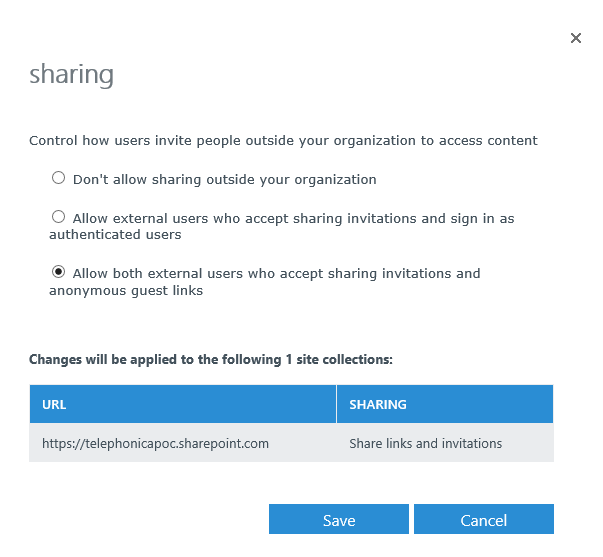
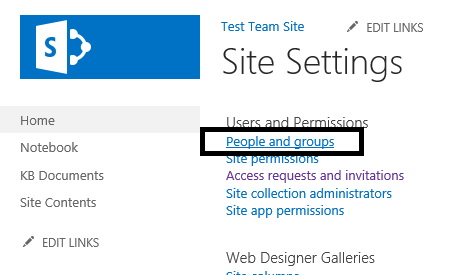
Open the site collection à site settings

Select People and Groups
Add the new user (added the email id of the CRM 2011 online user)

An invitation will be sent to the user’s mail box
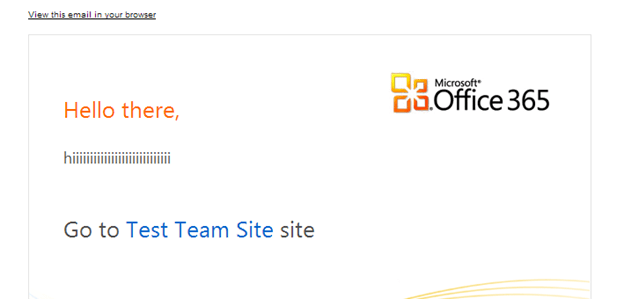
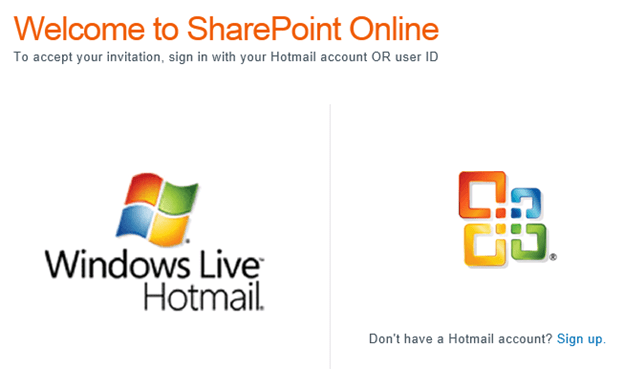
CRM 2011 online user can now accept this invitation by logging in with his account. And he would have access to the SharePoint 2013 online site based on the Groups he has added by SharePoint admin. Now the Search Results page of SharePoint 2013 online can be shown inside CRM 2011 without any authentication issue as the user is now member of SharePoint site.

Hope this helps!

Similar Posts

https://nishantrana.wordpress.com/2013/06/13/import-user-profile-properties-in-sharepoint-2013-from-crm-2011-using-bcs/

https://nishantrana.wordpress.com/2013/06/13/integrating-crm-2011-and-sharepoint-2013-using-bcs-wcf-service-crud-operation/

https://nishantrana.wordpress.com/2013/05/04/integrating-crm-2011-online-and-sharepoint-2013-online-using-bcs-odata-proxy/

Customizing the results of Search Core Results Web Part in SharePoint


Hi,

I was recently assigned a task to customize the Search Core Results Web Part’s search results to include few additional columns for SharePoint 2010 online.

Came across the following helpful links

http://andynoon.wordpress.com/2010/10/12/configuring-and-customising-sharepoint-2010-search/

http://www.sharepointsharon.com/2012/08/displaying-more-properties-in-search-results/

http://www.mindfiresolutions.com/How-to-customize-the-search-results-of-a-search-core-result-web-part-in-SharePoint–1096.php

http://sharepoint-videos.com/sp10-customize-search-results-using-xslt/

Here the first thing we need to do is to create a new Managed Property. After lot of struggle and searching came to know that this is not possible in case of SharePoint 2010 online.

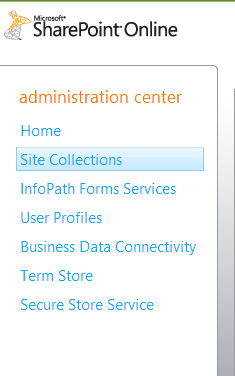
SharePoint 2010 online administration center :-

However the good news was that creating managed property is now supported in case of SharePoint 2013 online.

Check out this article that explains all the differences in detail

http://nikspatel.wordpress.com/2012/10/14/whats-new-in-sharepoint-online-2013-administration-and-how-it-differs-from-spo-2010-version/

Hope it helps!

The search request was unable to connect to the Search Service in SharePoint 2013


Hi,

After installing and configuring the SharePoint 2013 server on my of VM’s, created a new site collection and did some search and got the below error.


Then realized that we need to create the Enterprise Search Service Application first to get the Search Service running.

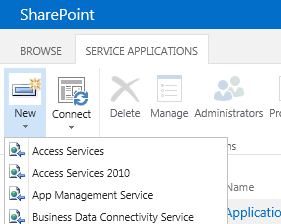
Open Central Administration à Select Application Management à Service Applications à Manage Service Applications


Create a new Search Service Application


Once created,

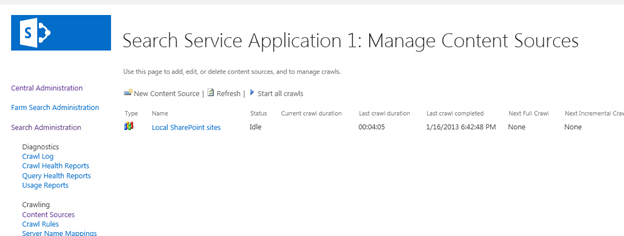
Open the application and set up the Content Sources in it and start the crawl.

Once the crawling was complete, the search results showed up properly.

Bye.