Get “Sign in as Different User” back in SharePoint 2013


Hi,

Was working on portal in SharePoint 2013, and had to validate few things by signing as a different user. Then realized that the option of “Sign in as Different user” was missing.

Followed these article to get past this issue

http://support.microsoft.com/kb/2752600

http://nickgrattan.wordpress.com/2012/07/23/sign-in-as-different-user-and-sharepoint-2013/

Hope it helps

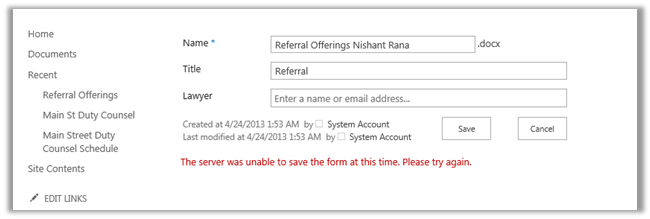
The server was unable to save the form at this time. Please try again. Error in Document Library (SharePoint 2013)


Hi,

I was getting the following error while trying to edit properties of a document in the document library in SharePoint 2013.

As suggested restarted SharePoint Search Host Controller service. Stopped few services to release some memory. Nothing helped.

Finally followed these steps

  • Create a new Document Library accepting all defaults
  • Add a document to the library
  • Edit the properties of the document and save.
    RESULT: The server was unable to save the form at this time. Please try again.
  • Enable ‘Manage content types’ in the library setting.
  • Add the ‘Link to a document’ content type.
  • Edit the properties of the document and save.
  • RESULT: Fixed

The helpful post

http://www.3guysonsharepoint.com/?p=1476

Hope it helps.

“This content cannot be displayed in a frame” error while hosting SharePoint 2013 pages in CRM


Hi,

I was getting the above error while trying to hosting the SharePoint 2013 online web part page inside an iframe within CRM’s Form.

The following post came to the rescue

http://blogs.msdn.com/b/officeapps/archive/2012/12/12/iframing-sharepoint-hosted-pages-in-apps.aspx

specifically the following tag

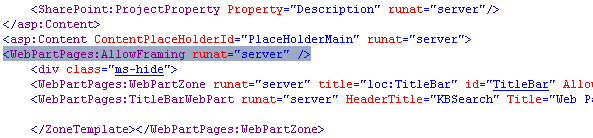
<WebPartPages:AllowFraming runat=”server” />

Hope it helps.

Searching SharePoint 2013 online portal from within CRM 2011 online


  1. Open the SharePoint Site and create a custom Web Part Page using SharePoint Designer 2013

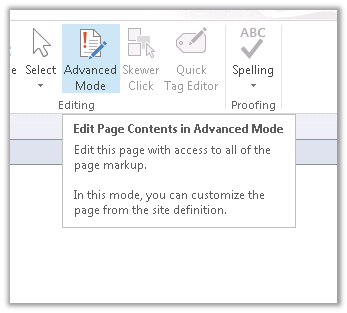
  1. Edit the created page in Advanced Mode

  1. Add the AllowFraming tag to the web part page to allow the page to be iframed from within CRM’s Form

Select preview in browser


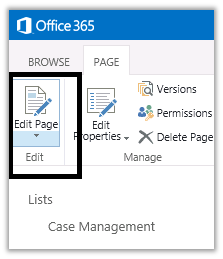
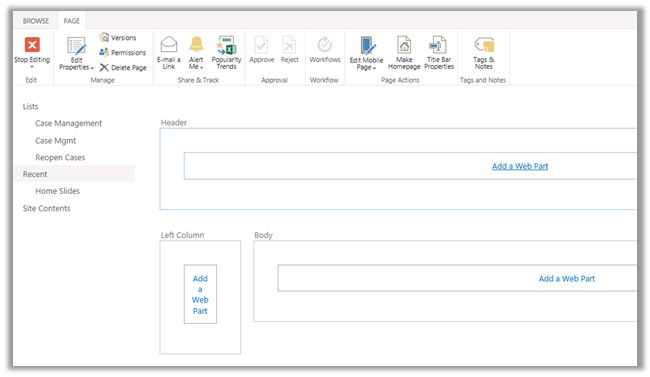
  1. Select Page à Edit Page


  1. Add Search Web Parts


  • Search Box in the Header
  • Refinement in the Left Column
  • Search Results in the Body


  1. Note the url of the Custom Search Page

https://xyz.sharepoint.com/sites/contoso/Search/SitePages/KBSearch.aspx

  1. Now we can use the above url in the Iframe within our CRM. Here k would be the query string parameter to which search keyword would be passed. We can dynamically set the value of the parameter k through JavaScript in the onload of a particular entity’s form to display the corresponding results in the CRM.


https://xyz.sharepoint.com/sites/contoso/Search/SitePages/KBSearch.aspx?k=searchTerm

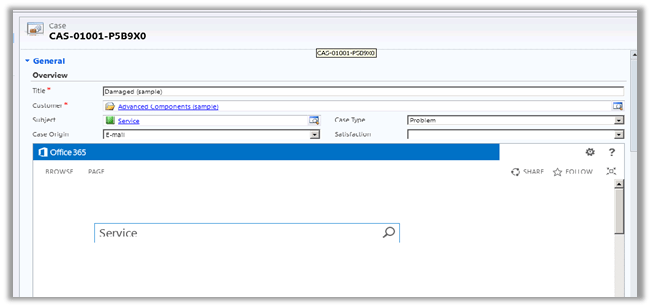
  1. Search page within Case Form in CRM

Hope it helps.


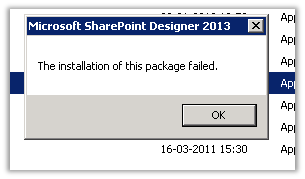
The installation of the package failed error while installing SharePoint Designer 2013


Hi,

After downloading the SharePoint Designer 2013 installer on my lab machine and trying to run it I was getting the below error

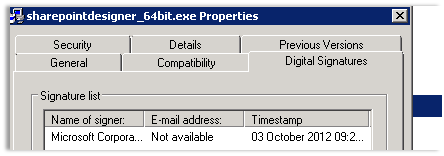
Right clicking on it and selecting properties showed that it had the Digital Signatures tab missing in it.

Then downloaded the exe on my other machine, and it had the Digital Signatures tab.

Using this new exe on the lab machine I was able to install the Designer.

Hope it helps.

Feature comparison between SharePoint Online Public Website and SharePoint on-premise Internet sites.


Check out this link

http://office.microsoft.com/en-us/office365-sharepoint-online-enterprise-help/websites-in-sharepoint-online-and-sharepoint-server-HA102828142.aspx?redir=0

Hope it helps.