

Focused view in Dynamics 365 that allows users to view and manage all their records in one place, allowing them to be more productive, as they can stay on track and avoid getting sidetracked by switching between multiple screens to find the information they need.
We can enable and disable it for all the records from the Power Platform Admin Center

Let us select the Focused View for the Cases.

Focused View lists all the records of the view, from where we can select the record, and see its details, within the same screen.

We can search, filter, sort, select multiple records, and further customize it.
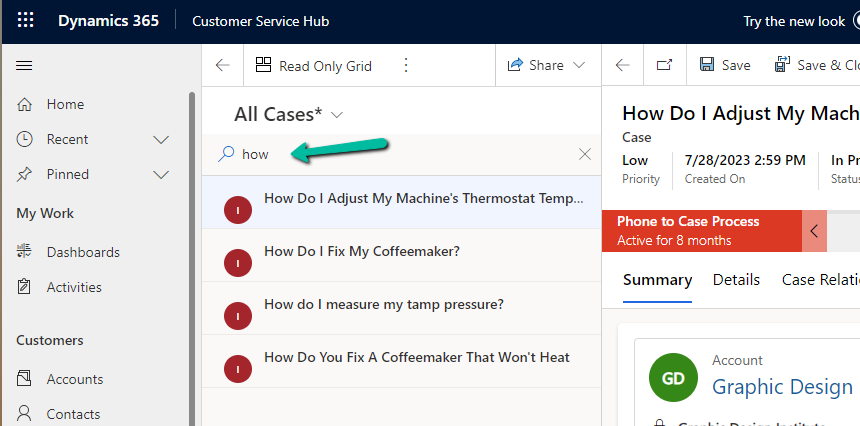
Search –
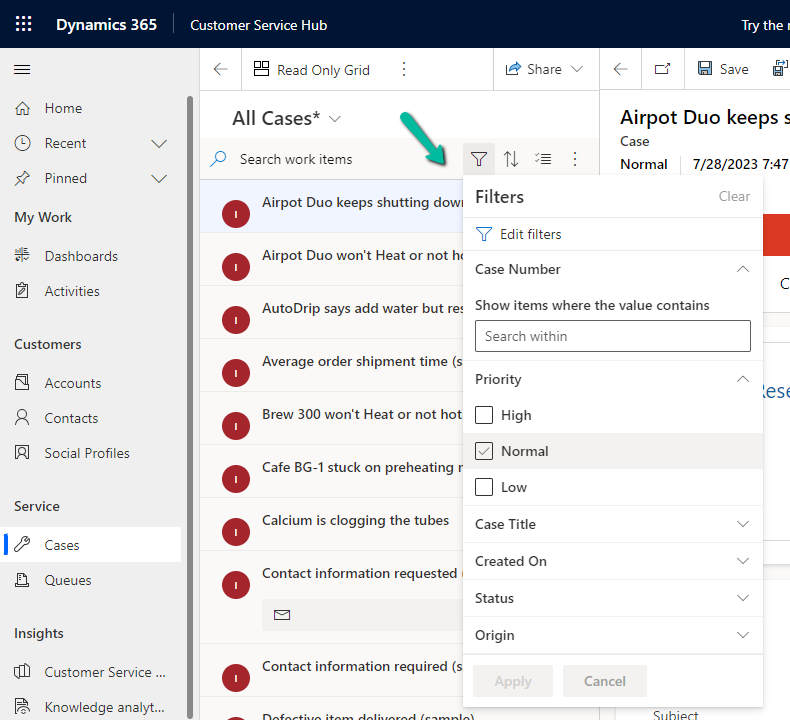
Filter –
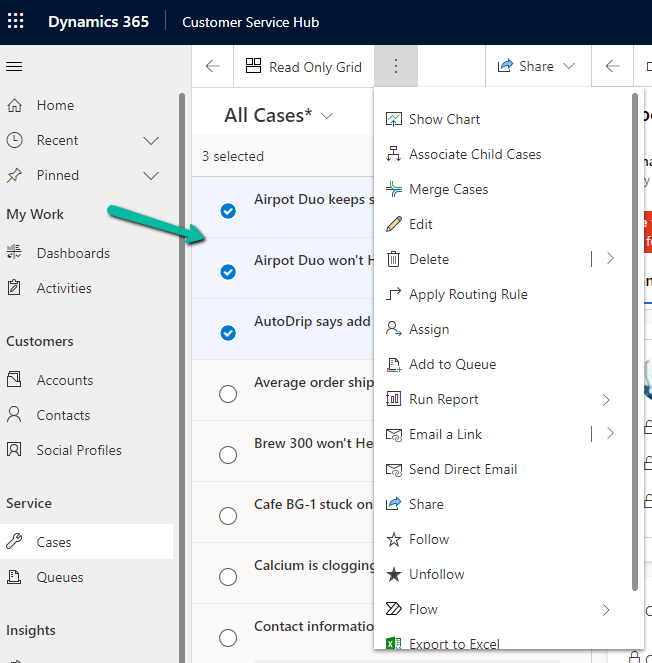
Select multiple records and perform bulk operations –
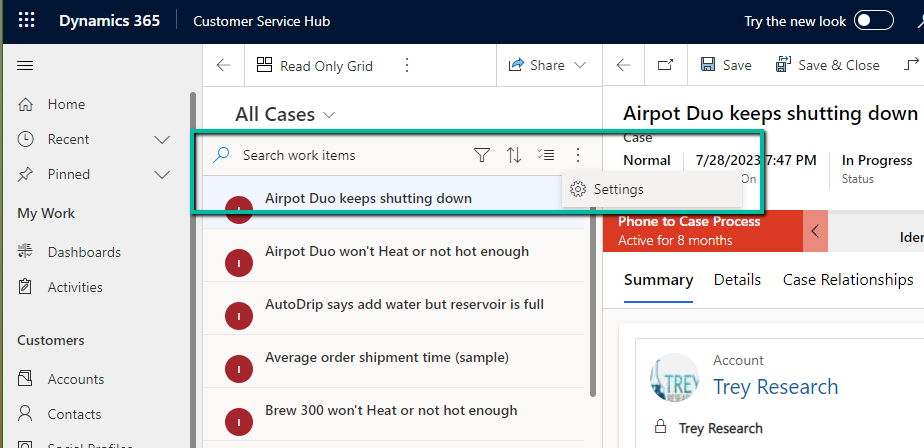
From Settings, we can customize the appearance of it –
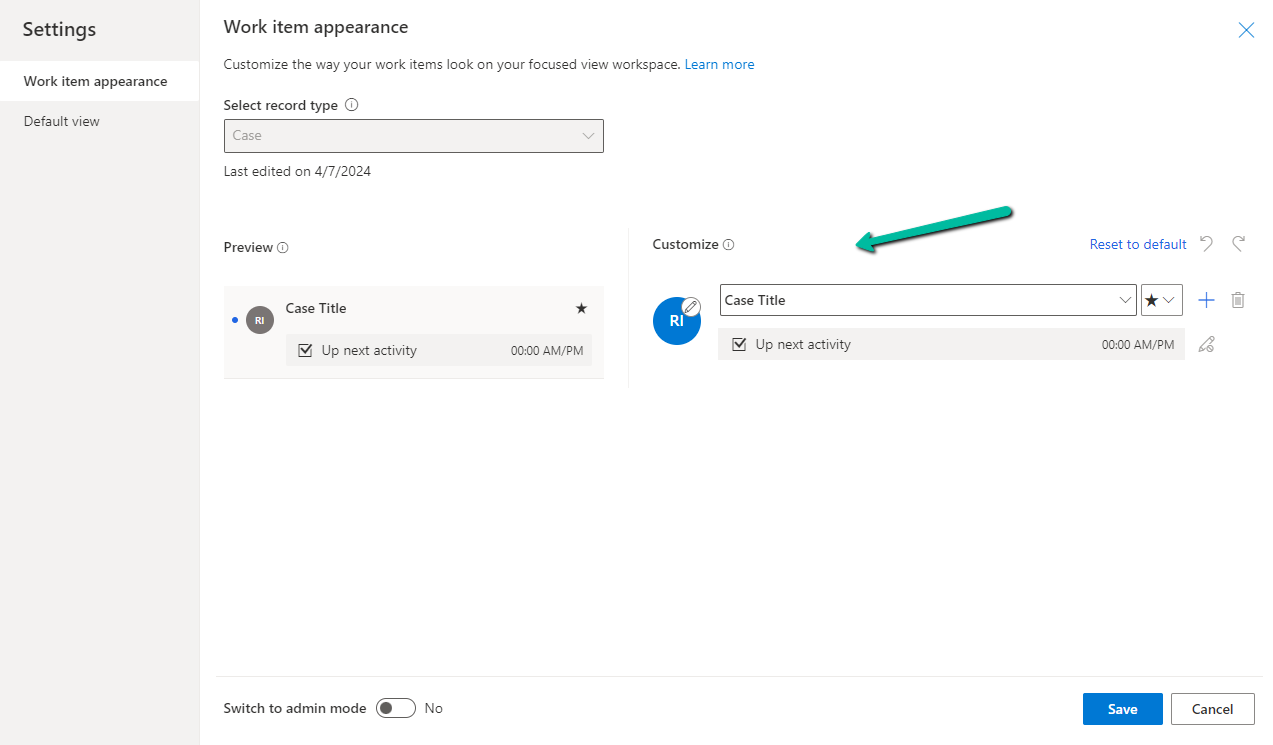
Here we can specify maximum 4 rows and each row can have a maximum of 3 columns added to it, it can be from the same record or the related record.
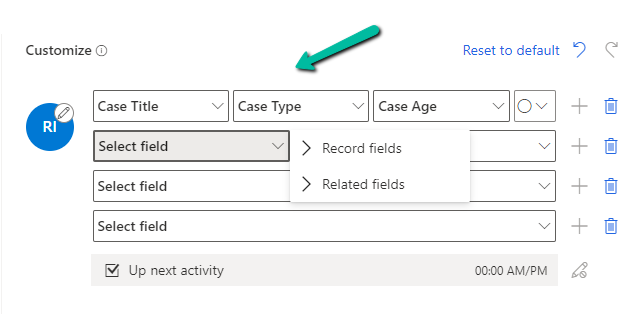
Here we have updated it as follows

Next, we have admin mode, where we can lock the customization so that users won’t be able to change it.

From the Default View settings, we can specify the tables on which we want focused view as default.

Below we can see the Focused View updated to show Case Title, Case type, Created by, and associated customer’s email address.

Get all the details here
Hope it helps..

 Nishant Rana's Weblog