Only notes are available in Offline mode. Please check your internet connection to view other timeline records – Dataverse / Dynamics 365


We were recently exploring the Dynamics 365 Field Service mobile app, we saw that for the users with a mobile offline profile configured – Add the user to an offline profile, when they go offline they will see the below message –

“Only Notes are available in offline mode. If you would like to view your other items, please reconnect to online mode when possible”. 

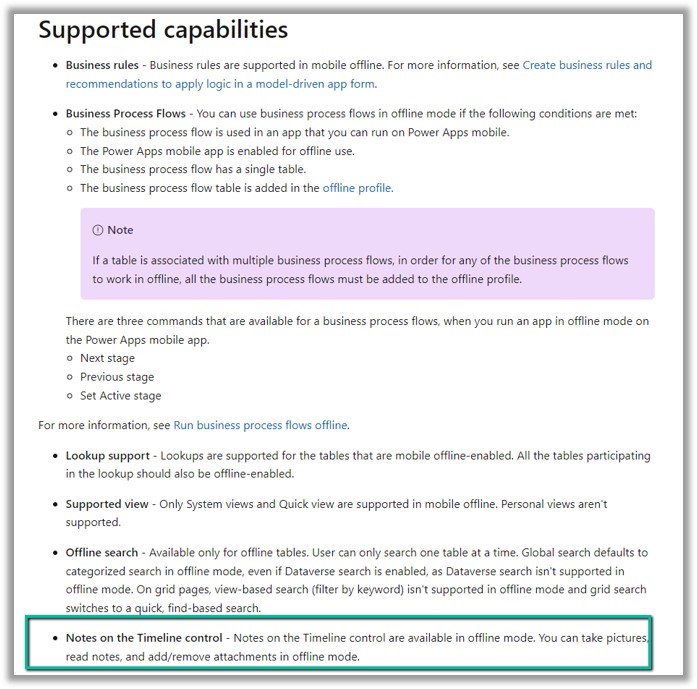
What it means is that if users go offline, only the Notes records (along with the attachment) will be available on the timelines. The users can also add/remove attachment in the offline mode. This capability was added as part of the 2019 Release Wave 2

Offline Supported Capabilities

Hope it helps..

Advertisements

Fixed – System.InvalidOperationException: Message size exceeded when attempting to send response to sandbox. Message Size 123 Mb. Max Allowed 128974848 Mb (Dataverse / Dynamics 365 )


Recently we got the below exception for one of our plugins
Message: System.InvalidOperationException: Message size exceeded when attempting to send response to sandbox. Message Size 123 Mb. Max Allowed 128974848 Mb.

Below is the code where we were getting the error. We were retrieving the notes records associated with the inspection response/inspection attachments. (Dynamics 365 Field Service)

And if we had a total of all attachments to it more than 100 mb it was failing.

Below is the test Work Order Service Task record for which we were getting the error.

There were a couple of other attachments also to it making a total of more than 100 Mb.

Here to fix the error instead of fetching all the note details at once and then processing the notes attachments, we updated our logic to process the notes attachments one by one.

Hope it helps..

Advertisements

Use Sales Copilot to see the pipeline (Dynamics 365)


Using the “Sales Copilot” we can get the list of opportunities assigned to us.

For this, we can use the “Show my pipeline” prompt

To enable Sales Copilot, Inside Sales Hub, navigate to App Settings >> Copilot (General Settings) and specify the Sales Apps in which we want the Sales Copilot to be enabled.

To see it in action, open the Sales Copilot Help Pane, select the Sparke Icon to open the Prompt Guide, then Get Info >> Show my pipeline

The result shows the opportunities sorted based on the estimated close date.

Clicking on “Show all” opens the corresponding opportunity view.

Hope it helps..
Advertisements

How to – Submit multipart/form-data using HTTP action in Power Automate (Dataverse)


Recently we were calling an API (that expects multipart/form-data) to pass the image uploaded in Dataverse’s Image Column.

We used Power Automate for this i.e. to get the image uploaded and use HTTP Action to call and pass the Image details to it.

Below is the specification of the API

https://vision.foodvisor.io/docs/#/paths/analysis/post

We used the “Download a file or an image” action to get the Image details

Below is how the HTTP action was used to pass the required details.

The successful response –

The body of the HTTP action –

{
"$content-type": "multipart/form-data",
"$multipart": [
    {
      "headers": {
        "Content-Disposition": "form-data; name=\"image\"; fileName=\"@{items('Apply_to_each_2')?['filename']}\""
      },
      "body": @{body('Download_a_file_or_an_image')}
    }
  ]
}


If we want to pass more than one data, we can have multiple headers defined as shown below

Helpful post –

Hope it helps..

Advertisements

Timestamp Frequency (Field Service Settings) in Dynamics 365 Field Service


The Timestamp frequency defines when the Booking Timestamp record should be created from the Bookable Resource booking record.

  • Per Booking Status Change
  • Per Field Service Status Change

By default, it is Per Field Service Status Change, in this case, the Booking Timestamp will be created on the change of Field Service Status.

Let us update a Bookable Resource Booking record’s status from In Progress to Arrived.

Here we will not see any Booking Timestamp record created as the Field Service Status remains the same – “In Progress”

On changing it to On Break, we can see a new booking timestamp record created as that changes the Field Service Status.

The booking timestamp record :-

In the case of Timestamp Frequency as “Per Booking Status Change”, the booking timestamp record will be created on the change of the booking status in the Bookable Resource Booking record.

Also in the case of “Pre Booking Status Change”, the booking timestamp record created will have the Booking Status captured which is blank in the case
of “Per Field Service Status Change” as shown below

Get more details

Hope it helps..

Advertisements

Invoke webhook from a plugin – Dataverse / Dynamics 365

The content describes invoking a Webhook from a custom Azure-Aware Plugin, registered through a plugin registration tool. It includes code to invoke the Webhook using the IServiceEndPointNotificationService interface and a sample code snippet. The process involves updating a case record and provides guidance on the execution context and handling exceptions.


Similar to Azure Service Bus, we can invoke a Webhook from a plugin (custom Azure-Aware Plugin)

Below is our cloud flow that we have registered as a webhook through the plugin registration tool.

Below is our Webhook registered, note down the ServiceEndpointId.

Below is our code to invoke the Webhook, it uses the same interface, and we IServiceEndPointNotificationService need to provide ServiceEndpointId to it.

We have this registered in the Update message of the Incident.

Let us update a case record and see it in action.

Sample Code –

 public class CallWebhookPlugin : IPlugin
    {
        public void Execute(IServiceProvider serviceProvider)
        {           
            ITracingService tracingService = (ITracingService)serviceProvider.GetService(typeof(ITracingService));
            IPluginExecutionContext context = (IPluginExecutionContext)
                serviceProvider.GetService(typeof(IPluginExecutionContext));
            IServiceEndpointNotificationService webHookService = 
                (IServiceEndpointNotificationService)serviceProvider.GetService(typeof(IServiceEndpointNotificationService));

            try
            {
                tracingService.Trace("Posting the execution context to the Webhook.");
                // pass the GUID (ServiceEndpointId) of the Webhook 
               webHookService.Execute(new EntityReference("serviceendpoint",
                    new Guid("7b88a3c7-d2b5-ee11-a569-0022481c0ba7"))
                    , context);                            
                tracingService.Trace("Passed Successfully.");              
            }
            catch (Exception e)
            {
                tracingService.Trace("Exception: {0}", e.ToString());
                throw;
            }
        }

Hope it helps..

Advertisements