
Check the other articles of this series
For one of our requirements we have started exploring Dynamics 365 for Phones and Tablets, so just noting down a few of the key points identified during the exploration
- Supported devices for the app
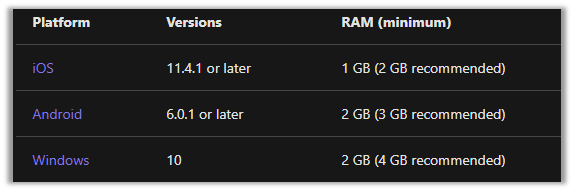
- We can use the Web browser on Tablet for accessing Dynamics 365 Model-driven apps with the following specifications.
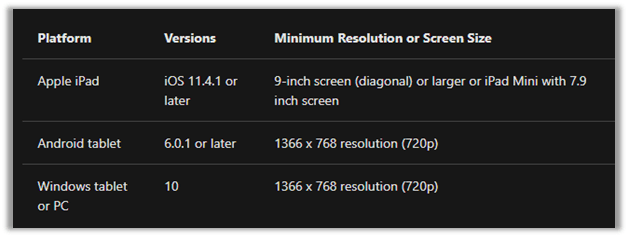
- Using the Web browser on phones to access a model-driven app is not supported.
- Apps on the Older version of iOS and Android other than recommended above are not supported.
-
Dynamics 365 for Blackberry App and Windows Phone App is deprecated and no longer supported.
Required privileges à
Dynamics 365 for mobile is the required security privilege to access Dynamics 365 for phones and tablets.
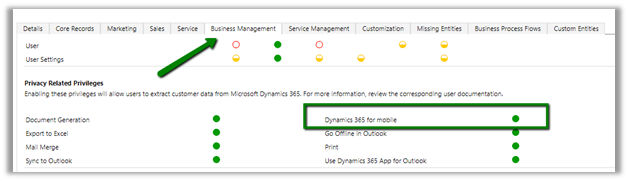
Following out of the box roles have this privilege assigned to it. (using Privileges Discovery plugin of XrmToolBox)
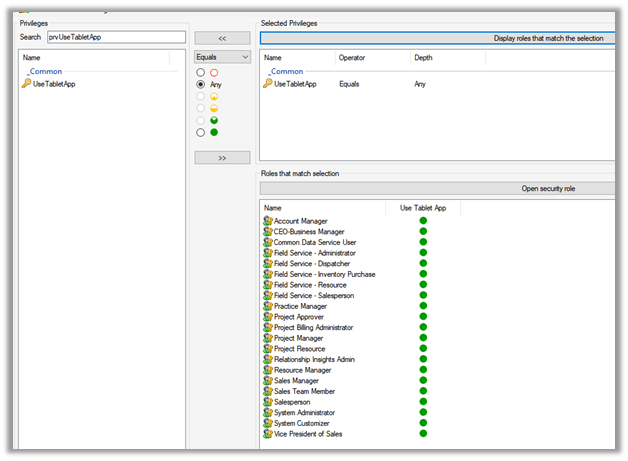
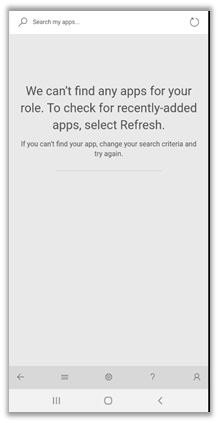
Let us now assign the salesperson security role to one of the test users and try accessing Dynamics 365 from the phone app (Android).
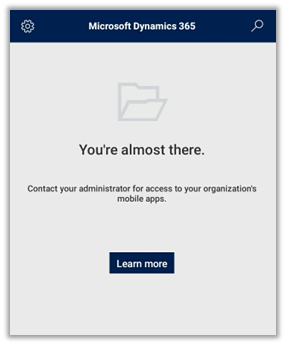
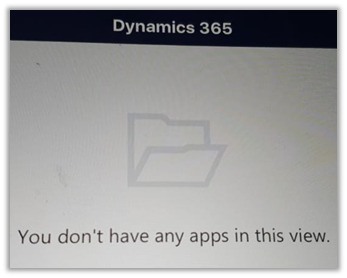
We’d presented with the below screen.
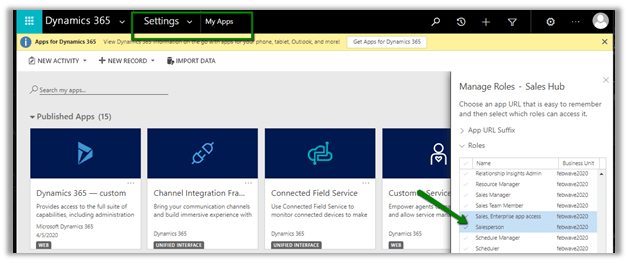
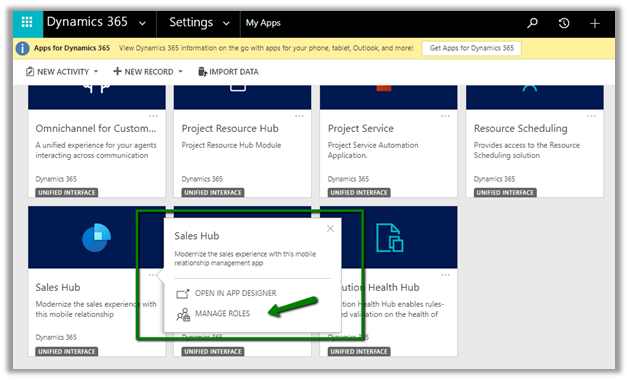
Let us go to Settings à My App and assign the Salesperson role to the Sales Hub app.
To access Dynamics from App, the additional privileges required are as follows
Security Roles à Customization Tab
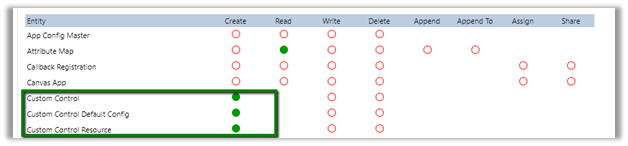
And Read on
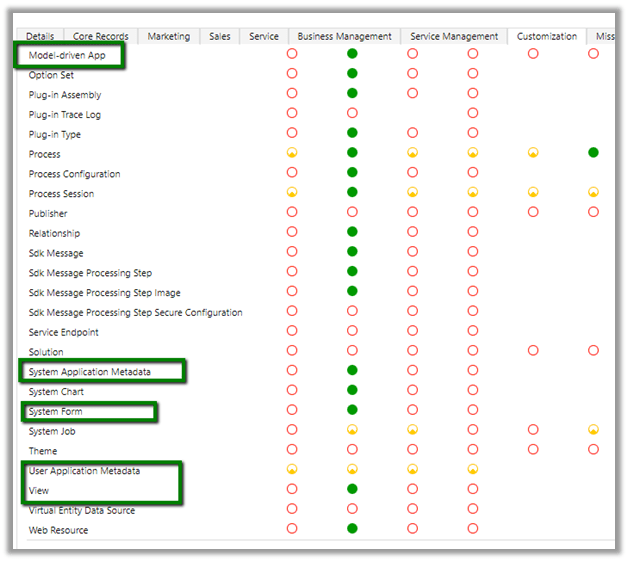
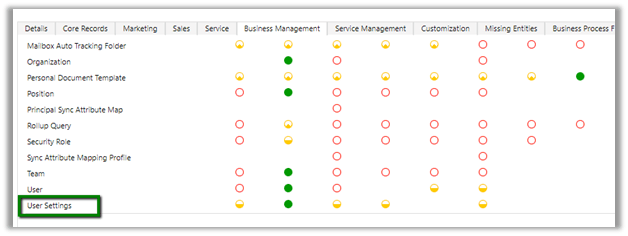
Business Management – Read access to User Settings
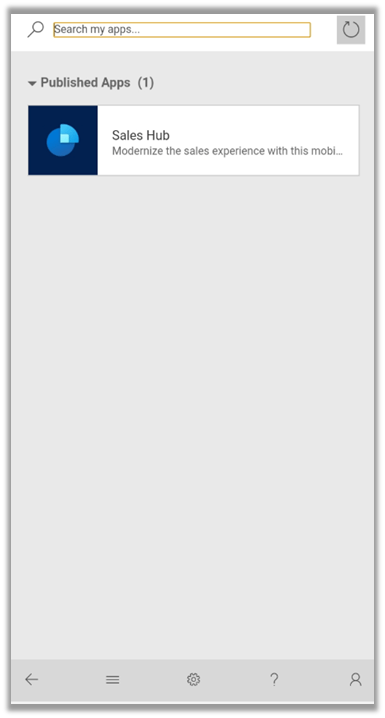
With all the appropriate privileges in place for the user, we can now login with that user’s account and can see the Sales Hub app (or the app configured) available to the user.
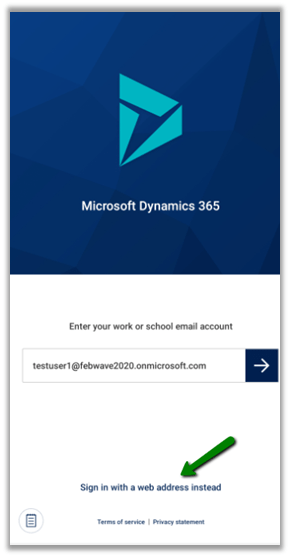
In case you do not see the app, try accessing through the web address.
This completes the initial setup; in the next part, we’d cover the rest of the findings.
Check other posts on Dynamics 365 for Phone and Tablet
Hope it helps..



 Nishant Rana's Weblog