Recently, while performing cleanup in one of our environments, we were removing unused components to reduce clutter and technical debt. As part of this activity, we attempted to delete an old Business Process Flow (BPF) that was no longer required.
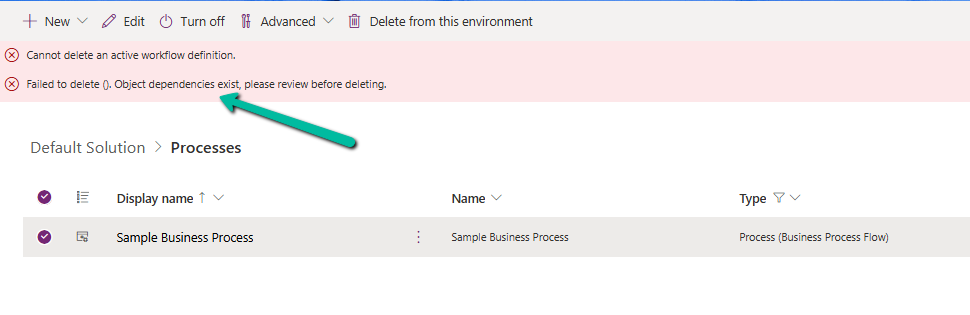
However, when trying to delete the Business Process Flow, we were greeted with the following error message:
Failed to delete (). Object dependencies exist; please review before deleting.
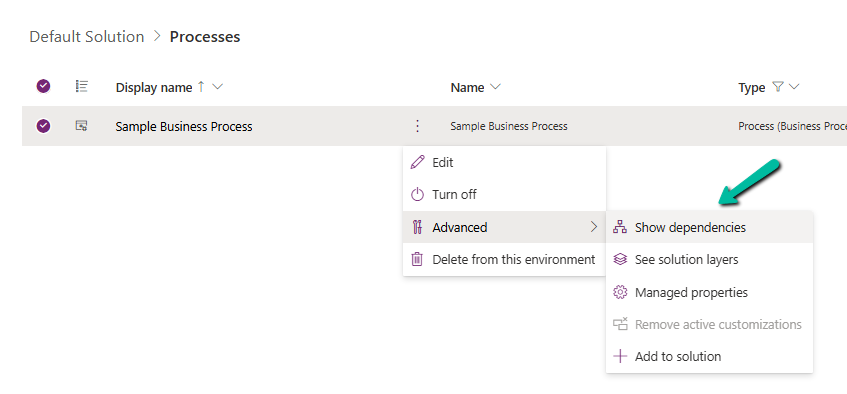
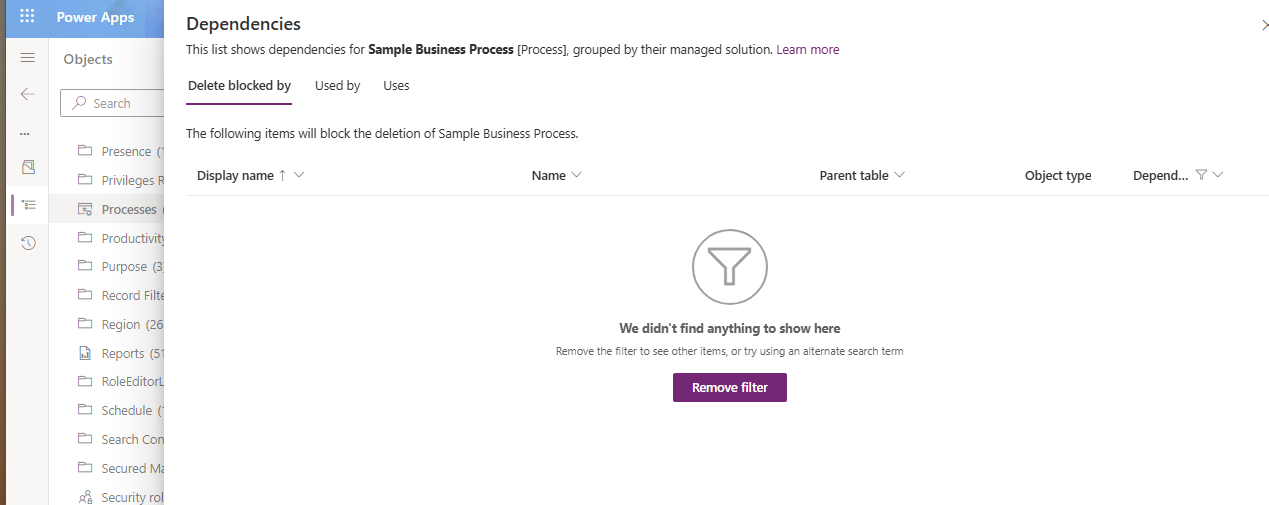
At first glance, this seemed straightforward — if dependencies exist, we just need to review and remove them. But here’s where things became confusing. When we opened the Show Dependencies option for the Business Process Flow, nothing was listed. No forms, no views, no plugins, no workflows — absolutely nothing.
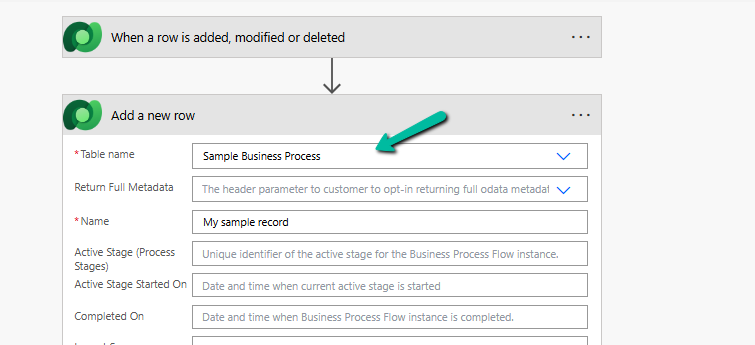
After searching for different components, we finally found one of the cloud flows referring to it. It was creating an instance of the BPF. That reference was enough for Dataverse to block deletion — even though it wasn’t being displayed in the dependency viewer for the component.
Once we identified the cloud flow, we removed the step that was creating the Business Process Flow instance. After saving and publishing the updated flow, we attempted deletion again.
This time — success.
The Business Process Flow was deleted without any issues.
In earlier posts, we looked at how to move a Business Process Flow (BPF) stage and finish the process by directly updating the BPF entity instance. In this post, we’ll use RetrieveProcessInstancesRequest and RetrieveActivePathRequest to move a Business Process Flow to its final stage and finish it, using the Phone to Case Process as a reference.
A Business Process Flow defines not just stages, but also valid paths through those stages. Instead of assuming which stage comes next, we can ask Dataverse for the active path of the current process instance. This makes the logic more resilient to future changes, such as reordering stages or adding conditional paths.
By using the active path:
We avoid hard-coding stage IDs
We ensure the stage we move is to valid for the process
We can construct a correct traversed path directly from platform metadata.
Step 1: Retrieve the Active BPF Instance
The first step is to identify the active Business Process Flow instance for the Case. We do this using RetrieveProcessInstancesRequest, which returns all BPF instances associated with the record, ordered based on modifiedon. The most recently modified bpf instance will be the one active in the record.
The response contains all stages in the active path, in the correct order. From this data, we build the complete traversed path by iterating through every stage returned and collecting their processstageid values.
var traversedPathList = new List<string>();
foreach (var stage in pathResp.ProcessStages.Entities)
{
    traversedPathList.Add(
        ((Guid)stage.Attributes["processstageid"]).ToString()
    );
}

string completeTraversedPath = string.Join(",", traversedPathList);
This approach guarantees that the traversedpath reflects the exact path defined by the process configuration, rather than a manually constructed sequence.
Step 3: Move the BPF to the Final Stage
We then get the last stage’s GUID and use it to update activestageid of the BPF instance along with the traversed path.
Guid finalStageId =
    (Guid)pathResp.ProcessStages.Entities.Last()
        .Attributes["processstageid"];

var updateBpf = new Entity("phonetocaseprocess", processInstanceId)
{
    ["activestageid"] = new EntityReference("processstage", finalStageId),
    ["traversedpath"] = completeTraversedPath
};

orgService.Update(updateBpf);
Step 4: Finish (Deactivate) the Business Process Flow
Reaching the final stage does not automatically complete the process. To mirror the Finish button in the UI, we explicitly mark the BPF instance as inactive and finished.
var finish = new Entity("phonetocaseprocess", processInstanceId)
{
    ["statecode"] = new OptionSetValue(1),   // Inactive
    ["statuscode"] = new OptionSetValue(-1)  // Finished
};

orgService.Update(finish);
After this update, the Business Process Flow appears as Completed in the UI and can no longer be progressed.
Helper method –
public static void MoveBpfToFinalStageAndFinish(
    IOrganizationService service,
    Guid primaryRecordId,
    string primaryEntityLogicalName,
    string bpfSchemaName,
    string expectedBpfName)
{
    // Step 1: Retrieve active BPF instance
    var processInstanceRequest = new RetrieveProcessInstancesRequest
    {
        EntityId = primaryRecordId,
        EntityLogicalName = primaryEntityLogicalName
    };

    var processInstanceResponse =
        (RetrieveProcessInstancesResponse)service.Execute(processInstanceRequest);

    if (!processInstanceResponse.Processes.Entities.Any())
        return;

    var bpfInstance = processInstanceResponse.Processes.Entities.First();
    var processInstanceId = bpfInstance.Id;

    // Optional safety check – ensure correct BPF
    if (!bpfInstance.Attributes.Contains("name") ||
        bpfInstance["name"].ToString() != expectedBpfName)
        return;

    // Step 2: Retrieve active path
    var pathRequest = new RetrieveActivePathRequest
    {
        ProcessInstanceId = processInstanceId
    };

    var pathResponse =
        (RetrieveActivePathResponse)service.Execute(pathRequest);

    if (pathResponse.ProcessStages.Entities.Count == 0)
        return;

    // Step 3: Build traversed path from active path
    var traversedPathList = new List<string>();
    foreach (var stage in pathResponse.ProcessStages.Entities)
    {
        traversedPathList.Add(
            ((Guid)stage["processstageid"]).ToString()
        );
    }

    string traversedPath = string.Join(",", traversedPathList);

    // Final stage = last stage in active path
    Guid finalStageId =
        (Guid)pathResponse.ProcessStages.Entities.Last()["processstageid"];

    // Step 4: Move BPF to final stage
    var updateBpf = new Entity(bpfSchemaName, processInstanceId)
    {
        ["activestageid"] = new EntityReference("processstage", finalStageId),
        ["traversedpath"] = traversedPath
    };

    service.Update(updateBpf);

    // Step 5: Finish (deactivate) the BPF
    var finishBpf = new Entity(bpfSchemaName, processInstanceId)
    {
        ["statecode"] = new OptionSetValue(1),   // Inactive
        ["statuscode"] = new OptionSetValue(2)  // Finished (verify in org)
    };

    service.Update(finishBpf);
}
In the previous post, we explored how to move a Business Process Flow (BPF) to the next stage using a console application, with the Phone to Case Process as a working example. Advancing the BPF stage, however, is only part of the lifecycle. Even after the flow reaches its final stage, it remains active until it is explicitly finished. In the Dynamics 365 UI, this is done by clicking the Finish button. In this post, we’ll continue from where the previous one left off and look at how to finish (deactivate) and reactivate the same Phone to Case Business Process Flow programmatically using C#.
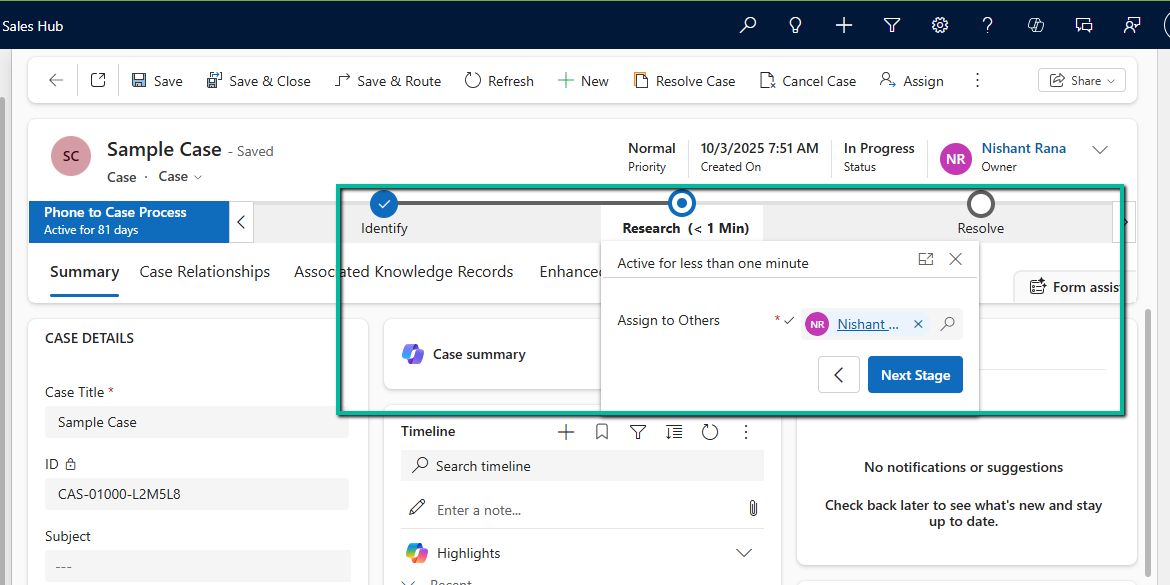
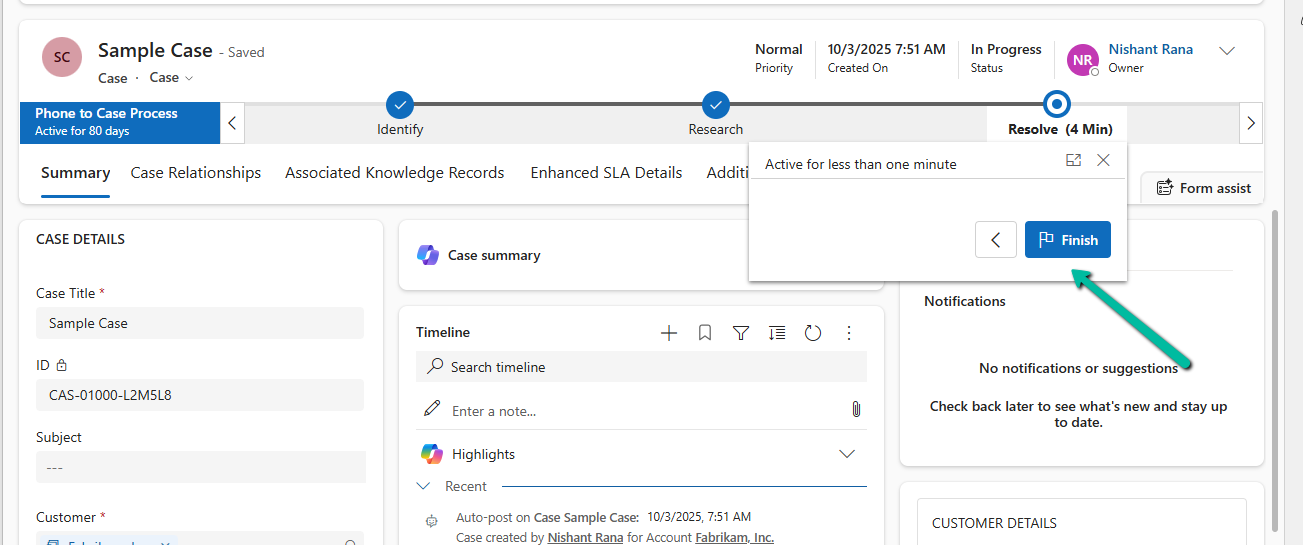
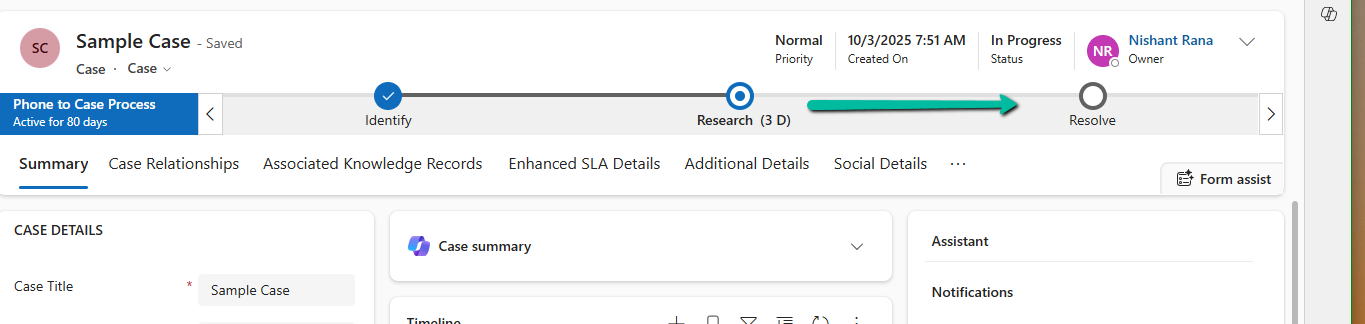
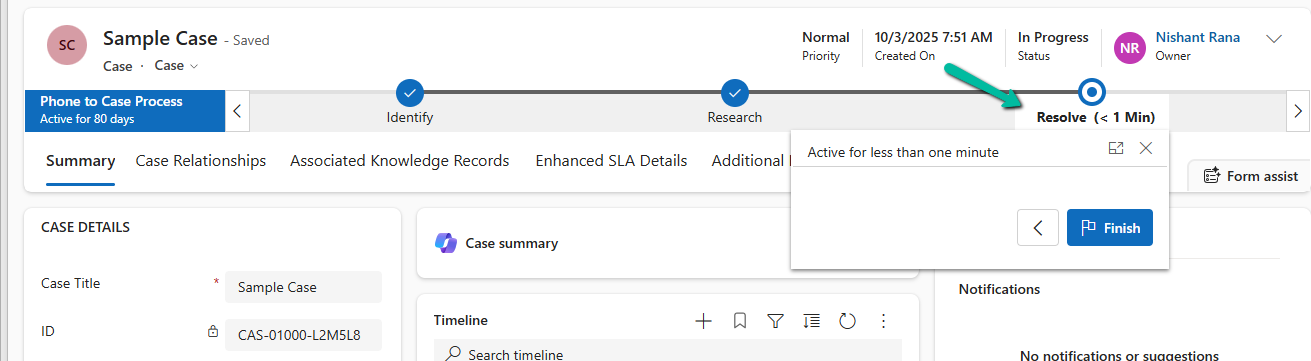
Below we can see the BPF in the last stage Resolve but not yet finished.
Each Business Process Flow is backed by its own Dataverse table. For the Phone to Case Process, this table is phonetocaseprocess. When a Case enters the BPF, a corresponding record is created in this table, representing the BPF instance. This record has its own lifecycle, independent of the Case itself. Finishing a BPF means setting this instance to an Inactive state. Simply moving the BPF to the Resolve stage does not finish the process; the instance remains active until its state is explicitly updated.
var processInstanceId = bpfInstance.Id;
var processEntityLogicalName = "phonetocaseprocess";

// Finish (Deactivate) the BPF
var finishBpf = new Entity(processEntityLogicalName, processInstanceId)
{
    ["statecode"] = new OptionSetValue(1),   // Inactive
    ["statuscode"] = new OptionSetValue(-1)  // Finished (verify value in your org)
};

service.Update(finishBpf);
After this update, the Business Process Flow is marked as Completed in the UI, and the Finish button is no longer available. This mirrors the result of clicking Finish manually.
In certain scenarios—such as testing, data correction, or reprocessing a record—we may need to reactivate a finished Business Process Flow. This can be done by setting the BPF instance back to an Active state.
var reactivateBpf = new Entity(processEntityLogicalName, processInstanceId)
{
    ["statecode"] = new OptionSetValue(0),   // Active
    ["statuscode"] = new OptionSetValue(-1)
};

service.Update(reactivateBpf);
Reusable Helper Method to Move Next, Finish and Reactivate a BPF –
public static void UpdateBpfStageAndState(
    IOrganizationService service,
    string bpfSchemaName,
    string primaryEntityLookupField,
    Guid primaryRecordId,
    Guid targetStageId,
    bool finishBpf = false,
    bool reactivateBpf = false)
{
    // 1. Retrieve the BPF instance
    var query = new QueryExpression(bpfSchemaName)
    {
        ColumnSet = new ColumnSet("activestageid", "traversedpath", "statecode")
    };
    query.Criteria.AddCondition(primaryEntityLookupField, ConditionOperator.Equal, primaryRecordId);

    var instances = service.RetrieveMultiple(query);
    if (!instances.Entities.Any())
        return;

    var bpfInstance = instances.Entities.First();

    // 2. Move the BPF to the target stage
    var updateStage = new Entity(bpfSchemaName, bpfInstance.Id);

    updateStage["activestageid"] =
        new EntityReference("processstage", targetStageId);

    var traversedPath = bpfInstance.GetAttributeValue<string>("traversedpath");
    updateStage["traversedpath"] = string.IsNullOrEmpty(traversedPath)
        ? targetStageId.ToString()
        : $"{traversedPath},{targetStageId}";

    service.Update(updateStage);

    // 3. Finish (Deactivate) the BPF if requested
    if (finishBpf)
    {
        var finish = new Entity(bpfSchemaName, bpfInstance.Id)
        {
            ["statecode"] = new OptionSetValue(1),   // Inactive
            ["statuscode"] = new OptionSetValue(-1)  // Finished (verify in your org)
        };

        service.Update(finish);
    }

    // 4. Reactivate the BPF if requested
    if (reactivateBpf)
    {
        var reactivate = new Entity(bpfSchemaName, bpfInstance.Id)
        {
            ["statecode"] = new OptionSetValue(0),   // Active
            ["statuscode"] = new OptionSetValue(-1)
        };

        service.Update(reactivate);
    }
}
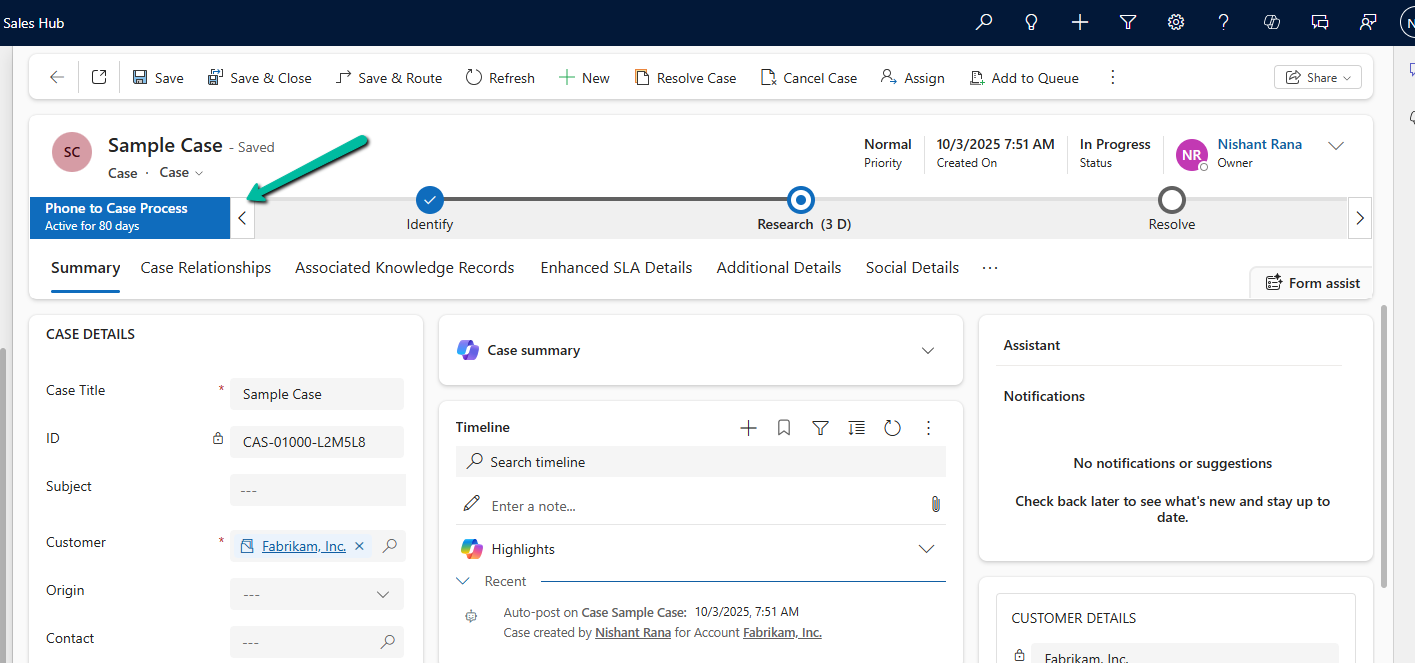
In Dynamics 365, Business Process Flows are usually progressed by users through the UI. However, in scenarios like data migration, bulk remediation, or backend automation, we may need to move a BPF stage programmatically. Here we will cover one of the ways we can advance the Business Process Flow to the next stage using a C# console application, with a Case example used only as a reference.
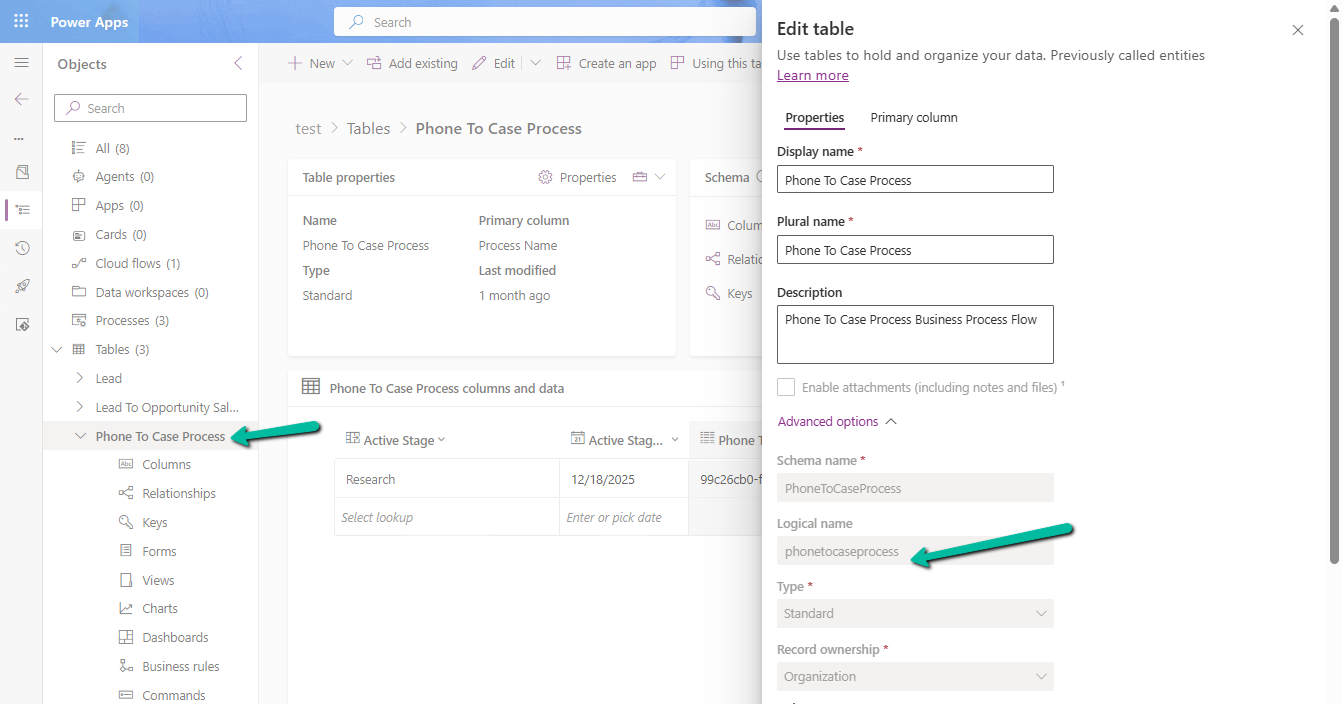
Every Business Process Flow in Dataverse is backed by its own table, created when the process is published. The table name is derived from the process schema name and stores one record per entity instance participating in the flow.
Below is the table for the Phone To Case Process with schema name – phonetocaseprocess
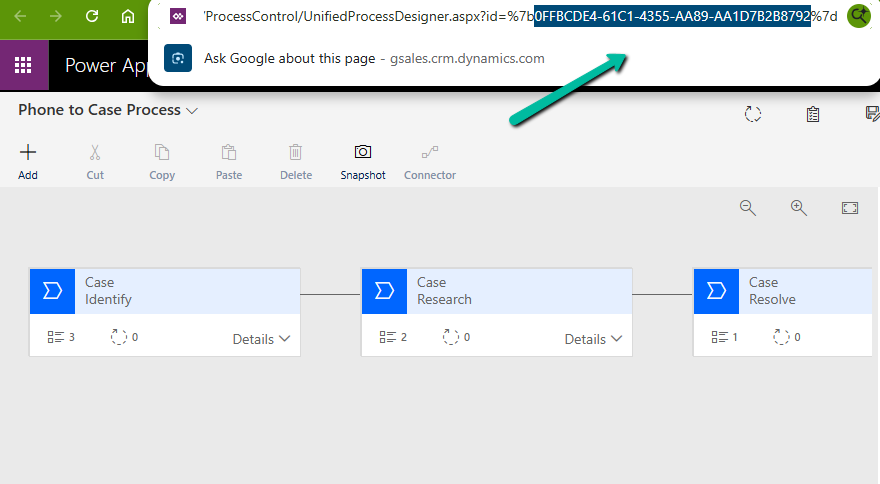
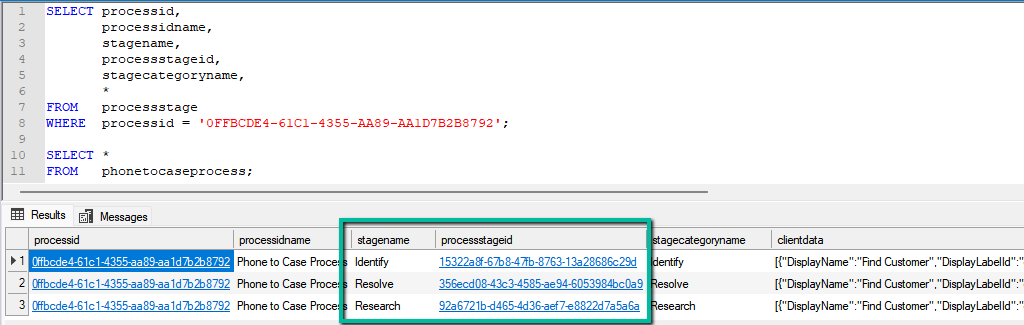
We can get the stagename and the processstageid for the business process flow from the processstage table, passing the GUID of the business process flow.
SELECT processid,
       processidname,
       stagename,
       processstageid,
       stagecategoryname,
       *
FROM   processstage
WHERE  processid = '0FFBCDE4-61C1-4355-AA89-AA1D7B2B8792';
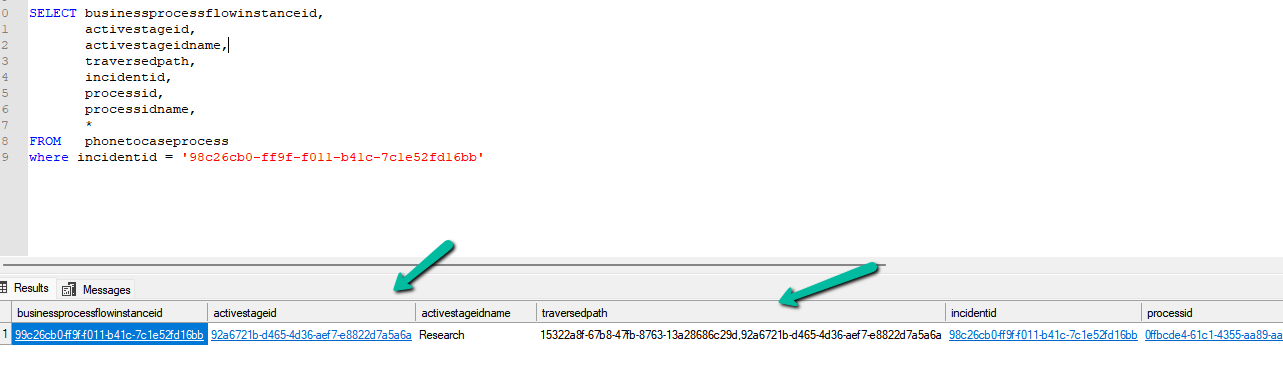
Regardless of the entity, two columns control stage movement: activestageid, which represents the current stage, and traversedpath, which stores a comma-separated list of all stage IDs the record has passed through. When moving a BPF programmatically, both values must be updated together to ensure the UI reflects the change correctly. The table will also include the column referring to the record it is associated with; in our example, it is incidentid.
The traversedpathvalue must be constructed as a comma-separated list of processstageid values, preserving the exact order in which stages are completed, with each newly reached stage appended to the end of the existing path.
SELECT businessprocessflowinstanceid,
       activestageid,
       activestageidname,
       traversedpath,
       incidentid,
       processid,
       processidname,
       *
FROM   phonetocaseprocess
where incidentid = '98c26cb0-ff9f-f011-b41c-7c1e52fd16bb'
At a high level, the process is always the same. We first identify the correct BPF table, then retrieve the BPF instance associated with the primary record. Next, we update the activestageid to point to the next stage and append that stage ID to the existing traversedpath. Finally, we persist the update back to Dataverse. Because this logic runs outside the UI, it bypasses stage validations and required-field enforcement, making it ideal for backend utilities but something that should be used carefully.
Below is our sample code that moves the case record from the Research stage to the Resolve stage.
Sample Code
 static void Main(string[] args)
        {
            Console.WriteLine("MoveCaseBpfToResolve started.");
            // CRM connection
            string connString = @"AuthType=OAuth;
            Username=abc.onmicrosoft.com;
            Password=xyz;
            Url=https://abc.crm.dynamics.com/;
            AppId=51f81489-12ee-4a9e-aaae-a2591f45987d;
            RedirectUri=app://58145b91-0c36-4500-8554-080854f2ac97/";

            var service = new CrmServiceClient(connString);

            var bpfSchemaName = "phonetocaseprocess";

            var caseId = "98c26cb0-ff9f-f011-b41c-7c1e52fd16bb";
            var resolveStageId = new Guid("356ecd08-43c3-4585-ae94-6053984bc0a9");

            // Query the BPF instance for the Case
            var query = new QueryExpression(bpfSchemaName)
            {
                ColumnSet = new ColumnSet("activestageid", "traversedpath")
            };
            query.Criteria.AddCondition("incidentid", ConditionOperator.Equal, caseId);

            var instances = service.RetrieveMultiple(query);

            if (!instances.Entities.Any())
            {
                Console.WriteLine("No BPF instance found for the Case. Exiting.");
                return;
            }

            var bpfInstance = instances.Entities.First();


            var updateBpf = new Entity(bpfSchemaName)
            {
                Id = bpfInstance.Id
            };
            // Set active stage to Resolve
            updateBpf["activestageid"] = new EntityReference("processstage", resolveStageId);
            // Update traversed path
            var traversedPath = bpfInstance.GetAttributeValue<string>("traversedpath");
            updateBpf["traversedpath"] = $"{traversedPath},{resolveStageId}";
            service.Update(updateBpf);

            Console.WriteLine("BPF successfully moved to Resolve stage.");
            Console.WriteLine("MoveCaseBpfToResolve completed.");
        }
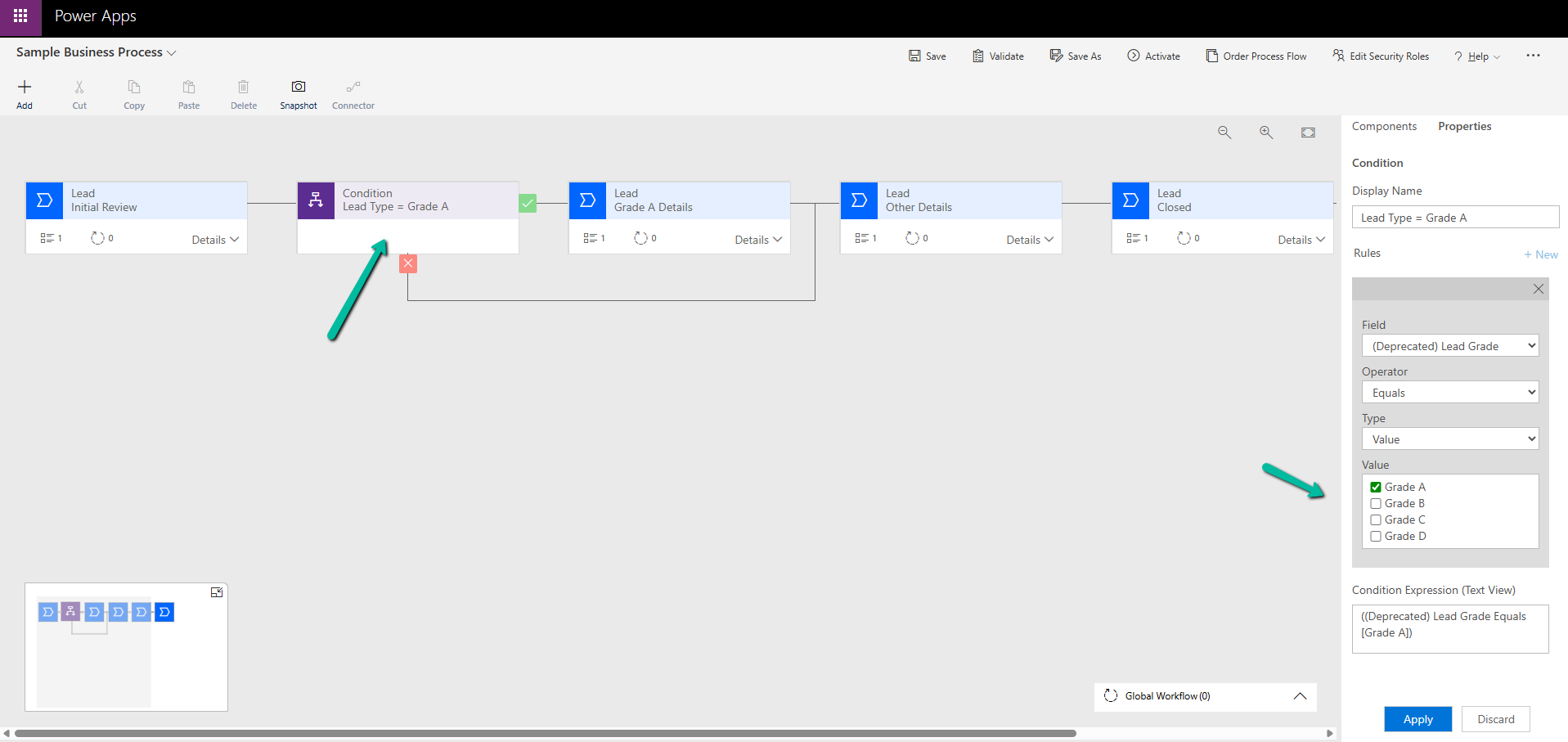
Suppose we have the following Business Process Flow (BPF) for Leads:
If the Lead Type = Grade A, we want the Grade A Details stage to appear. For other grades (B, C, D), we skip that stage and continue. So far, this is simple.
Now, say we have a new business requirement :
For Grade D, the process should only have the Initial Review and its own Closed stage. For Grades B and C, the process should follow Other Details + Closed.
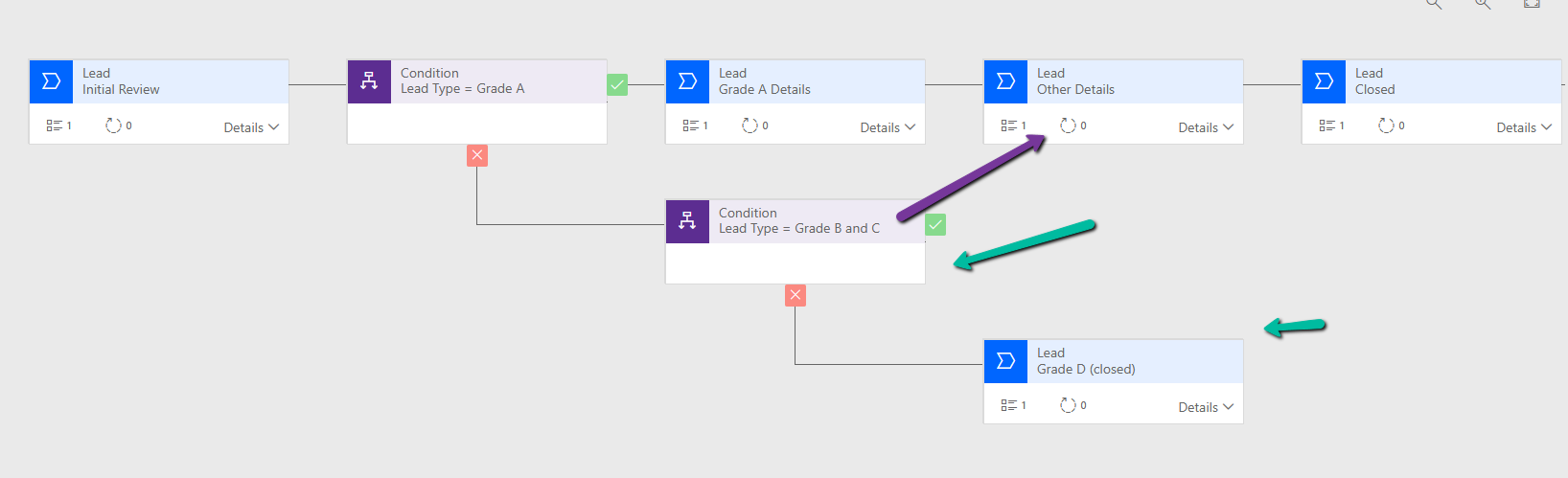
To handle this, we added a condition:
If Lead Type = B or C → go to Other Details
Else (Grade D) → go directly to Grade D (Closed)
However, when we try to connect the B/C path to Other Details, the D path (Closed) also gets merged into it.
This is because of the way branching works in BPF.
Dataverse does not support “partial merges.” That means we can’t end one branch early and merge another branch later. If we merge one branch, Dataverse forces all branches to merge into the same stage.
One Branch Ends, One Branch Merges (Not Supported) – If we try to design a BPF where one branch terminates in its own last stage while the other continues and merges into a later stage, the platform will not allow it.
There are two ways to solve this:
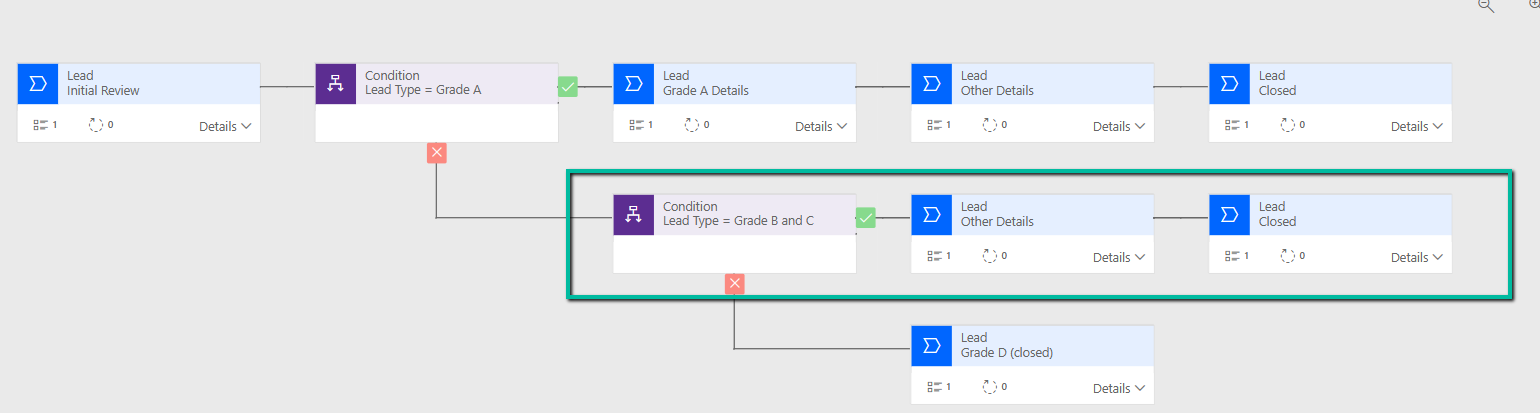
Option 1: Repeat the stages : Instead of trying to merge one path and end another, duplicate the stages where needed.
For example, create a separate Other Details and Closed stage for Grades B and C.
Option 2: Simplify with fields / scripts
If we don’t want to repeat too many stages, we can:
Move the Lead Type field and Grade A Details fields into the Initial Review stage. Use business rules or form logic to show/hide those fields based on Lead Type. Delete the extra Grade A Details stage.
Update the condition so that the flow only needs one condition (A/B/C vs D).
Key Takeaway –
In Dataverse BPF:
One branch ending while another merges is not supported.
Either all branches merge or each branch must have its own end stage.
The solution is to repeat stages where needed, or simplify the design using fields and conditions.
When designing Business Process Flows (BPF) in Dataverse, we often want to make certain fields mandatory before users can move to the next stage. A common scenario is using a Boolean (Two-Option) field — for example, Approved? with values Yes and No.
At first glance, it seems natural to mark this field as required in the BPF stage. But here’s the catch:
If the user selects Yes, the BPF allows stage progression.
If the user selects No, the BPF still blocks progression.
This can be confusing, because technically a Boolean field is never empty — it always holds a value. So why is “No” being treated as invalid?
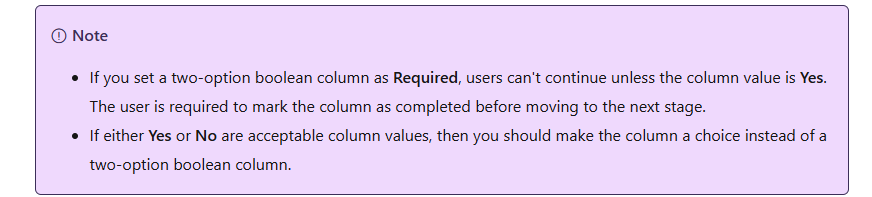
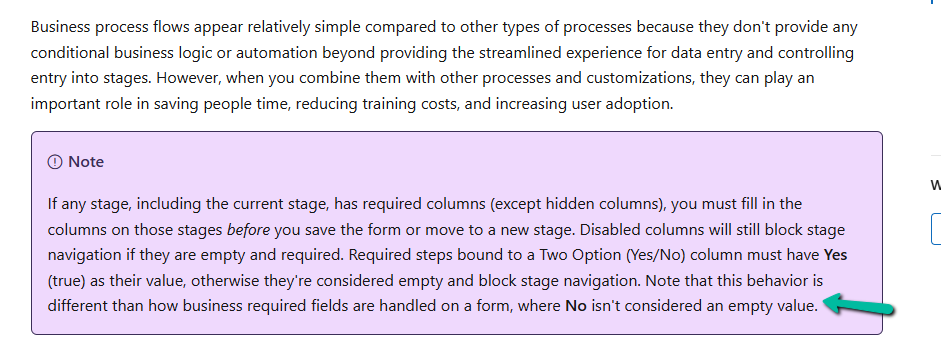
This happens because Dataverse handles Boolean fields differently inside BPF compared to regular forms. In a BPF, when a Boolean field is set as Required, the platform interprets only Yes (true) as a valid value. A No selection is treated as if the field is still unset. This is a limitation in how BPF validations work.
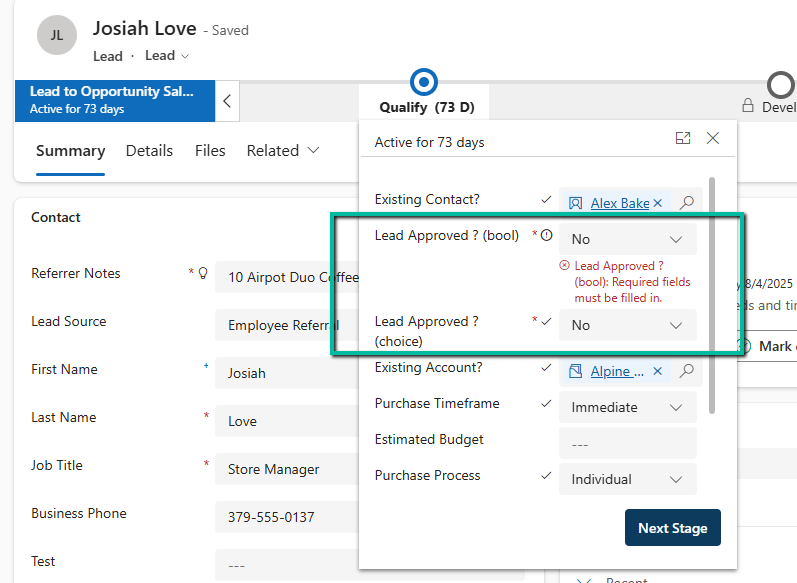
Below we have 2 approved fields, one is of type Boolean and the other of type Choice. We can see that on clicking on the Next button, although we have provided the value No to both these fields, it is still expecting a value for the boolean field.
Here we can solve it 2 ways, as shown above, we can create and use a Choice field instead of a Boolean field.
Or instead of making the Boolean field as required in the BPF, we enforce the rule using JavaScript (addOnPreStageChange).
Boolean fields in BPF don’t behave the same way as in forms. When set to required, only Yes is treated as valid, while No is ignored. The simplest and most reliable solution is to replace Boolean fields with a two-value Choice field when they need to be required in a BPF. This ensures both Yes and No are considered valid, and users won’t be blocked unnecessarily.

















 Nishant Rana's Weblog