How to – Read Secret from Azure Key Vault using Key Vault Rest API through Postman


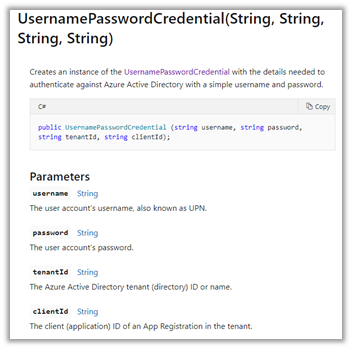
In the previous posts, we saw how to register an Azure AD app and read the secret from Azure Key Vault using SecretClient and UsernamePasswordCredential class

In this post, we’d fetch the secret saved in Key Vault through Postman.

  • Register an Azure AD App
  • Copy its client id and client secret
  • Provide the Get Secret permissions to the application for the Key Vault.

Within Postman we’d first fetch the token

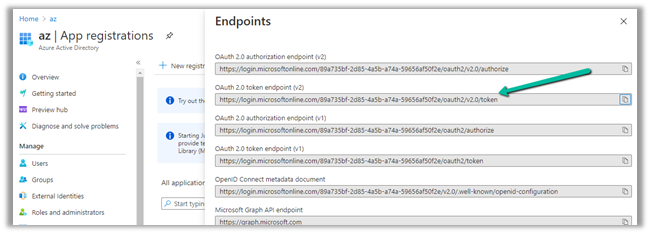
Get the URL from endpoints

Format – https://login.microsoftonline.com/{tenantid}/oauth2/v2.0/token

Scope value – https://vault.azure.net/.default

Send the request which responds with the token.

Copy the token

Create the new Get request and pass the Secret identifier with the API version.

https://mykvcrm.vault.azure.net/secrets/MySecret/f046535ef5644ca5a4b43f2a718776b9?api-version=7.1

For authorization select type as Bearer Token and paste the token generated earlier.

Send the request to get the secret’s value as shown below – “itissecret”

Get more details here –

https://docs.microsoft.com/en-us/rest/api/keyvault/getsecrets/getsecrets

Hope it helps..

Advertisements

Use query acceleration to retrieve data from Azure Data Lake Storage


Few key points about query acceleration –

Query acceleration supports ANSI SQL like language, to retrieve only the required subset of the data from the storage account, reducing network latency and compute cost.

Query acceleration requests can process only one file, thus joins and group by aggregates aren’t supported.

Query acceleration supports both Data Lake Storage (with hierarchical namespace enabled) and blobs in the storage account.

Query acceleration supports CSV and JSON formatted data as input.

Let us take a simple example to see it in action.

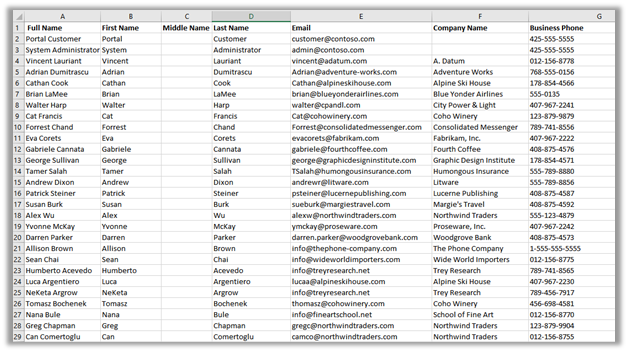
Within mydatalakegen (StorageV2 (general purpose v2)), we have All Contacts.csv with the mycrmcontainer.

Open the Windows PowerShell command window

Sign in to Azure subscription

  • Connect-AzAccount

Register the query acceleration feature

  • Register-AzProviderFeature -ProviderNamespace Microsoft.Storage -FeatureName BlobQuery

Register the resource provider

  • Register-AzResourceProvider -ProviderNamespace ‘Microsoft.Storage’

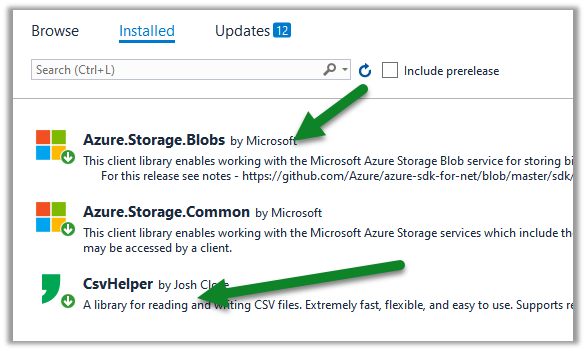
Create a console application project in Visual Studio and add the following NuGet Packages
Sample Code –

</pre>

using System;
using System.Globalization;
using System.IO;
using Azure.Storage.Blobs;
using Azure.Storage.Blobs.Models;
using Azure.Storage.Blobs.Specialized;
using CsvHelper;
using CsvHelper.Configuration;

namespace MyQuery
{
class Program
{
static void Main(string[] args)
{

// Initialize the BlockBlobClient
BlockBlobClient myBlobClient = new BlockBlobClient(connectionString: "DefaultEndpointsProtocol=https;AccountName=mydatalakegen;AccountKey=orc8e1Dpclu5P3Ox9PIlsLG2/x8KZLcmgyhOEgz6yFTmzFJty+EpHQ==;EndpointSuffix=core.windows.net",
containerName: "mycrmcontainer", blobName: "All Contacts.csv");

// Define the query
// First Name - space in the column header
// _4 - referring the 4th column in the csv file
// LIMIT - limit to first 10 records
string query = @"SELECT ""First Name"", _4, email FROM BlobStorage LIMIT 10";

var blobQueryOptions = new BlobQueryOptions();
blobQueryOptions.InputTextConfiguration = new BlobQueryCsvTextOptions() { HasHeaders = true };

var result = myBlobClient.Query(query, blobQueryOptions);
var reader = new StreamReader(result.Value.Content);

var parser = new CsvReader(reader, new CsvConfiguration(CultureInfo.CurrentCulture) { HasHeaderRecord = true });

while(parser.Read())
{
Console.Out.WriteLine(String.Join(" ", parser.Context.Record));
}

Console.ReadLine();
}
}
}
<pre>

Output –

Get all the details here –

https://docs.microsoft.com/en-us/azure/storage/blobs/query-acceleration-sql-reference

https://docs.microsoft.com/en-us/azure/storage/blobs/data-lake-storage-query-acceleration

https://docs.microsoft.com/en-us/azure/storage/blobs/data-lake-storage-query-acceleration-how-to?tabs=azure-powershell%2Cpowershell


Posts on Azure Data Lake

Hope it helps..

Advertisements

Fixed – AADSTS7000218: The request body must contain the following parameter: ‘client_assertion’ or ‘client_secret


While trying to access Azure resources using UsernamePasswordCredential credential we were getting the below error

https://docs.microsoft.com/en-us/dotnet/api/azure.identity.usernamepasswordcredential?view=azure-dotnet

Azure.Identity.AuthenticationFailedException: ‘UsernamePasswordCredential authentication failed: A configuration issue is preventing authentication – check the error message from the server for details.You can modify the configuration in the application registration portal. See https://aka.ms/msal-net-invalid-client for details. Original exception: AADSTS7000218: The request body must contain the following parameter: ‘client_assertion’ or ‘client_secret’.

Trace ID: ef6c9e2b-862a-4a8b-9519-9a9072d23301

Correlation ID: 5f9bae95-e45a-4da5-b27c-ad9704e7334e

Timestamp: 2020-11-28 05:58:05Z’

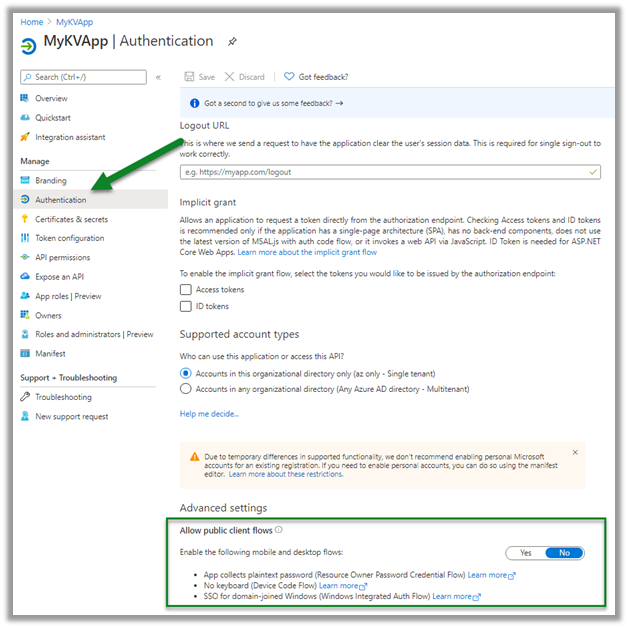
This was because Allow public client flows was disabled for the application registered in Azure AD.

Enabling it fixed the issues for us.

https://docs.microsoft.com/en-gb/azure/active-directory/develop/scenario-desktop-acquire-token?tabs=dotnet#username-and-password

More on ROPC

https://nishantrana.me/2019/08/23/connect-to-dynamics-365-web-api-using-oauth-2-0-resource-owner-password-credential-ropc/

Hope it helps..

Advertisements

Fixed – AADSTS65001: The user or administrator has not consented to use the application with ID


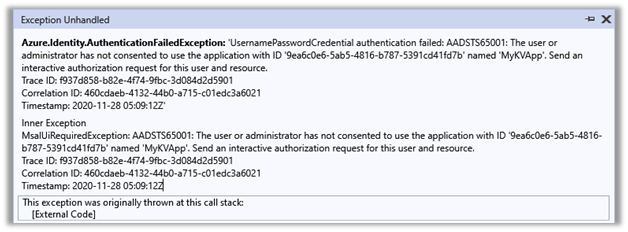
The below error occurs for the application registered with Azure AD (Delegated Permissions), which requires either user or an administrator’s consent for the permissions it needs.

“Azure.Identity.AuthenticationFailedException: ‘UsernamePasswordCredential authentication failed: AADSTS65001: The user or administrator has not consented to use the application with ID ‘9ea6c0e6-5ab5-4816-b787-5391cd41fd7b’ named ‘MyKVApp’. Send an interactive authorization request for this user and resource.”

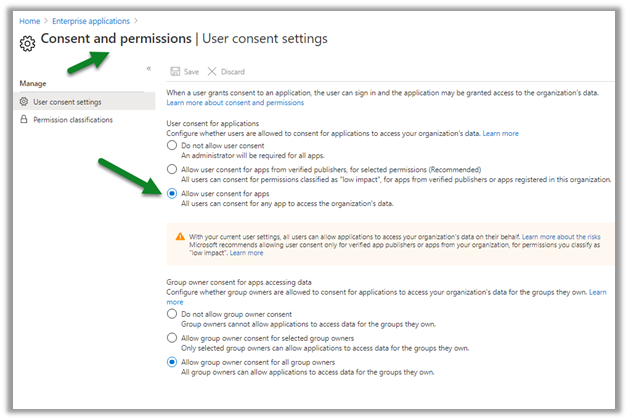
The below setting specifies that all users can allow applications to access the organization’s data on their behalf.


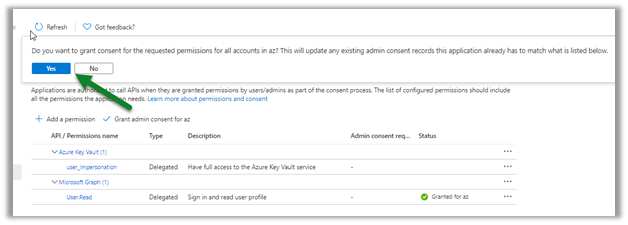
Here the admin can grant the consent through the portal as shown below from Home > App > API Permissions


or can also use Consent URL

https://docs.microsoft.com/en-us/azure/active-directory/manage-apps/grant-admin-consent#construct-the-url-for-granting-tenant-wide-admin-consent

https://login.microsoftonline.com/{tenant-id}/adminconsent?client_id={client-id}


When trying to access the consent URL using another non-admin user, we might get the below message, which means that only the admin can provide the required consent.


Signing in with the Admin account presents the below message for granting the app the required permissions.


Admin can also revoke the admin consent (along with the permission as shown below) from the portal as shown below through Remove admin consent option.


Get all the details here –

https://docs.microsoft.com/en-us/azure/active-directory/develop/application-consent-experience#consent-and-permissions

Hope it helps..


Advertisements

How to – Read Secret from Azure Key Vault using SecretClient (UsernamePasswordCredential)– C#


In the previous post, we used ClientSecretCredential Token Credential to read the secret from the Key Vault. In this post, we’d use UsernamePasswordCredential class instead.

Login to Azure Portal –

https://portal.azure.com/

Here we have generated a Secret named secret1 inside MyKeyVaultCRM

We have also provided GetSecret permission to the below User account

Also, we have registered an app

And enabled All public client flows for generating the token using username and password.

Let us create a console app to read the secret.

Add the following NuGet packages to the project.

Get the Vault URI and Directory ID (tenant id)

And the Client Id of the App registered

Sample source code:

We are using SecretClient class here.

Get all the details here

https://azuresdkdocs.blob.core.windows.net/$web/dotnet/Azure.Identity/1.4.0-beta.1/api/index.html

Hope it helps..

Advertisements

How to – Read Secret from Azure Key Vault using SecretClient class – Console App C#


Azure Key Vault can save 3 different types of information.

  • Keys – Encryption keys (asymmetric – public/private), can be created in Key Vault or imported, stored in software or HSD
  • Secrets – unstructured text, can be created or imported, stored in the software.
  • Certificates – can be created or imported, contains 3 part – cert metadata, key and secret

Key Vault provides data protection – at rest, in transit, and use.

Key Vault provides Application Security i.e. instead of saving secrets hardcoded in the application, or the configuration files, the secrets can be stored in Key Vault.

Login to Azure Portal

https://portal.azure.com/

Here we have generated a Secret named MyCRMKey inside MyDynamics365KeyVault

We have also provided GetSecret permission to the MyApp application registered in the Azure AD.

Let us create a console app to read the secret.

Add the following NuGet packages to the project.

Get the Vault URI and Directory ID (tenant id)

And the Client Id of the App registered

Sample source code:

We are using SecretClient class here.

Get all the details here

https://azuresdkdocs.blob.core.windows.net/$web/dotnet/Azure.Identity/1.4.0-beta.1/api/index.html

Hope it helps..

Advertisements