Invoke webhook from a plugin – Dataverse / Dynamics 365

The content describes invoking a Webhook from a custom Azure-Aware Plugin, registered through a plugin registration tool. It includes code to invoke the Webhook using the IServiceEndPointNotificationService interface and a sample code snippet. The process involves updating a case record and provides guidance on the execution context and handling exceptions.


Similar to Azure Service Bus, we can invoke a Webhook from a plugin (custom Azure-Aware Plugin)

Below is our cloud flow that we have registered as a webhook through the plugin registration tool.

Below is our Webhook registered, note down the ServiceEndpointId.
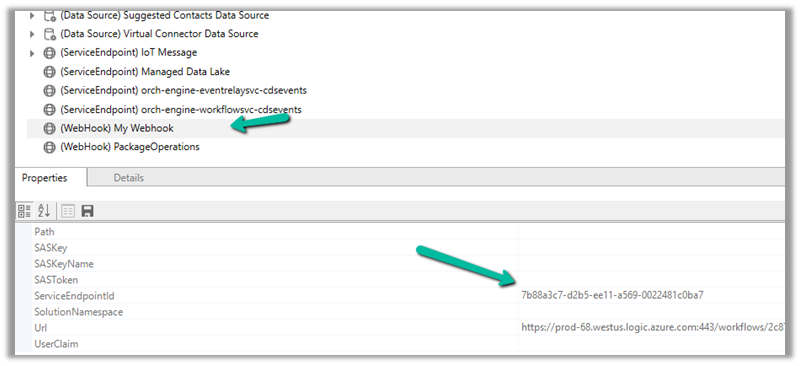
Below is our code to invoke the Webhook, it uses the same interface, and we IServiceEndPointNotificationService need to provide ServiceEndpointId to it.

We have this registered in the Update message of the Incident.

Let us update a case record and see it in action.
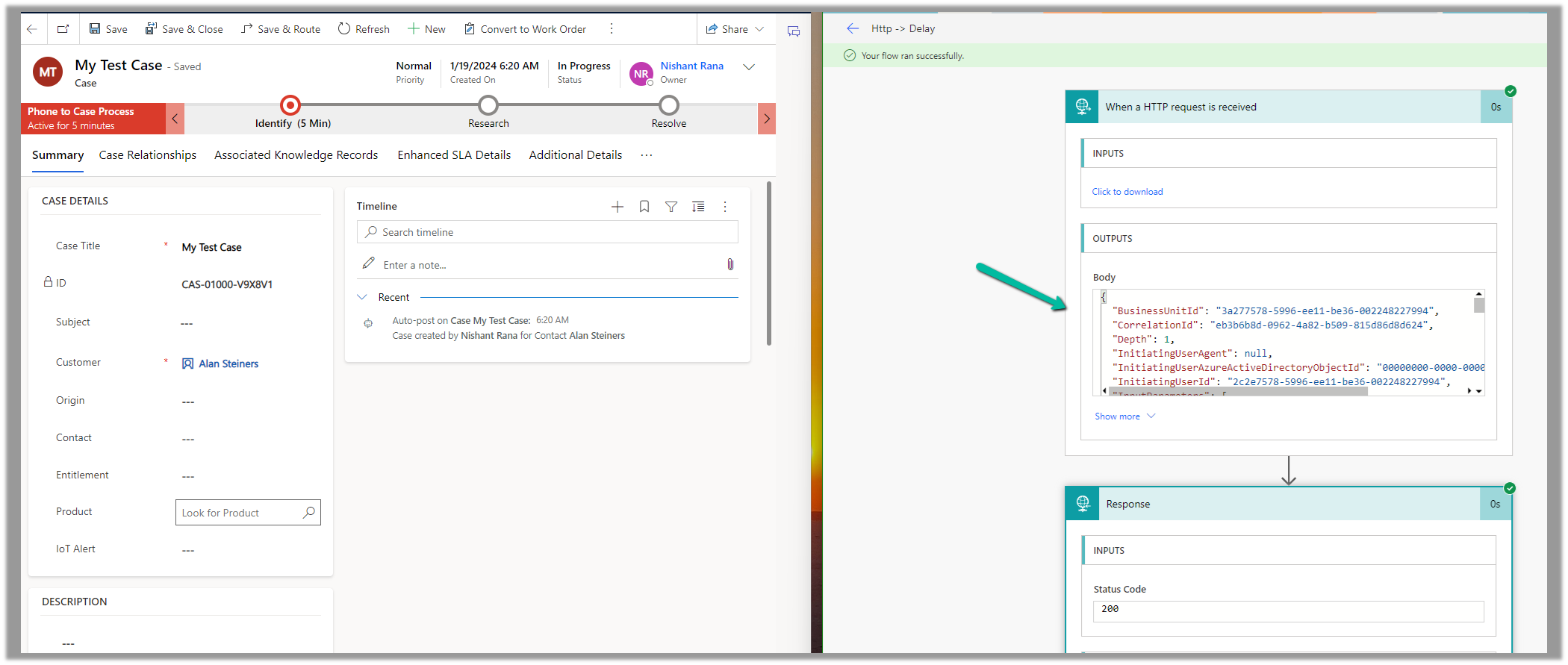
Sample Code –

 public class CallWebhookPlugin : IPlugin
    {
        public void Execute(IServiceProvider serviceProvider)
        {           
            ITracingService tracingService = (ITracingService)serviceProvider.GetService(typeof(ITracingService));
            IPluginExecutionContext context = (IPluginExecutionContext)
                serviceProvider.GetService(typeof(IPluginExecutionContext));
            IServiceEndpointNotificationService webHookService = 
                (IServiceEndpointNotificationService)serviceProvider.GetService(typeof(IServiceEndpointNotificationService));

            try
            {
                tracingService.Trace("Posting the execution context to the Webhook.");
                // pass the GUID (ServiceEndpointId) of the Webhook 
               webHookService.Execute(new EntityReference("serviceendpoint",
                    new Guid("7b88a3c7-d2b5-ee11-a569-0022481c0ba7"))
                    , context);                            
                tracingService.Trace("Passed Successfully.");              
            }
            catch (Exception e)
            {
                tracingService.Trace("Exception: {0}", e.ToString());
                throw;
            }
        }

Hope it helps..

Advertisements

The webhook call failed because the Http request timed out at client side. Please check your webhook request handler – Dataverse / Dynamics 365


Recently we were getting the below for one of our webhooks registered on Update of lead.

Exception Message: The webhook call failed because the Http request timed out at client side. Please check your webhook request handler.

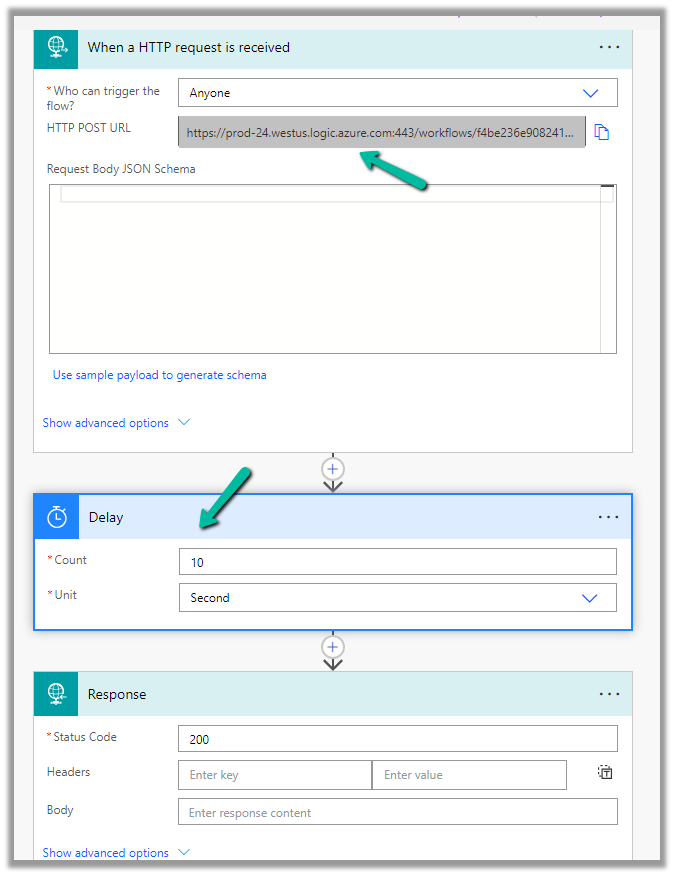
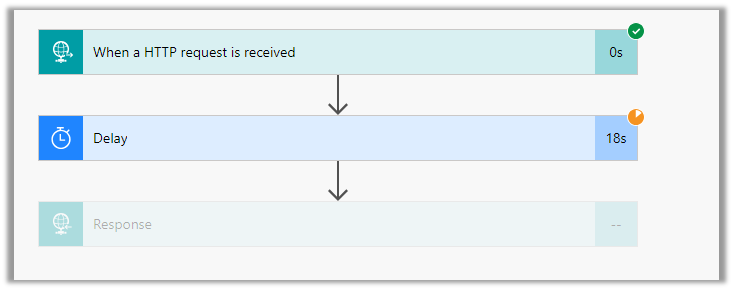
To test the timeout, we created a below Microsoft Flow with HTTP trigger, Delay and actions to be used as Webhook.

Helpful post – https://d365demystified.com/2021/11/23/call-flow-from-webhooks-in-dynamics-365-crm-power-automate/

Let us register this through the Plugin Registration tool.

We can get the values from the HTTP Post URL Generated.

For the Endpoint URL, enter URL Path and use Params for Key and Values.

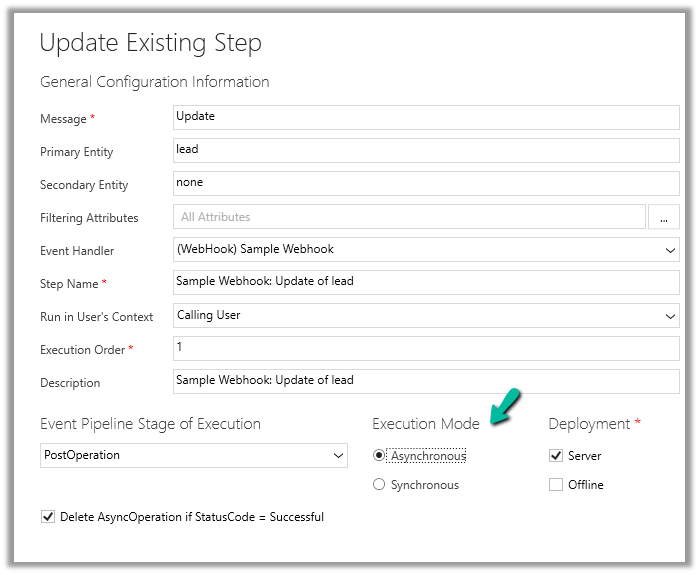
Register the synchronous step on the update of the lead for the webhook

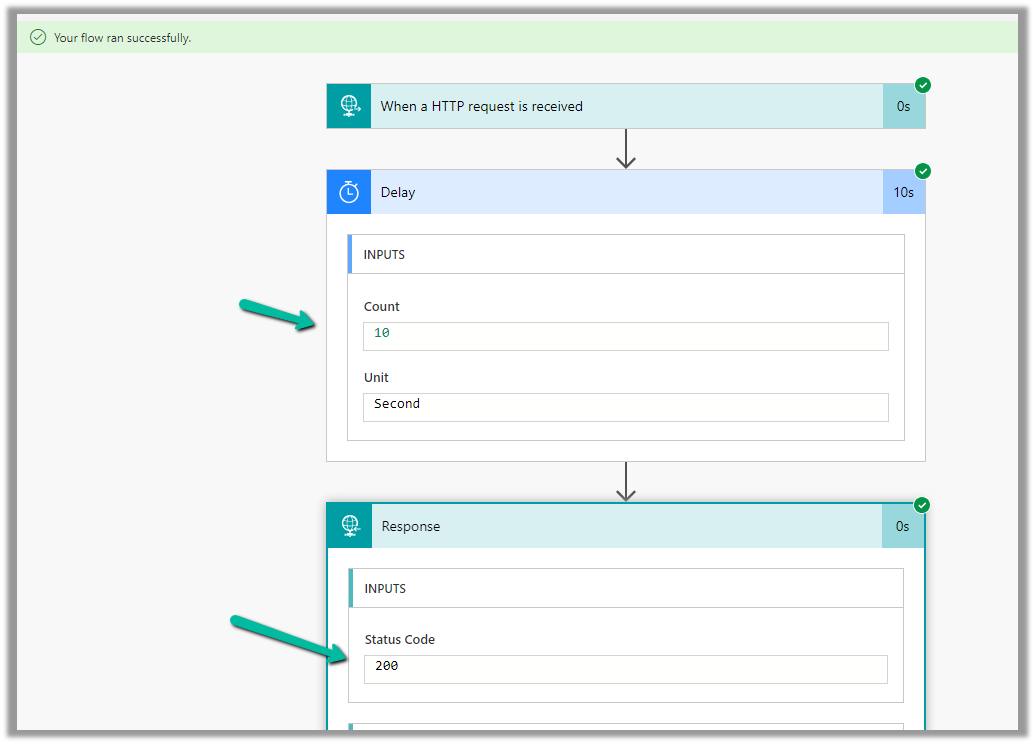
Let us trigger the flow, right now we have Delay set as 10 seconds.

The flow runs successfully as expected.

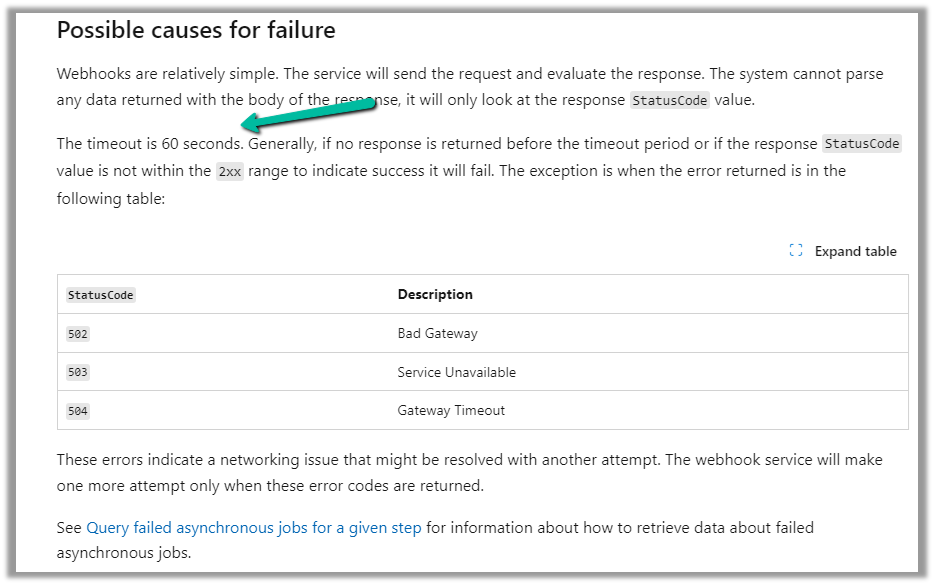
Now let us update the delay to 61 seconds and trigger the flow again by updating the lead record.

As expected we get the time-out error this time.

The same is the case if we register the plugin step asynchronously.

For the asynchronous step, we can check the corresponding system job for the error.

https://learn.microsoft.com/en-us/dynamics365/customerengagement/on-premises/developer/use-webhooks?view=op-9-1#possible-causes-for-failure

Hope it helps..

Advertisements
How to – Generate Long-Lived Page Access Token – Facebook


Login to Meta for Developers and note down the App ID and App Secret of the app.

Access Tokens – https://developers.facebook.com/docs/pages/access-tokens/

https://developers.facebook.com/apps/

To get the long-lived page access token, first, we need to generate a short-lived Access Token.

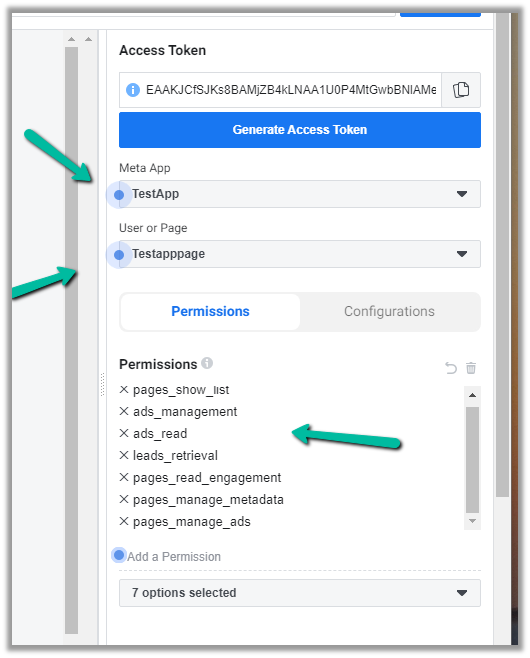
In Graph API Explorer – https://developers.facebook.com/tools/explorer, select the App and the page (provide appropriate permissions) and click on Generate Access Token to generate the token.

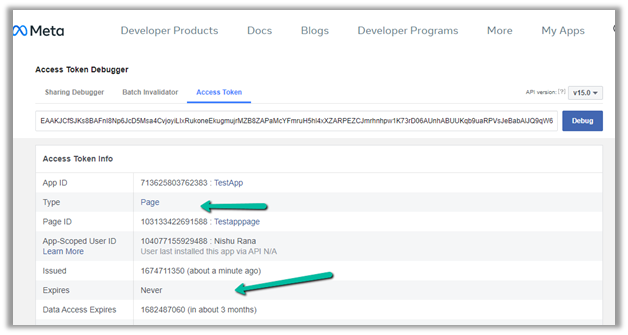
Navigate to Access Token Debuggerhttps://developers.facebook.com/tools/debug/accesstoken/, paste the token and click on Debug.

We can see the token expiry in 1 hour.

To generate a Permanent or Long-lived token we can make use of the below application.

https://bnjis.github.io/Facebook-permanent-token-generator/

Specify App ID, App Secret, and User Access Token and click on Submit.

We will get the permanent token generated for us.

On pasting this token in the Access Token Debugger, we can see the expiry set to Never.

The other option is to use the Extend Access Token option when we generate a short lived token

EFBT

GT

Check the below link for more details –

https://developers.facebook.com/docs/marketing-apis/overview/authentication/

https://developers.facebook.com/docs/facebook-login/guides/access-tokens/get-long-lived/

https://medium.com/@blienart/get-a-permanent-facebook-page-access-token-a96470dc03ca

https://developers.facebook.com/docs/facebook-login/access-tokens/expiration-and-extension

Hope it helps..

Advertisements