How to configure Site.Selected API permissions – SharePoint Online / PnP PowerShell


Let us add/ update the API Permissions for the App

More on registering App – https://nishantrana.me/2024/07/30/calling-sharepoint-online-api-using-azure-ad-app-only-permissions-using-certificate-auth/

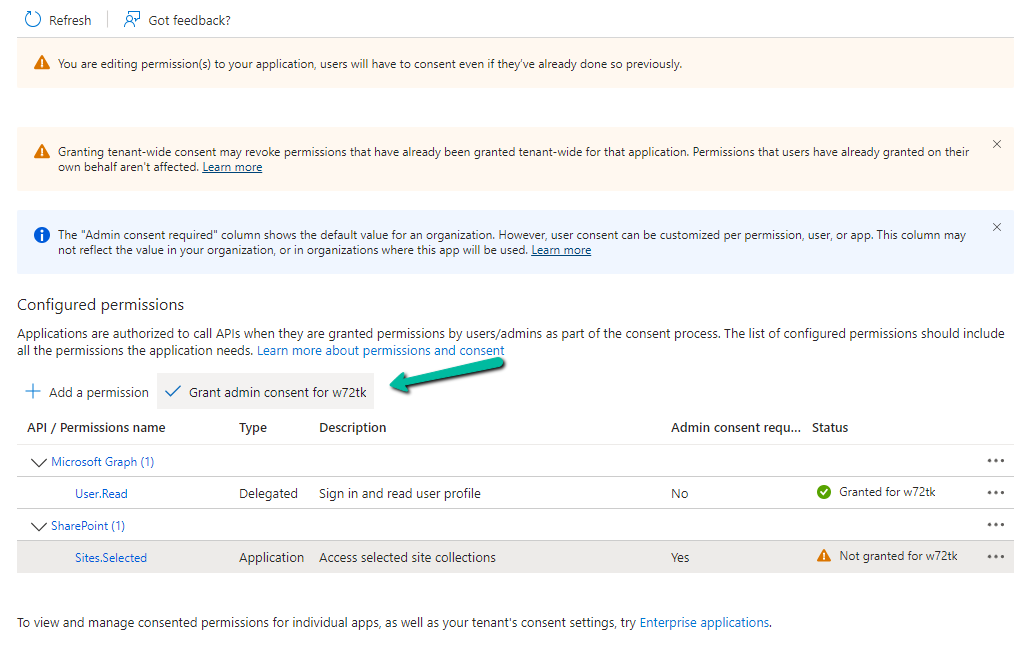
Here we have selected the Sites.Selected permission.

A screenshot of a computer

Description automatically generated

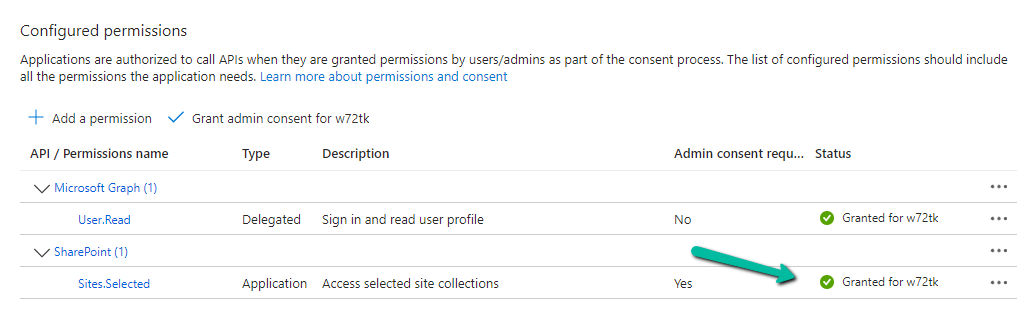
Also granted the Admin consent.

A screenshot of a computer

Description automatically generated
A screenshot of a computer

Description automatically generated

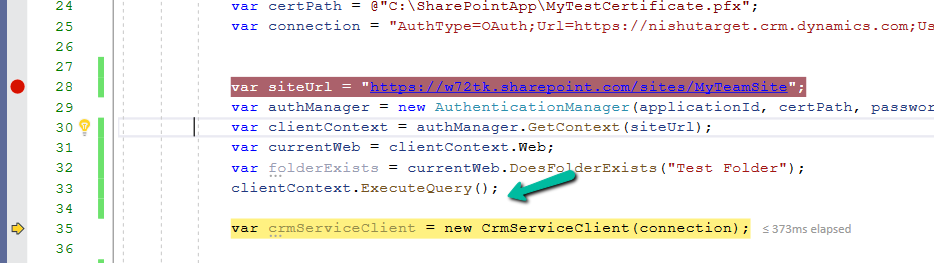
Now if we run our code we will get the 403 Forbidden error.
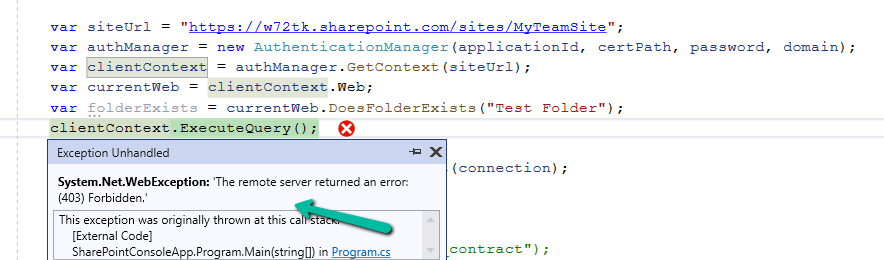
This is because we have selected the Sites.Selected permission, but have not specified the site and the permission.

For that, we can use either Graph API or PnP PowerShell.

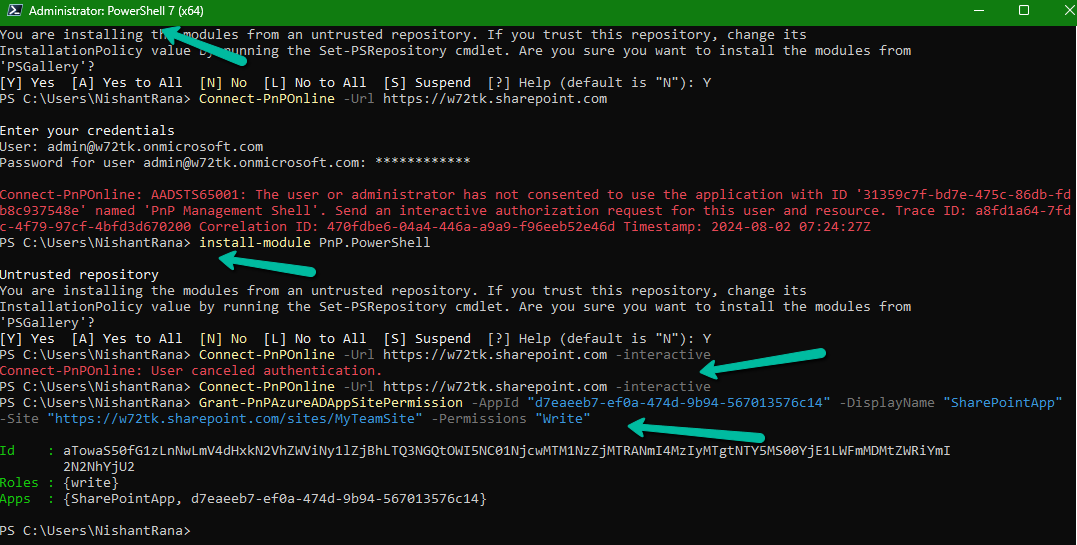
Let us use PnP PowerShell here.

Grant-PnPAzureADAppSitePermission -AppId “{app-id}” -DisplayName “{app-name}” -Site “https://{tenant}.sharepoint.com/sites/{site-name}” -Permissions “Write”

Grant-PnPAzureADAppSitePermission -AppId “d7eaeeb7-ef0a-474d-9b94-567013576c14” -DisplayName “SharePointApp” -Site “https://w72tk.sharepoint.com/sites/MyTeamSite” -Permissions “Write”
A computer screen with text and arrows

Description automatically generated

This time as expected we do not get the Forbidden error.
The other Permissions that we can specify are – Read, Manage, FullControl.

Get all the details here –https://pnp.github.io/powershell/cmdlets/Grant-PnPAzureADAppSitePermission.html

Hope it helps..

Advertisements

Fixed – The term ‘Connect-PnPOnline’ is not recognized as the name of a cmdlet, function, script file, or operable program – PowerShell


If you are getting the below error even after running the Install-Module PnP.PowerShell command, it could be because of the older version of PowerShell.

The minimum PowerShell version required for PnP.PowerShell is PowerShell 7.2.

Check the current version using the command – $PSVersionTable

A computer screen shot of a program

Description automatically generated

Below are different ways to get the latest version of PowerShell

https://learn.microsoft.com/en-gb/powershell/scripting/install/installing-powershell-on-windows?view=powershell-7.4

Here we have used the Winget (Windows Package Manager) tool to install it.

winget search Microsoft.PowerShell

winget install –id Microsoft.Powershell –source winget

A screenshot of a computer

Description automatically generated

We can see the PowerShell 7 installed.

Now we can install the PnP.PowerShell module and connect to our site successfully.

A computer screen with text

Description automatically generated

https://evolvous.com/learn-from-expert/how-to-install-pnp-powershell-and-connect-with-sharepoint-online/

1–2 minutes

Hope it helps..

Advertisements