Used jQuery


Hi,

I just created few html pages in which for the first time I used jQuery and understood how powerful it is.

This is how page works

It shows three buttons( anchor link with img) and on click of any of the buttons opens up the respective pages as a pop up.

The pop up window on click of any of the buttonsà

(For images, I created rounded rectangular shapes (InsertàShapes) in word and save the doc file as “web page,filtered”)


Download the project file from here

http://www.box.net/shared/d7r1ssa3ex

Calling WCF Service in Plugin in CRM


Suppose this is our simple WCF Service.

[ServiceContract]
   public interface IService1
   {
       [OperationContract]
       string GetData(); 
     
   }

public class Service1 : IService1
   {
       public string GetData()
       {
           return “Hello World”+DateTime.Now.ToLongTimeString();
       }
     
   }

Now if we add its service reference in our plugin and then deploy it, while running we would receive this error.

Could not find default endpoint element that references contract ‘ServiceReference1.IService1’ in the ServiceModel client configuration section. This might be because no configuration file was found for your application, or because no endpoint element matching this contract could be found in the client element.

The reason for this is because the configuration information for the WCF service from the client side is missing. As class library won’t have their own config file.

Suppose if we add service reference to the above Service in a windows application, we can find the following information being added to the app.config file

<?xml version=”1.0″ encoding=”utf-8″ ?>
<configuration>
    <!–<system.serviceModel>
        <bindings>
            <basicHttpBinding>
                <binding name=”BasicHttpBinding_IService1″ closeTimeout=”00:01:00″
                    openTimeout=”00:01:00″ receiveTimeout=”00:10:00″ sendTimeout=”00:01:00″
                    allowCookies=”false” bypassProxyOnLocal=”false” hostNameComparisonMode=”StrongWildcard”
                    maxBufferSize=”65536″ maxBufferPoolSize=”524288″ maxReceivedMessageSize=”65536″
                    messageEncoding=”Text” textEncoding=”utf-8″ transferMode=”Buffered”
                    useDefaultWebProxy=”true”>
                    <readerQuotas maxDepth=”32″ maxStringContentLength=”8192″ maxArrayLength=”16384″
                        maxBytesPerRead=”4096″ maxNameTableCharCount=”16384″ />
                    <security mode=”None”>
                        <transport clientCredentialType=”None” proxyCredentialType=”None”
                            realm=”” />
                        <message clientCredentialType=”UserName” algorithmSuite=”Default” />
                    </security>
                </binding>
            </basicHttpBinding>
        </bindings>
        <client>
            <endpoint address=”http://localhost:58844/Service1.svc” binding=”basicHttpBinding”
                bindingConfiguration=”BasicHttpBinding_IService1″ contract=”ServiceReference1.IService1″
                name=”BasicHttpBinding_IService1″ />
        </client>
    </system.serviceModel>–>
</configuration>

So now in case of our plugin we need to define the binding and endpoint information programmatically, something like this

try

{

BasicHttpBinding myBinding = new
BasicHttpBinding();

myBinding.Name = “BasicHttpBinding_IService1”;

myBinding.Security.Mode = BasicHttpSecurityMode.None;

myBinding.Security.Transport.ClientCredentialType = HttpClientCredentialType.None;

myBinding.Security.Transport.ProxyCredentialType = HttpProxyCredentialType.None;

myBinding.Security.Message.ClientCredentialType = BasicHttpMessageCredentialType.UserName;

EndpointAddress endPointAddress = new
EndpointAddress(http://localhost:58844/Service1.svc&#8221;);

ServiceReference1.Service1Client myClient = new ServiceReference1.Service1Client(myBinding, endPointAddress);

MessageBox.Show(myClient.GetData());

}

catch (Exception EX)

{


throw EX;

}


This way we would be able to access our WCF service inside plugin.

Hope it helps !

Using OrganizationServiceClient in CRM 2011


 Add Service Reference to the Organization WCF service in the application.

URL àhttp://servername:port/OrganizationName/xrmServices/2011/organization.svc 

Use the following code to perform various functions using OrganizationServiceClient 


Entity myContact = new Entity();

myContact.LogicalName = “contact”; 

AttributeCollection myAttColl = new AttributeCollection();

myAttColl.Add(new KeyValuePair<string, object>(“lastname”, “Rana”));

myContact.Attributes = myAttColl;
ClientCredentials credentials = new ClientCredentials();

Uri organizationUri = new Uri(http://servername:port/organizationname/xrmServices/2011/organization.svc&#8221;);

try
{
OrganizationServiceClient orgClient = new OrganizationServiceClient();
 

orgClient.ClientCredentials.Windows.ClientCredential = new System.Net.NetworkCredential(“username”, “password”, “domain”); 

orgClient.Create(myContact);

}
catch (Exception ex)
{

throw ex;

} 

Hope it helps.

CRM Shortcut in CRM 2011 Dialogs


Hi I was just wondering how we can use CRM Shortcut radio button option that appears in Insert Hyperlink dialog box of Dialogs in CRM 2011.

After searching for it, I found the following post which says that we should ignore that button as it won’t be there in the final release.

http://social.microsoft.com/Forums/en/crm2011beta/thread/d012ae9e-4bc5-4bdb-ae6f-c58da16882dc

Hope it helps !

Sample code to add a custom group to lead form in CRM 2011


For adding a custom group to a lead form we can make use of the following sample code.

Just replace the lead with your entity’s schema name to use it

<RibbonDiffXml>

<CustomActions>

<CustomAction
Id=Sample.lead.form.CustomGroup.MaxSize.CustomAction
Location=Mscrm.Form.lead.MainTab.Scaling._children
Sequence=120>

<CommandUIDefinition>

<MaxSize
Id=Sample.lead.form.CustomGroup.MaxSize
GroupId=MyLeadCustomGroup
Sequence=21
Size=LargeLarge/>

</CommandUIDefinition>

</CustomAction>

<CustomAction
Id=MyLeadCustomAction
Location=Mscrm.Form.lead.MainTab.Groups._children
Sequence=110>

<CommandUIDefinition>

<Group
Id=MyLeadCustomGroup
Title=My Lead Custom Group
Sequence=39
Template=Mscrm.Templates.Flexible2>

<Controls
Id=MyCustomControls>

<Button
Id=MyCustomButton1
Sequence=10
LabelText=My Custom Button1
ToolTipTitle=My Custom Button1
ToolTipDescription=My Custom Button1
TemplateAlias=o1/>

</Controls>

</Group>

</CommandUIDefinition>

</CustomAction>

</CustomActions>

<Templates>

<RibbonTemplates
Id=Mscrm.Templates/>

</Templates>

<CommandDefinitions>

</CommandDefinitions>

<RuleDefinitions>

<TabDisplayRules/>

<DisplayRules/>

<EnableRules/>

</RuleDefinitions>

<LocLabels/>

</RibbonDiffXml>


Hope it helps!


Using JavaScript in a custom button in CRM 2011


Now let us built on our existing example of adding custom button.

https://nishantrana.wordpress.com/2010/11/04/adding-my-first-custom-button-in-crm-2011/

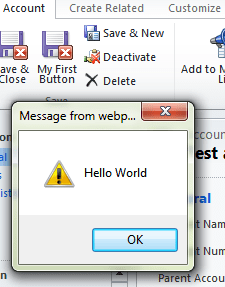
Now on click of the button I want to show alert message “Hello World” i.e. call JavaScript.

This is our existing Button Definition

<Button
Id=B_MyFirstButton
LabelText=My First Button
ToolTipTitle=My First Button Tool Tip Title
ToolTipDescription=My First Button Tool Tip Description
TemplateAlias=o1
Image16by16=/_imgs/ribbon/saveandclose16.png
Image32by32=/_imgs/ribbon/saveandclose32.png/>

(Add a new Jscript web resource to the solution named MyJavaScript)

function HelloWorld() {

alert(‘Hello World’);

}

Now add a Command attribute to Button

    <Button Id=”B_MyFirstButton


Command=”Cmd_JavaScript


                            LabelText=”My First Button ToolTipTitle=”My First Button Tool Tip Title ToolTipDescription=”My First Button Tool Tip Description TemplateAlias=”o1 Image16by16=”/_imgs/ribbon/saveandclose16.png Image32by32=”/_imgs/ribbon/saveandclose32.png“/>

Now we need to define this Command.

This is how we can define it

<CommandDefinitions>

<CommandDefinition
Id=Cmd_JavaScript>

<EnableRules/>

<DisplayRules/>

<Actions>


<JavaScriptFunction
Library=$webresource:new_MyJavaScript
FunctionName=HelloWorld>

</JavaScriptFunction>

</Actions>

</CommandDefinition>

</CommandDefinitions>

However if we zip and import this solution, the button would appear disabled.

To enable it we need to add EnableRule to it.

<CommandDefinitions>

<CommandDefinition
Id=Cmd_JavaScript>


<EnableRules>

<EnableRule
Id=Mscrm.Enabled/>

</EnableRules>

<DisplayRules/>

<Actions>

<JavaScriptFunction
Library=$webresource:new_MyJavaScript
FunctionName=HelloWorld>

</JavaScriptFunction>

</Actions>

</CommandDefinition>

</CommandDefinitions>

Now after importing and publishing it

The final RibbonDiffXml looks like this

<RibbonDiffXml>
<CustomActions>
<CustomAction
Id="CA_MyFirstButton"
Location="Mscrm.Form.account.MainTab.Save.Controls._children"
Sequence="31">
<CommandUIDefinition>
<Button
Id="B_MyFirstButton"
Command="Cmd_JavaScript"
LabelText="My First Button"
ToolTipTitle="My First Button Tool Tip Title"
ToolTipDescription="My First Button Tool Tip Description"
TemplateAlias="o1"
Image16by16="/_imgs/ribbon/saveandclose16.png"
Image32by32="/_imgs/ribbon/saveandclose32.png"/>
</CommandUIDefinition>
</CustomAction>
</CustomActions><Templates>
<RibbonTemplates
Id="Mscrm.Templates"/>
</Templates>
<CommandDefinitions>
<CommandDefinition
Id="Cmd_JavaScript">
<EnableRules>
<EnableRule
Id="Mscrm.Enabled"/>
</EnableRules>
<DisplayRules/>
<Actions>
<JavaScriptFunction
Library="$webresource:new_MyJavaScript"
FunctionName="HelloWorld">
</JavaScriptFunction>
</Actions>
</CommandDefinition>
</CommandDefinitions>
<RuleDefinitions>
<TabDisplayRules/>
<DisplayRules/>
<EnableRules/>
</RuleDefinitions>
<LocLabels/>
</RibbonDiffXml>

Hope it helps!