Calling Organization.svc from JavaScript in CRM 2011.


Hi,

There is a SOAPLogger tool that ships with CRM 2011 SDK which can be used to capture HTTP request and response.

http://msdn.microsoft.com/en-us/library/gg594434.aspx

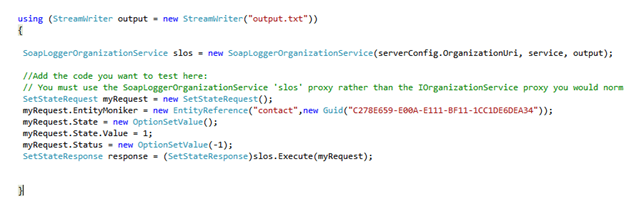
Using that tool we can write our code in C# and it captures the corresponding SOAP Request and Response for it in a file named Output.txt, which we can then use in our JavaScript.

Sample SetStateRequest code

Request


Response

I have simply modified the tool to output the JavaScript as well which we can then use in onload or onchange event in CRM.

JavaScript

Download

Hope it helps.

New features in CRM 2011


Hi,

Just sharing a link which i have found extremely helpful to know about new features in CRM 2011

http://www.dynamicsexchange.com/CRM-2011/New-in-CRM-2011.aspx

Bye.


Add JavaScript to NavBarItem in CRM 2011.


Suppose we want to add a new link on an entity’s form and want to call JavaScript on onclick of that link.

For doing so first we need to add a Navigation link on the form.

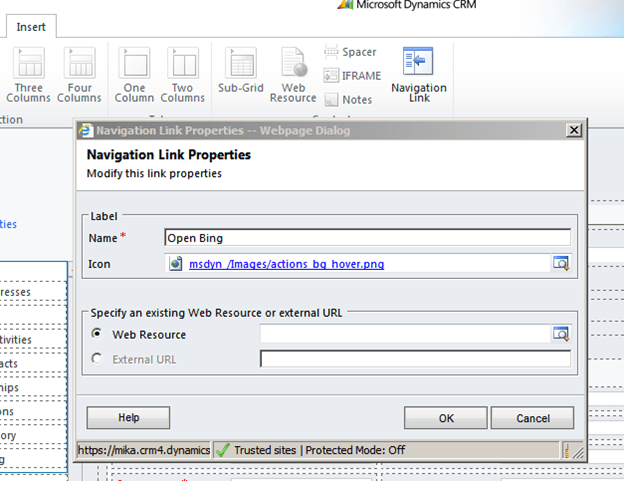
Click on Insert tab and Select Navigation Link button.

Specify Name and Icon and click on OK.

Save and Publish the customization, then open the form in IE Developer tool to get its id. We will use that id in our JavaScript function for onload of the form.

Our function


function OpenBing()
{
// get the navItem
var navItem = document.getElementById('navLink{6daba50b-300a-824b-453c-660e5b10781b}');

// override the onclick to call the connection page
navItem.onclick =function()
{
window.open("http://www.bing.com");
};
}

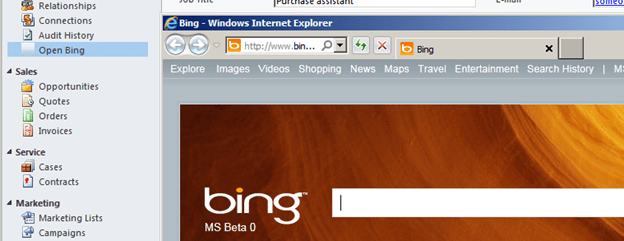
Clicking on Open Bing link opens up the Bing page.

Hope it helps.

Filtered Lookup for Add Existing Button in CRM 2011.


Hi,

(This works for 1-n relatinship)

For n-n these are the two links that could be of help

http://www.mscrmking.com/2011/06/crm-2011-how-to-filter-add-existing/

http://blogs.huddle.com.ar/sites/Dynamics/Lists/Posts/Post.aspx?ID=14

Let us take a very simple scenario in which for a given contact record, when I add the Sub-Contacts using Add Existing Button, then I should only see those contacts having last name equal to the last name of the current record.
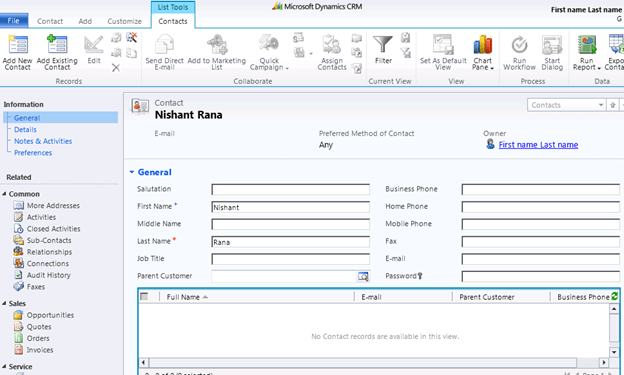
I have following contact records in the system
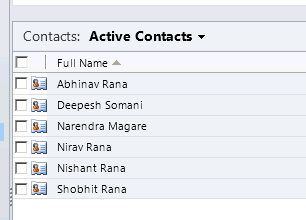
Now clicking on Add Existing Contact button on the ribbon should only show those contact records which have last name equal to “Rana”

To achieve this I have created a plugin and registered the following step for it
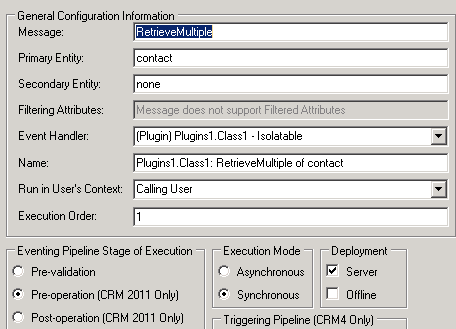
The trick here is to replace the InputParameter named Query with our own QueryExpression.

This the url that is being used for the lookup

From the url we can get the LookupStyle (single or multi) and Id of the record i.e. currentid in our plugin.

The source code

using System;
using System.Collections.Generic;
using System.Linq;
using System.Text;
using Microsoft.Xrm.Sdk;
using System.Web;
using Microsoft.Xrm.Sdk.Query;

namespace Plugins1
{
 public class Class1 : IPlugin
 {
 public void Execute(IServiceProvider serviceProvider)
 {
 if (HttpContext.Current.Request.QueryString["currentid"] != null && HttpContext.Current.Request.QueryString["LookupStyle"].ToString() == "multi")
 {
 string lookupId = HttpContext.Current.Request.QueryString["currentid"].ToString();
 Microsoft.Xrm.Sdk.IPluginExecutionContext context =
 (Microsoft.Xrm.Sdk.IPluginExecutionContext)serviceProvider.GetService(typeof(Microsoft.Xrm.Sdk.IPluginExecutionContext));
 if (context.InputParameters.Contains("Query"))
 {
 // Get the id of the record on which we have our subgrid
 Guid contactGuid = new Guid(HttpContext.Current.Request.QueryString["currentid"].ToString());

// Get the OrgService
 IOrganizationServiceFactory serviceFactory =
 IOrganizationServiceFactory)serviceProvider.GetService(typeof(IOrganizationServiceFactory));
 IOrganizationService service = serviceFactory.CreateOrganizationService(context.UserId);

// Get the lastname value of the conact record
 ColumnSet colsContactLastName = new ColumnSet();
 colsContactLastName.AddColumn("lastname");
 Entity contactEntity = service.Retrieve("contact", contactGuid, colsContactLastName);
 string lastName = contactEntity.Attributes["lastname"].ToString();

// Create the queryexpression to find all the contacts that have last name equal to the record on which we have our subgrid
 QueryExpression newQueryExpression = new QueryExpression();

ConditionExpression condition1 = new ConditionExpression();
 condition1.AttributeName = "lastname";
 condition1.Operator = ConditionOperator.Equal;
 condition1.Values.Add(lastName);

ConditionExpression condition2 = new ConditionExpression();
 condition2.AttributeName = "contactid";
 condition2.Operator = ConditionOperator.NotEqual;
 condition2.Values.Add(contactGuid);

newQueryExpression.EntityName = "contact";
 newQueryExpression.ColumnSet = new ColumnSet();
 newQueryExpression.ColumnSet.AllColumns = true;
 newQueryExpression.Criteria.AddCondition(condition1);
 newQueryExpression.Criteria.AddCondition(condition2);

// Replace the existing Query - Input Parameter with our custom query expresssion
 context.InputParameters["Query"] = newQueryExpression;

}
 }
 }
 }
}

It hasn’t been tested thoroughly though.

Hope it helps.

Using Organization.svc in Silverlight for CRM 2011 Online/OnPremise


  • Create a new Silverlight 4 Application named CRM2011OnlineSilverlightApp.
  • Add Service Reference to the Organization.Svc (https://orgname.crm4.dynamics.com/XrmServices/2011/Organization.svc).
  • crm for North America
  • crm4 for Europe
  • crm5 for Asia
    • Give the namespace as OrgServiceReference
  • Open the reference.cs and replace System.Collections.Generic.KeyValuePair with KeyValuePair
  • Add the following helper files from the SDK (..\sdk\samplecode\cs\silverlight\soapforsilverlight\soapforsilverlightsample)
  • silverlightextensionmethods.cs
  • silverlightutility.cs
  • Rename namespace SoapForSilverlightSample.CrmSdk to CRM2011OnlineSilverlightApp.OrgServiceReference in silverlightextensionmethods.cs file.
  • Add a Button and a TextBlock to our Silverlight application.
  • Add the following code.
 private void btnCreateContact_Click(object sender, RoutedEventArgs e)
 {
 // Get IOrganizationService instance
 IOrganizationService myOrgService = SilverlightUtility.GetSoapService();

Entity myContact = new Entity();
 myContact.LogicalName = "contact";

// Create the AttributeCollection
 myContact.Attributes = new AttributeCollection();

// Specify Last Name and First Name for the contact to be created
 KeyValuePair<string, object> myKVPLastName = new KeyValuePair<string, object>();
 myKVPLastName.Key = "lastname";
 myKVPLastName.Value = "Twain";

 KeyValuePair<string, object> myKVPFirstName = new KeyValuePair<string, object>();
 myKVPFirstName.Key = "firstname";
 myKVPFirstName.Value = "Shania";

myContact.Attributes.Add(myKVPLastName);
 myContact.Attributes.Add(myKVPFirstName);

 OrganizationRequest myOrgRequest = new OrganizationRequest();
 myOrgRequest.RequestName = "Create";

// call the Create method
 myOrgService.BeginCreate(myContact, myCreateHandler, myOrgService);
 }

private void myCreateHandler(IAsyncResult ar)
 {
 IOrganizationService orgService = ar.AsyncState as IOrganizationService;

Dispatcher.BeginInvoke(() =>
 {
 txtStatus.Text = "Contact Guid - " + orgService.EndCreate(ar);
 });
 }
  • Create a web resource in CRM and upload the XAP, and to test it add it to any form inside CRM.
  • Click on create to create the contact record.
  • Download the project.  (change the extension to zip from docx)
Hope it helps.

https://nishantrana.me/wp-content/uploads/2011/11/crm2011onlinesilverlightapp.docx

Cleared MB2-867 CRM 2011 Installation and Configuration Exam


Hi,

Yesterday i cleared the installation and configuration exam of CRM 2011. There were 74 questions in it and 140 minutes to answer them.

Most of the questions were on system requirements while installing Microsoft Dynamics CRM 2011, Outlook, Email Router.

If we remember the below points we can easily answer around 40 questions correctly.

Microsoft Dynamics CRM Server 2011 E-Mail Router

can be installed on computers running

  • Windows 7 32-bit, 64-bit editions.  (32 bit version of router on Windows 7 32-bit)
  • Windows Server 2008 or later 64-bit editions.

can work with following e-mail systems

  • Microsoft Exchange 2003, 2007, 2010, Online.
  • SMTP servers for outgoing.
  • POP3 complaint server for incoming.

Microsoft Dynamics CRM for Outlook is supported on

  • Window 7 RTM (32-bit and 64-bit)
  • Windows Vista SP1 (32-bit and 64-bit) SP1
  • Windows XP Professional SP3, Professional x64 SP2, Tablet PC SP3 Edition.

Supported version of Microsoft Office Outlook

  • Office 2010 RTM
  • Office 2007 SP2
  • Office 2003 SP3

IE Version Supported for Microsoft Dynamic CRM for Outlook

  • IE 7, 8, 9.

Microsoft Dynamics CRM 2011 Server can be installed on following Windows Server  (only 64-bit versions)

  • Windows Server 2008 Standard, Enterprise, Datacenter – SP2
  • Windows Web Server 2008 – SP2
  • Windows Small Business Server Premium, Standard – RTM.

Supported SQL Server Editions (only 64-bit)

SQL Server 2008 Standard, Enterprise, Datacenter, Developer all SP1.

  • Microsoft Dynamics Reporting Extensions setup must be run on a computer that has SQL Server 2008 Reporting Services installed.
  • Microsoft Dynamics CRM Report Authoring Extension must be installed on the computer where SQL Server   is installed.
  • Understand how Claim Based Authentication and IFD are configured for Microsoft Dynamics CRM 2011.

Read about permission required while installing CRM 2011.

Minimum permissions required for Microsoft Dynamics CRM Setup, services, and components.

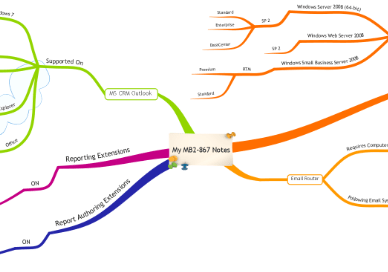
 To remember the above points  i also created a small mind map as well.


Hope it helps.