Versioning and Drafts for Solution-based Cloud Flows – Power Automate


We now have the version support for Cloud Flows in Power Automate.

This feature is only available in the new editor.

Let us start by creating a simple flow, the creation part will happen in the existing editor.

A screenshot of a computer

Description automatically generated

Let us save the flow, and select Edit >> Details in a new tab to open it in the new designer inside Power Automate Maker Portal

A screenshot of a computer
Description automatically generated
We can see the below different commands in the new designer

  • Version History
  • Save Draft
  • Publish

Below we have made changes to the flow and clicked on Save Draft.

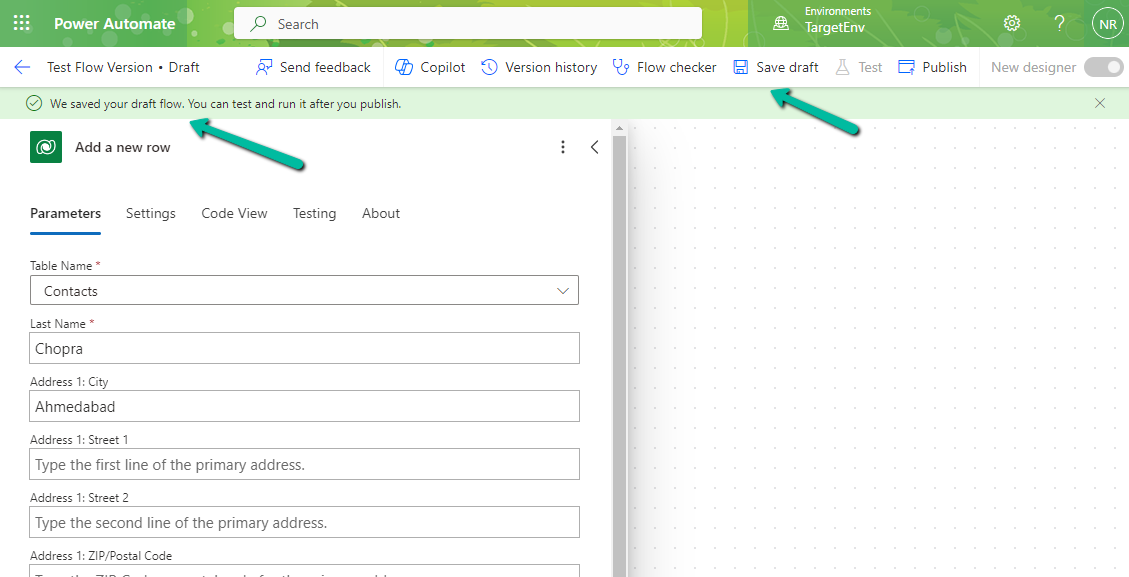
Clicking on Save Draft changes the flow to Draft and shows the message “We saved your draft flow. You can test and run it after you publish

From the Version History, we can see the Latest Version, Published Version, and the Past Published version, with the option to Restore it.

A screenshot of a computer

Description automatically generated

We can save a draft of a flow even with errors now.

A screenshot of a computer

Description automatically generated

Check for more details – Draft and Versioning for Cloud Flows

Hope it helps..

Advertisements

What will happen on changing the password of the user account used as the Owner of Cloud Flow and for Connection – Power Automate


Recently we had to change the password of the user account being used as an owner of the cloud flows as well as the used for connection/connection reference.

So we tried it on a trial environment first, below is our flow that runs every 5 minutes and creates a contact record (Dataverse), sends an email (Office 365 Outlook), and creates a file (SharePoint) owned by the same account along with the connection reference.

Below is our cloud flow

We can see the details around Connection References and Owner. We can also see it running successfully getting triggered after every 5 minutes.

A screenshot of a computer

Description automatically generated

Now let us update the password of the account that is being used in the flow.

Interestingly after password change our Flow kept running successfully without any errors.

A screenshot of a computer

Description automatically generated

Contact records are created in the Dataverse.

Mail sent using the Send an email action.

A screenshot of a computer

Description automatically generated

Files getting uploaded using the Create file action of SharePoint.

A screenshot of a computer

Description automatically generated

Also, we see the status of the connections showing as Connected.

It could be because Power Automate might be using cached credentials for a certain period after the password change, and/or the connections that use the refresh tokens to maintain authentication, have their tokens still valid.

https://www.itaintboring.com/powerapps/why-is-that-flow-still-working-after-i-have-changed-my-password/

Here what we can do immediately after changing the password is open the connections and click on Switch Account, sign in again using that account. That will referesh the connection.

That is exactly what we did for our Prod and other environments after we updated the password and we didn’t face connection failed issues or any other error for all our exiting flows.

A screenshot of a phone

Description automatically generated

Also, check – https://sharepoint.stackexchange.com/questions/290700/what-will-happen-to-the-ms-flow-connectors-if-their-usernames-password-got-reset

Using Service Principal in Power Automate – https://benediktbergmann.eu/2022/01/04/setup-a-service-principal-in-power-automate/

https://www.dynamicpeople.nl/en/news/service-principals-power-automate/

Hope it helps..

Advertisements

Using Union function to remove duplicates – Power Automate / Dataverse


We recently got the below error in one of our cloud flows, the requirement was to fetch the distinct work orders that have notes with attachments associated with them.

A resource of type ‘Microsoft.Dynamics.CRM.annotation’ was found in a resource set that otherwise has entries of type Microsoft.Dynamics.CRM.msdyn_workorder’. In OData, all entries in a resource set must have a common base type.

This occurs if we try using the aggeration in the Fetch XML queries in the List rows action.

The solution was to rewrite the fetch xml query without using aggregation.

And then next if we want to get the distinct values, we can use the Union function for that.

Here,

we are first adding the GUIDs to the varLstWorkOrderGUID array variable using Append to array variable action

And then applying the Union function – to remove the duplicate from the array.

union(variables(‘varLstWorkOrderGUID’), variables(‘varLstWorkOrderGUID’))

The result –

More on Fetch XML Query

Hope it helps..

Advertisements

Fixed- The XRM workflow table row could not be found error (Power Automate)


Recently while trying to open one of our cloud flows we got the below error.

Error: The XRM workflow table row could not be found.

Inside the Power Automate maker portal for the new designer, we got the below error

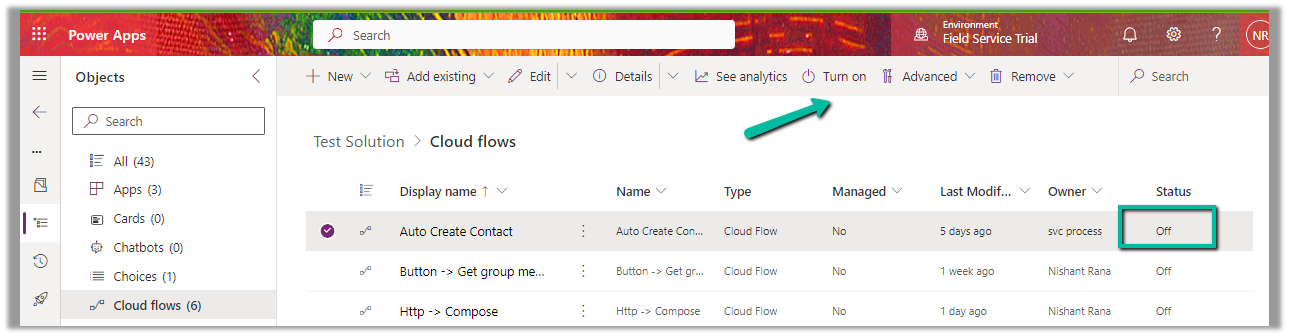
We could see our flows were in the OFF status.

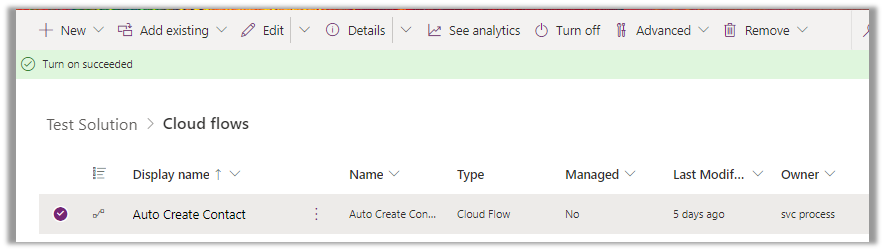
We switched ON the flows, and this fixed the issue for us.

We were able to edit our flow then.

As we recently restored the environment (was deleted), because of which the corresponding ‘Callback Registration’ records might be incorrect or missing. So enabling the flows would have created new entries in the Callback registration records for our flows, which fixed the error.

Please refer- https://rajeevpentyala.com/2021/01/30/callback-registration-expander-system-jobs-waiting-for-resources/

Hope it helps..

Advertisements

Fixed – Invalid type. Expected Integer but got Number (Power Automate)


In one of our Cloud Flows, for Parse JSON action, we got the below error –

ValidationFailed. The schema validation Failed.

“Invalid type. Expected Integer but got Number”

The generated schema had data type defined as integer instead of number type for certain properties, and the response was having decimal value to it.

So replacing the “integer” with “number” in the Schema of Parse JSON action fixed the issue.

Hope it helps..

Advertisements

How to – Submit multipart/form-data using HTTP action in Power Automate (Dataverse)


Recently we were calling an API (that expects multipart/form-data) to pass the image uploaded in Dataverse’s Image Column.

We used Power Automate for this i.e. to get the image uploaded and use HTTP Action to call and pass the Image details to it.

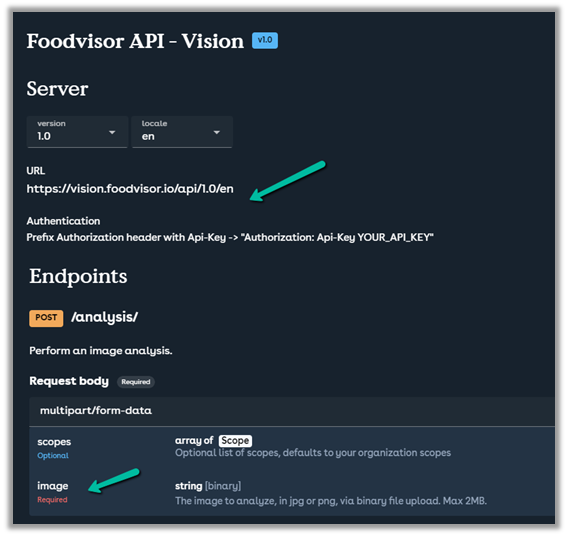
Below is the specification of the API

https://vision.foodvisor.io/docs/#/paths/analysis/post

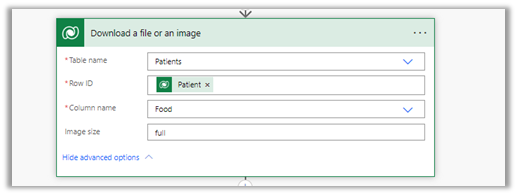
We used the “Download a file or an image” action to get the Image details

Below is how the HTTP action was used to pass the required details.

The successful response –

The body of the HTTP action –

{
"$content-type": "multipart/form-data",
"$multipart": [
    {
      "headers": {
        "Content-Disposition": "form-data; name=\"image\"; fileName=\"@{items('Apply_to_each_2')?['filename']}\""
      },
      "body": @{body('Download_a_file_or_an_image')}
    }
  ]
}


If we want to pass more than one data, we can have multiple headers defined as shown below

Helpful post –

Hope it helps..

Advertisements