This are some of the best articles for this
http://msdn.microsoft.com/en-us/library/bb955360.aspx
http://msdn.microsoft.com/en-us/library/dd548517.aspx
http://blogs.msdn.com/crm/archive/2008/03/10/accessing-crm-live-web-services.aspx
http://blog.philiprichardson.org/2007/12/17/part-3-applications-which-connect-to-crm/
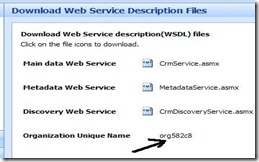
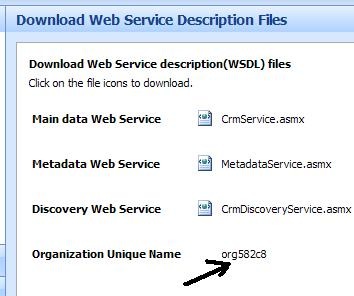
The important thing to remember is that here we need to use the organization’s unique name.
For example the friendly name here is Bliss

the unique name is org582c8 which could be found at
settings—>customization—> Download web service description files.
We need to make use of idcrlwrapper.dll and msidcrl40.dll which needs to placed in our project’s bin\debug folder.
To get idcrlwrapper.dll we need to do the following
http://msdn.microsoft.com/en-us/library/bb955358.aspx
And lastly we need to add a cs file named windowsliveidticketacquirer.cs in our project. It could be found at the following location
SDK\server\helpers\cs\CrmOnlineAuth.
// Login information
For authentication through the Windows Live service.
Static Private String _username =
"username@hotmail.com";
Static Private String _password =
"password";
Static Private String _partner =
"crm.dynamics.com";
Static Private String _environment =
"Production";
//
Set the name
And TCP port
Of the server hosting Microsoft Dynamics CRM Live.
Static Private String _hostname =
"dev.crm.dynamics.com";
//
Set the friendly name
Of the target organization.
Static Private String _orgFriendlyName =
"Bliss";
// Define an expired authentication ticket
Error code.
Static Private String EXPIRED_AUTH_TICKET =
"8004A101";
//Passport ticket required
To recover from a CrmTicket time out.
Static Private String _passportTicket;
//Attempt a service
Call a maximum number
Of times before failing.
Static Private int MAX_RETRIES = 5;
Private void Form1_Load(
Object sender, EventArgs e)
{
//
Step 1,2: Retrieve a policy from the Discovery Web service.
CrmDiscoveryService discoveryService =
New CrmDiscoveryService();
discoveryService.Url =
String.Format(
"https://{0}/MSCRMServices/2007/{1}/CrmDiscoveryService.asmx",
_hostname,
"Passport");
RetrievePolicyRequest policyRequest =
New RetrievePolicyRequest();
RetrievePolicyResponse policyResponse =
(RetrievePolicyResponse)discoveryService.Execute(policyRequest);
// Retrieve a Passport ticket from the Windows Live service.
LogonManager lm =
New LogonManager();
_passportTicket = lm.Logon(_username, _password, _partner, policyResponse.Policy,
_environment);
// Dispose
Of the LogonManager
Object To avoid a FileNotOpen exception.
lm.Dispose();
String orgUniqueName = "org582c8";
// Retrieve the CrmTicket.
RetrieveCrmTicketRequest crmTicketRequest = New RetrieveCrmTicketRequest();
crmTicketRequest.OrganizationName = orgUniqueName;
crmTicketRequest.PassportTicket = _passportTicket;
RetrieveCrmTicketResponse crmTicketResponse =(RetrieveCrmTicketResponse)discoveryService.Execute(crmTicketRequest);
//Create And configure an instance Of the CrmService Web service.
CrmAuthenticationToken token = New CrmAuthenticationToken();
// For CRM live Set authentication type To 1
token.AuthenticationType = AuthenticationType.Passport;
// We will need CRM Ticket To Get authenticated
token.CrmTicket = crmTicketResponse.CrmTicket;
token.OrganizationName = crmTicketResponse.OrganizationDetail.OrganizationName;
CrmService crmService = New CrmService();
crmService.Url = crmTicketResponse.OrganizationDetail.CrmServiceUrl;
crmService.CrmAuthenticationTokenValue = token;
// Invoke the desired CrmService Web service methods.
lead myLead = New lead();
myLead.lastname = "Rana";
myLead.firstname = "Nishant";
crmService.Create(myLead);
Bye..




 Nishant Rana's Weblog