Check out these wonderful tools to lear Linq and oData Query
Bye.

Check out these wonderful tools to lear Linq and oData Query
Bye.

Hi,
While searching for how to use Organization.svc within a silverlight application, i found these 2 helpful posts
http://msdn.microsoft.com/en-us/library/gg594452.aspx#Y1145
http://erikpool.blogspot.com/2010_12_01_archive.html
The other easier option that i can think of is creating a custom wcf service that uses Organization.svc and using this custom wcf service in the silverlight application.
Download the solution here
http://www.box.net/shared/pgditixq1o
Bye.

After restoring the database to the server, I got the following error while importing the organization using the Deployment Manager
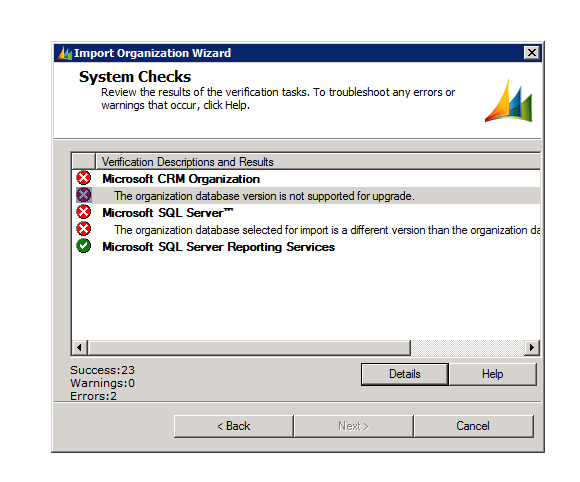
The build version of the database that I was importing was different than the build version of the database of the organization that I already had there.
http://support.microsoft.com/kb/946594 ( to find the build version of the database)
The one we were importing had higher build version.
Than we installed the update for Microsoft Dynamics CRM 2011 Release Candidate
http://support.microsoft.com/kb/2461082
Restarted the server and was able to import the organization successfully.
Hope it helps.

Two ways we can use consume CrmService within a Silverlight Application are as follows.
The things we need to consider here are
We need to explicitly pass the Header information otherwise our CrmService won’t work.
We need to make use of Dynamic Entity in case of Retrieve request as we might not receive values for certain fields.
In our Silverlight Application we will Add Service Reference to this custom web service (acting as a wrapper) instead of CrmService directly.
Download the solution here
http://www.box.net/shared/3p5kkf7di2
MainPage.xaml àInteracts with CrmService directly.
Page1.xamlàUses custom web service to interact with CrmService.
Hope it helps.

First let’s create a custom Pushpin class extending the Pushpin.
public class
MyCustomPushpin : Pushpin{
public string Description { get; set; }
}
Now let’s define the Pop Up in the MainPage.xaml
<UserControl x:Class=”MyBingApplication.MainPage”
xmlns:m=”clr-namespace:Microsoft.Maps.MapControl;assembly=Microsoft.Maps.MapControl” xmlns=”http://schemas.microsoft.com/winfx/2006/xaml/presentation”
xmlns:x=”http://schemas.microsoft.com/winfx/2006/xaml”
xmlns:d=”http://schemas.microsoft.com/expression/blend/2008″ xmlns:mc=”http://schemas.openxmlformats.org/markup-compatibility/2006″
mc:Ignorable=”d” d:DesignWidth=”640″ d:DesignHeight=”480″>
<Grid x:Name=”LayoutRoot”>
<m:Map x:Name=”myMap” CredentialsProvider=”AvYH87t36Tv3ybyYagU9HUZKjsrWO2Hcup3nu1fmNhpenHKO_RvEZ6PdGGc6CYGK” Mode=”AerialWithLabels” >
<m:MapLayer x:Name=”MyPushPinLayer”>
<Canvas x:Name=”ContentPopup” Visibility=”Collapsed”>
<Rectangle x:Name=”ContentPopupRectangle” Fill=”LawnGreen” Opacity=”0.7″ Canvas.Left=”0″ Canvas.Top=”0″ Height=”40″ Width=”120″ RadiusX=”20″ RadiusY=”20″/>
<StackPanel Canvas.Left=”20″ Canvas.Top=”10″>
<TextBlock x:Name=”ContentPopupText” FontSize=”12″ FontWeight=”Bold” TextWrapping=”Wrap” Width=”200″>
</TextBlock></StackPanel>
</Canvas>
</m:MapLayer>
</m:Map></Grid></UserControl>
First we have added a Map Layer; inside it we have Canvas that holds the Rectangle Shape and Text Block to display the text inside it.
Our code behind would be this
public partial class MainPage : UserControl
{
public MainPage()
{
InitializeComponent();string Address = "759 Jantanagar, Chandkheda, Gandhinagar, Gujarat, 382424";
GeocodeServiceClient myGeoCodeClient = new GeocodeServiceClient("BasicHttpBinding_IGeocodeService");
// create an event hanler for GeocodeCompleted event as the service would be call asynchronously
myGeoCodeClient.GeocodeCompleted+=new EventHandler<GeocodeCompletedEventArgs>(myGeoCodeClient_GeocodeCompleted);
// create the request and pass the address to it
GeocodeRequest myGeoCodeRequest = new GeocodeRequest();
myGeoCodeRequest.Credentials = new Microsoft.Maps.MapControl.Credentials();
myGeoCodeRequest.Credentials.ApplicationId=((ApplicationIdCredentialsProvider)myMap.CredentialsProvider).ApplicationId;
myGeoCodeRequest.Query = Address;

// Pass the request to GeocodeAsyn method
myGeoCodeClient.GeocodeAsync(myGeoCodeRequest);

}

void myGeoCodeClient_GeocodeCompleted(object sender, GeocodeCompletedEventArgs e)
{
// create a map layer
MapLayer myMapLayer = new MapLayer();
myMap.Children.Add(myMapLayer);

// create a location collection class
LocationCollection myLocationColl=new LocationCollection();

foreach (GeocodeResult gr in e.Result.Results)
{
    MyCustomPushpin myPushPin = new MyCustomPushpin();
    myPushPin.Description = "Custom Pushpin";
    myPushPin.MouseEnter += new MouseEventHandler(myPushPin_MouseEnter);
    myPushPin.MouseLeave += new MouseEventHandler(myPushPin_MouseLeave);

    // set it to first found location
    myPushPin.Location = gr.Locations[0];
    // add it to location collection
    // which would be used to set the map's bound
    myLocationColl.Add(myPushPin.Location);
    // Add the drawn point to the route layer.
    myMapLayer.Children.Add(myPushPin);
}
var bounds = new LocationRect(myLocationColl);
myMap.SetView(bounds);
}

void myPushPin_MouseLeave(object sender, MouseEventArgs e)
{
// when mouse moves out of the popup hide it
ContentPopup.Visibility = Visibility.Collapsed;
}

void myPushPin_MouseEnter(object sender, MouseEventArgs e)
{
//Show a popup with custom pushpin
MyCustomPushpin pin = sender as MyCustomPushpin;
if (pin != null)
{
    MapLayer.SetPosition(ContentPopup, pin.Location);
    MapLayer.SetPositionOffset(ContentPopup, new Point(15, -50));
    ContentPopupText.Text = "My Pushpin";
    ContentPopup.Visibility = Visibility.Visible;
}
}
}
http://www.box.net/shared/5m7oap8s6p
This is how it will look

Bye.

For this first we need to add service reference to Geocode service to our Silverlight Application
http://dev.virtualearth.net/webservices/v1/geocodeservice/geocodeservice.svc
On how to create Silverlight Application that uses Bing Map Control please refer to
https://nishantrana.wordpress.com/2011/03/05/using-bing-maps-silverlight-control/
Geocode service will return us the results found (locations) based on the address passed to it.
We can use the below sample code that displays the Pushpins on Bing Map based on the query (address) provided. (Here I am providing my permanent address)
public MainPage()
{
    InitializeComponent();    string Address = "759 Jantanagar, Chandkheda, Gandhinagar, Gujarat, 382424";
    GeocodeServiceClient myGeoCodeClient = new GeocodeServiceClient("BasicHttpBinding_IGeocodeService");
    // create an event hanler for GeocodeCompleted event as the service would be call asynchronously
    myGeoCodeClient.GeocodeCompleted+=new EventHandler<GeocodeCompletedEventArgs>(myGeoCodeClient_GeocodeCompleted);
    // create the request and pass the address to it
    GeocodeRequest myGeoCodeRequest = new GeocodeRequest();
    myGeoCodeRequest.Credentials = new Microsoft.Maps.MapControl.Credentials();
    myGeoCodeRequest.Credentials.ApplicationId=((ApplicationIdCredentialsProvider)myMap.CredentialsProvider).ApplicationId;
    myGeoCodeRequest.Query = Address;

    // Pass the request to GeocodeAsyn method
    myGeoCodeClient.GeocodeAsync(myGeoCodeRequest);

}

void myGeoCodeClient_GeocodeCompleted(object sender, GeocodeCompletedEventArgs e)
{
    // create a map layer
    MapLayer myMapLayer = new MapLayer();
    myMap.Children.Add(myMapLayer);

    // create a location collection class
    LocationCollection myLocationColl=new LocationCollection();

    foreach (GeocodeResult gr in e.Result.Results)
    {
        Pushpin myPushPin = new Pushpin();
        // set it to first found location
        myPushPin.Location = gr.Locations[0];
        // add it to location collection
        // which would be used to set the map's bound
        myLocationColl.Add(myPushPin.Location);
        // Add the drawn point to the route layer.
        myMapLayer.Children.Add(myPushPin);
    }
    var bounds = new LocationRect(myLocationColl);
    myMap.SetView(bounds);
}
}

Bye.

 Nishant Rana's Weblog