Could not load file or assembly ‘CrmLibraries, Version=8.0.0.0’ while using Microsoft Dynamics 365 Developer Toolkit


While trying to deploy Plugin through Developer Toolkit we got the below error
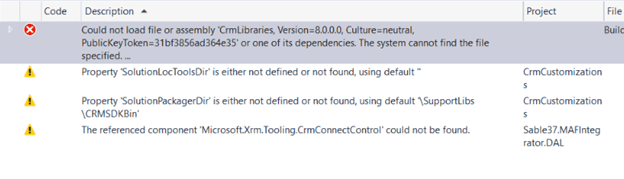
Could not load file or assembly ‘CrmLibraries, Version=8.0.0.0, Culture=neutral, PublicKeyToken=31bf3856ad364e35’ or one of its dependencies. The system cannot find the file specified.

   at System.Reflection.RuntimeAssembly._nLoad(AssemblyName fileName, String codeBase, Evidence assemblySecurity, RuntimeAssembly locationHint, StackCrawlMark& stackMark, IntPtr pPrivHostBinder, Boolean throwOnFileNotFound, Boolean forIntrospection, Boolean suppressSecurityChecks)

We will get this error if we haven’t configured the path to Plug-in Registration Tool and CRM SDK Bin Directory in our Visual Studio


Hope it helps..


My Favorite – Visual Studio Tips and Tricks


Sharing some of my favorites

  • Select entire line of code

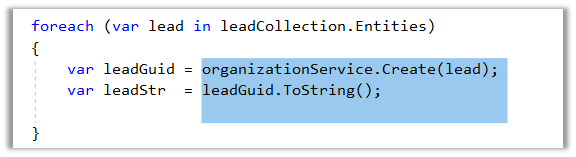
Put the cursor anywhere in that line of code and without selecting anything just press ctrl + c or ctrl + x

Here I have put my cursor just before the var declaration.

Pressing ctrl + x will cut the entire line


  • Use ALT key to make selection from middle of the line spanning multiple lines and replace the content.

Press and hold Alt while making the selection to select the content from the middle, instead of beginning of the next line.

Also, here we can start typing to replace the content.

  • Change selected text’s case

  • Ctrl +] to move to the matching brace and Ctrl + Shift +] to select everything between matching braces.


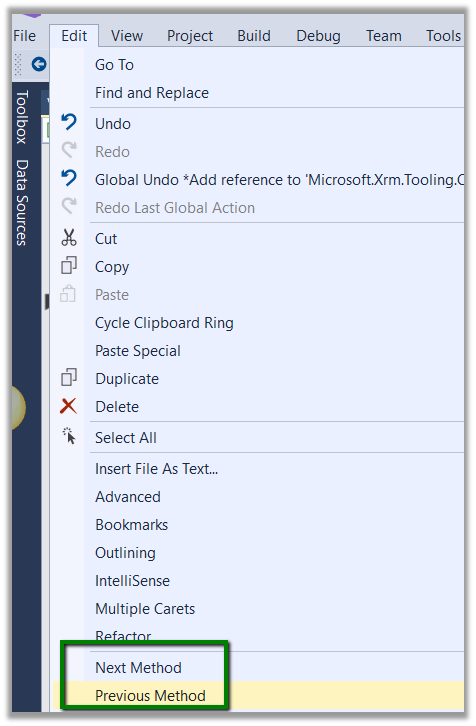
  • Move between methods inside using Visual Studio

Using Edit à Next Method and Previous Method we can easily navigate between the methods


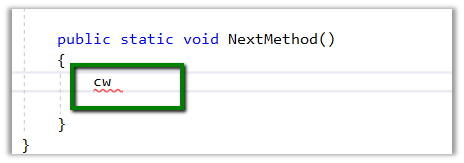
  • Use cw code snippet for Console.WriteLine


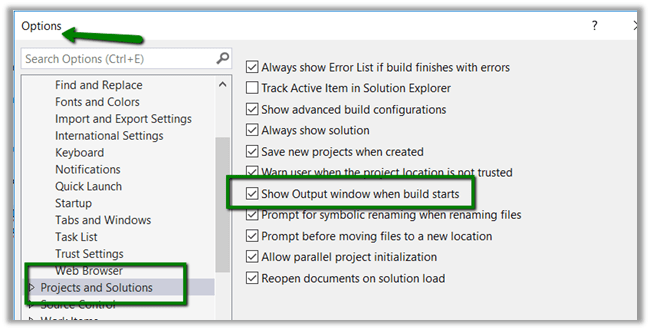
  • Show Output Window when build starts

Navigate to Tools à Options to enable this setting

  • Use Shift + Enter to place “;” at the end of line
  • Use Peek Definition to get details of the referenced property or method


Use Preview Tooltip for vertical scroll bar

Go to Options à All Languages à Scroll Bars and check Show Preview Tooltip

This will show the preview of the source code at that point.

Hope it helps..
Azure Service Bus Queue Integration with D365 – Part 1


Ajit Patra's avatarAjit Patra

In this series, we’ll see how we can integrate Azure Service Bus Queue with D365. This series has been divided into 2 parts:

Part 1: How we can create a service bus queue in Azure portal and registration of service endpoint using plugin registration tool

Part 2: Do some operation in D365 and the message appears in Service Bus Queue. Also, read the message from queue.

Part 1: Create service bus queue in Azure portal

  1. Login to azure portal using your account
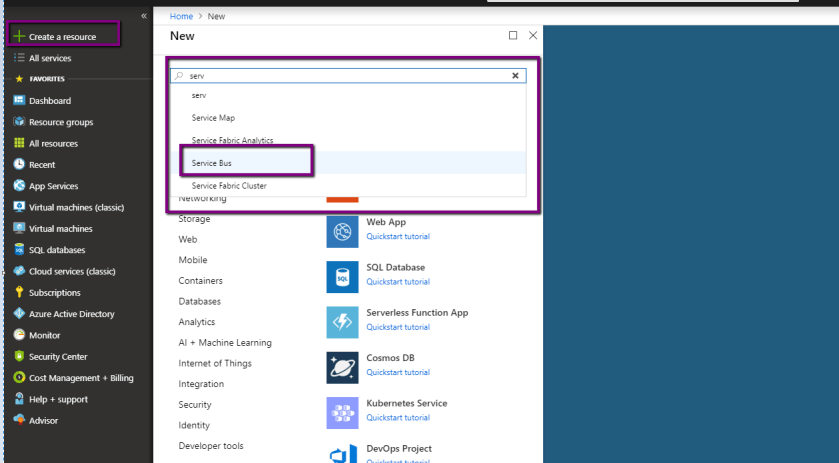
  2. Click on Create a Resource and in the text box type service bus5
  3. Click on Create6
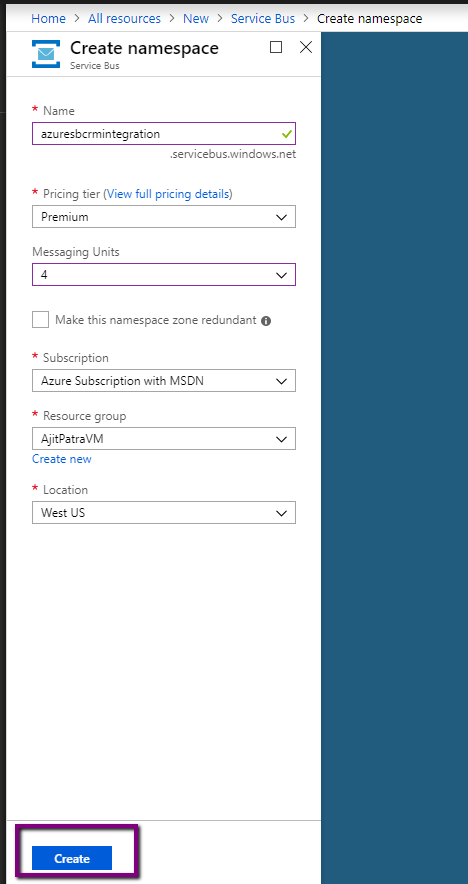
  4. Give a unique name to service bus namespace and fill the mandatory fields. Then click Create.
  5. 7
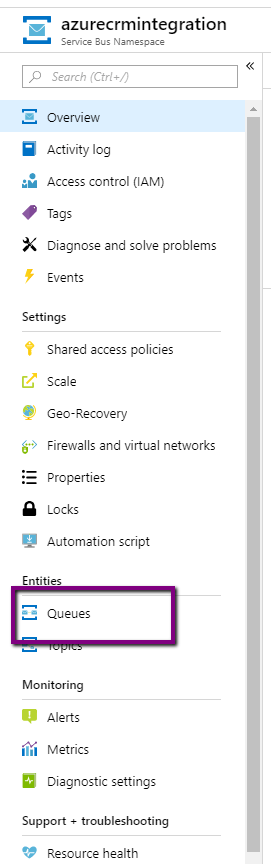
  6. Then browse to the service bus namespace and click on Queues.
  7. 8
  8. Click +Queue.9
  9. Give a unique name for queue and let’s leave the rest of the fields as it is and click Create.

View original post 192 more words

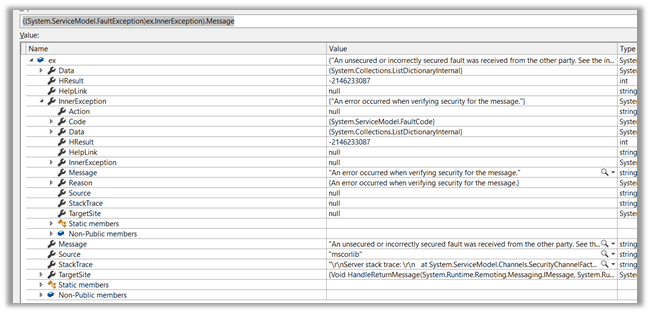
“An error occurred when verifying security for the message” in Dynamics 365 CE


While trying to connect to Dynamics 365 CE through a console application we were getting the below error.

“An unsecured or incorrectly secured fault was received from the other party”

“An error occurred when verifying security for the message”

Changing the version of the assemblies referenced, changing the target version of the framework etc. didn’t help.

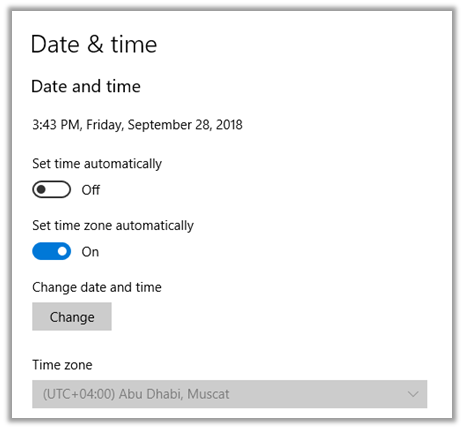
Eventually we realized that the Date and time was incorrect in the machine (was one day ahead). It is 27th September while writing this blog post.

Correcting it fixed the issue.

Hope it helps..

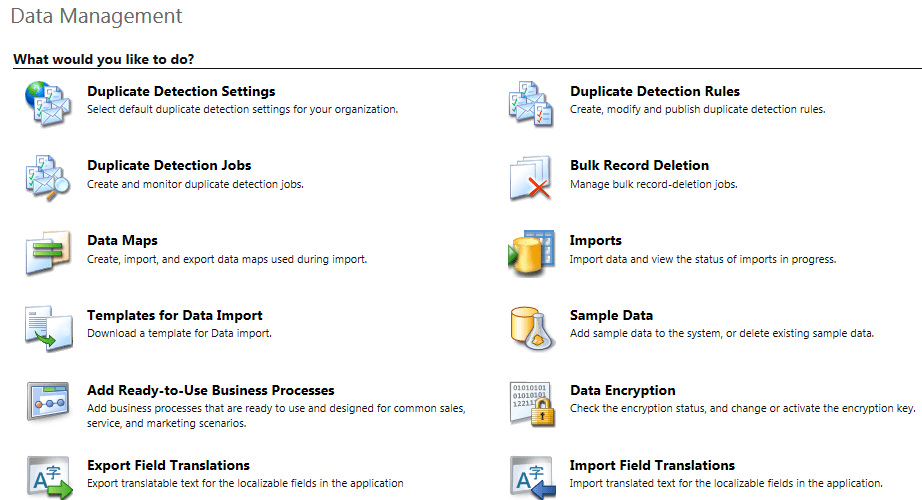
D365: Limitations of Duplicate Detection Rules


Points to keep in mind before we think of using them – Duplicate Detection Rules

Zohaib Uddin Khan's avatarDynamics 365 Funda by Zohaib Uddin Khan

Author: Zohaib Uddin Khan

Duplicate detection is one of the old and powerful feature of Dynamics family. But, I found it has some major limitations and inconsistency. I tried to use them in every implementation but reach to a point where I decided not to use them is my best bet. Anyhow, following are the ones which bother me heaps:-

  • Duplicate detection works with Dynamics 365 for tablets, but isn’t available for Dynamics 365 for phones.
  • Duplicates can’t be detected when a user converts a lead and it will create Account/Contact automatically.
  • Duplicates also aren’t detected when a user changes the status of a record, such as activating or reactivating it.
  • Maximum 5 Duplicate detection rules under Published state per Entity.

In case, if you found or know any other then feel free to comment and I will update the post. Cheers!

View original post

Completed 11 year of blogging with WordPress !


Achievement

dilbert2007458220426