How to – Apply XSLT transformation using the XML Task in SSIS


Using the XML Task component in SSIS we can apply XSLT to the input XML file.

Recently we had a requirement to read data from XML file and create/update corresponding records in Dynamics 365 CE. For the child entity tags in the XML, we wanted to insert some of the tags (key) from the parent to the child so that it can be easily used for mapping and setting the parent lookup.

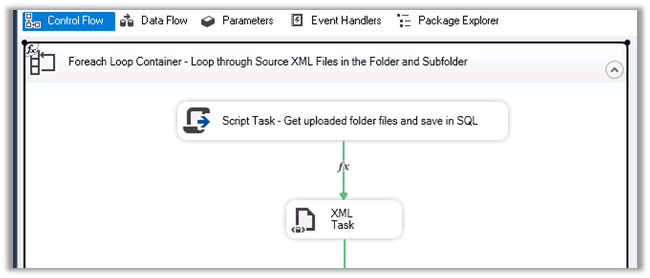
For that we had used Foreach Loop Container to read the XML file, then had applied XSLT transformation using the XML Task before processing the file using XML Source Component and CRM Destination Component of KingswaySoft.

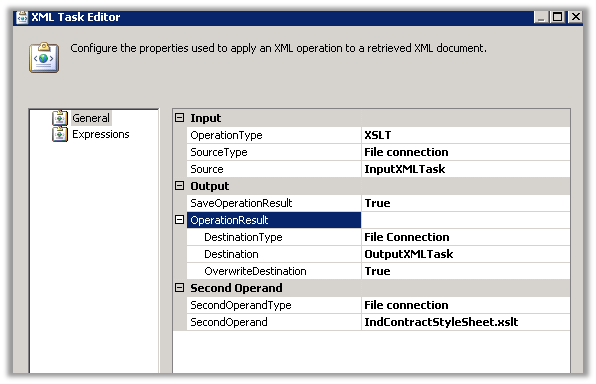
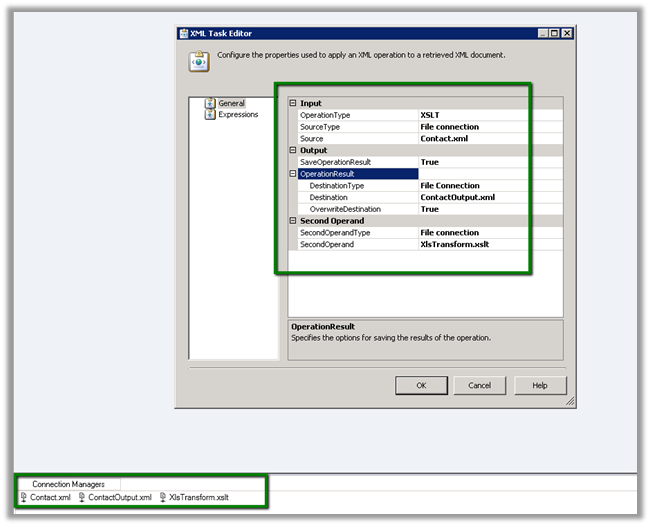
The XML task editor here is using 3 File Connection.

One for the input file, another for output and third for the XLST file.

Here need to select

  • Operation Type as XLST
  • Source Type as file connection as we are specifying XML file as input.
  • For output, we are creating an output XML file and overwriting the destination file if existing.
  • In the Second Operand, we are specifying the XSLT file.

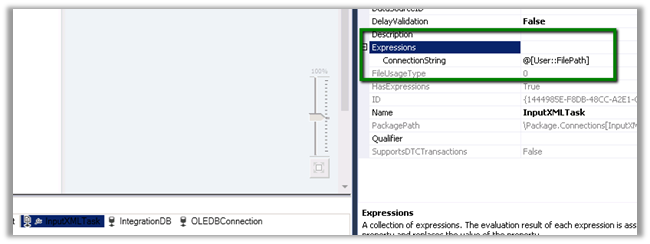
For InputXMLTask file connection, we need to specify the user-defined variable that reads the file in its connection string property for it to work properly.

Same for OutputXMLTask

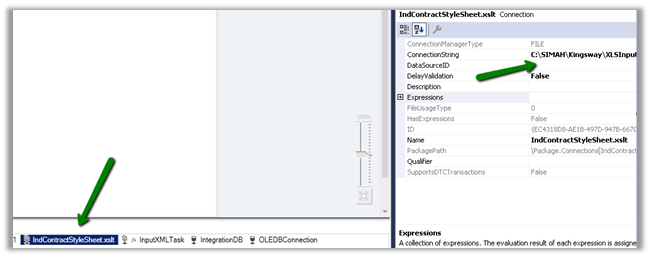
And for the XSLT File Connection

Let us take a simple example to understand it better à

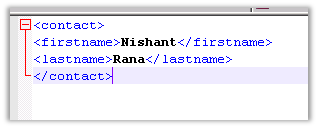
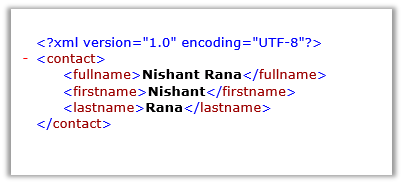
Suppose below is our source XML i.e. Contact.xml

We want to apply following XSLT transformation to it, which adds the fullname tag to it which is a combination of firstname and lastname tag. i.e. XlsTransform.xslt

Drag the XML task to the control flow of the package.

Specify the following properties for it as shown below

Run the package we will get the below output file, a fullname tag added which is combination of firstname and lastname tag as below i.e. ContactOutput.xml

Hope it helps..

Advertisements

Order of attributes in Alternate Key in Dynamics CRM Destination Component in SSIS (KingwaySoft)


Recently we got the below error in one of our SSIS Packages

error

The packages were working fine in one of the environments and were failing in another.

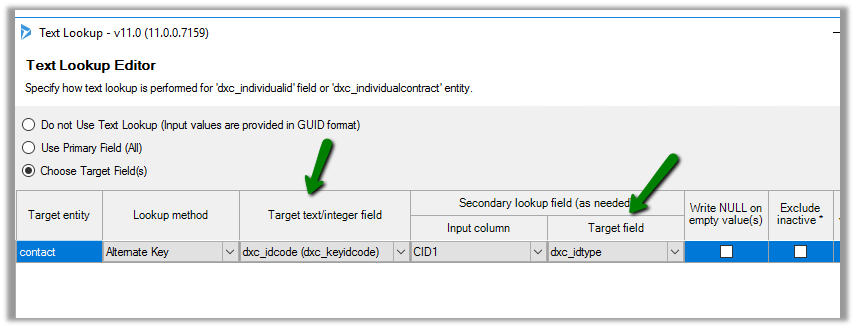
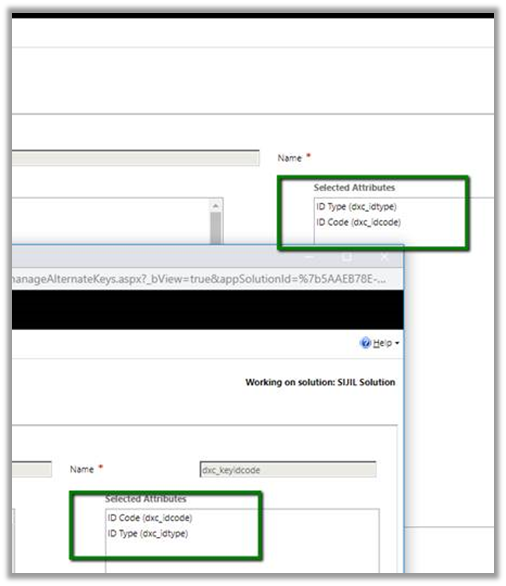
It was throwing an error in one of the lookup fields that was referring to the alternate key. Here the alternate was defined with 2 fields.

As it turned out in another environment the order of the fields was changed for the alternate key field.

We recreated the alternate key field in the proper order of the attributes to fix this.

Hope it helps..
How to – Use Foreach Loop Container in SSIS to loop through all files in folders and subfolders


Recently while working on an integration requirement we had to loop through all the XML Files within a folder and subfolder and create corresponding records inside Dynamics 365 CE.

For this, we used the XML Source component which is part of KingswaySoft’s Productivity Pack https://www.kingswaysoft.com/products/ssis-productivity-pack/help-manual/json-and-xml-processing/xml-source

Below are the steps we need to perform to loop through the files.

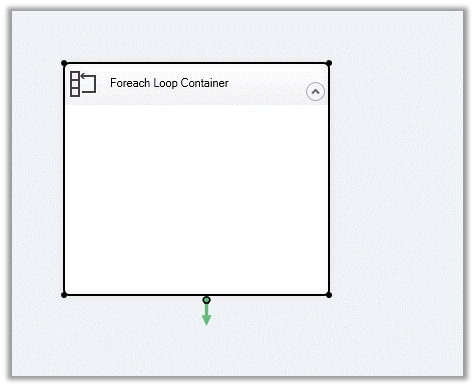
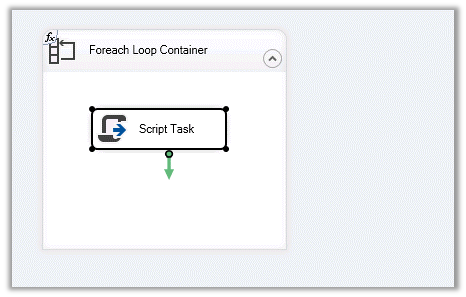
Create an SSIS Project and drag the Foreach Loop Container to the control flow.

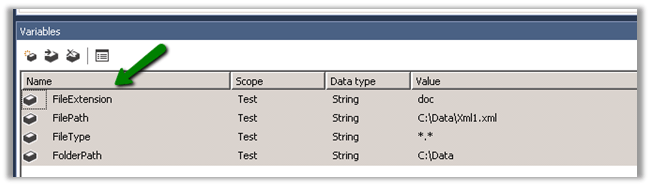
Here we are using 3 variables, one for the full path to the file, the other for extension and the third one to specify the folder.

Double click and the Foreach Loop Editor, set the enumerator as Foreach File Enumerator and set the Directory and FileSpec property expressions to use the variables that we had defined.

Check the Traverse Subfolder if we want to traverse the subfolders.

Click on Variable Mapping and set the FilePath variable that will be used to iterate through the files in the Folder and Subfolder specified.

To see it in action, we have added a Script Task inside the container.

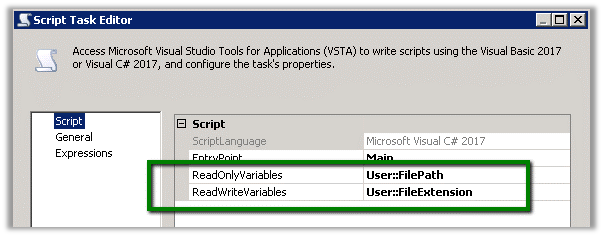
Here we have set the FilePath variable as the ReadOnlyVariables that we will read within the Script Task code and show it in the Message Box.

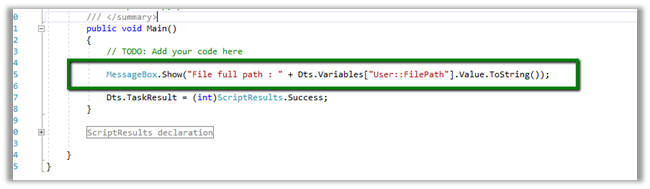
Our source code that reads the FilePath and displays it in the Message Box.

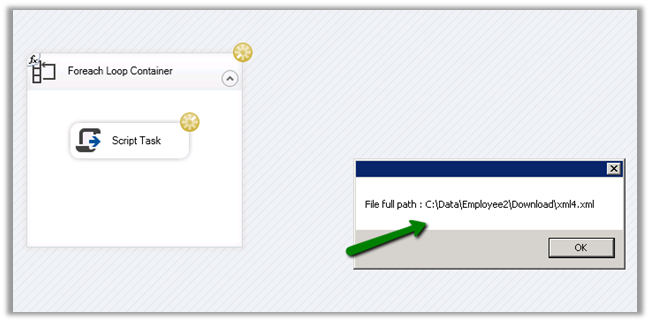
Now just execute the package and we will see it looping through all the XML files with the folder specified.


Hope it helps..

Advertisements

{Happy note and Book Launch} Power Platform Happy hour Singapore and Launch of my book Mastering Dynamics 365 Customer Engagement.


deepeshsomani2013's avatarMSDYNAMICSBLOG BY DEEPESH

Today evening we were the third in the world after London and Heliniski to host our Happy Hour from Singapore and being the first one from Asia!

clip_image004

Let us start with thanking Mark Smith for his new initiative Power Platform Happy Hour!

clip_image002

We did few things same and some newer things. 5 MVPs connected on to this Happy hour, some virtually on Skype for Business!

Myself from Singapore

clip_image006

Not to forget the champs Jeeva and Kasun from Singapore

clip_image007

Nishant from Dubai

clip_image009

Debajit from Bengaluru

clip_image010

Sahan from Australia

clip_image012

Nadeeja from Australia:

clip_image014

Multiple community heads joined:

William from TDG

clip_image016

Simaranjit from Sydney

clip_image018

4 people got goodies which were e-books to my new book. Third one and one of my hardest projects : Mastering Dynamics 365 Customer Engagement which was launched here!

clip_image020

Not to forget the support from Microsoft in the form of Sanjeev!

Some more pictures:

Virtually happy!

clip_image022

clip_image024

clip_image026

Next time Please connect…

View original post 93 more words

Dynamics 365: Solution install failed


Zohaib Uddin Khan's avatarDynamics 365 Funda by Zohaib Uddin Khan

Author By: Zohaib Uddin Khan

Scenario:

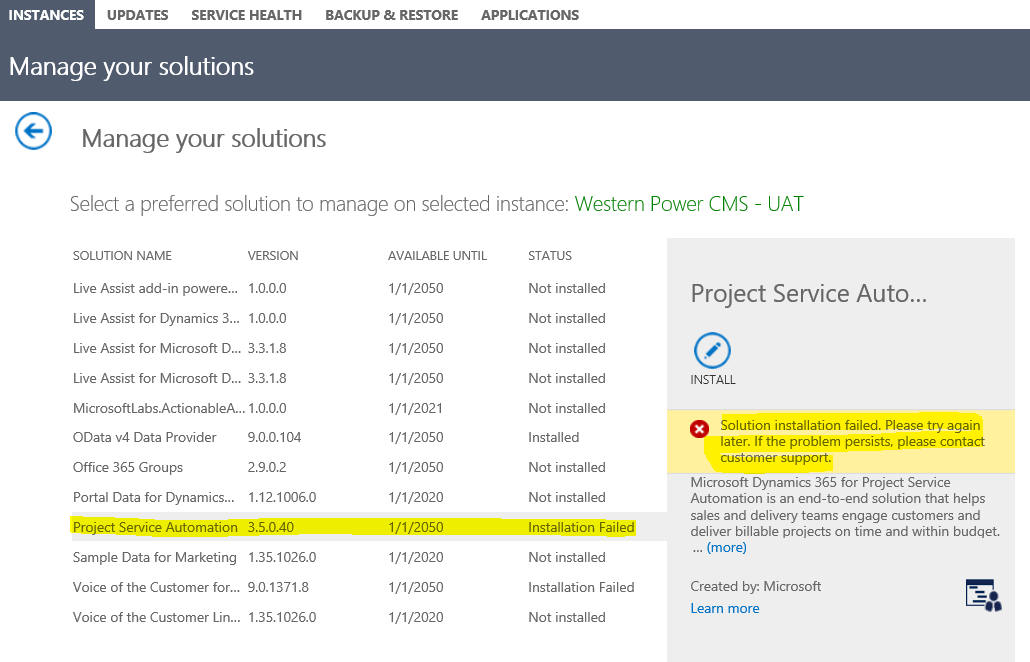
Let suppose you’re trying to install a managed solution (such as Project Services Automation, Field Services, Portal, etc.) through Admin Center and you’re facing ‘Solution Installation Failed‘.

Since, Admin Center don’t provide any reason for failure, apart from retry or contact the support which are not very productive.

SolutionImport-0

Solution:

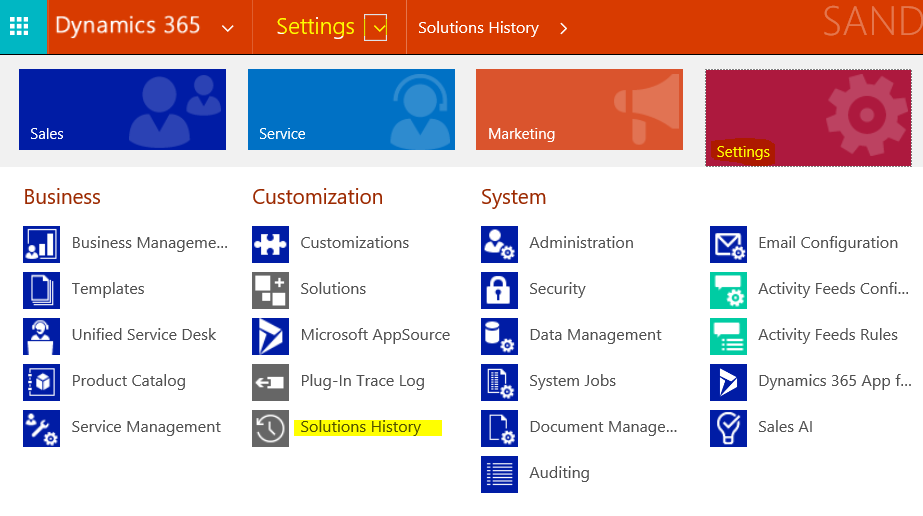
Go to Dynamics 365 Org – Settings – Customization – Solution History

SolutionImport-1

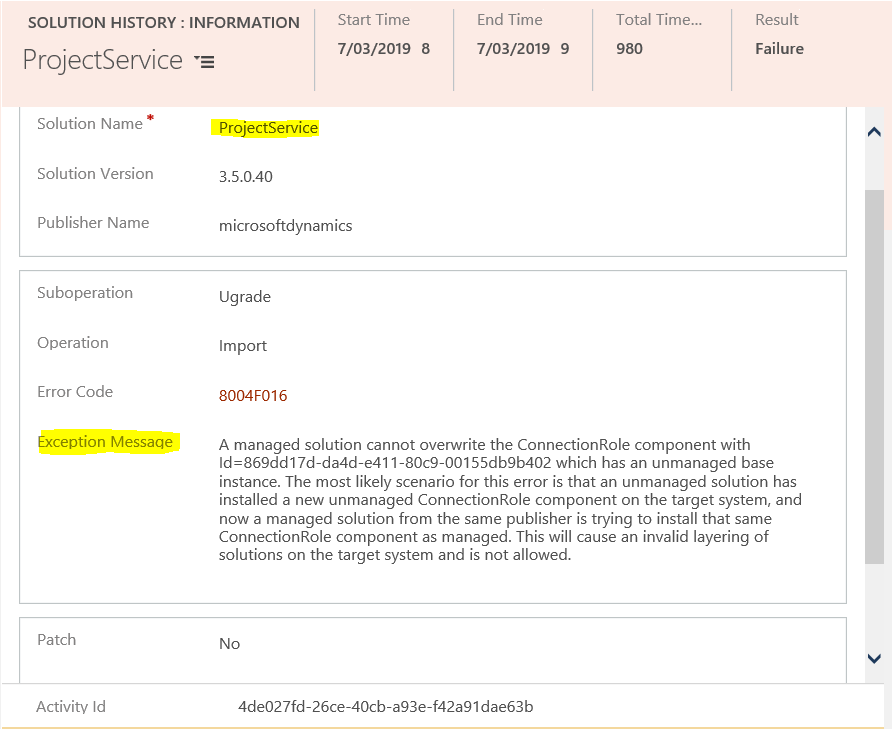
Open the latest or related solution from ‘Internal Solution History’ view. And, reason for the failure of the solution is available under Exception Message. 🙂

SolutionImport-2

View original post

Using CDS/CRM Connection Manager of KingswaySoft’s SSIS Dynamics 365 Integration toolkit in Script Component (SSIS)


Recently for one of our requirements we had to use the CDS/CRM Connection of KingswaySoft’s SSIS Integration Toolkit for Dynamics 365

Below are the steps to be followed –

Drag the Script Transformation component, specify any input columns and inputs / outputs as required.

In the Connection Managers add the connection to Dynamics 365

Click on Edit Script to open the Visual Studio.

Add references to below 3 assemblies. We need to search for the 2 KingswaySoft assemblies in the machine and then add them.

The sample code –


public override void Input0_ProcessInputRow(Input0Buffer Row)
{
var connMgr = this.Connections.CRMConnectionManager;
var connectionString = (string)connMgr.AcquireConnection(null);
var conn = new CrmConnection(connectionString);

var orgService = (IOrganizationService)conn.GetCrmService();

RetrieveRequest retRequest = new RetrieveRequest();
retRequest.ColumnSet = new ColumnSet();
retRequest.ColumnSet.AddColumn("statuscode");
retRequest.Target = new EntityReference("dxc_contract", "dxc_contractnumberinternal", Row.dxccontractnumberinternal);
var response = (RetrieveResponse)orgService.Execute(retRequest);

if (response.Entity != null)
{
// status is closed
if (((OptionSetValue)response.Entity.Attributes["statuscode"]).Value == 282210002)
{
Row.IsApprovedContract = "N";
}
else
{
Row.IsApprovedContract = "Y";
}
}
}

Get all the details here

http://www.kingswaysoft.com/blog/2013/06/24/Writing-Script-Component-or-Script-Task-using-CRM-Connection-Manager

Hope it helps..