Error while updating organization information: Microsoft.Crm.CrmReportingException: Unknown exception thrown by report server —> System.Web.Services.Protocols.SoapException: An internal error occurred on the report server while trying to import organization in Dynamics 365 On-Premise


Recently while after restoring the database while trying to import the organization we got the below error

Checking the Report Server log,
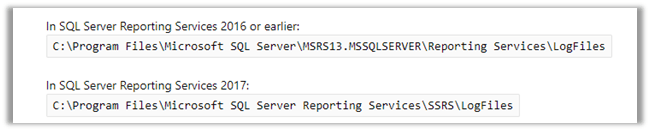
we found the below detail

Throwing Microsoft.ReportingServices.Library.InvalidReportServerDatabaseException: , Microsoft.ReportingServices.Library.InvalidReportServerDatabaseException: The version of the report server database is either in a format that is not valid, or it cannot be read. The found version is ‘2017’. The expected version is ‘178’.;

We can use the below commands to check the DB Version


The Database that we were restoring had the following version 178 as mentioned in the error


And in our destination server where we were had restored and imported the organization, it was 2017.

We tried out a few of the things mentioned in the forums, eventually what worked for us was to create a new Report Server database in the Destination server.

https://social.technet.microsoft.com/wiki/contents/articles/32360.sspr-troubleshooting-the-version-of-the-report-server-database-is-either-in-a-format-that-is-not-valid-or-it-cannot-be-read.aspx

https://www.sqlservercentral.com/forums/topic/the-version-of-the-report-server-database-is-either-in-a-format-that-is-not-valid-or-it-cannot-be-read-the-found-version-is-164-the-expected-version-i

This created the database with the version expected and our import was successful.

Also, refer the below blog posts

https://www.magnetismsolutions.com/blog/paulnieuwelaar/2014/10/08/data-encryption-errors-after-restoring-microsoft-dynamics-crm-database

http://rafaeldontalgoncalez.com/2018/11/the-version-of-the-report-server-database-is-either-in-a-format-that-is-not-valid-or-it-cannot-be-read-the-found-version-is-164-the-expected-version-is-165-rsinvalidreportserverdatabase

https://www.crmviking.com/2016/02/backup-and-restore-strategies-for-crm.html

Hope it helps..

Fixed – ExecuteMultiple Request batch size exceeds the maximum batch size allowed error while deleting records in Dynamics 365 On-Premise


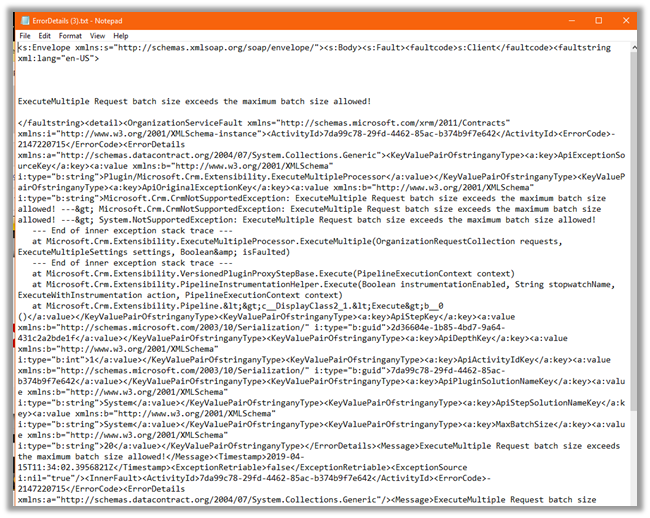
Recently while trying to delete records we were getting the below error

It was occurring when we were selecting more than 20 records for deletion.

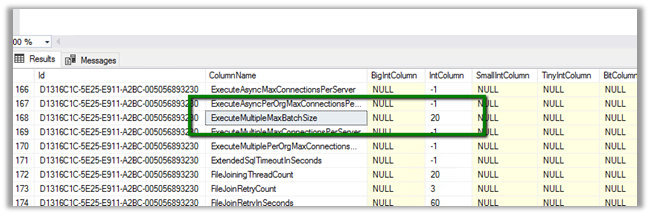
Turned out in the MSCRM_CONFIG database, somebody had updated the value to 20 of ExecuteMultipleMaxBatchSize column in the DeploymentProperties table

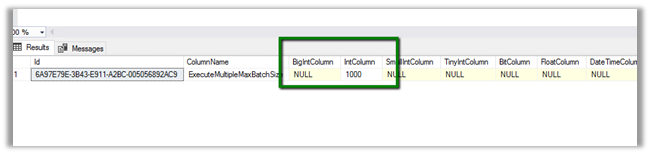
We updated it to its default value 1000 to get this fixed.

Hope it helps..

Advertisements

Check out my Step-by-Step guide to integrating Dynamics 365 for Customer Engagement with XML @NigelFrank


Here’s an article I wrote for @NigelFrank detailing how Dynamics 365 for Customer Service users can integrate their solution with XML. I hope you find it useful! #MSDyn365 #MsDynCRM

Integration with XML for Dynamics 365 for Customer Service users: my illustrated guide for @NigelFrank

Follow the link here

https://www.nigelfrank.com/blog/integrate-dynamics-365-for-customer-engagement-with-xml/


Plug-in Trace Logs only works in Sandbox mode in Dynamics 365 CE


In my current Dynamics 365 implementation, we are back in the On-Premise world, after many years.

We thought of using the Plugin-Trace logs but was surprised to see that the Plug-Trace logs were not getting generated.

After doing the search realized that it only works for the plugin registered in the Sandbox mode.

https://docs.microsoft.com/pt-pt/powerapps/developer/common-data-service/logging-tracing

https://community.dynamics.com/crm/f/117/t/189346

So for time being, we registered in it Sandbox to get the trace.

Found the below article that has the workaround (unsupported)

http://blog.intocrm.net/how-to-write-plug-in-trace-logs-outside-the-sand-box/

Meanwhile, we can also Vote for the Idea

https://powerusers.microsoft.com/t5/PowerApps-Ideas/Write-to-the-Plug-in-Trace-Log-from-assemblies-outside-SandBox/idi-p/222339

https://experience.dynamics.com/ideas/idea/?ideaid=abc7aceb-a8d9-e611-80c1-00155d460d59

Hope this helps..

Convert you existing text fields into Autonumber field with the new entity designer in powerapps in Dynamics 365


A nice feature added to the platform ..

https://docs.microsoft.com/en-us/powerapps/maker/common-data-service/autonumber-fields

Wish they had added in the classic solution explorer as well, having 2 different interfaces only creates chaos, it reminds me of  Windows 7 and Windows RT

Debajit's avatarDebajit's Dynamic CRM Blog

Well this has long been awaited for. And how many times I had my customer walking up to me and ask – “I have an existing field. Do CRM provide Autonumber feature? Can I convert an existing text field to AutoNumber field?”.

Till this point my answer was Yes but with a suffix“but” in it.

However going forward you can with the new entity designer in power apps.

So you can select Primary Attribute Number field of your entity and covert it to AutoNumber type now.

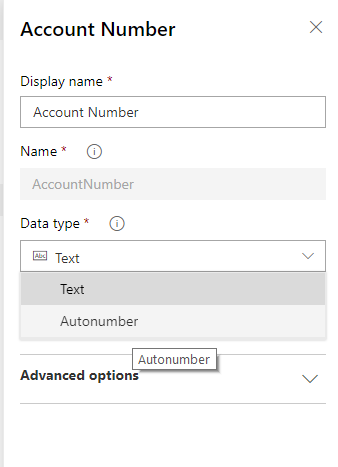
Below I open the OOB Account Number field and set the Data Type from Text to AutoNumber.

image

Short and sweet. Isn’t it?

P.S – Only existing text fields could be converted into Auto Number Type. You can off-course create a new Auto Number Type field.

Hope this helps!

Debajit Dutta

(Dynamics MVP)

View original post

How to change Dynamics 365 CRM web interface from UCI to Classic version?


Arun Potti's avatarArun Potti's Power Platform blog

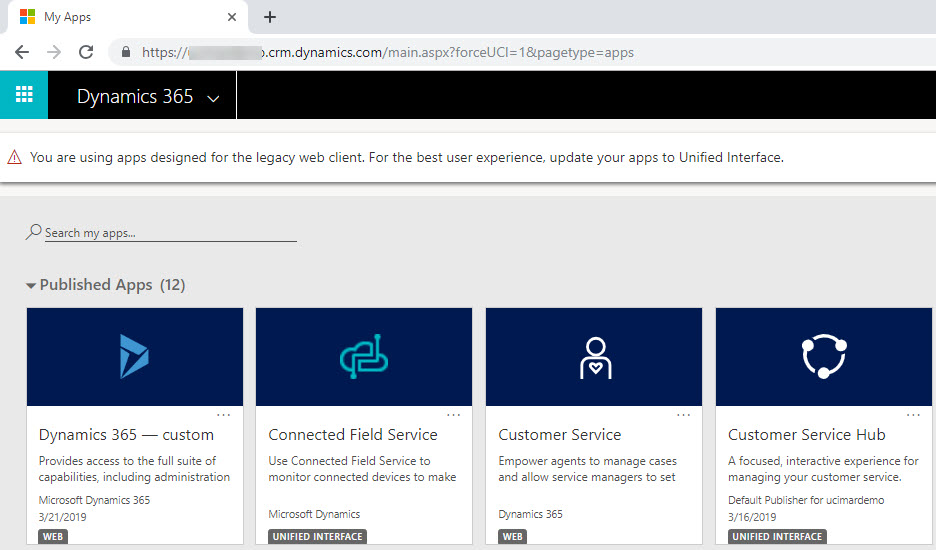
Recently created a Dynamics 365 CRM 30 days trial version (Ref: How to Setup Dynamics 365 30 days Online Trial version?) and it was navigating to CRM home page showing the list of UCI Apps, instead of showing CRM Classic Web UI.

Below is the screenshot for reference.

Later found that, the rendered URL was showing differently in the browser and having forceUCI and pagetype parameters.

https://CRMOrgName.Region.dynamics.com/main.aspx?forceUCI=1&pagetype=apps

If you want to see the old Classic Version of CRM, just use the parameter forceClassic=1, instead of forceUCI=1 and remove the parameter pagetype=apps in the URL and final URL will be like the below,

https://CRMOrgName.Region.dynamics.com/main.aspx?forceClassic=1

Bookmark the URL and explore CRM 🙂

View original post