Azure Data Factory Data Flow vs SQL Stored Procedure Comparison


dynamicscrmgirl's avatardynamicscrmgirl

Recently I wrote about using Azure Data Factor (ADF) pipelines to migration test data into a target Dynamics 365 Customer Engagement environment (e.g. here). In this post I used SQL Stored Procedure to transform data. Someone asked me recently when I did not consider no-code ADF dataflow instead? This post explains why….


View original post 1,047 more words

What are the Different Ways to connect from Azure to On-Premise SQL Server?


Paul Az's avatarMicrosoft Azure Articles..

Here I would like to list down the different ways to connect from Azure to On-Premise SQL Server.

VPN

We can create a site-to-site VPN for connecting from Azure to On-Premise.  Here the VPN device on Azure takes care of transmitting the request to the On-Premise network.

https://docs.microsoft.com/en-us/office365/enterprise/connect-an-on-premises-network-to-a-microsoft-azure-virtual-network

Azure Data Factory

Azure Data Factory requires running an Integration Runtime service in the On-Premise machine to make the connectivity happen.  It also requires Outbound port opening from On-Premise machine if there is any Outbound connection required back to the Azure SQL.

https://azure.microsoft.com/en-us/services/data-factory/

Azure Hybrid Connections

Hybrid Connections are created within the App Service.

https://docs.microsoft.com/en-us/azure/app-service/app-service-hybrid-connections

https://nishantrana.me/2018/02/19/using-azure-hybrid-connections-to-connect-to-sql-on-prem-database-from-azure-webjob/

Azure Service Bus Relays

Relays create endpoints on the On-Premise application which can be accessed by the Outside World.

Link: https://www.c-sharpcorner.com/article/overview-of-azure-service-bus-relay/

Express Route

Express Route is a highly secured option as it creates a new connectivity other than Public Internet.

https://docs.microsoft.com/en-us/azure/expressroute/expressroute-introduction

On-Premises Data Gateway

If you…

View original post 39 more words

Power Automate: “Set Variable” Action fails inside “Switch” Action


Ajit Patra's avatarAjit Patra

Recently, we were working on Power Automate where we were supposed to set a variable for further use based on the value of an option set field in an entity.

We used Switch action and inside Case block we were trying to set the variable as shown below:

While executing the Power Automate, unfortunately, we were getting error: Action ‘Set_Claim_Type_REPW’ failed.

Surprisingly, there was no additional details to the error message for which we spent significant amount of time finding the root cause. We tried to tweak the sequence of Set Variable action and it was working fine. So, we made sure that at least there is nothing wrong with the Set Variable action.

Finding no other way to address this issue, we changed the Switch action to multiple Condition actions which we avoided initially as it’d look messy but ended up accepting that as the workaround.

So, finally our…

View original post 69 more words

Create Segments using Customer Insights and Execute with Dynamics 365 Marketing


Virendra Agrawal's avatarVirendra Agrawal's Blog

In my previous posts, I mentioned about how we can leverage Customer Insights build unique customer profiles, create measures / KPI and display the demographics in Dynamics 365 Apps using customer card add-in.

To continue this series of posts on Customer Insights, let’s talk about what we can do with Segments.

This post is about using those unique profiles & KPI to build segments and extend these segments to execute marketing campaigns / customer journeys using Dynamics 365 Marketing.  We’ll target to achieve the following:


View original post 891 more words

Using KingswaySoft Azure Blob Storage component with Dynamics 365


KingswaySoft provides 3 components specific to Azure Blog Storage

  • Azure Blob Connection Manager
  • Azure Blob Storage Source
  • Azure Blob Storage Destination

Check other blog posts on SSIS

https://nishantrana.me/2020/10/16/ssis-kingswaysoft-and-dynamics-365/

Let us take a simple example where we are extracting \ reading contact data from Dynamics 365 \ CDS and saving it as a text file in Azure Blob Storage.

Create a new SSIS Package, and drag the Dynamics CRM Source component to it.

(Define the connection to Dynamics CRM instance using Dynamics CRM Connection Manager)

We have selected emailaddress1, first name, and the last name attributes.

Next drag an Azure Blob Destination Component, we will first define the connection to Azure Storage first

Navigate to the Access keys in the existing Storage account to get the account name and the key (or create a new Storage account)

Paste the values and test the connection.

Below we have specified the name of the existing Blob Container, the name of the file to be created there along with the format.

The mapping column will have the mappings defined

Let us execute the package

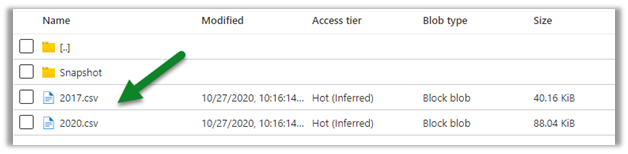
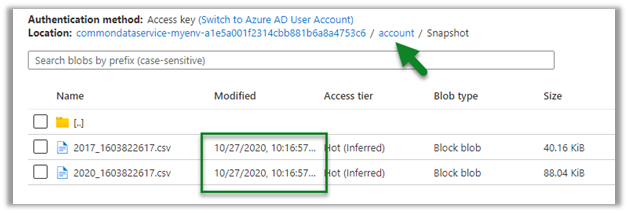
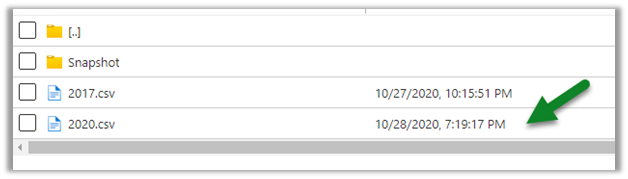
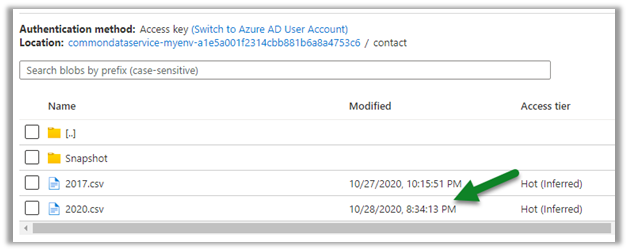
We can see the file created in the Blob storage

We can see it populated with the source columns specified in CRM Source component.

Similarly using the Azure Blog Source component, we can read the files and can use it for any destination component including Dynamics 365 Destination.

Hope it helps..

Connect to Dynamics 365 through Script Component – SSIS


For complex data migration requirements, usually we’d be using 3rd party tools like KingswaySoft or Scribe, or Informatica as they already have components (connection, transformation, source, destination etc.) built for Dynamics 365 instead of building our own.

Check other posts on data migration https://nishantrana.me/2020/10/16/ssis-kingswaysoft-and-dynamics-365/

https://nishantrana.me/2020/05/19/data-migration-in-dynamics-365-key-considerations/

For some simple / basic requirements instead of using 3rd party tools, we can write our own packages – script components that consumes Dynamics 365 service.

In this post, we’d see how can we consume Organization Service inside the Script Component.

We are taking a very simple example, where our source is a text file having contact records with just 2 columns’ first name and last name.

Let us create a new package, add a data flow task and drag Flat File Source and Script Component to it.

Specify the connection for the Flat File that points to the Contact.txt file.

Specify 3 Variables that we would be using inside the Script Component.

Double click the Script Component, and select the variables defined

Select the input columns that we are getting from the source text files

Click on Edit Script which opens the Visual Studio

Add references to

  • Microsoft.Xrm.Sdk
  • System.ServiceModel

Also, add the Microsoft.Xrm.Sdk.dll to the GAC.

Specify the connection using the variable as shown below in the PreExecute method

Process each row in the ProcessInputRow method and create the contact record.

Build and close the VSTA (Visuals Studio Tools for Application) project and run the package.

After successful execution, we can see the records created inside Dynamics 365

Hope it helps..