How to – Read Secret from Azure Key Vault using SecretClient (UsernamePasswordCredential)– C#


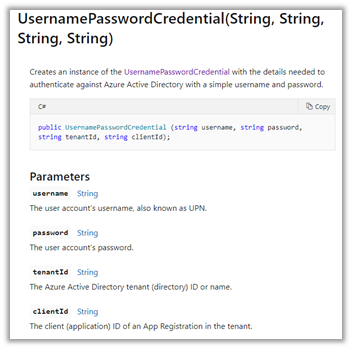
In the previous post, we used ClientSecretCredential Token Credential to read the secret from the Key Vault. In this post, we’d use UsernamePasswordCredential class instead.

Login to Azure Portal –

https://portal.azure.com/

Here we have generated a Secret named secret1 inside MyKeyVaultCRM

We have also provided GetSecret permission to the below User account

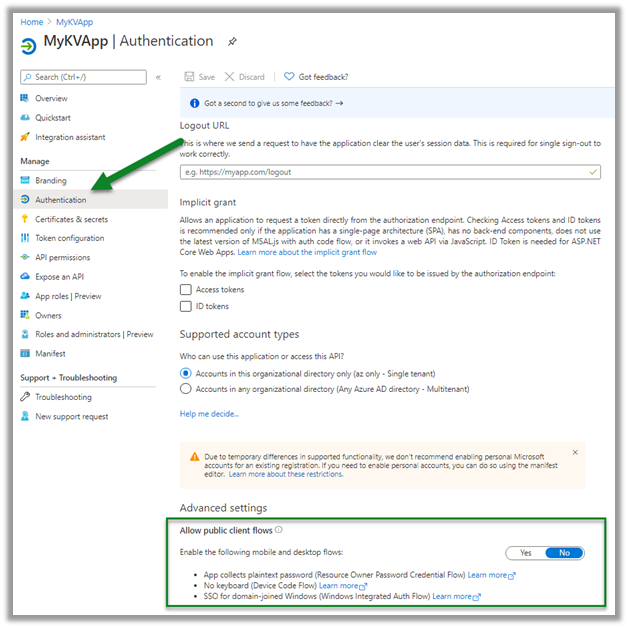
Also, we have registered an app

And enabled All public client flows for generating the token using username and password.

Let us create a console app to read the secret.

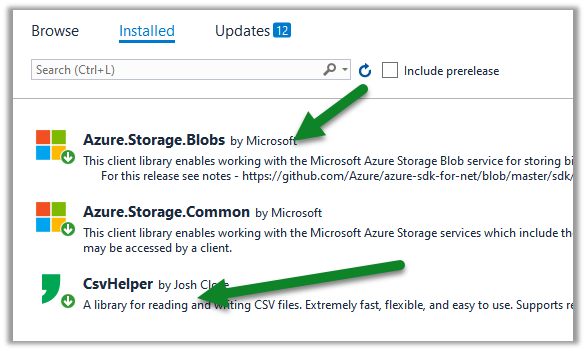
Add the following NuGet packages to the project.

Get the Vault URI and Directory ID (tenant id)

And the Client Id of the App registered

Sample source code:

We are using SecretClient class here.

Get all the details here

https://azuresdkdocs.blob.core.windows.net/$web/dotnet/Azure.Identity/1.4.0-beta.1/api/index.html

Hope it helps..

Advertisements

How to – Read Secret from Azure Key Vault using SecretClient class – Console App C#


Azure Key Vault can save 3 different types of information.

  • Keys – Encryption keys (asymmetric – public/private), can be created in Key Vault or imported, stored in software or HSD
  • Secrets – unstructured text, can be created or imported, stored in the software.
  • Certificates – can be created or imported, contains 3 part – cert metadata, key and secret

Key Vault provides data protection – at rest, in transit, and use.

Key Vault provides Application Security i.e. instead of saving secrets hardcoded in the application, or the configuration files, the secrets can be stored in Key Vault.

Login to Azure Portal

https://portal.azure.com/

Here we have generated a Secret named MyCRMKey inside MyDynamics365KeyVault

We have also provided GetSecret permission to the MyApp application registered in the Azure AD.

Let us create a console app to read the secret.

Add the following NuGet packages to the project.

Get the Vault URI and Directory ID (tenant id)

And the Client Id of the App registered

Sample source code:

We are using SecretClient class here.

Get all the details here

https://azuresdkdocs.blob.core.windows.net/$web/dotnet/Azure.Identity/1.4.0-beta.1/api/index.html

Hope it helps..

Advertisements

Creating Better PCF Component – Part 2


temmyraharjo's avatarTemmy Wahyu Raharjo

When I was writing this post, I felt the environment that I set up did not enhance my ability to write code. The reason for this is because I use jsdom, which is a mock object for the HTML component. Because it is not a real object of HTML, my focus has been changed to the test code instead of writing the implementation code. 

I ask my friend about how it is hard to implement unit testing in PCF Development (I need to install various NPM Packages to do the testing only. Most of the time because standard HTML API is not there!). Then he replied that Node.Js is not the same as Javascript in HTML. It means that PCF runs in Node.js for development, but we rely on browsers instead of Node.js functions. So my focus is set once again to make it better. We…

View original post 649 more words

How to – Use AzCopy to transfer files from local drive to Azure Blog Storage


AzCopy is a command-line utility that can be used for copying data to and from the storage accounts.

Download the appropriate version of the tool –

https://docs.microsoft.com/en-us/azure/storage/common/storage-use-azcopy-v10#download-azcopy

We’d upload the files to the following container

Below will be the source files

Let us login first (here we are using Azure Active Directory to authorize AzCopy, the other option is using SAS token)

https://docs.microsoft.com/en-us/azure/storage/common/storage-use-azcopy-v10?WT.mc_id=itopstalk-blog-thmaure#authorize-azcopy

It will ask us to open the URL in the browser and enter the code followed by credentials.

After successful sign-in we can close the browser window.

Now let us transfer the directory along with the files inside it using the below syntax

azcopy copy ‘<local-directory-path>’

https://<storage-account-name&gt;.<blob or dfs>.core.windows.net/<container-name>’ – -recursive

in our case,

azcopy copy ‘C:\Customers’ ‘https://storageaccountrg9b58.blob.core.windows.net/mycontainer1‘ – -recursive

Get the URL from the Properties of the container

Make sure the account (service principal) used has the Storage Blob Data Contributor or Storage Blog Data Owner role assigned required for uploading the files.

Run the command.

We can see the folder and files successfully transferred.

Check other posts – 

Transfer files using – Azure Blob Upload task and Premium File transfer task using SSIS Package

https://nishantrana.me/2020/11/24/transfer-files-from-local-drive-to-azure-blob-using-azure-blog-upload-task-ssis/

https://nishantrana.me/2020/11/20/transfer-files-from-local-drive-to-azure-blob-using-premium-file-transfer-task-ssis/

Hope it helps..

Advertisements

Transfer files from local drive to Azure Blob using Azure Blob Upload Task – SSIS


Similar to Premium File Transfer Task,

The Azure Blob Upload Task component can be used to easily transfer files from local drive to Azure Blob storage.

https://docs.microsoft.com/en-us/sql/integration-services/control-flow/azure-blob-upload-task

Let us take a simple example to see it in action.

Here we will pick the folder Customer and its subfolders along with the files inside it and will move it or transfer to the Azure Blob Container.

Create a new SSIS Package and drag the Azure Blob Upload Task to the control flow designer.

Double click the task and specify the following values as shown below

AzureStorageConnection – specify the SSIS Connection Manager for Azure Storage.

Blob Container – the name of the existing blob container

Local Directory – the local directory containing the files to be uploaded.

Search Recursively – specify whether to search for files within Sub-directories.

File Name – specify the pattern for the files to be selected.

Time Range from/to – to pick files modified within that range.

Let us execute the package.

We can see the content transferred successfully to Azure Blog storage


Also, check out –

Using Azure Blob Storage component with Dynamics 365

https://nishantrana.me/2020/10/20/using-kingswaysoft-azure-blob-storage-component-with-dynamics-365/

Hope it helps..

For SharedAccessSignature -specify following details

Account Name – Storage Account Name, Name of blob in the Blob Path.

Select appropriate permissions and Generate SAS Token for the blob, copy and paste the Blob SAS Token in the Token in the connection editor above.

Test Connection –

Fixed – authorizationpermissionmismatch Azure Blob Storage


We got the below error while trying to transfer files to Azure Blob Storage using AzCopy

INFO: Authentication failed, it is either not correct, or expired, or does not have the correct permission -> github.com/Azure/azure-storage-blob-go/azblob.newStorageError, /home/vsts/go/pkg/mod/github.com/!azure/azure-storage-blob-go@v0.10.1-0.20201022074806-8d8fc11be726/azblob/zc_storage_error.go:42

===== RESPONSE ERROR (ServiceCode=AuthorizationPermissionMismatch) =====

Description=This request is not authorized to perform this operation using this permission.

RequestId:43ee21af-501e-0055-30ef-c07ec3000000

Time:2020-11-22T16:51:42.0459952Z, Details:

   Code: AuthorizationPermissionMismatch

   PUT https://storageaccountrg9b58.blob.core.windows.net/mycontainer1/Customers/CIF1/Sample1.txt?timeout=901

Here we were using Azure Active Directory to provide authorization credentials to AzCopy

https://docs.microsoft.com/en-us/azure/storage/common/storage-use-azcopy-v10#option-1-use-azure-active-directory

The account (service principal) we were using was having the Owner Role

To fix this issue, we assigned the

Storage Blob Data Contributor role to the account.

Retrying again after some time fixed the issue.

Points to keep in mind –

https://docs.microsoft.com/en-us/azure/storage/common/storage-use-azcopy-authorize-azure-active-directory#verify-role-assignments

Hope it helps..

Advertisements