
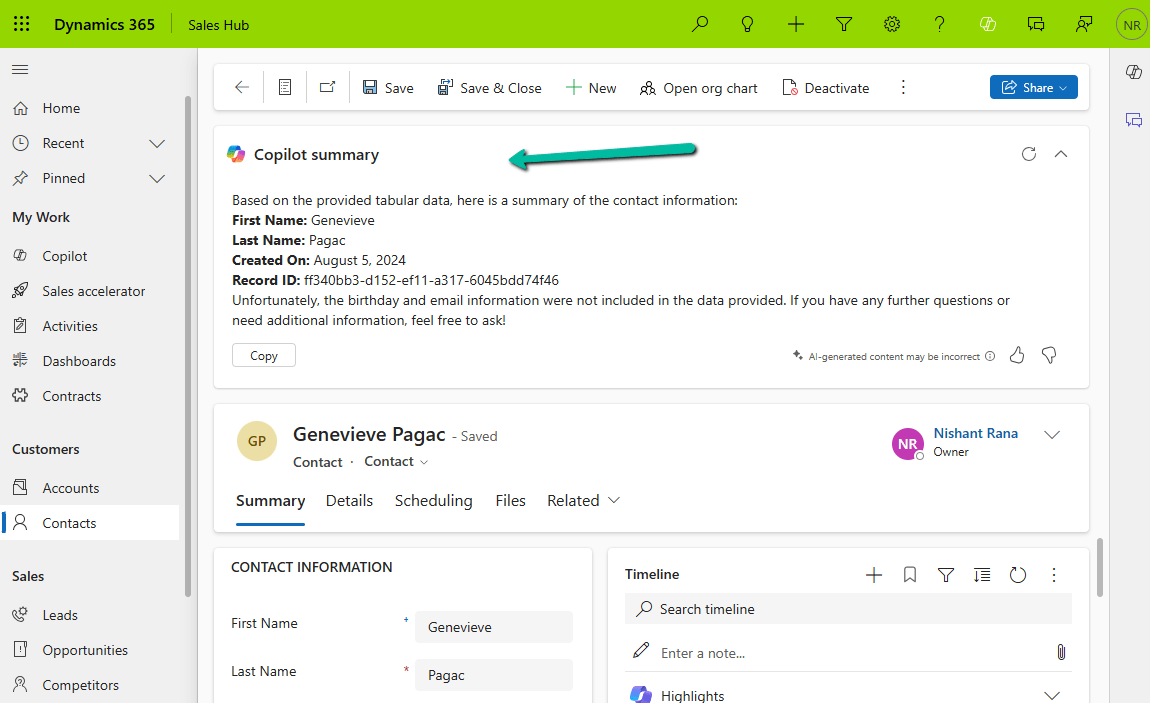
We all know how frustrating it can be to dig through records just to find key details. With AI-generated record summaries, users can instantly access important information—saving time, reducing effort, and boosting productivity.
We can now create AI-powered record summaries for any table in Power Apps using a simple, guided prompt builder. We get to choose the fields and details that matter most, ensuring users see the right information briefly. There’s even an online testing option to fine-tune the summary before rolling it out. Once set up, the record summary will be readily available in forms, making information access effortless.
To enable it inside the Power Platform Admin Center, select an environment and navigate to
Environment >> Settings >> Features >> AI insights cards

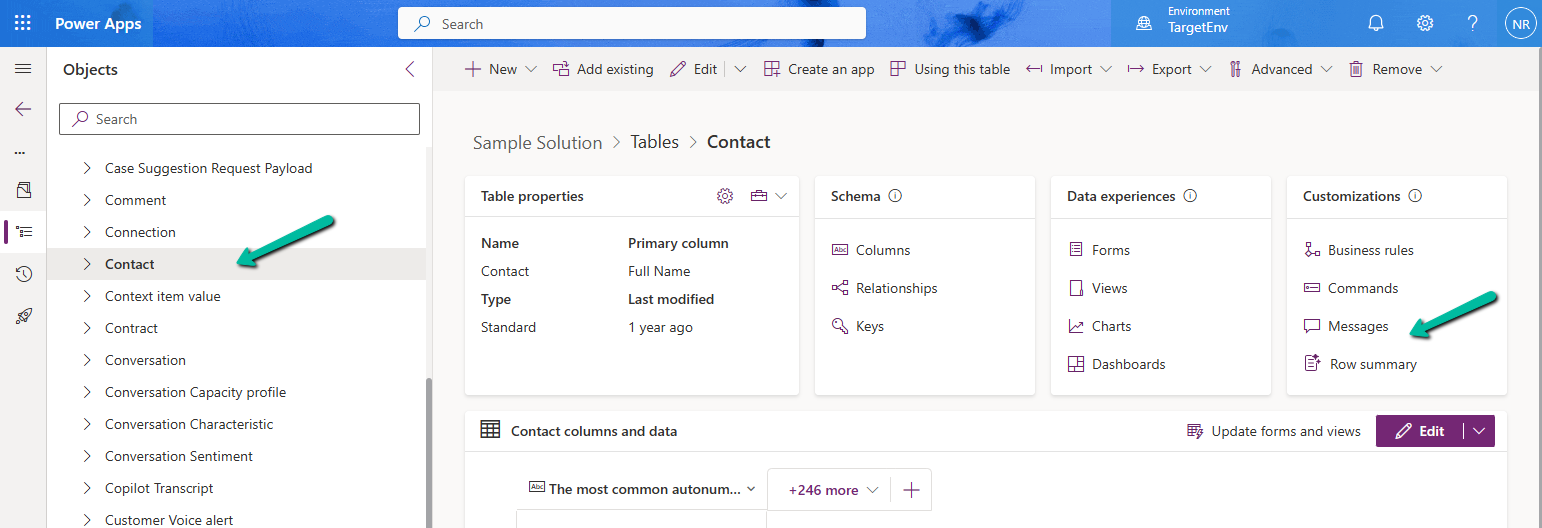
Inside Maker Portal, select the table, and from the Customizations section select the Row summary option.
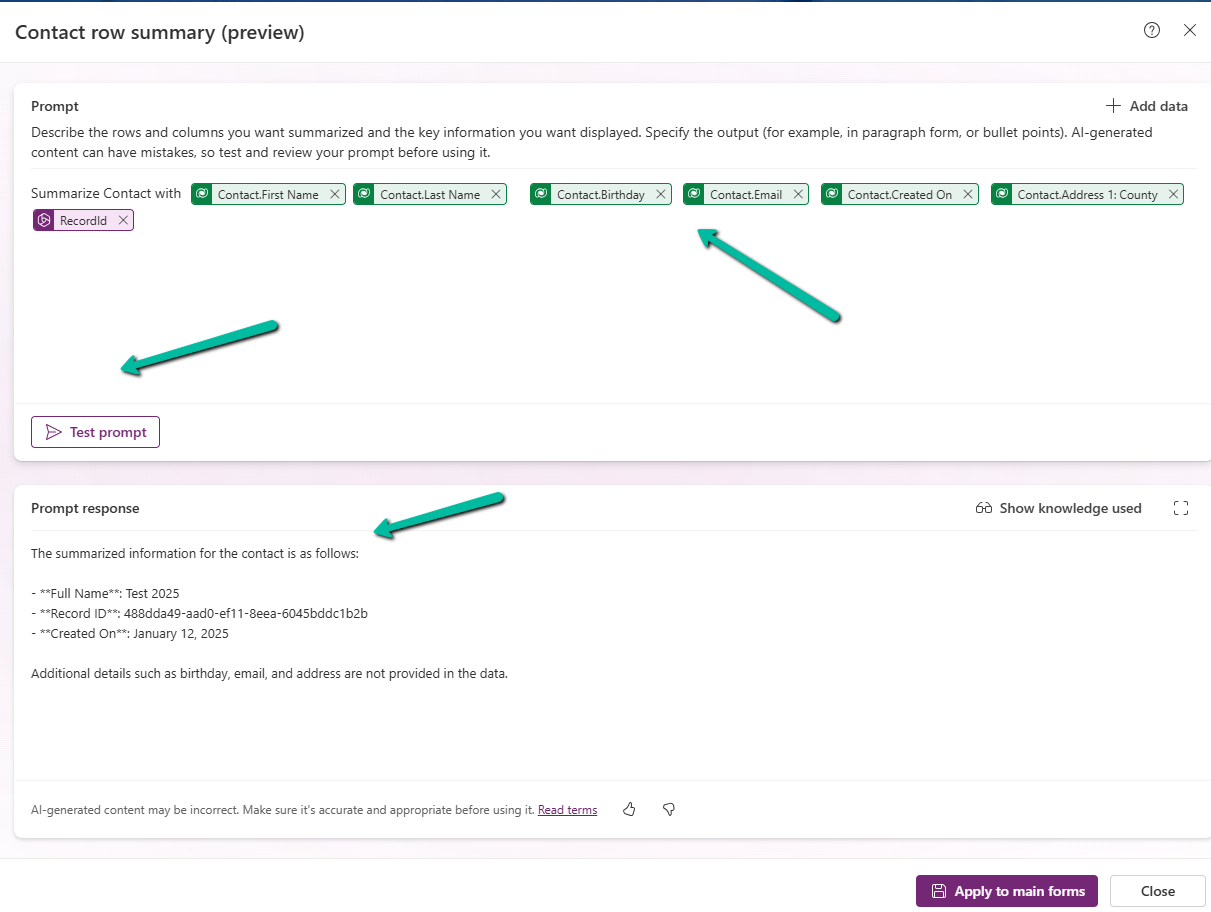
In the Prompt box, we can specify the columns we want to include as part of the summary.
We can click on +Add data to do so can type the name of the field after “/”
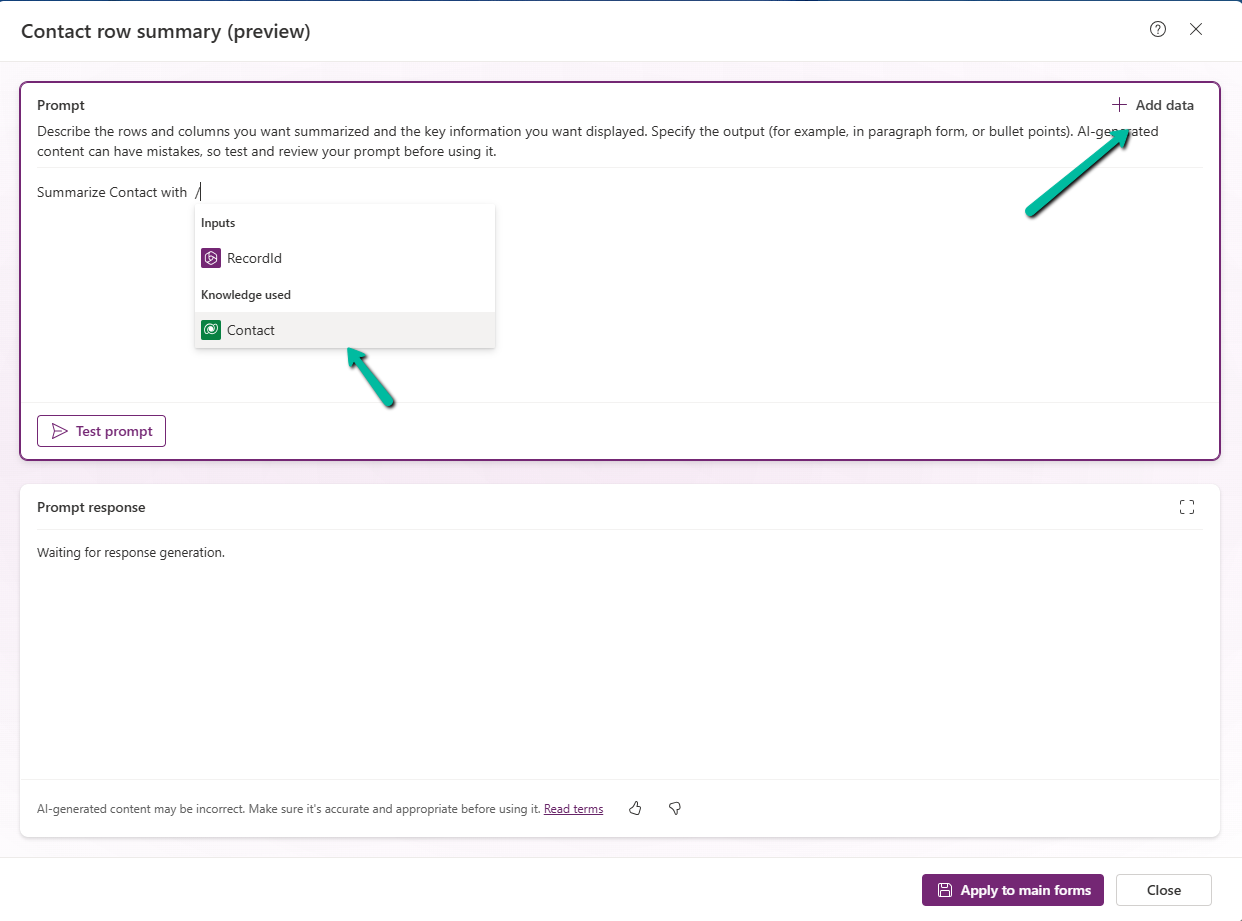
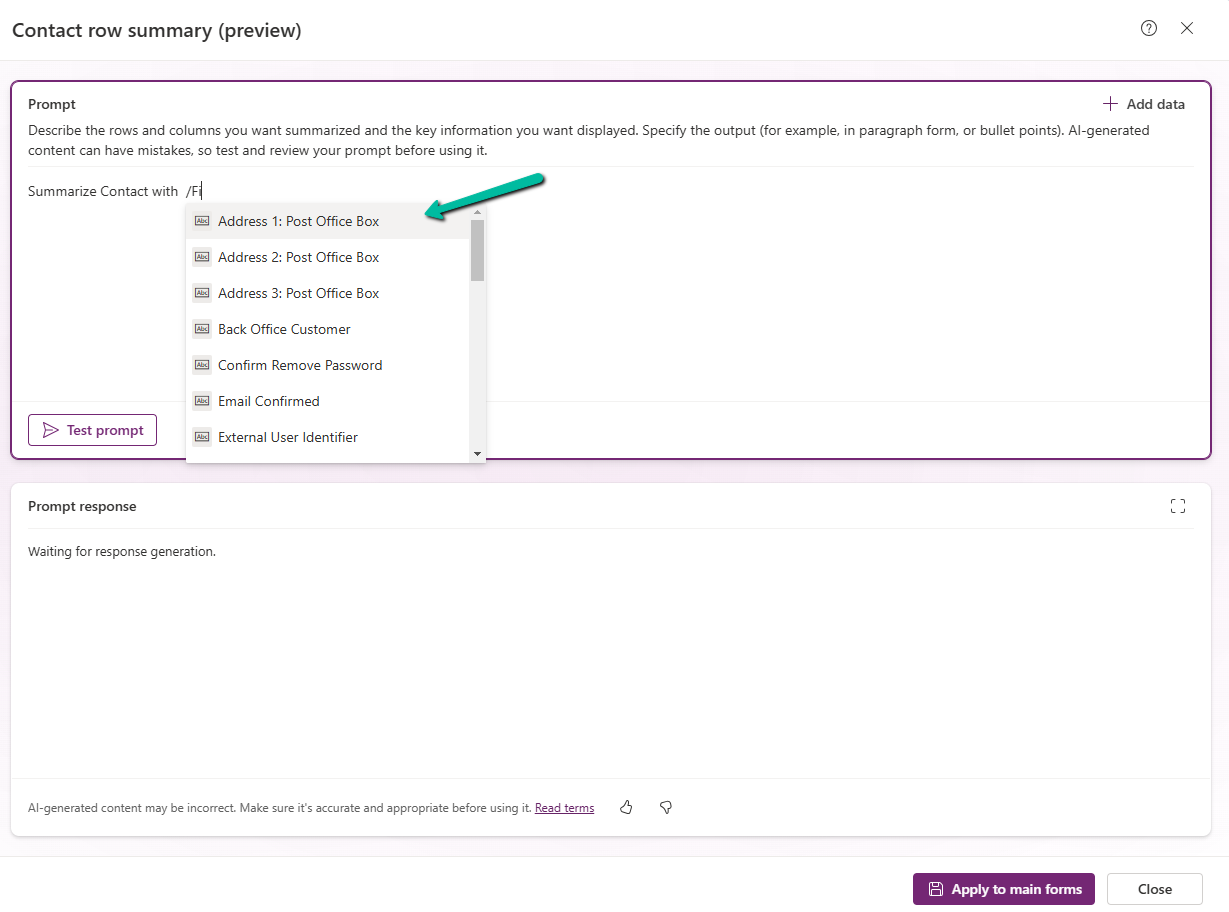
After specifying the fields, we can click on the Test prompt to see the response. And can fine tune it further.
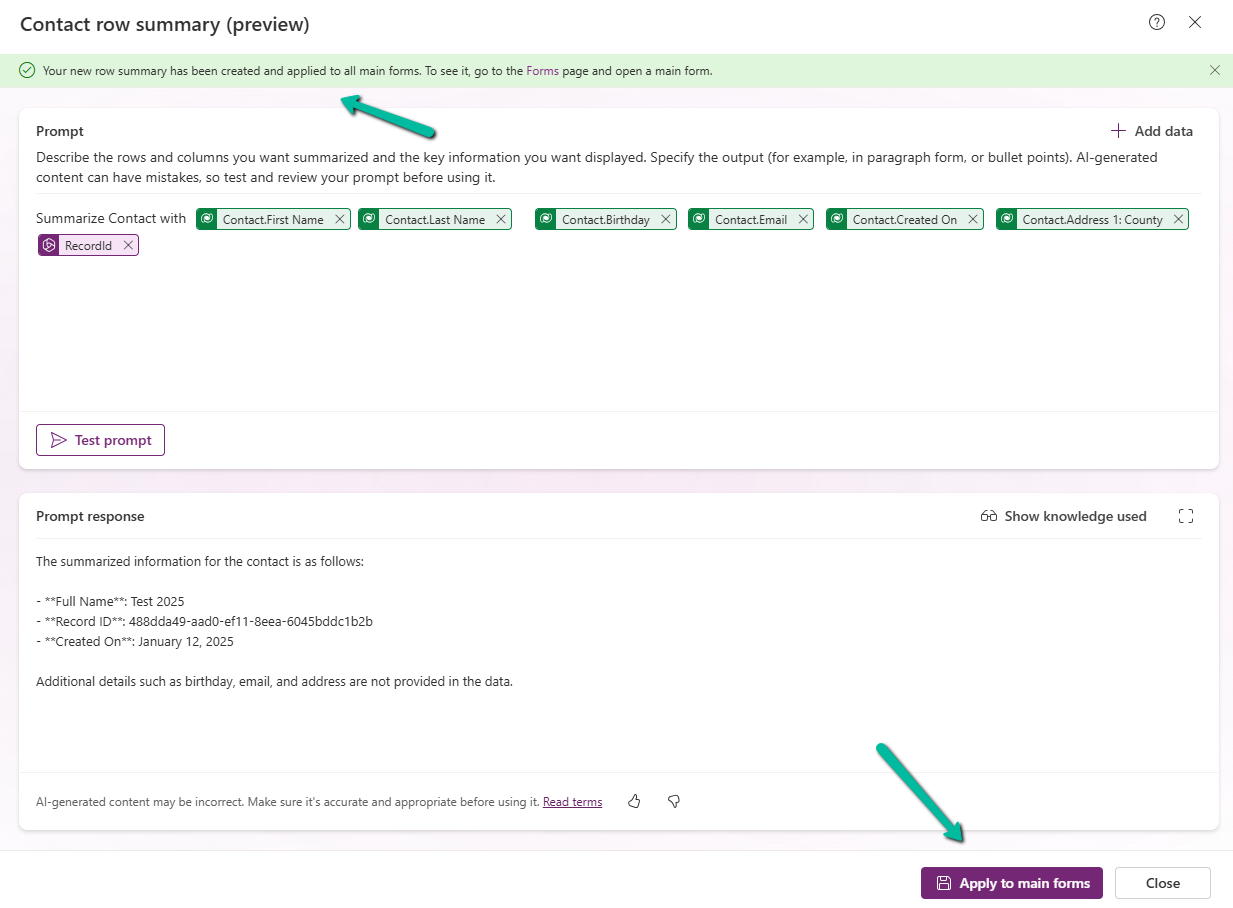
Clicking on Apply to main forms applies to all the main forms for the table.
We can see the icon added next to the main forms.
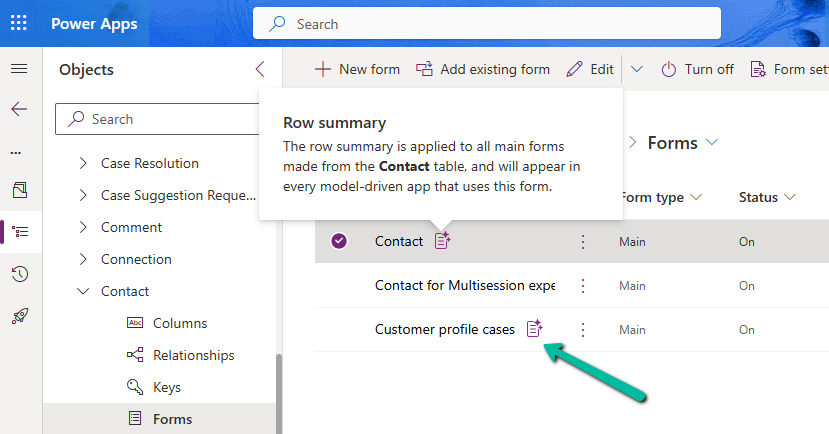
The Row summary toolbar allows us to show, hide, and edit the summary.

Publish the changes.
Below we can see the summary generated for the Contact’s main forms.

Get more details.
Hope it helps..
Discover more from Nishant Rana's Weblog
Subscribe to get the latest posts sent to your email.
Share It -


 Nishant Rana's Weblog
One thought on “How to – Configure Copilot Row Summary for tables main form – Dataverse / Dynamics 365”