Using Microsoft Copilot Studio to create Copilot for Teams channel with Dataverse as Knowledge source – Copilot / Dataverse


Below are the quick steps to create a copilot with Dataverse as the Knowledge source and Teams as the channel

Open the Microsoft Copilot Studio site https://www.microsoft.com/en-us/microsoft-copilot/microsoft-copilot-studio

Select the Try free option to get started.

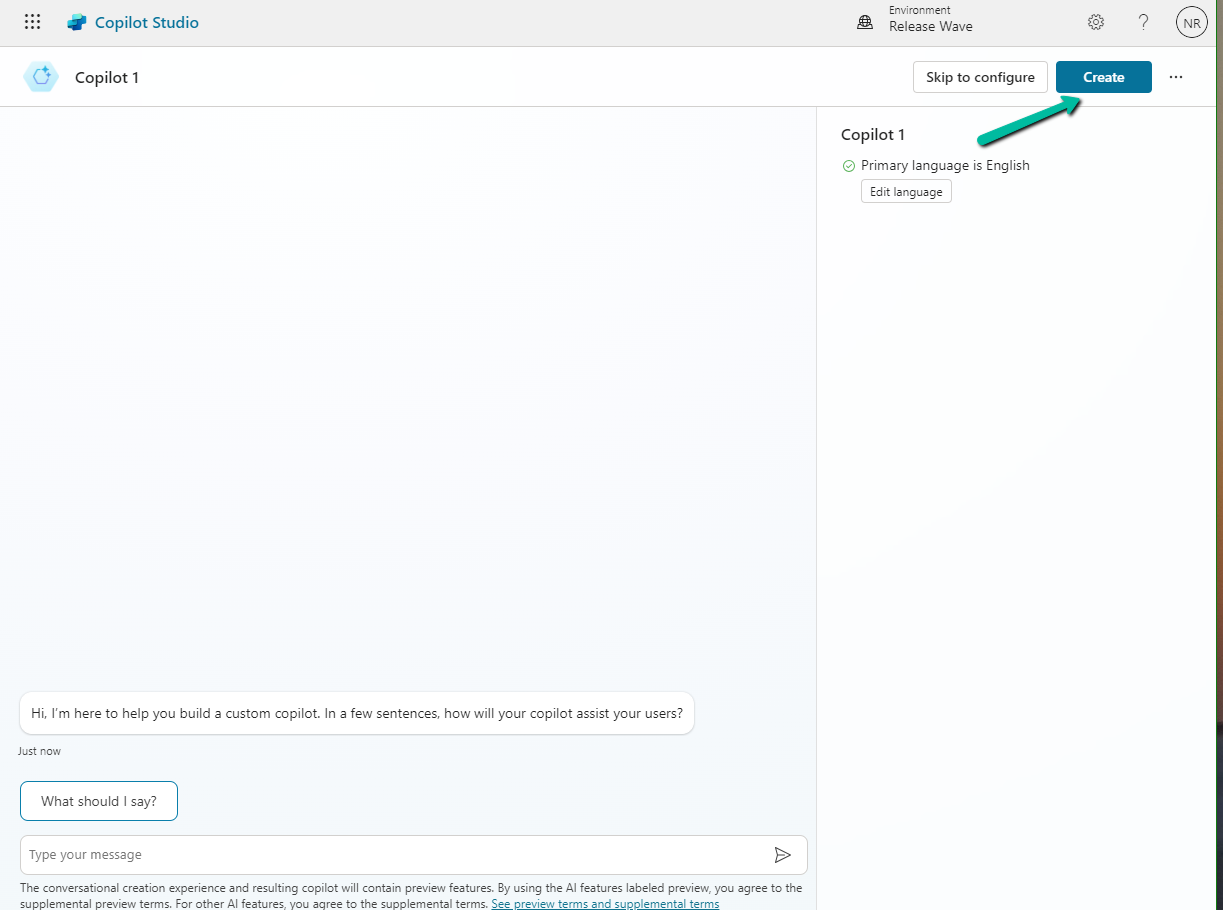
Select the appropriate environment and click on New copilot option (Create+)

A screenshot of a computer

Description automatically generated

Select Create

A screenshot of a computer

Description automatically generated

Here we have renamed the Copilot, next click on Add knowledge to add Dataverse as the source.

A screenshot of a computer

Description automatically generated

Add Dataverse

A screenshot of a computer

Description automatically generated

We can select up to 15 tables, and we have specified lead, contact, account, and case for now.
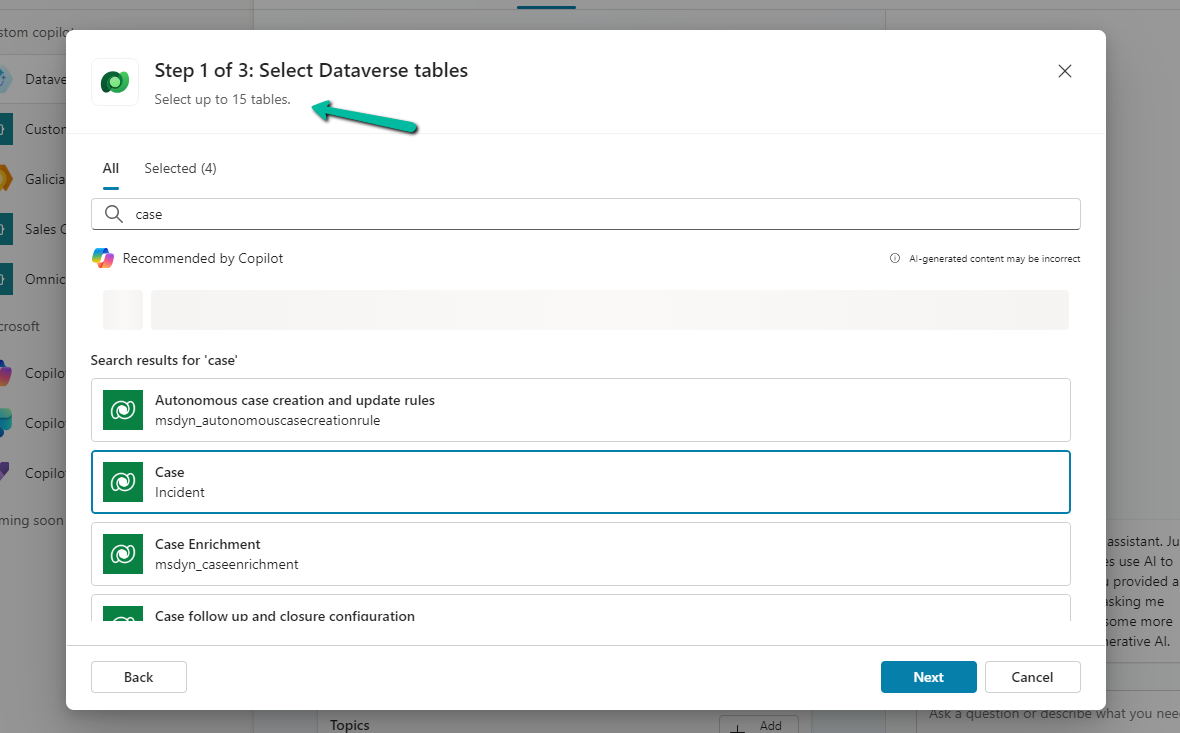
Next, we get the option to review the data for the tables selected.

A screenshot of a computer

Description automatically generated

In the last step, we get the option to review it. Here we can add/ edit the synonyms and glossaries that would make it easier for the copilot to understand and fetch the data. We’d skip it just to see how it works without configuring them.

Our copilot is ready now. The other things that we can do are to add actions, build topics, and publish which we’d leave as it is for now.

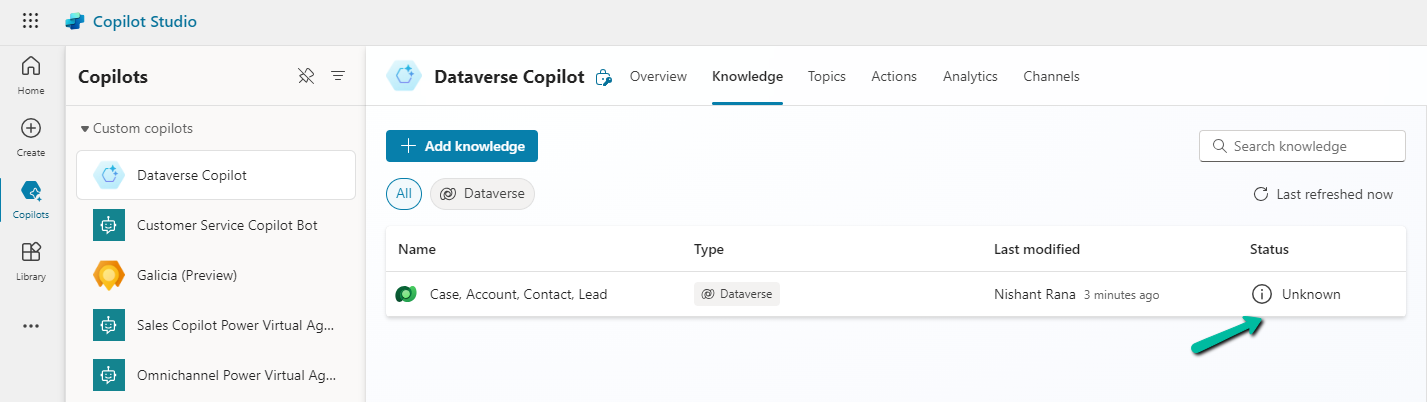
Click on the Knowledge tab. In a short time, we’d see the status changed to In Progress
A screenshot of a computer

Description automatically generated

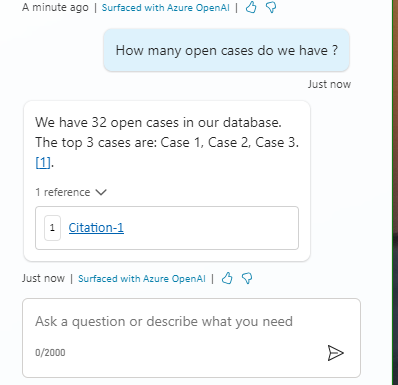
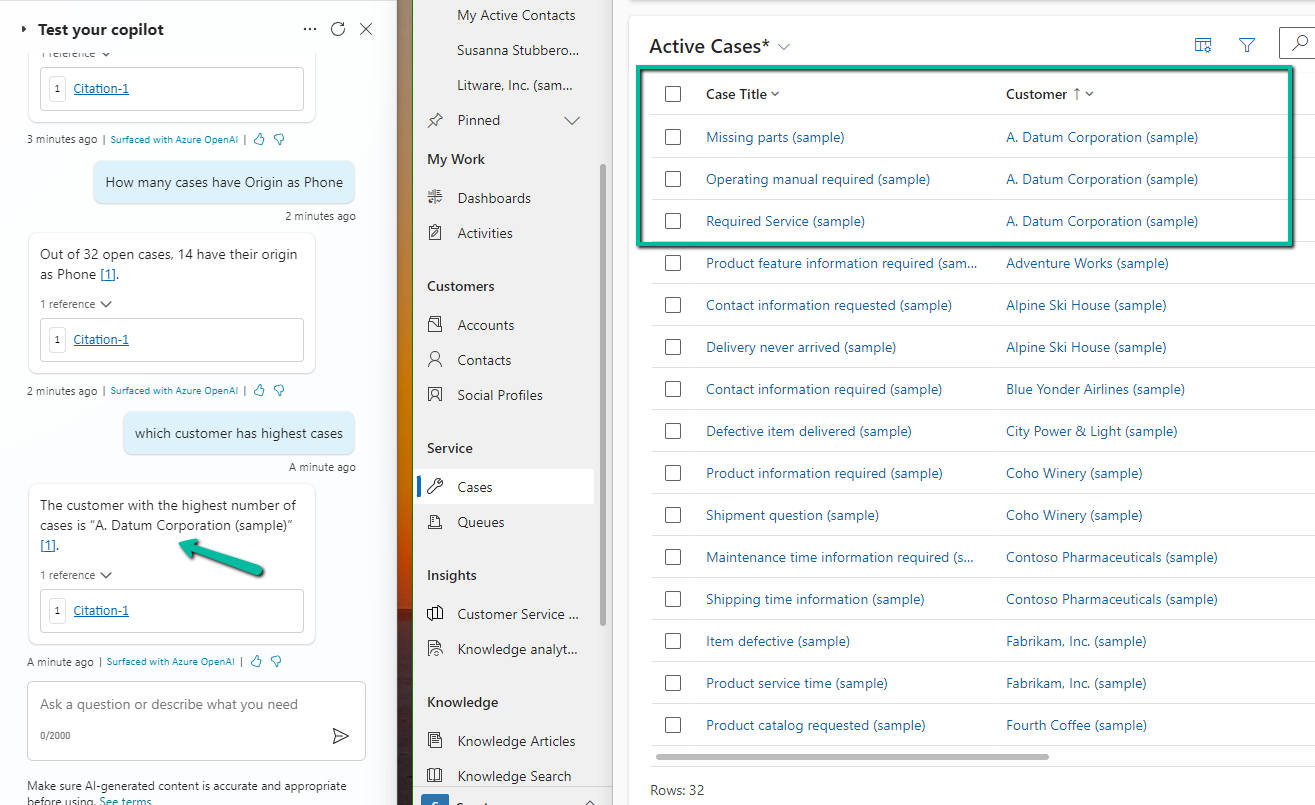
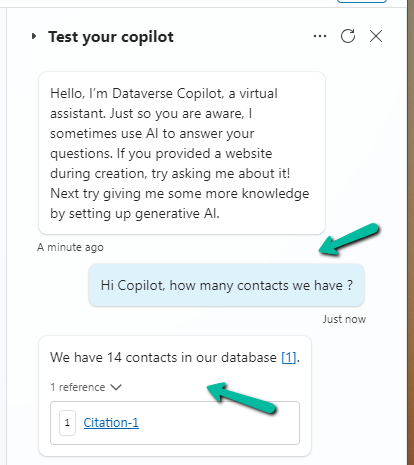
Meanwhile, we can still go ahead and test it.
A screenshot of a chat

Description automatically generated
A screenshot of a computer

Description automatically generated

As we are done with the testing let us try publishing it, before that let us check the authentication for it.

Navigate to Settings >> Security >> Authentication, here we can see Authenticate with Microsoft selected. We’d leave it like that.

Based on the Authentication mode selected, we will have different channels enabled / disabled.

Let us select the Microsoft Teams channel for our copilot.

Select Turn on Teams

A screenshot of a computer

Description automatically generated

Select Edit details

Add / Edit the details and click on Save.

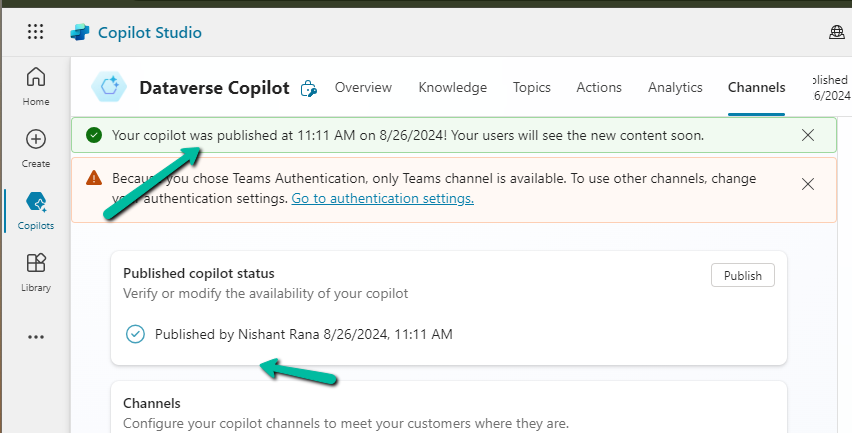
Now time to Publish our copilot.

A screenshot of a computer

Description automatically generated

A screenshot of a computer

Description automatically generated

We can now again open the Microsoft Teams channel and select the Availability options.

Here we can see multiple options, one is to share the link, upload the zip, and show it in the teams store.
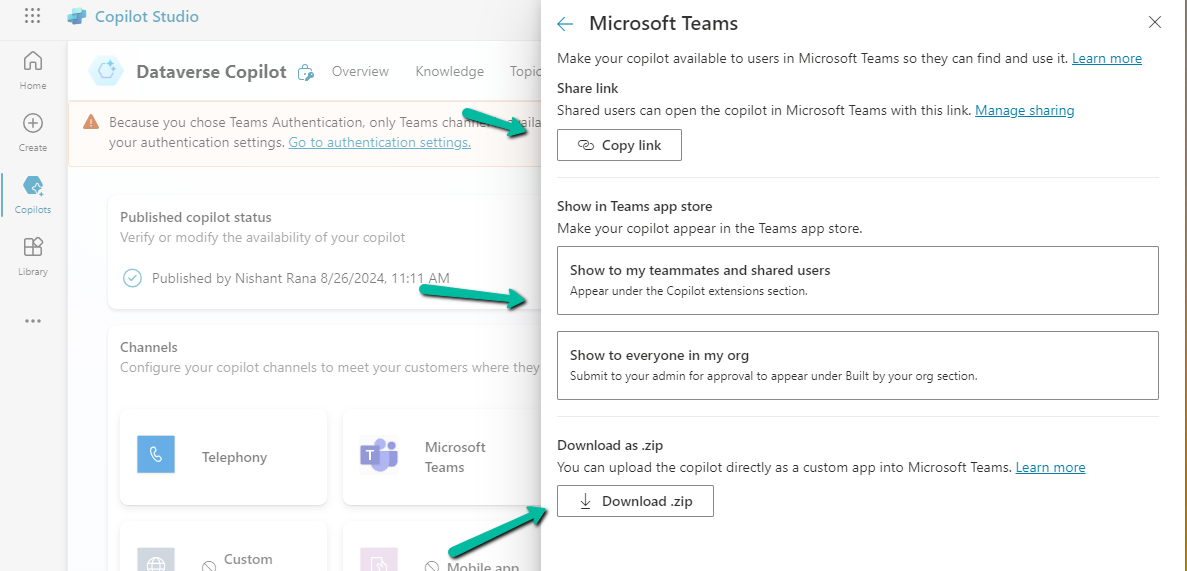
We selected the Show to my teammates and shared users option. We can add search and add users to share it with them.

A screenshot of a computer

Description automatically generated

The other option is to Copy link and share the link.

On opening the link, we get the option to add the app.
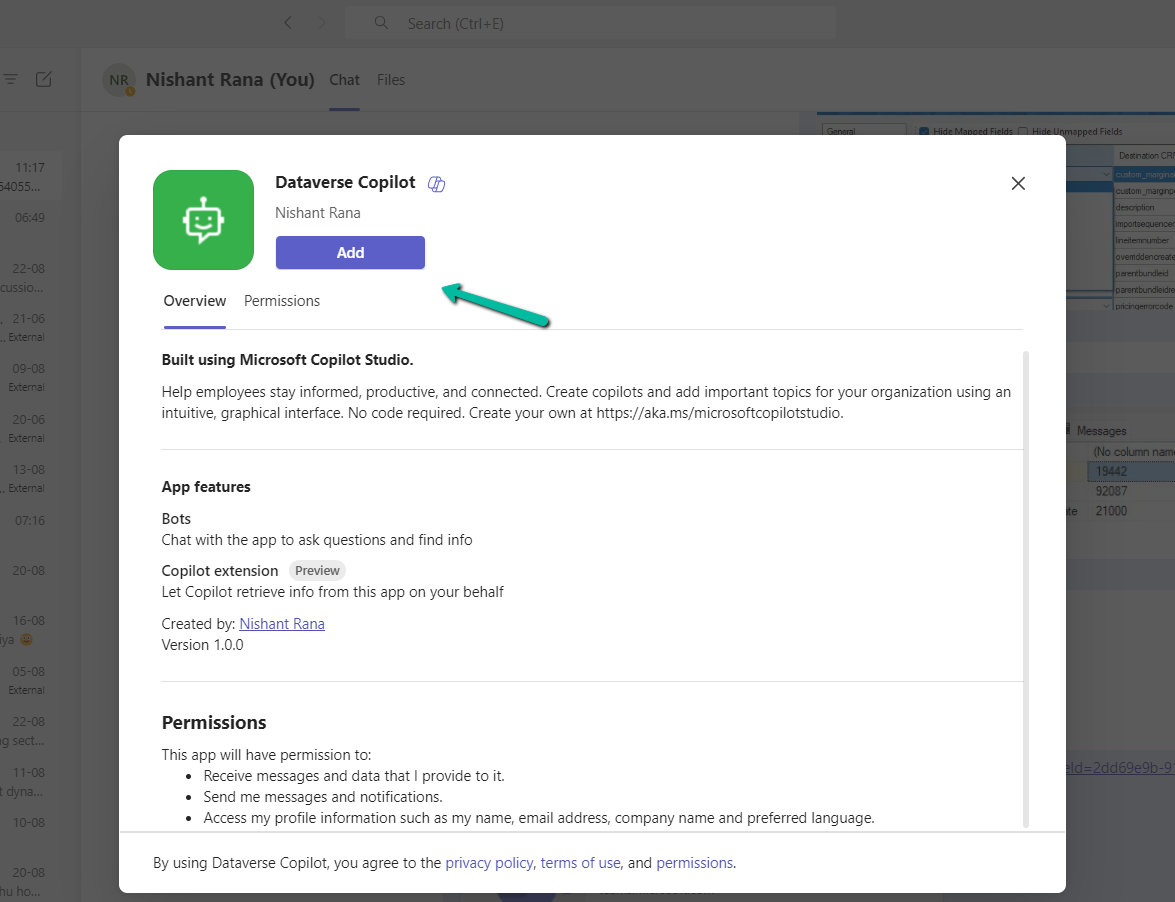
A screenshot of a computer

Description automatically generated

We can see our app added in the Manage your apps section in Teams.

A screenshot of a computer

Description automatically generated

Finally now we can start interacting with our copilot.

Get all the details –

https://learn.microsoft.com/en-us/microsoft-copilot-studio/

Hope it helps..


Discover more from Nishant Rana's Weblog

Subscribe to get the latest posts sent to your email.

Unknown's avatar

Author: Nishant Rana

I love working in and sharing everything about Microsoft.NET technology !

One thought on “Using Microsoft Copilot Studio to create Copilot for Teams channel with Dataverse as Knowledge source – Copilot / Dataverse”

Please share your thoughts

This site uses Akismet to reduce spam. Learn how your comment data is processed.

Discover more from Nishant Rana's Weblog

Subscribe now to keep reading and get access to the full archive.

Continue reading

Power Platform Puzzles

D365 CRM, Power Platform Tips &Tricks

Power Spark

Power Spark By Shrangarika

Van Carl Nguyen

Exploration of Power Platform

My Trial

It is my experience timeline.

Power⚡Thomas

Sharing my knowledge and experience about the Microsoft Power Platform.

Arpit Power Guide

a guide to powering up community

Welcome to the Blog of Paul Andrew

Sponsored by Cloud Formations Ltd

Deriving Dynamics 365

Deriving Solutions and features on Power Platform/Dynamics 365

The CRM Ninja

Thoughts & musings from a Microsoft Business Applications Ninja!

D CRM Explorer

Learn about Microsoft Dynamics CRM Power Platform customization and implementation and other cool stuffs

Stroke // Jonas Rapp

I know pre-stroke. I will improve who I was.

Power Melange

Power Melange By Shalinee

Clavin's Blog - PPUG.ORG

AI - Power Automate - Power Apps - SharePoint Online - Azure - Nintex - K2 - Artificial Intelligence

Sat Sangha Salon

An Inquiry in Being

The Indoencers

The Influencers & Influences of Indian Music

Monika Halan's blog

Hand's-free money management

D365 Demystified

A closer look at Microsoft Dynamics 365.

Microsoft Mate (msftmate) - Andrew Rogers

Experienced consultant primarily focused on Microsoft Dynamics 365 and the Power Platform

Manmit Rahevar's Blog

One Stop Destination for Microsoft Technology Solutions

MG

Naturally Curious

Brian Illand

Power Platform and Dynamics 365

Steve Mordue

The Professional Paraphraser

Subwoofer 101

Bass defines your home theater

SQLTwins by Nakul Vachhrajani

SQL Server tips and experiences dedicated to my twin daughters.

Everything D365

Discovering Azure DevOps and D365 Business Applications

Tech Wizard

Lets do IT Spells

XRM Tricks (Power Platform & Dynamics CRM )

Power Platform & Dynamics CRM

CRM TIPS BY PRM

Mail to crmtipsbyprm@gmail.com for queries and suggestions

nijos.dev

Giving back to the community what I have learned

Power Platform Learning

Your Go-To Resource for Power Apps, Power Automate & More

xrm CRM Dynamics

Dynamics CRM Technical & Functional Info

Dynamics 365 Blogs - Explained in unique way

Sometimes you need to look at things from different perspective.