

Let us see a simple example to upload the file to Azure Blob Storage through a desktop application (C#).
Below is our Storage account and the container to which we will upload the files from the local drive.

Get the Connection String for the storage account from the Access Key area

Next – Create a console application or windows form application project and add the following NuGet Package
Azure.Storage.Blobs

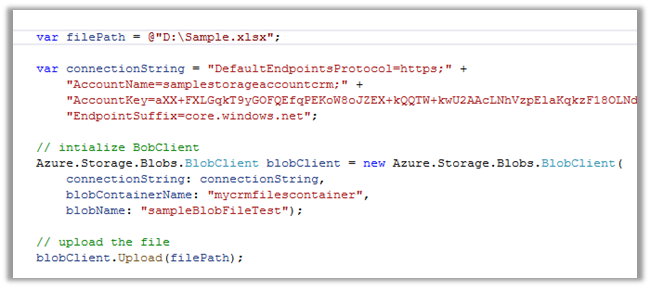
Sample code –
The uploaded file –

Also check out – https://nishantrana.me/2020/11/25/use-azcopy-to-transfer-files-from-local-drive-to-azure-blog-storage/
Hope it helps..
 var filePath = @"D:\Sample.xlsx";

            var connectionString = "DefaultEndpointsProtocol=https;" +
                "AccountName=samplestorageaccountcrm;" +
                "AccountKey=aXX+FXLGqkT9yGOFQEfqPEKoW8oJZEX+kQQTW+kwU2AAcLNhVzpElaKqkzF18OLNd1pCy2NEniTMLTwwDoiv4Q==;" +
                "EndpointSuffix=core.windows.net";

            // intialize BobClient
            Azure.Storage.Blobs.BlobClient blobClient = new Azure.Storage.Blobs.BlobClient(
                connectionString: connectionString,
                blobContainerName: "mycrmfilescontainer",
                blobName: "sampleBlobFileTest");

            // upload the file
            blobClient.Upload(filePath);
Advertisements
Discover more from Nishant Rana's Weblog
Subscribe to get the latest posts sent to your email.
Share It -


 Nishant Rana's Weblog
Thank you!
LikeLike