

In this series, we’ll see how we can integrate Azure Service Bus Queue with D365. This series has been divided into 2 parts:
Part 1: How we can create a service bus queue in Azure portal and registration of service endpoint using plugin registration tool
Part 2: Do some operation in D365 and the message appears in Service Bus Queue. Also, read the message from queue.
Part 1: Create service bus queue in Azure portal
- Login to azure portal using your account
- Click on Create a Resource and in the text box type service bus
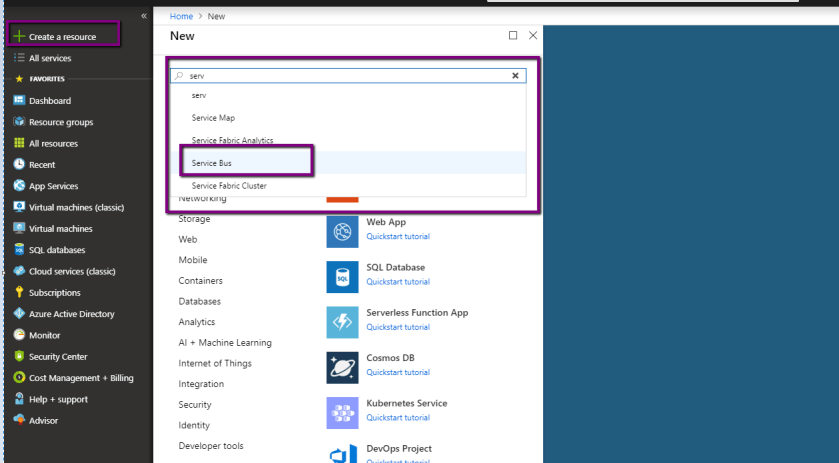
- Click on Create

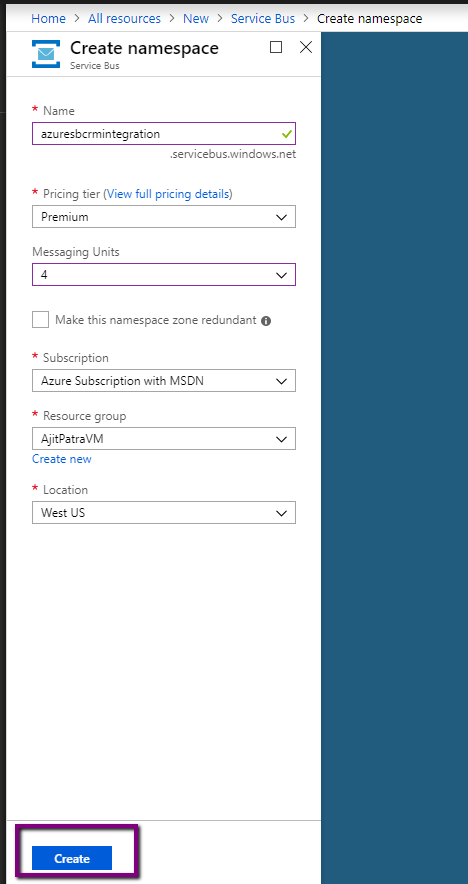
- Give a unique name to service bus namespace and fill the mandatory fields. Then click Create.
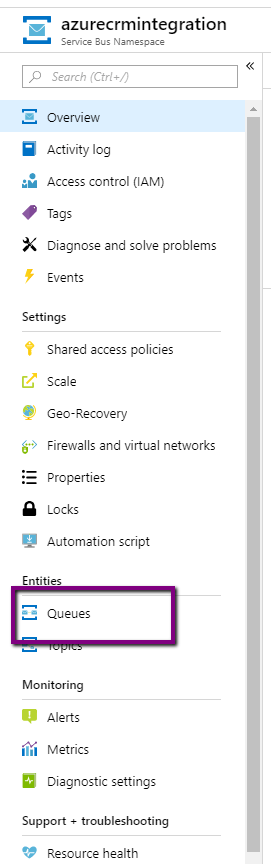
- Then browse to the service bus namespace and click on Queues.
- Click +Queue.

- Give a unique name for queue and let’s leave the rest of the fields as it is and click Create.
View original post 192 more words
Discover more from Nishant Rana's Weblog
Subscribe to get the latest posts sent to your email.
Share It -


 Nishant Rana's Weblog