

Below is our sample record for a custom table custom_contract for which we will be creating the folder in SharePoint and associated it with this record using the SharePoint Document Location record. We’d use the same naming pattern that CRM uses i.e. Name + ”_” + ”GUID”

Below we have passed the details of the record along with CrmServiceClient and SharePoint’s client context.
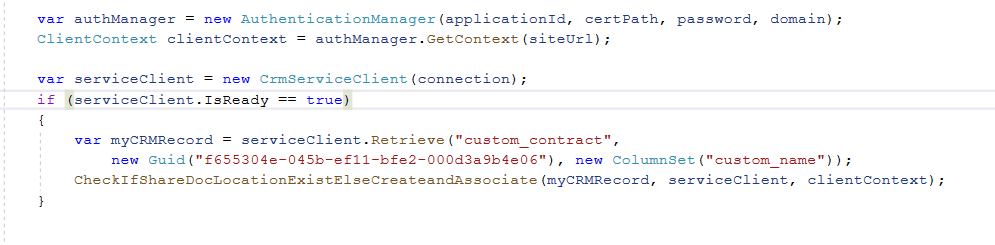
The below code will first check if there is already a SharePoint Document Location created by CRM using ends with GUID condition. If it doesn’t exist, we are using the name field plus GUID of the record to create the folder in SharePoint and then associate using SharePoint Document Location record. Also we have used Regex to make sure we replace the special characters with “-“ similar to what CRM does. We are also checking if the Folder exists with that name in SharePoint before creating one.
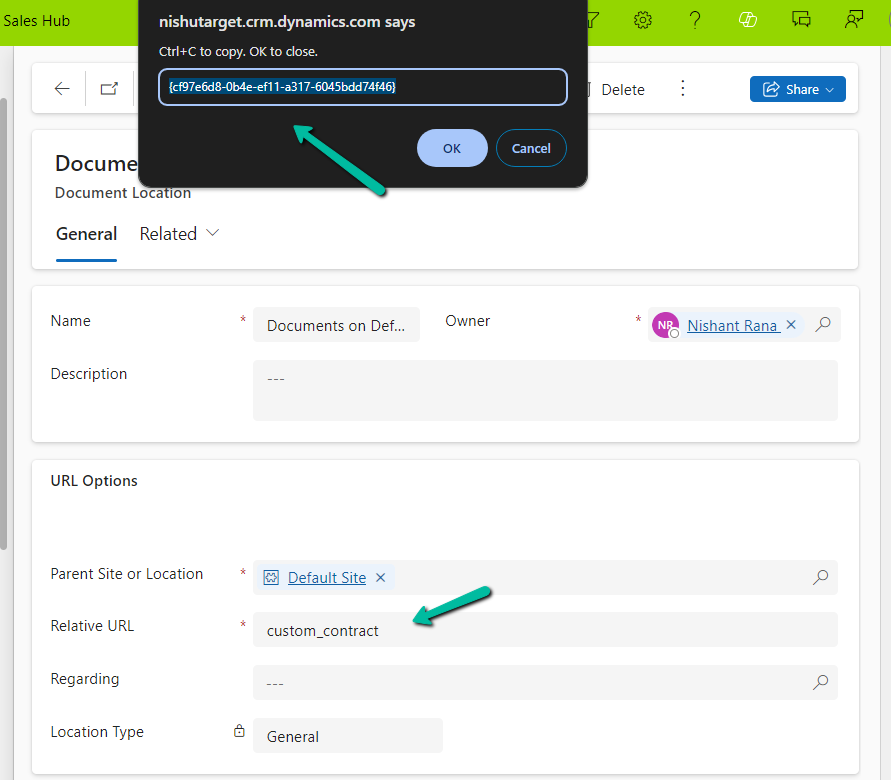
Below is the GUID / record we have specified while creating the SharePoint Document Location record, the SharePoint Document location configured for that particular table.
The sample code –
  var authManager = new AuthenticationManager(applicationId, certPath, password, domain);
            ClientContext clientContext = authManager.GetContext(siteUrl);

            var serviceClient = new CrmServiceClient(connection);
            if (serviceClient.IsReady == true)
            {
                var myCRMRecord = serviceClient.Retrieve("custom_contract",
                    new Guid("f655304e-045b-ef11-bfe2-000d3a9b4e06"), new ColumnSet("custom_name"));
                CheckIfShareDocLocationExistElseCreateandAssociate(myCRMRecord, serviceClient, clientContext);
            }
 private static void CheckIfShareDocLocationExistElseCreateandAssociate(Entity myCrmRecord, CrmServiceClient serviceClient, ClientContext clientContext)
        {
            var querySharePointDocumentLocation = new QueryExpression("sharepointdocumentlocation");
            querySharePointDocumentLocation.ColumnSet.AddColumns("name", "relativeurl", "parentsiteorlocation", "regardingobjectid");
            querySharePointDocumentLocation.Criteria.AddCondition("regardingobjectid", ConditionOperator.Equal, myCrmRecord.Id);
            querySharePointDocumentLocation.Criteria.AddCondition("relativeurl", ConditionOperator.EndsWith, myCrmRecord.Id);
            var result = serviceClient.RetrieveMultiple(querySharePointDocumentLocation);
            if (result.Entities.Count == 0)
            {
                var folderName = myCrmRecord.Attributes["custom_name"].ToString();
                // this makes sure we replace the special characters with - similar to what CRM does when autocreating the record.
                string regexPattern = @"[~#%&*:<>?/\\{|}.""-]";
                string replacement = "-";
                folderName = Regex.Replace(folderName, regexPattern, replacement) + "_" + myCrmRecord.Id.ToString().ToUpper();
                var folderRelativeURL = "custom_contract/" + folderName;

                Web currentWeb = clientContext.Web;
                var folderExists = currentWeb.DoesFolderExists(folderRelativeURL);
                if (!folderExists)
                {
                    var list = clientContext.Web.Lists.GetByTitle("Documents");
                    list.RootFolder.Folders.Add(folderRelativeURL);
                    clientContext.ExecuteQuery();
                }

                var documentLocation = new Entity("sharepointdocumentlocation");
                documentLocation["name"] = "Documents on Default Site 1";
                documentLocation["relativeurl"] = folderName;
                // specifying the GUID of the SharePoint Document Location configured for that table
                documentLocation["parentsiteorlocation"] = new EntityReference("sharepointdocumentlocation", new Guid("cf97e6d8-0b4e-ef11-a317-6045bdd74f46"));
                documentLocation["regardingobjectid"] = new EntityReference("custom_contract", myCrmRecord.Id);
                serviceClient.Create(documentLocation);
            }
        }
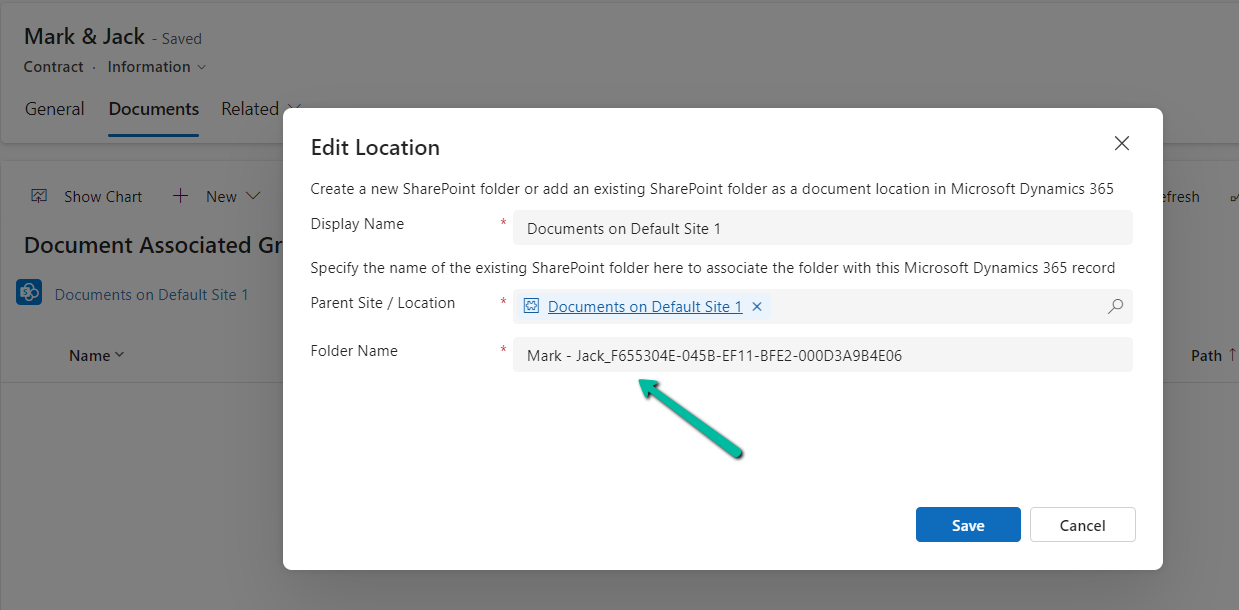
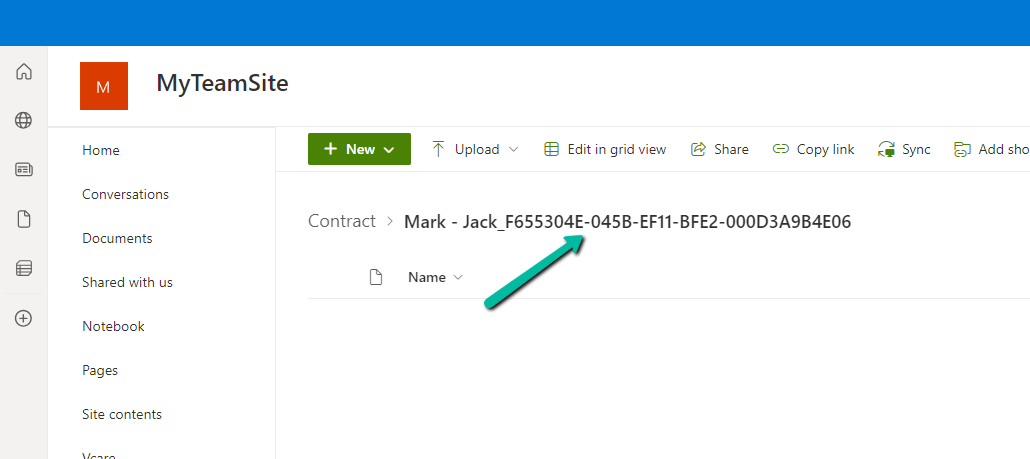
The result –
Also refer –






Hope it helps..

 Nishant Rana's Weblog