“The path is not of a legal form” error while installing Microsoft Data Migration Manager.


This error occurs while installing Data Migration Manager on CRM server.

To resolve this error we need to modify the following registry settings

Key:
[HKEY_LOCAL_MACHINE\SOFTWARE\Microsoft\Windows\
CurrentVersion\Installer\UserData\S-1-5-18\Products
59DD8CB00184F24E99A62CF4D6109FA\InstallProperties]
Value: InstallLocation

Set the value to C:\Program Files\Microsoft Dynamics CRM 
The installation would run without error after this.
Bye..

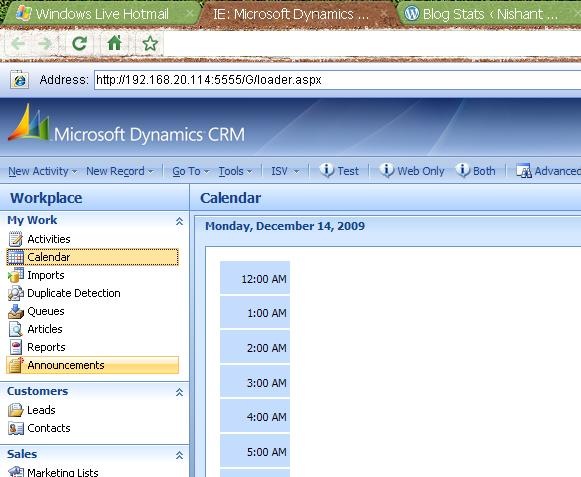
Opening Microsoft Dynamics CRM in Chrome browser.


Using IE tab extension released for Google Chrome we could open our MS CRM inside Chrome.

IE tab extensions https://chrome.google.com/extensions/detail/hehijbfgiekmjfkfjpbkbammjbdenadd

chromeMSCrm

Bye..

Error connecting to Report Server from virtual machine.


Hi,

I was trying to connect to report server (installed on my machine) from the virtual machine on which CRM is installed.(While creating a new organization using Deployment Manager MMC snap-in)

I was getting page not found error for the following url of the report server

http://servername/reportserver.

Later realized that it was because of the new anti virus tool that i had installed, the firewall was set enabled by default.

Disabled the firewall and then everything was fine.

Bye.

Trace file size almost 40 GB in CRM 4


Hi,

I was getting the low disk space notification on my CRM 4 server . I realized that i had enabled Tracing for CRM 4. ( through CRM 4 Diagnosis Tool). I had enabled it some 4-5 months ago, while i was facing certain issue in CRM 4 installation.

I checked the size of the Trace folder, and i was surprised to see it’s size to be almost around 40 GB ! I think as suggested by Microsoft we need to carefully think before we enable tracing.

More on CRM 4 diagnosis tool http://blogs.msdn.com/benlec/archive/2008/03/04/crmdiagtool4-for-microsoft-crm-4-0-has-been-released.aspx 

Bye..

Deploying a multiple assembly plugin


Lets take a simple example for it !!

Suppose this is our Pre-Update Plugin

public void Execute(IPluginExecutionContext context)
{
Calculate myCalculate;
DynamicEntity entity = (DynamicEntity)context.InputParameters[ParameterName.Target];
if (entity.Name == EntityName.lead.ToString())
{
// Get the Last Name string
String lastName =(string) entity.Properties[“lastname”];
// Call the function within the assembly
myCalculate = new Calculate();
lastName=myCalculate.RemoveCharSwithN(lastName);
// Assign the value back
entity.Properties[“lastname”] = lastName;
}
}
This plugin would update the value for lastname field for
the lead record on pre update. It is making use of a 
custom function which is there in some other assembly.
 
The function is a simple function which would replace the
char ‘s’ with ‘m’
 
public class Calculate{public string ReplaceCharSwithN(string a){

return a.Replace(‘s’, ‘n’);

}

}


If we register the above plugin without putting Calculate class’s assembly in GAC, we would get the following error

Count not load the file or assembly ‘Calculator’ or one of its dependencies”

Here we need to put the referenced assembly in the GAC,

followed by an IISReset.

Or the other option with us is to use ILMerge tool. Using it we can combine multiple .NET assemblies into one.

Download and find more information about the tool here

http://research.microsoft.com/en-us/people/mbarnett/ILMerge.aspx

Using the following command we can merge multiple assembly into one

ilmerge /keyfile:g.snk Test.dll Calculator.dll /out:ILMergedLibrary.dll

keyfile –> valid key file

Test.dll—> the plugin’s dll

Calculator.dll—> the custom assembly.

ILMergedLibrary.dll –> The resulting assembly.

And register this newly merged assembly.

Bye.


Developing a simple context sensitive report for CRM


Suppose we want to develop a context sensitive report for contact entity. This report, i should be able run on selected records and it should show information related to those records only.

Lets take an very simple example,

We could develop a report for contacts entity that would display firstname and lastname of the selected records from the grid within CRM.

So we could have our dataset like this

select  CRMAF_FilteredContact.FirstName, CRMAF_FilteredContact.LastName
from FilteredContact as CRMAF_FilteredContact

Then while uploading we would select

“Conacts” for Related Record Types

“Related record types” for Display In.

Another way of creating the above report could be this

Our query for the dataset could be

declare @sql nvarchar(2000)

set @sql=’SELECT  CO.firstname, CO.lastname FROM  (‘+@CRM_FilteredContact +’) CO’

exec(@sql)

Here for @CRM_FilteredContact we would define a report parameter with

name=CRM_FilteredContact

DataType= String

Checked Internal option

Non queried for Available Values

Non queried for Default Values with the following value

select firstname,lastname  from FilteredContact

Than we would upload it in CRM the way described above.


For a report that shows parent and child records information for e.g. contact and all its activities we can use the following query.


SELECT activitytypecodename, regardingobjectidname, subject, fullname
FROM FilteredActivityPointer AS CRMAF_FilteredActivityPointer
INNER JOIN FilteredContact As CRMAF_FilteredContact on
CRMAF_FilteredContact.contactid = CRMAF_FilteredActivityPointer.regardingobjectid

Bye..