Using RetrieveMetadataChangesRequest class (Metadata Querying) in Polaris (CRM 2011)


Hi,

Let us take a very simple example to understand RetrieveMetadataChangesRequest class introduced in Polaris.

In this example we will retrieve information about all the attributes for contact entity where attribute type is of lookup.

For this we will use the RetrieveMetadataChangesRequest class.

This class contains the data which specifies the metadata information that needs to be retrieved.

RetrieveMetadataChangesRequest class has a Query property that accepts an EntityQueryExpression.

RetrieveMetadataChangesRequest retrieveMetadataChangesRequest = new
RetrieveMetadataChangesRequest()
{
Query = entityQueryExpression
};

EntityQueryExpression class defines the query to retrieve the metadata information.

Here we will need to set the following three properties of the EntityQueryExpression class


EntityQueryExpression entityQueryExpression = new
EntityQueryExpression()
{
Criteria = EntityFilter,
Properties = EntityProperties,
AttributeQuery = new
AttributeQueryExpression()
{
Criteria = AttributeFilter,
Properties = AttributeProperties
}
};
  • Criteria – specifies the filter criteria like for which entities we want metadata information to be retrieved.
  • Properties –
    specifies the properties to be returned.
  • AttributeQuery – specifies the criteria and properties for the entities attribute metadata like which type of attribute to retrieve and what all information to be retrieved for that attribute.

Specfying EntityFilter

This is how we will specify that we need metadata information for only the contact entity.

Specifying Properties of the Entity to be retrieved

Here we are specifying all the properties to be returned

MetadataPropertiesExpression EntityProperties = new
MetadataPropertiesExpression() { AllProperties = true };


Here we can set the AllProperties as false and instead specify the property names that we want to retrieve as shown below

EntityProperties.PropertyNames.Add(“AttributeType”);

Specifying the lookup attribute to be retrieved

MetadataConditionExpression metadataconditionexpressionEntity = new
MetadataConditionExpression();
metadataconditionexpressionEntity.PropertyName = "SchemaName";
metadataconditionexpressionEntity.Value = "Contact";
metadataconditionexpressionEntity.ConditionOperator = MetadataConditionOperator.Equals;
MetadataFilterExpression EntityFilter = new MetadataFilterExpression(LogicalOperator.And);
EntityFilter.Conditions.Add(metadataconditionexpressionEntity);

Specifying the properties to be retrieved for the lookup attribute

Here we are specifying that we only need the AttributeType and Description information for the Lookup attributes retrieved.

MetadataPropertiesExpression AttributeProperties = new
MetadataPropertiesExpression() { AllProperties = false };
AttributeProperties.PropertyNames.Add("AttributeType");
AttributeProperties.PropertyNames.Add("Description");

Full sample code

// specifying EntityFilter to only include entity having SchemaName as contact

MetadataConditionExpression metadataconditionexpressionEntity = new
MetadataConditionExpression();
metadataconditionexpressionEntity.PropertyName = "SchemaName";
metadataconditionexpressionEntity.Value = "Contact";
metadataconditionexpressionEntity.ConditionOperator = MetadataConditionOperator.Equals;
MetadataFilterExpression EntityFilter = new MetadataFilterExpression(LogicalOperator.And);
EntityFilter.Conditions.Add(metadataconditionexpressionEntity);

// specfying EntityProperties to include the properties to be retrieved
MetadataPropertiesExpression EntityProperties = new
MetadataPropertiesExpression() { AllProperties = true };
MetadataConditionExpression metadataExpression = new
MetadataConditionExpression("AttributeType", MetadataConditionOperator.Equals, AttributeTypeCode.Lookup);
MetadataFilterExpression AttributeFilter = new
MetadataFilterExpression(LogicalOperator.And);
AttributeFilter.Conditions.Add(metadataExpression);

//A Properties expression to limit the properties to be included with attributes
MetadataPropertiesExpression AttributeProperties = new
MetadataPropertiesExpression() { AllProperties = false };
AttributeProperties.PropertyNames.Add("AttributeType");
AttributeProperties.PropertyNames.Add("Description");

//An entity query expression to combine the filter expressions and property expressions for the query.
EntityQueryExpression entityQueryExpression = new
EntityQueryExpression()
{
Criteria = EntityFilter,
Properties = EntityProperties,
AttributeQuery = new
AttributeQueryExpression()
{
Criteria = AttributeFilter,
Properties = AttributeProperties
}
};

RetrieveMetadataChangesRequest retrieveMetadataChangesRequest = new
RetrieveMetadataChangesRequest()
{
Query = entityQueryExpression
};
RetrieveMetadataChangesResponse retrieveMetadataChangesResponse = (RetrieveMetadataChangesResponse)_service.Execute(retrieveMetadataChangesRequest);
EntityMetadata entityMetadata = retrieveMetadataChangesResponse.EntityMetadata[0];
foreach (AttributeMetadata attMetadata in entityMetadata.Attributes)
{
MessageBox.Show(attMetadata.Description.UserLocalizedLabel.Label);
}

Hope it helps.

ExecuteMultipleRequest message in Polaris (CRM 2011)


Using ExecuteMultipleRequest class we can now execute one or more message requests as a single batch.

For example in the code below we are creating 3 contact entity record as well as deleting one of the contact records as a single batch.

Here below, we are first initializing 3 contact entity record, then creating the associated CreateRequest and DeleteRequest.

We are then adding all these requests to OrganizationRequestCollection which we then use for the Requests property of the ExecuteMutlipleRequest class. The request are executed in the order in which they are added to the OrganizationRequestCollection.

Settings Property defines whether execution should continue if an error occurs and if responses for each message request processed are to be returned or not.

// Create 3 contact entitiy's record
Entity entity1 = new Entity("contact");
entity1.Attributes["lastname"] = "lastname1";
Entity entity2 = new Entity("contact");
entity2.Attributes["lastname"] = "lastname2";
Entity entity3 = new Entity("contact");
entity3.Attributes["lastname"] = "lastname3";
// Create CreateRequest and Delete Request
CreateRequest createReq1 = new CreateRequest();
createReq1.Target = entity1;
CreateRequest createReq2 = new CreateRequest();
createReq2.Target = entity2;

// DeleteRequest with incorrect guid to throw error

DeleteRequest deleteReq = new DeleteRequest();
deleteReq.Target = new EntityReference("contact", Guid.NewGuid());

CreateRequest createReq3 = new CreateRequest();
createReq3.Target = entity3;

// Initialize OrganizationRequestCollection

OrganizationRequestCollection orgReqCollection = new OrganizationRequestCollection();
orgReqCollection.Add(createReq1);
orgReqCollection.Add(createReq2);
orgReqCollection.Add(deleteReq);
orgReqCollection.Add(createReq3);

// Intialize ExecuteMultipleRequest

ExecuteMultipleRequest executeMutlipleRequest = new ExecuteMultipleRequest();
executeMutlipleRequest.Requests = orgReqCollection;
executeMutlipleRequest.Settings = new ExecuteMultipleSettings();

// ContinueOnError - specifies whether to continue in case of error in any of the request or not
executeMutlipleRequest.Settings.ContinueOnError = false;

// ReturnResponses - specifies whether to return responses for the requests or not
executeMutlipleRequest.Settings.ReturnResponses = true;

ExecuteMultipleResponse executeMulResponse = (ExecuteMultipleResponse) _service.Execute(executeMutlipleRequest);

In the above example we are deliberately throwing exception for the DeleteRequest.

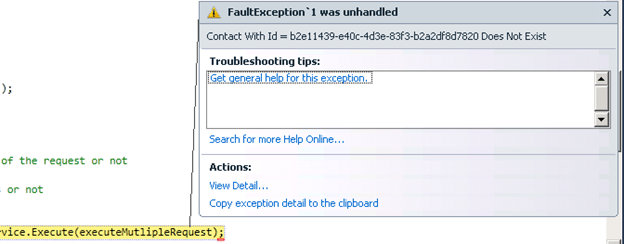
So if we are setting the ContinueOnError property as false, our program will create the first two contact record and then throws exception.

Contact Records Created:

Exception:

And if we are setting the ContinueOnError as true, our program will create all the three contact records and for the DeleteRequest it will return the error message as a part of response as we have set the ReturnResponses as true.

All the three contact records created:

ExecuteMultipleResponse:

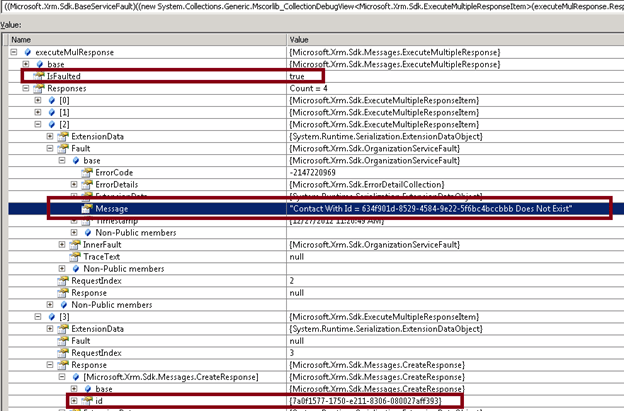
Here we get 4 responses one for each of the requests in OrganizationCollectionRequest.

IsFaulted property of the ExecuteMultipleResponse has value as true as we get a FaultException in case of DeleteRequest.

The Message for the DeleteRequest gives us the error message.

The response for the CreateRequest contains the Guid of the contact record created.


Hope it helps

Simple integration between CRM 2011 online and SharePoint 2013 online.


Hi,

I was recently working on a POC that required us to show a kind of integration between CRM 2011 online and SharePoint 2013 online. Basically here based on the case record opened in CRM we wanted to show associated information in the SharePoint 2013 website (could be wiki page, documents, web page etc.) within an iframe of the Case form.

So we first created an Office 365 Preview account for SharePoint 2013.

http://www.microsoft.com/office/preview/en/office-365-enterprise

Added few documents to it and created a custom search result page.

Here the nice thing about SharePoint 2013 is the Document Preview feature. Hover over the search results and user will be able to see the preview of the same.

Here the search term is passed in the query parameter k

https://xxx.sharepoint.com/search/Pages/results.aspx?k=product1

So we simply had to use the same URL in the IFrame inside CRM and in the onload, change the url to add our own value for k query parameter to show respective search results within CRM’s form IFrame.

We already had a CRM 2011 online (trial) instance created in Office 365 online, unfortunately it had SharePoint 2010 online in it and here we specifically wanted to showcase the Document Preview feature which is not in SharePoint 2010.

The issue here was that both CRM 2011 online and SharePoint 2013 online were part of different Office 365 instance. So if we are showing the SharePoint 2013 page within CRM 2010 online it would give the “user not authorized” access.

The solution to this was to give the CRM 2011 online user access to the SharePoint 2013 site.

For this we need to follow the below steps

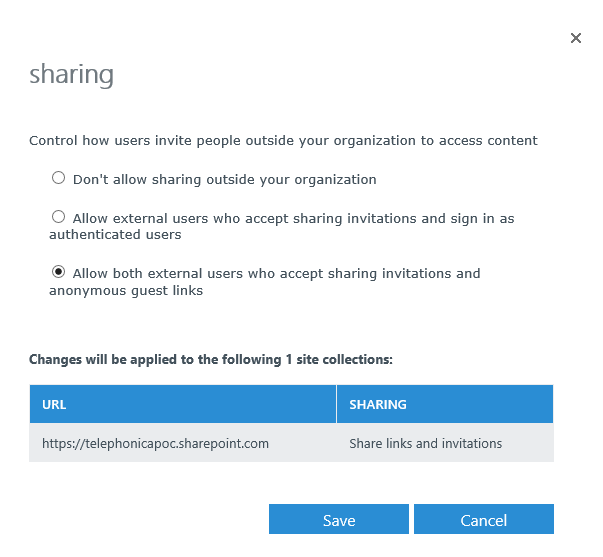
Select the Sharing option for the selected site collection in the SharePoint administration page

Then

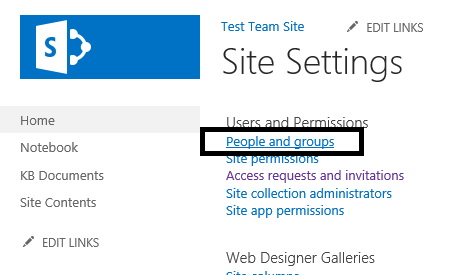
Open the site collection à site settings

Select People and Groups

Add the new user (added the email id of the CRM 2011 online user)

An invitation will be sent to the user’s mail box

CRM 2011 online user can now accept this invitation by logging in with his account. And he would have access to the SharePoint 2013 online site based on the Groups he has added by SharePoint admin. Now the Search Results page of SharePoint 2013 online can be shown inside CRM 2011 without any authentication issue as the user is now member of SharePoint site.

Hope this helps!

Similar Posts

https://nishantrana.wordpress.com/2013/06/13/import-user-profile-properties-in-sharepoint-2013-from-crm-2011-using-bcs/

https://nishantrana.wordpress.com/2013/06/13/integrating-crm-2011-and-sharepoint-2013-using-bcs-wcf-service-crud-operation/

https://nishantrana.wordpress.com/2013/05/04/integrating-crm-2011-online-and-sharepoint-2013-online-using-bcs-odata-proxy/

Quizlet for CRM 2011 Customization and Application Exam


Hi,

I happen to came across these two good resource for someone preparing for the customization and application exam of CRM 2011.

http://quizlet.com/13812439/crm-app-2011-flash-cards/

http://quizlet.com/13348922/crm-2011-customization-config-flash-cards/

Bye.


ExecuteMultipleRequest and RetrieveMetadataChangesRequest in CRM 2011


Hi,

Check out the following MSDN articles to know how to use these new messages added in SDK.

http://msdn.microsoft.com/en-us/library/jj863631.aspx

http://msdn.microsoft.com/en-us/library/jj863599.aspx

Bye.

Sample code to connect Office 365 users to CRM 2011 online


Sharing a sample code that can be used to connect to CRM 2011 online with Office 365.

// Add refereneces to the following dll
 // microsoft.crm.sdk.proxy
 // microsoft.xrm.sdk
 // system.runtime.serialization
 // system.servicemodel

IServiceManagement<IOrganizationService> orgServiceManagement =
 ServiceConfigurationFactory.CreateManagement<IOrganizationService>(new Uri("https://democrm.api.crm5.dynamics.com/XRMServices/2011/Organization.svc"));

AuthenticationCredentials authCredentials = new AuthenticationCredentials();
authCredentials.ClientCredentials.UserName.UserName = _userName;
authCredentials.ClientCredentials.UserName.Password = _password;
AuthenticationCredentials tokenCredentials = orgServiceManagement.Authenticate(authCredentials);

OrganizationServiceProxy organizationProxy = new OrganizationServiceProxy(orgServiceManagement, tokenCredentials.SecurityTokenResponse);
Guid userid = ((WhoAmIResponse)organizationProxy.Execute(new WhoAmIRequest())).UserId;

Sample Code – Dynamics 365 Web API / Organization Service

Bye.

Advertisements