Scribe Online – Create Integration Solution from SQL On-Premise to Dynamics 365 CE Online


In the previous posts, we saw how to create a connection for Dynamics 365 and then how to use the connection to create an integration solution for deleting Dynamics 365 records.

In the post, we’d see how we can connect to SQL On-Premise and create records in Dynamics 365 CE

Sign in to Scribe Online

https://app.scribesoft.com/

For connecting to On-Premise SQL Server we would need to first configure the On-Premise Agent.

Go to Dashboard à Add a new Agent

Click on + install On-Premise Agent
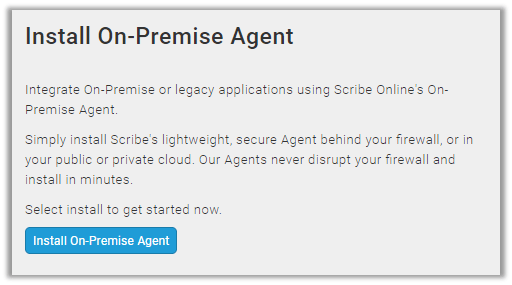
Copy the Agent key presented in the next screen this will used while running the setup for the Scribe On-Premise agent.

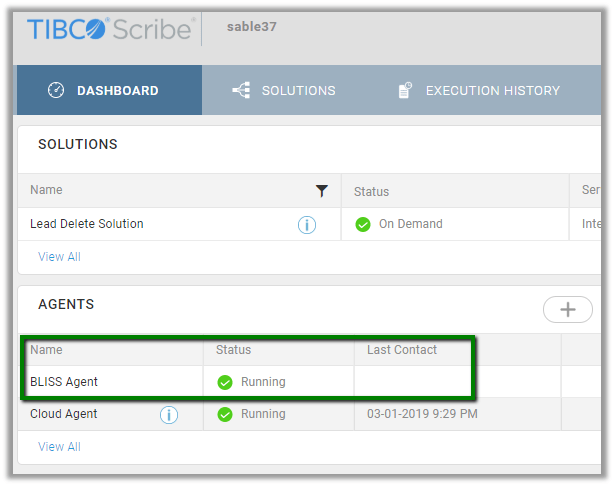
After successful installation, we can see the agent running within the Dashboard.
From the Marketplace Install the SQL Server connector.

Now let us create a new SQL connection, to connect to our SQL Express database.
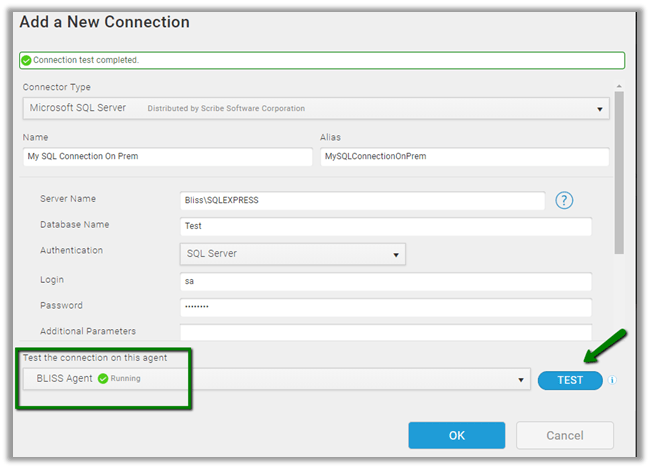
Make sure we have selected the On-Premise Agent. Click on TEST to test the connection.

Next, we will create/ use the existing Dynamics 365 CE connection that reads data from the SQL On-Premise database and creates contact records in Dynamics 365 CE.

Go to the Dashboard and click on + to add a new solution in the Solutions section.

Create a new integration map

Add the SQL Connection and CRM Connection created.
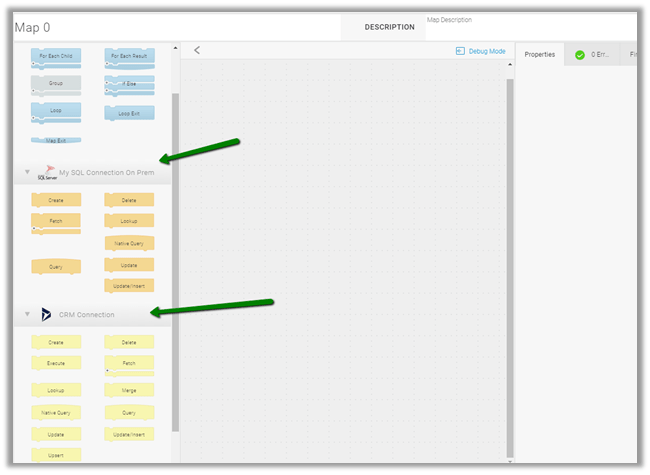
We have dragged the Query block from SQL Connection and selected the Contact table as the entity. Next, we add the For Each Result block and added the Create block from CRM Connection and selected the Contact entity for which we want to create records.
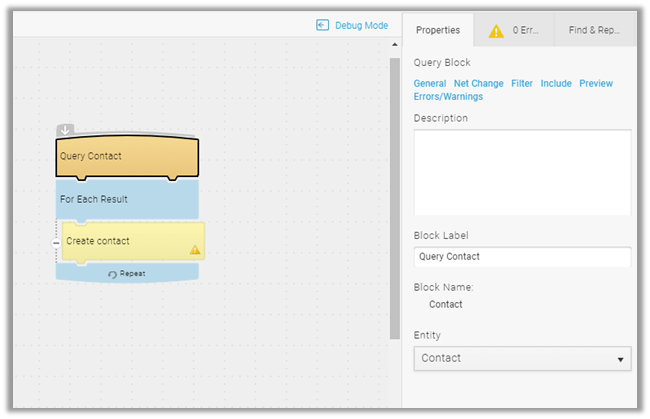
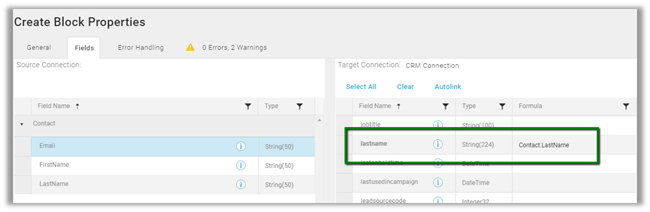
Double click on the Create Contact block for mapping.

In the fields tab, drag the fields of the table to the corresponding fields in the Target CRM Connection.
Let us close the map and the solution and click on RUN to run the solution.
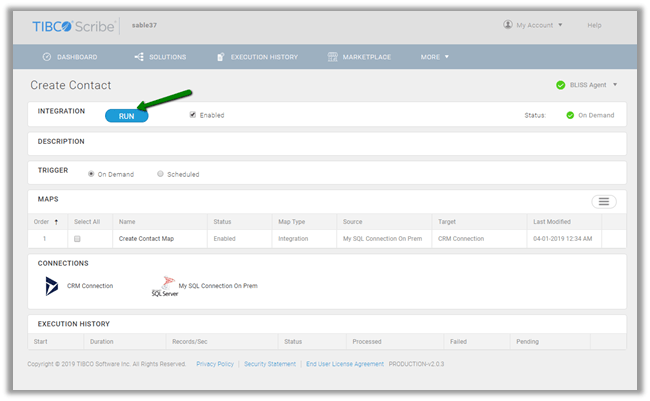
We have the following 2 records in our source SQL On-Premise table.

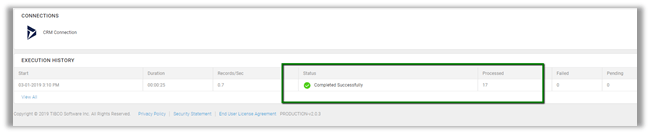
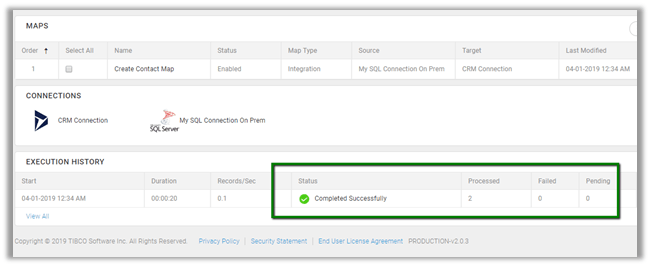
We can see the details in the Execution History on successful completion.
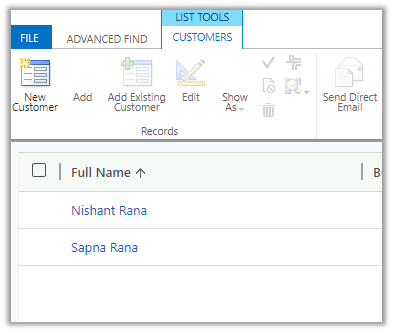
Back in our Dynamics 365 CE, we can see the contact records created.
In the next posts of the series, we’d explore some more features of the Scribe Online.

Hope it helps..

Scribe Online – Creating your first integration solution for Dynamics 365 CE


In the last post, we created the connection for Dynamics 365 CE

https://nishantrana.me/2019/01/08/getting-started-with-scribe-online-connecting-to-dynamics-365-ce/

Here we will create the integration solution that would consume that connection.

We will take the following simple scenario to understand the basics.

“Delete all the leads with Status = Disqualified”

Let us get started à

Login to Scribe Online

https://app.scribesoft.com

Go to Solution Tab and click on + to create a new solution of type Integration

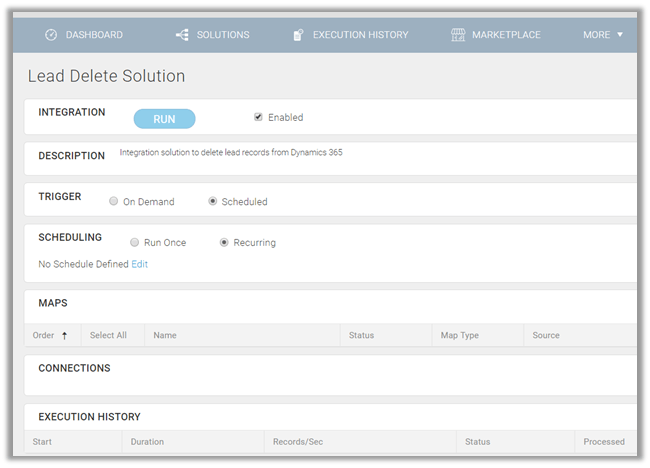
The solution screen provides the option to define the trigger for the Solution, it could be either on demand or can be scheduled to run once or on recurring basis.

The interface for defining the recurrence

For our example, we are keeping it as on demand.

Next, we need to define the MAPS that holds the processing logic of our Solution. Click on the Create Integration Map option to create the map.

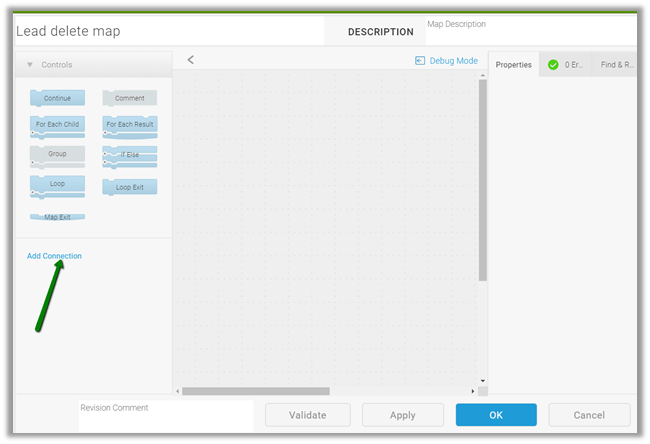
Inside the Map designer, click on Add Connection to add the connection that we created earlier to connect to our Dynamics 365 CE.

Here we have added our CRM Connection created earlier.

This adds the block for our CRM Connection for various operations that can be performed.

Here we will first add the Query block to retrieve all the leads in the state disqualified, followed by For Each Result block to loop through all the records and Delete block to delete those records.

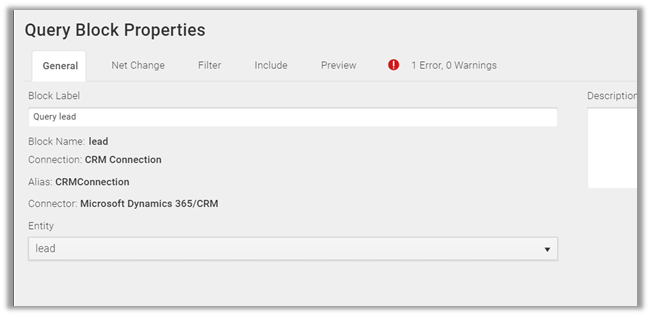
Drag the Query Block, double click on it

Select Lead as Entity and click on Filter to define the filter condition i.e. statecode equals “Disqualified'”

Next drag For Each Result block below the Query lead block.

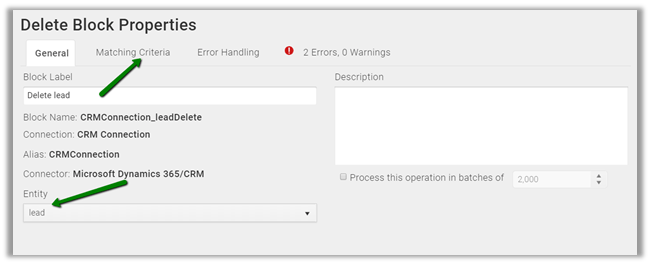
Followed by dragging the Delete block inside the For Each Result and double click it.

Specify lead as the entity and click on Matching Criteria tab

Specify leadid as the field to be used for delete and for Value click on the formula icon

Select the lead as the source and leadid as the field that we would be using from the source Query Block and click on Validate to verify the condition.

Close the Map dialog boxes back in our home pages’ Solutions tab, we will see the status as preparing.

Once prepared we can click on RUN to execute the solution. The execution history will show the details of the run.

After successful completion à

Back in CRM, we can see all the disqualified lead records deleted.

In the next posts, we will try covering other features of the Scribe Online with regards to Dynamics 365 CE

https://nishantrana.me/2019/01/09/scribe-online-create-integration-solution-from-sql-on-premise-to-dynamics-365-ce-online/

Hope it helps..

Getting started with Scribe Online – Connecting to Dynamics 365 CE


In the series of posts – we would see how to quickly get started with Scribe Online and Dynamics 365 integration.

Sign up for the free trial for Scribe Online

https://info.scribesoft.com/trl_scribe-online.html#trial-form

Login with the shared details that we’d receive in our registered email address.

With the Scribe Online Dashboard, Go to the Marketplace and add the Dynamics 365/ CRM connector

With the connector added, now let us create a new connection.

Go to More à Connections

Click on plus sign to add a new connection

Select the connector type as Microsoft Dynamics 365/CRM and add the required details and click on Ok to create the connection.

Deployment – Online, On-Premise, IFD, Azure AD.

For Organization – we need to use the unique name from Customizations à Developer Resources or click on Browse and select the organization.

For Maximum Batch Size and Maximum Batch Threads refer

https://success.scribesoft.com/s/article/Dynamics-365-performance-optimization

Also check the below post for SSIS Integration toolkit of KingswaySoft

https://nishantrana.me/2018/06/04/optimum-batch-size-while-using-ssis-integration-toolkit-for-microsoft-dynamics-365/

https://nishantrana.me/2018/12/19/optimum-batch-size-and-thread-while-deleting-records-using-ssis-integration-toolkit-for-microsoft-dynamics-365/

Click on Test to check the connection, on the successful connection, we get the Connection Test Completed message.

This adds the connection

Here we are done with the connection creation. In the next post, we will see how to create solutions for various data integration scenarios that uses this connection.

Hope it helps..

Dynamics 365 CE Update changed the form’s layout


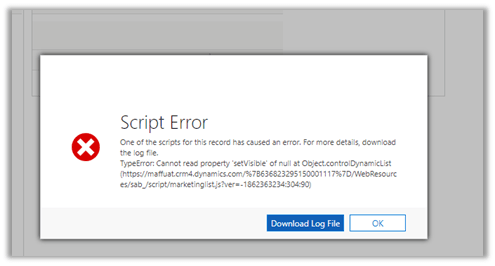
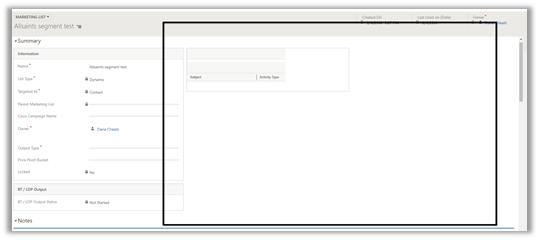
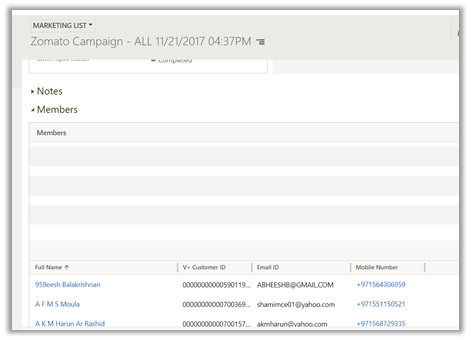
Yesterday one of our users reported that they are getting JavaScript error and the Marketing List’s form was looking a bit different.

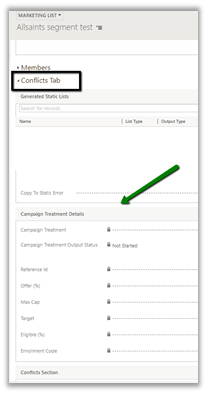
On analysis, we found that the field that was moved to a different tab resulting in JavaScript error and also the Member sub grid (unique to Marketing List) was moved to the bottom of the form in the new tab.

We check the version of the product

So, looks like it was updated that resulted in this issue. And this had affected all our other sandboxes instances. We then manually updated the form in all our instances to fix this. And also it impacted the default OOB form of the Marketing List and the other new custom forms were untouched.

Has anyone else also faced the same recently?

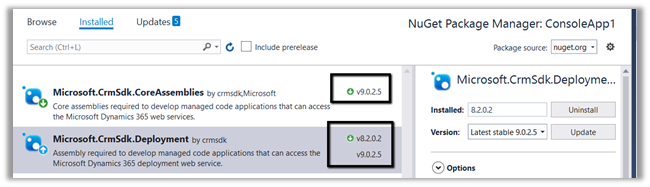
Fixed – Could not load file or assembly ‘Microsoft.Xrm.Sdk.Deployment, Version=9.0.0.0, Culture=neutral, PublicKeyToken=31bf3856ad364e35’ or one of its dependencies. The located assembly’s manifest definition does not match the assembly reference. (Exception from HRESULT: 0x80131040)


We might get above error while using CRMSdk assemblies inside a console application.

Just make sure there is no mismatch among the assembly’s version being used in the project to fix this issue.

Advertisements

Badges earned last year in https://community.dynamics.com/


Badges earned last year in

Dynamics 365 Community

2019-01-04_0832.png

https://nishantrana.me/2018/10/03/earned-top-10-in-september-2018-blog-leaderboard-badge-in-dynamics-365-community/

Nishant Rana's Weblog

Everything related to Microsoft .NET Technology

Skip to content ↓