Dynamics 365 2019 release wave 2 blog posts


  • Customize Opportunity Close Dialog box

https://nishantrana.me/2019/11/22/customize-opportunity-close-dialog-box-dynamics-365-for-sales/

  • Lead related enhancements

https://nishantrana.me/2019/11/22/lead-enhancements-in-dynamics-365-for-sales-2019-release-wave-2/

  • Contextual Email Communication

https://nishantrana.me/2019/11/23/contextual-email-communication-in-dynamics-365-for-sales-2019-release-wave-2-unified-client/

  • Save and New button in Quick Create Form

https://nishantrana.me/2019/11/25/save-and-new-button-in-quick-create-form-2019-release-wave-2-unified-interface/

  • High Density Headers

https://nishantrana.me/2019/11/26/high-density-headers-in-dynamics-365-2019-release-wave-2-unified-interface/

  • Using Xrm.Navigation.navigateTo to open Web resources Modal or Inline.

https://nishantrana.me/2019/11/28/open-webresources-modal-or-inline-using-xrm-naviagtion-naviagteto-in-dynamics-365-unified-interface/

  • Business Card Scanner

https://nishantrana.me/2019/12/23/scan-business-cards-in-dynamics-365-for-sales-2019-release-wave-2-unified-interface/

  • Timeline and Grid control Enhancements

https://nishantrana.me/2019/12/24/timeline-and-grid-control-enhancement-in-dynamics-365-customer-service-2019-release-wave-2-unified-interface/

  • Lookup Filter, Error Notifications and Territory entity enhancements

https://nishantrana.me/2019/12/25/lookup-filter-error-notifications-territory-entity-enhancements-in-dynamics-365-for-sales-customer-service-2019-release-wave-2-unified-interface/

  • Knowledge management enhancements

https://nishantrana.me/2019/12/27/knowledge-management-enhancements-in-dynamics-365-for-customer-service-2019-release-wave-2/

  • Product related enhancements

https://nishantrana.me/2019/12/28/opportunity-quote-order-invoice-product-related-enhancements-in-dynamics-365-for-sales/

  • The helpful resources: –

https://www.youtube.com/playlist?list=PLcakwueIHoT8-FSLxr5-3pprKWFHFMv3N

https://docs.microsoft.com/en-us/dynamics365-release-plan/2019wave2/


Using embedded Canvas Apps to display external data in Model-Driven Apps


carinamclaesson's avatarCarina M. Claesson

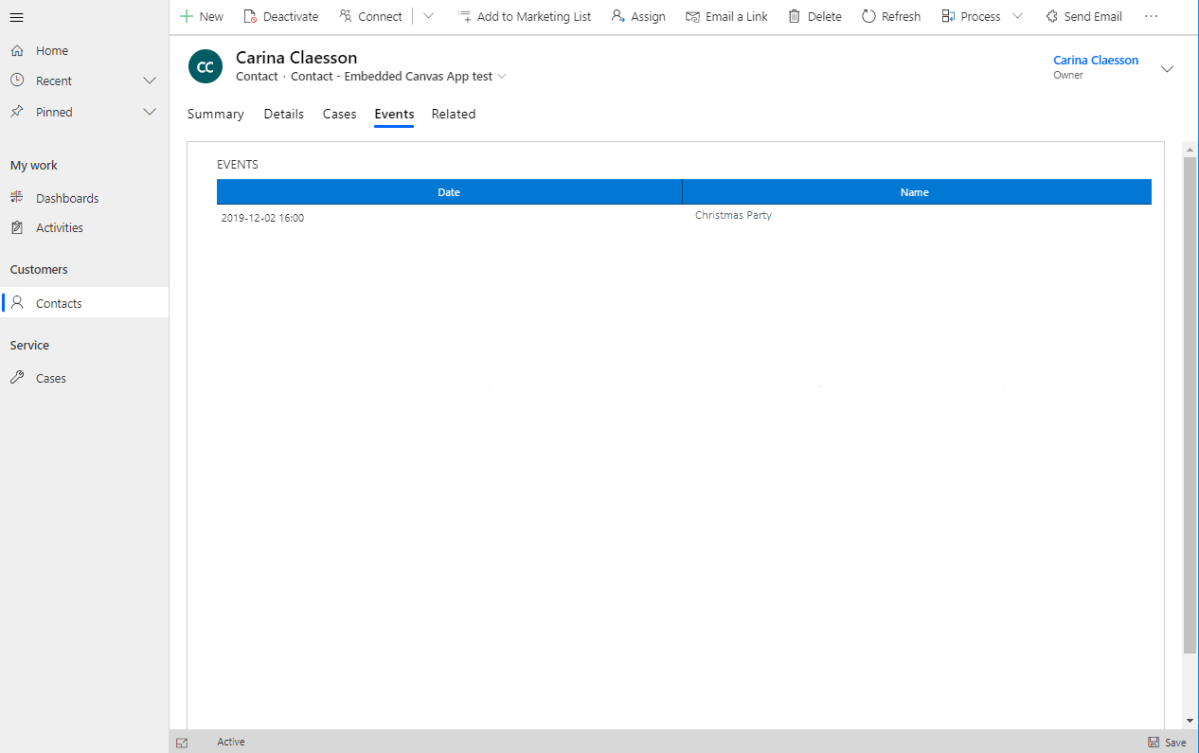
This is the second blog post in a series of two about embedded Canvas Apps. My previous blog post was all about the concept of embedded Canvas Apps. If you want to know the difference between Canvas Apps and Model-Driven Apps (both together being the building blocks of Power Apps) and find out when you can combine those and utilize an embedded Canvas App on a form in a Model-Driven App, go back to my previous blog post and you will find out more about that. In this blog post we will look at a specific use case and how to set that up.


View original post 1,867 more words

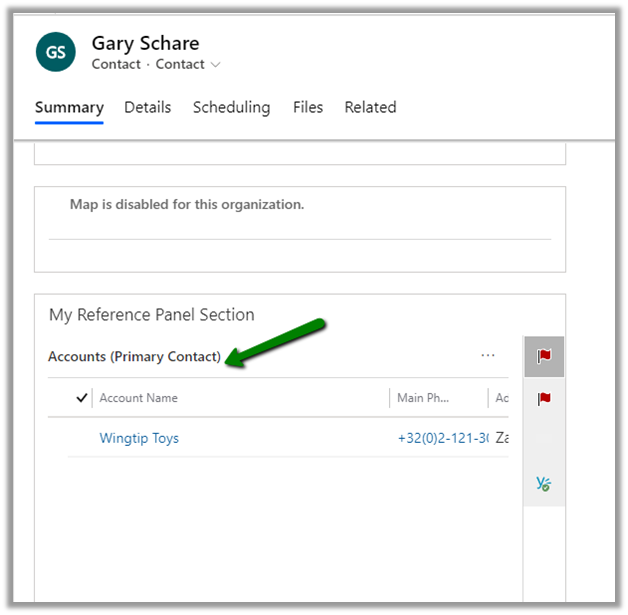
Reference Panel section for Forms in Dynamics 365


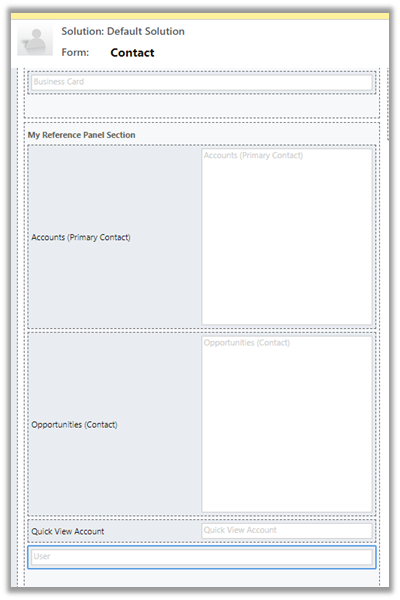
With the reference panel section, users can move across the different grid and quick view control that are part of it at a single place instead of scrolling.

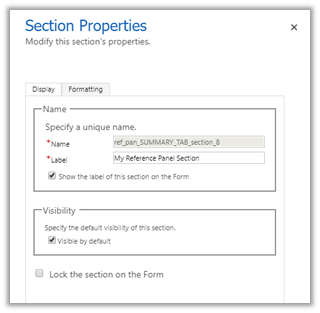
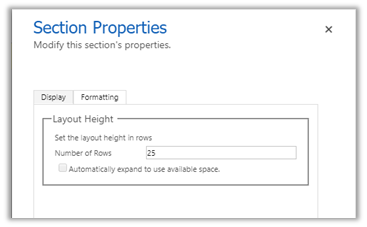
  • Reference Panel is a new type of section that can be added on form.

  • Only one reference panel can be added per form.

  • It is a single column section.

  • Multiple Sub-grid and Quick View control can be added to it.

Make sure to apply the appropriate icon.

  • The default tab will be the first control added.

  • The other tab will follow the same order in which they are added.

More on sections

https://bit.ly/2MCPL3E

https://www.youtube.com/watch?v=ubEIAgKFzLo

Hope it helps..

Advertisements

Opportunity/Quote/Order/Invoice Product-related enhancements in Dynamics 365 for Sales


Below are some of the features added in the Opportunity/Quote/Order/Invoice products for the users to improve their experience.

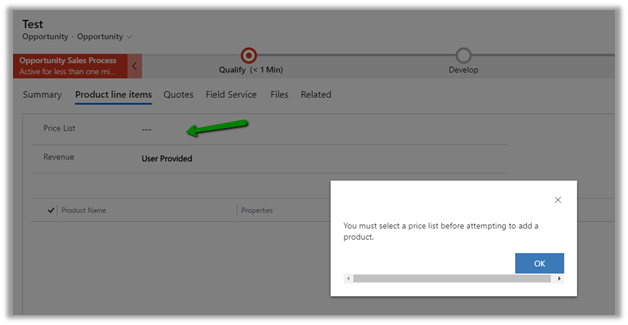
If we try adding a new product line item without specifying the price list we will get the pop-up message box that asks us to specify the price list.

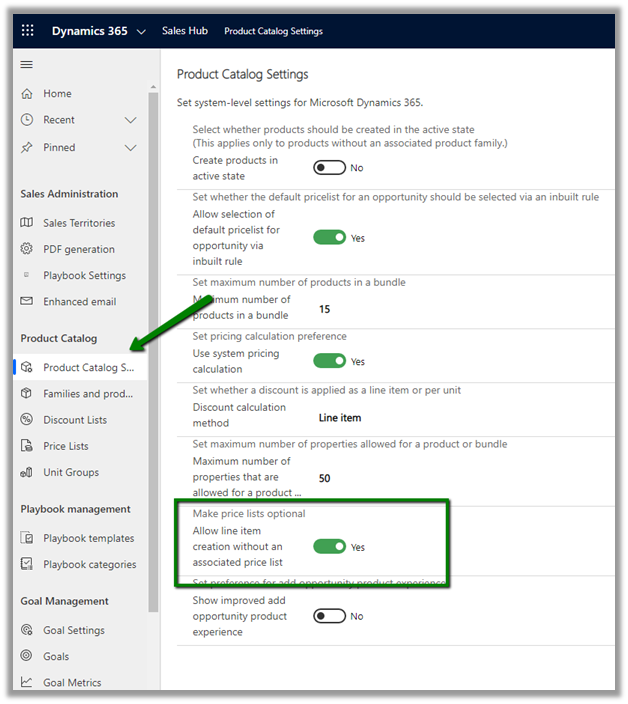
To override this behavior,

Go to Product Catalog Settings and set Price list optional and click on Apply as below.

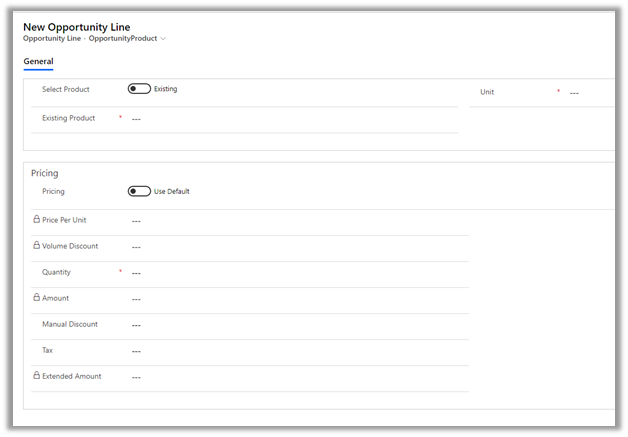
This time it opens the opportunity line form on click of Add Product Line Item.

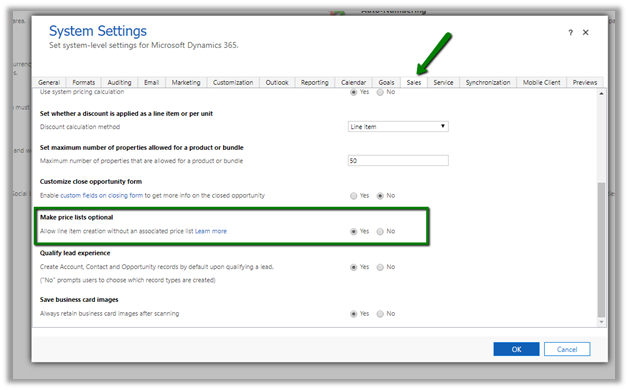
For legacy web client, the same setting can be defined at Sales tab of System Settings dialog box à

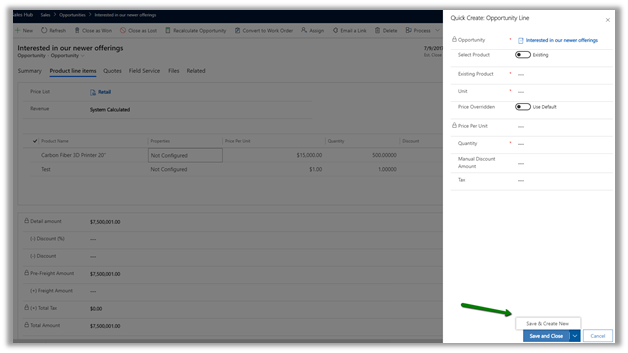
We can also “Save and Create New” option on the Quick Create form of the product line item to quickly add the multiple product line items.

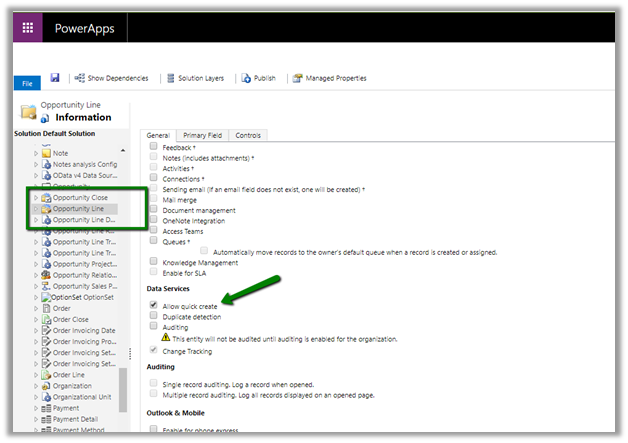
Make sure to enable “Allow Quick Create”.

Save & Create New à

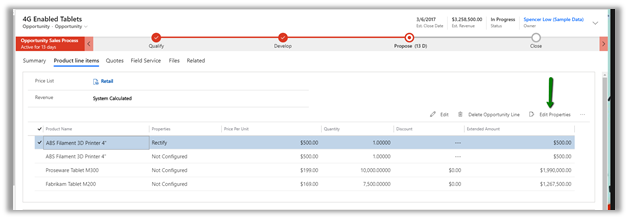
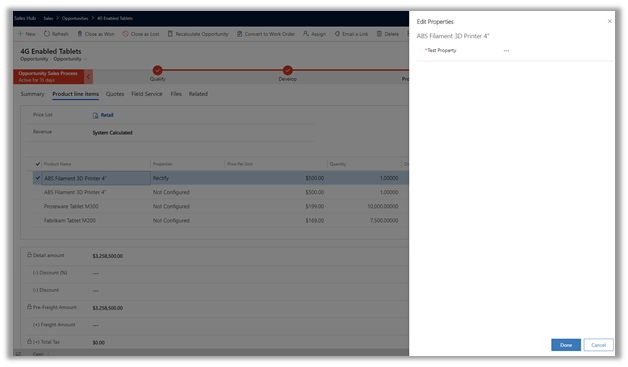
Users can now quickly view and edit properties for a product as shown below.

Edit Properties à

Get all the details here

http://tiny.cc/j0n3hz

http://tiny.cc/z0n3hz

Hope it helps..

D365: Enable Rule for button with asynchronous API request using promise


Ajit Patra's avatarAjit Patra

Many times, we get requirement to show/hide a button based on certain condition for which we define Enable Rule in Ribbon Workbench.

If we need javaScript code for evaluation then we use Custom Enable Rule mentioning library, method to execute, passing PrimaryControl CRM parameter and additional parameters if necessary.

Sometimes, the evaluation is done real time(based on the logic written) and we return true/false based on which the button remains visible/hidden. At times, we need to make additional API request which is asynchronous in nature e.g. show/hide button based on security role and in this case the result of the method/operation doesn’t affect the visibility of the button.

In this post, we’ll see how we can use promise to fix this issue and the scenario that we’ll take is hide Delete button on Document subgrid if the logged in user doesn’t have “System Administrator” security role.

Since…

View original post 401 more words

Knowledge management enhancements in Dynamics 365 For Customer Service – 2019 Release Wave 2


This release adds a new feature called Knowledge Article Template, using which users can quickly create an article by referring the Article Template, which helps in maintaining consistency and can also create their own article template.

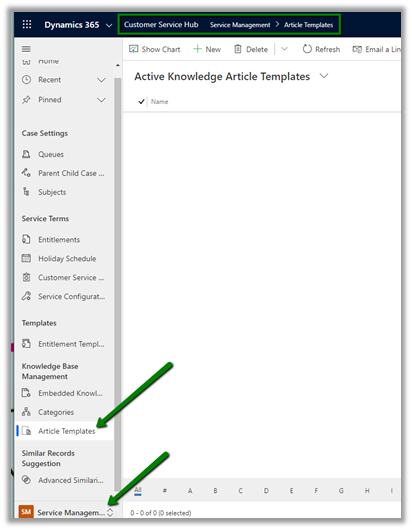
To create an Article Template, navigate to Service Management area and select Article Template

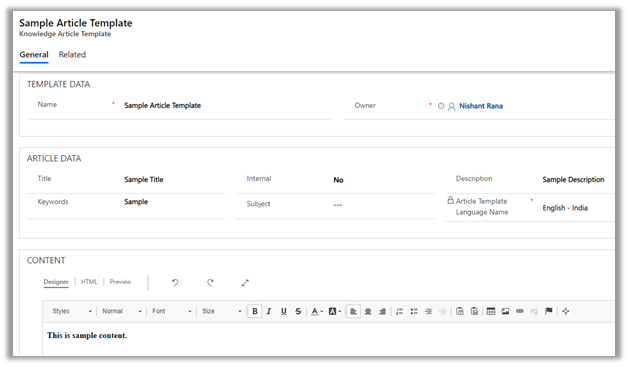
Below is how the Article Template looks like

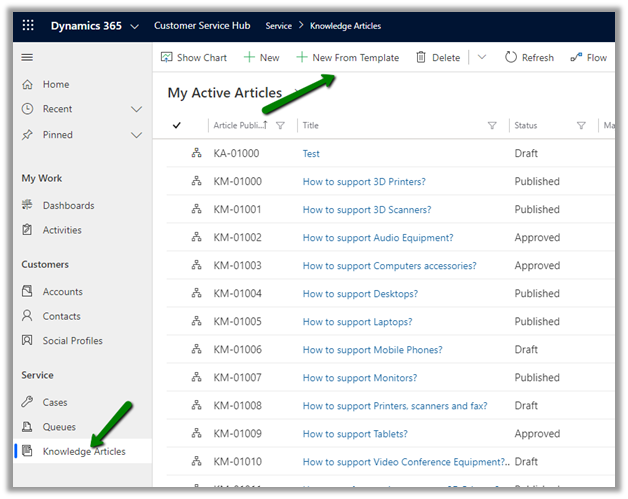
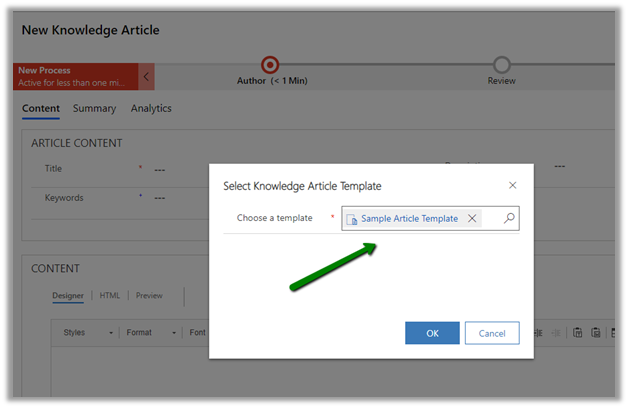
To use it, navigate to Knowledge Articles and click New From Template button

Select the template created earlier

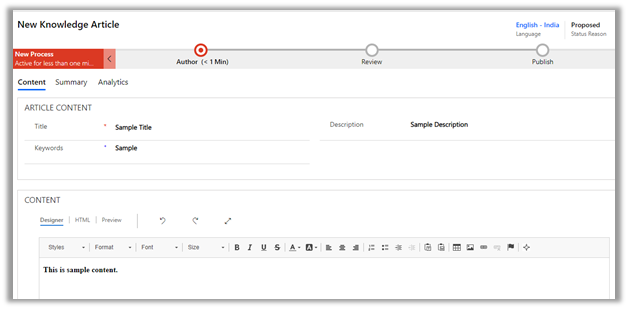
We can see the contents populated from the template

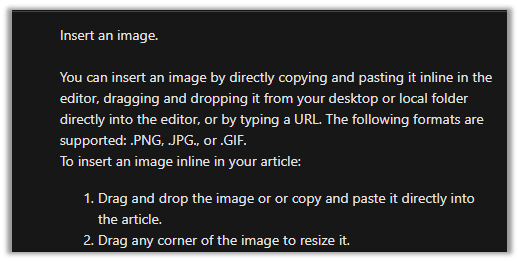
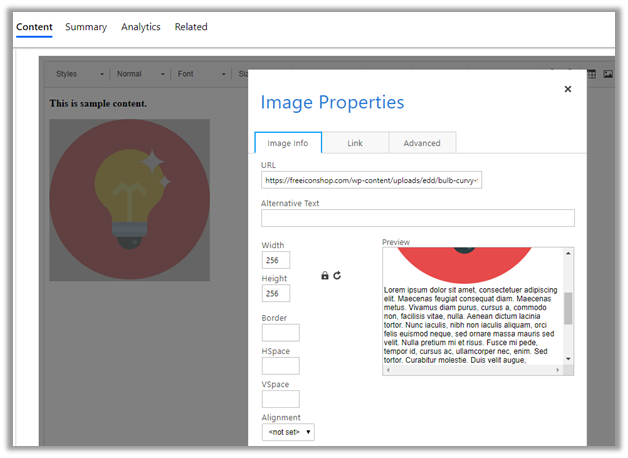
Although the Microsoft document talks about copy and pasting, drag and drop of images from local folder directly to the editor and resizing of the images. It seems that this feature is yet to be added.

Inline Image Editing and Drag and Drop

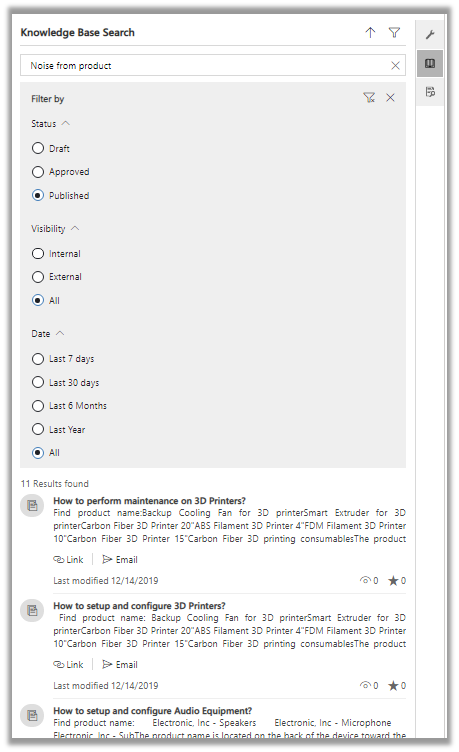
Knowledge search enhancements

  • Improved density to show more articles.
  • Better filtering options.

Hope it helps..

Nishant Rana's Weblog

Everything related to Microsoft .NET Technology

Skip to content ↓