How to – Use Foreach Loop Container in SSIS to loop through all files in folders and subfolders


Recently while working on an integration requirement we had to loop through all the XML Files within a folder and subfolder and create corresponding records inside Dynamics 365 CE.

For this, we used the XML Source component which is part of KingswaySoft’s Productivity Pack https://www.kingswaysoft.com/products/ssis-productivity-pack/help-manual/json-and-xml-processing/xml-source

Below are the steps we need to perform to loop through the files.

Create an SSIS Project and drag the Foreach Loop Container to the control flow.
Here we are using 3 variables, one for the full path to the file, the other for extension and the third one to specify the folder.

Double click and the Foreach Loop Editor, set the enumerator as Foreach File Enumerator and set the Directory and FileSpec property expressions to use the variables that we had defined.

Check the Traverse Subfolder if we want to traverse the subfolders.

Click on Variable Mapping and set the FilePath variable that will be used to iterate through the files in the Folder and Subfolder specified.

To see it in action, we have added a Script Task inside the container.
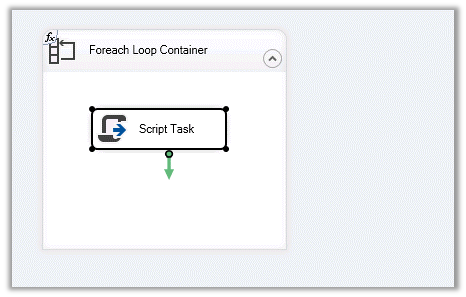
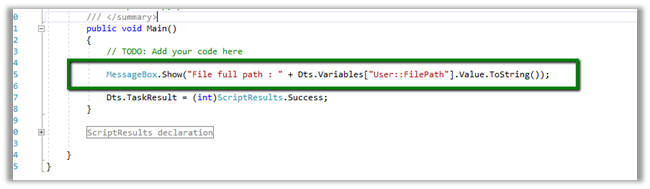
Here we have set the FilePath variable as the ReadOnlyVariables that we will read within the Script Task code and show it in the Message Box.

Our source code that reads the FilePath and displays it in the Message Box.
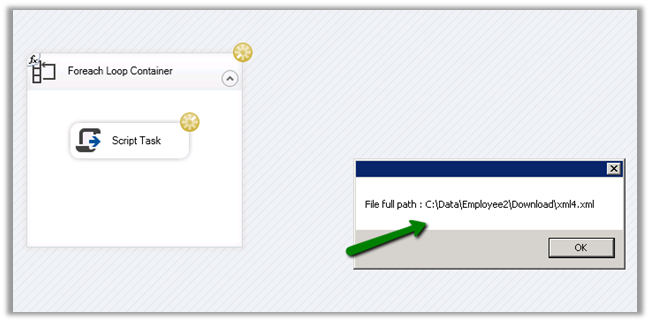
Now just execute the package and we will see it looping through all the XML files with the folder specified.

Hope it helps..

Advertisements

Using CDS/CRM Connection Manager of KingswaySoft’s SSIS Dynamics 365 Integration toolkit in Script Component (SSIS)


Recently for one of our requirements we had to use the CDS/CRM Connection of KingswaySoft’s SSIS Integration Toolkit for Dynamics 365

Below are the steps to be followed –

Drag the Script Transformation component, specify any input columns and inputs / outputs as required.

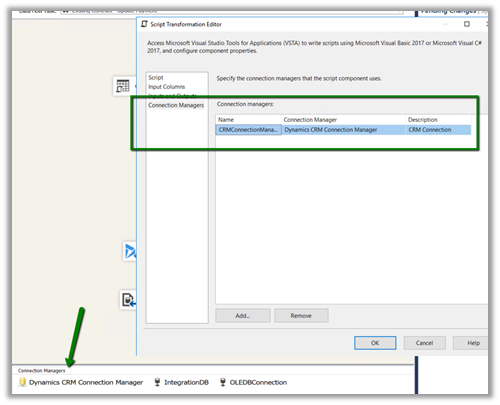
In the Connection Managers add the connection to Dynamics 365

Click on Edit Script to open the Visual Studio.

Add references to below 3 assemblies. We need to search for the 2 KingswaySoft assemblies in the machine and then add them.

The sample code –


public override void Input0_ProcessInputRow(Input0Buffer Row)
{
var connMgr = this.Connections.CRMConnectionManager;
var connectionString = (string)connMgr.AcquireConnection(null);
var conn = new CrmConnection(connectionString);

var orgService = (IOrganizationService)conn.GetCrmService();

RetrieveRequest retRequest = new RetrieveRequest();
retRequest.ColumnSet = new ColumnSet();
retRequest.ColumnSet.AddColumn("statuscode");
retRequest.Target = new EntityReference("dxc_contract", "dxc_contractnumberinternal", Row.dxccontractnumberinternal);
var response = (RetrieveResponse)orgService.Execute(retRequest);

if (response.Entity != null)
{
// status is closed
if (((OptionSetValue)response.Entity.Attributes["statuscode"]).Value == 282210002)
{
Row.IsApprovedContract = "N";
}
else
{
Row.IsApprovedContract = "Y";
}
}
}

Get all the details here

http://www.kingswaysoft.com/blog/2013/06/24/Writing-Script-Component-or-Script-Task-using-CRM-Connection-Manager

Hope it helps..

Scribe Insight Limitation – XML Source doesn’t support repeating sibling nodes


Recently we were evaluating Scribe Insight as our Integration tool for one of our clients. The requirement was to read an xml and create records in Dynamics 365 CE.

The basic structure was something like below, with Account as the parent tag and Payment, Assets, Consumer as repeating child nodes of Account i.e. 1 – n.

However, to our surprise when we started defining the same structure in the XML Component within Scribe Workbench we got the below error message à

—————————

XML Component

—————————

Repeating nodes are not supported for cousins, siblings, etc. Multiple repeating nodes must be related linearly to repeating nodes that already exist. Thus, a new repeating node must be a grandparent, parent, child, grandchild, etc., to an existing repeating node.

—————————

OK

—————————

Interestingly enough the same limitation doesn’t exist in Scribe Online. Had posted something similar few days’ back on that

https://nishantrana.me/2019/01/14/scribe-online-working-with-hierarchical-data-in-dynamics-365-ce/

As we wanted to go with something that works in On Premise setup we went ahead with SSIS Productivity Pack of KingswaySoft https://www.kingswaysoft.com/products/ssis-productivity-pack which had XML components that works perfectly well with this kind of schema or structure.

Hope it helps..

Thanks KingswaySoft


Thanks KingswaySoft for coming up with one of the best tools for Data Integration and especially the SSIS Integration Toolkit for Microsoft Dynamics 365..

https://www.kingswaysoft.com/partners/MVPsMVP_SSIS

Optimum batch size and thread while deleting records using SSIS Integration Toolkit for Microsoft Dynamics 365


Recently we had to delete few records for one of our entities. It was a user owned entity with 1 custom 1 – n relationship with contact having around 190 fields.

It was Dynamics 365 CE Online on version 9.1 and had ExecuteMultiple max limit set to 20. (by raising support ticket with Microsoft)

https://msdn.microsoft.com/en-us/library/microsoft.xrm.sdk.deployment.throttlesettings.executemultipleperorgmaxconnectionsperserver.aspx

Batch Size and the Thread settings were used

Message – Delete

Sample Batch Size – 10000

The result: –

It seems that total thread between 10 – 15 with batch size 50, 100, 250, 500 gives similar results. Batch size of 50 with 15 threads could result into time out issue

https://nishantrana.me/2018/12/18/system-aggregateexception-one-or-more-errors-occurred-ssis-integration-toolkit-for-microsoft-dynamics-365-error-in-kingswaysofts-ssis-integration-toolkit/

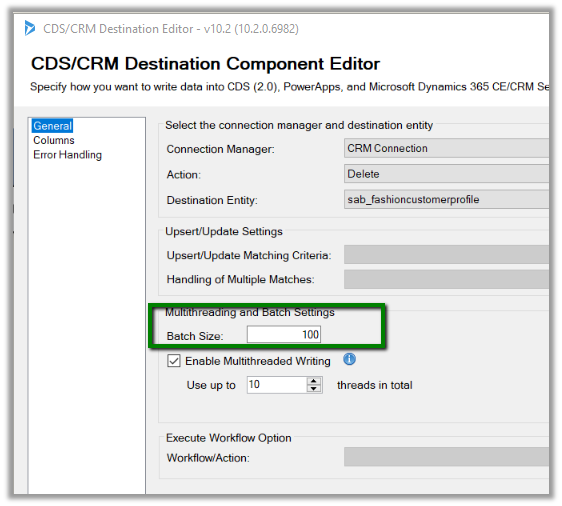
So the optimum would be around 100 batch size with thread between 10 to 15.

Check out the below post as well while using UPSERT

https://nishantrana.me/2018/06/04/optimum-batch-size-while-using-ssis-integration-toolkit-for-microsoft-dynamics-365/

Hope it helps..

System.AggregateException: One or more errors occurred. (SSIS Integration Toolkit for Microsoft Dynamics 365) error in KingswaySoft’s SSIS Integration Toolkit


Occasionally we might get the below error in our SSIS Package.

[Dynamics CRM Destination [2]] Error: An error occurred with the following error message: “System.AggregateException: One or more errors occurred. (SSIS Integration Toolkit for Microsoft Dynamics 365, v10.2.0.6982 – DtsDebugHost, v14.0.3002.113)KingswaySoft.IntegrationToolkit.DynamicsCRM.CrmServiceException

: CRM service call returned an error: CRM service call returned an error: The request channel timed out while waiting for a reply after 00:01:59.6189794. Increase the timeout value passed to the call to Request or increase the SendTimeout value on the Binding. The time allotted to this operation may have been a portion of a longer timeout. (Error Type / Reason: Timeout)KingswaySoft.IntegrationToolkit.DynamicsCRM.CrmServiceException

(Status Reason: Timeout): The operation has timed out”.

The way we can fix is either increase the time out in the CDS/CRM Connection Manager as suggested.

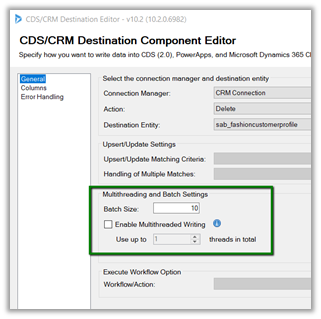
However the better solution is to keep the batch size low around 100 or so in the CDS/CRM Destination Component. We have observed that decreasing the batch size helps here in case of this error.

Hope it helps..