Fixed – Script Component has encountered an exception in user code. Value cannot be null. Parameter name: keyword in SSIS


Recently while trying to use KingswaySoft’ s CRM Connection Manager in the Script Component we got the below error

error

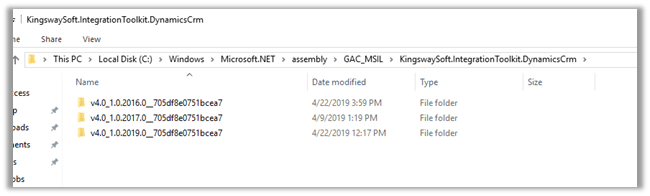
Turned out the issue was because of the wrong version of KingswaySoft.IntegrationToolkit.DynamicsCrm assembly being referred.

C:\Windows\Microsoft.NET\assembly\GAC_MSIL\KingswaySoft.IntegrationToolkit.DynamicsCrm

Referencing the correct one fixed it.

Hope it helps..

Check out my Step-by-Step guide to integrating Dynamics 365 for Customer Engagement with XML @NigelFrank


Here’s an article I wrote for @NigelFrank detailing how Dynamics 365 for Customer Service users can integrate their solution with XML. I hope you find it useful! #MSDyn365 #MsDynCRM

Integration with XML for Dynamics 365 for Customer Service users: my illustrated guide for @NigelFrank

Follow the link here

https://www.nigelfrank.com/blog/integrate-dynamics-365-for-customer-engagement-with-xml/


User Defined Variable value not getting updated inside Data Flow in SSIS


While implementing integration packages between XML and Dynamics 365 CE, we had a requirement which required us to write a Script Component (custom code) in Data Flow task to check the status of a record in CRM and based on the value of it take appropriate action.

The initial thought was to create a user-defined variable and update the variable in the Script Component and use its value inside a new Derived Column and further in the CRM Destination Component.

However, to our surprise, although we can see the variable’s value being updated within Script Component while debugging, the same was not being reflected in the Derived Column and the Destination Component in that Data Flow task.

But within the next Script task of that Control Flow, we were getting the updated value.

Below is our sample source XML File

The package

The data flow task reads the above XML file and within Script Component it sets the value of fullname variable and we are putting its value within a Derived Column. SQL Server Destination is inserting all the values into a SQL table.

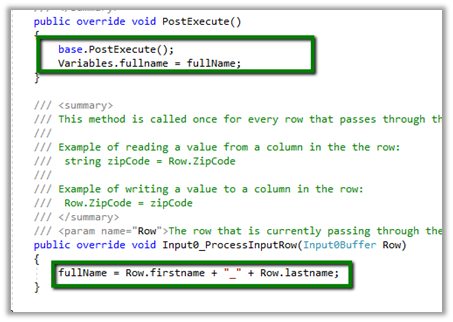
The Script Component à
The Derived Column à

The SQL Server Destination à

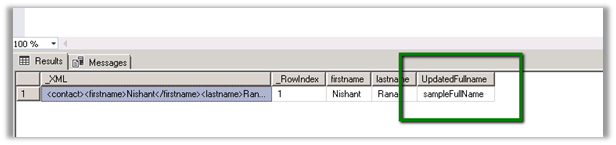
On running the package, the result à

It is still showing the default value.
Although we can see the value correctly updated

Now within the Script Task in the control flow, we are using a message box to show the value of that variable.

The result à
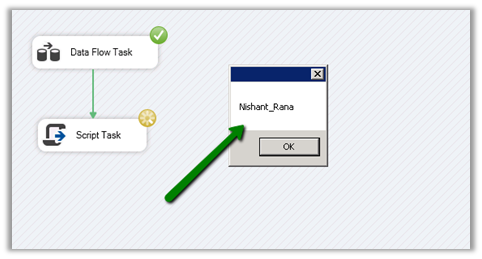
The reason for the above problem is SSIS package variables does not update during the execution of the data flow task. Those variables get updated once the Data flow task finishes. Therefore, we cannot use the updated value of the variable during the execution of a dataflow task.

Even though you could change the variable values within pre-execution or post-execution methods, it only takes effect on the value of the variable after the execution of the data flow task.

http://dineshpathirana.blogspot.com/2011/05/ssis-package-variables-cannot-update.html

So here instead of using the User Defined Variable, we used the Output column of the Script Component.

And we set the same inside the script editor.

Hope it helps.

Advertisements

Using Precedence Constraint Editor to control the task execution in Control Flow (SSIS)


Precedence Constraint component in SSIS allows us to control the flow of the execution of tasks within the Control Flow.

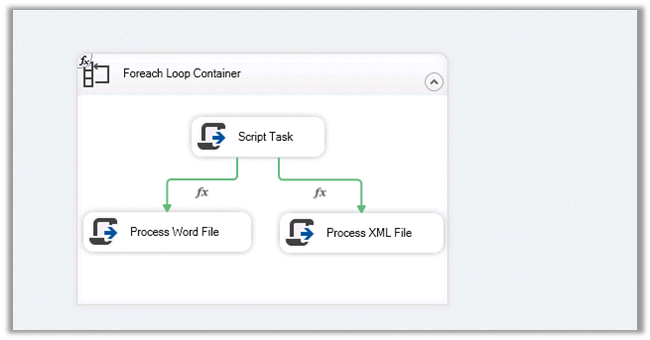
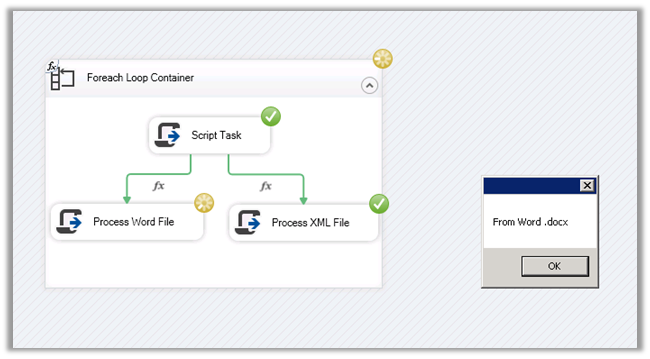
Suppose we have the below package wherein we are traversing through the folder using Foreach Loop Container and are processing XML and docx files within that folder.

And we want them to be processed differently.

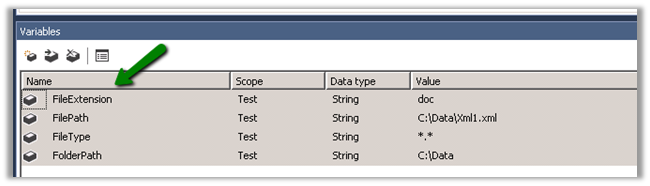
We have the following user-defined variables specified.

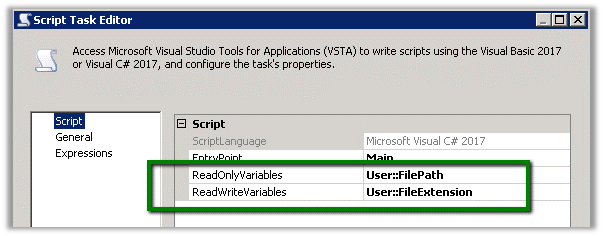
Within the Script Task, we have specified FilePath as the ReadOnlyVariables to read the full file path and figure out the extension and FileExtension as the ReadWriteVariables to which we will write the result.

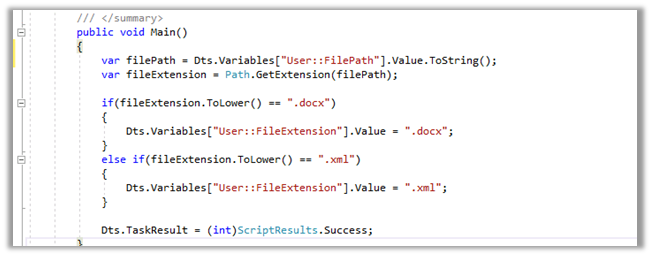
Below is our code for the Script Task, here we are reading the file path and getting the extension and setting the FileExtension variable.

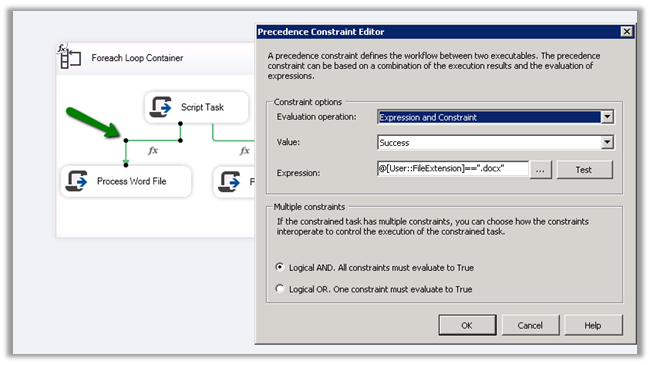
Now back in our control flow, open the Precedence Constraint Editor and select Evaluation expression as Expression and Constraint.

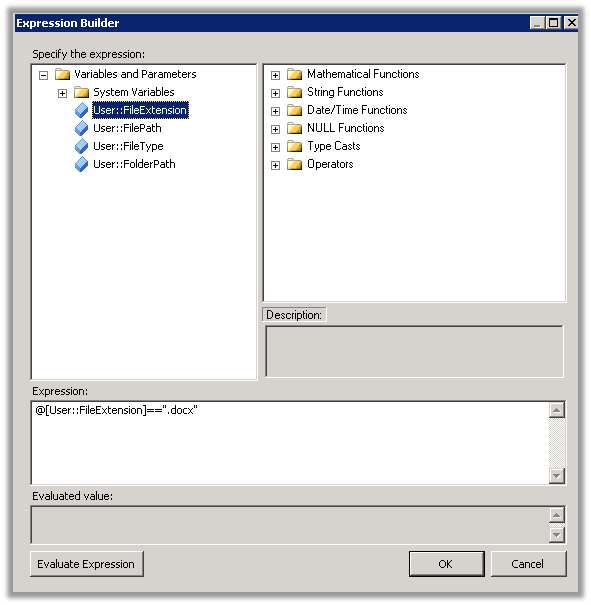
The constraint should be success and for the expression, we have defined the FileExtension variable’s value to be .docx, and both the condition to be true i.e. Logical And.

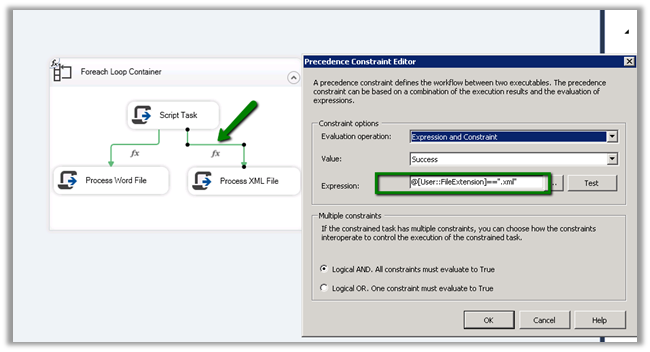
Similarly, define the Precedence Constraint for the second brand of the Script Task as shown below.

Now run the package and based on the file extension we would see the execution taking the appropriate path, processing the next component and showing the correct message.

Hope it helps..

How to – Apply XSLT transformation using the XML Task in SSIS


Using the XML Task component in SSIS we can apply XSLT to the input XML file.

Recently we had a requirement to read data from XML file and create/update corresponding records in Dynamics 365 CE. For the child entity tags in the XML, we wanted to insert some of the tags (key) from the parent to the child so that it can be easily used for mapping and setting the parent lookup.

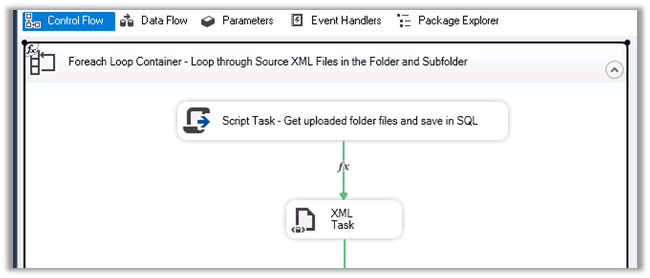
For that we had used Foreach Loop Container to read the XML file, then had applied XSLT transformation using the XML Task before processing the file using XML Source Component and CRM Destination Component of KingswaySoft.

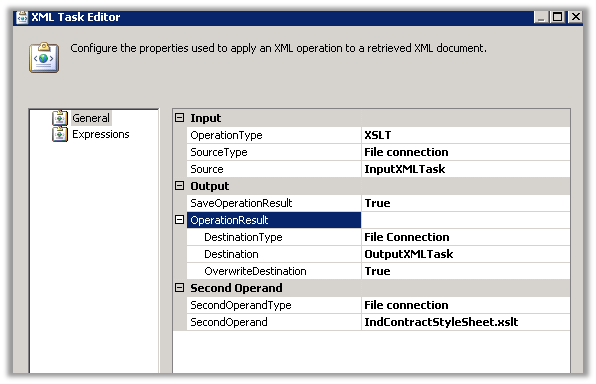
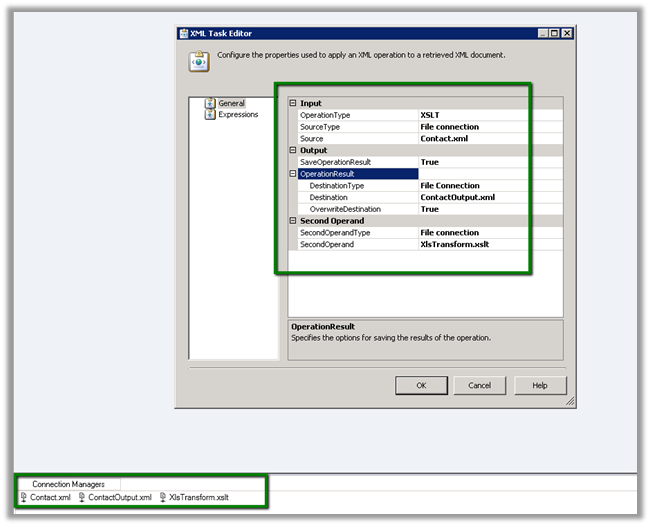
The XML task editor here is using 3 File Connection.

One for the input file, another for output and third for the XLST file.

Here need to select

  • Operation Type as XLST
  • Source Type as file connection as we are specifying XML file as input.
  • For output, we are creating an output XML file and overwriting the destination file if existing.
  • In the Second Operand, we are specifying the XSLT file.

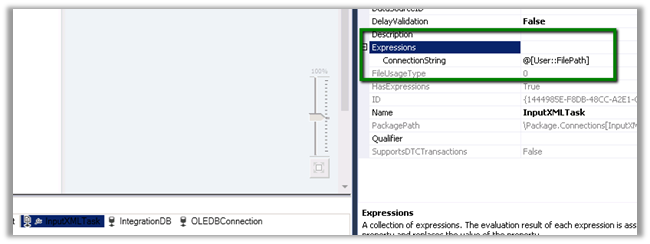
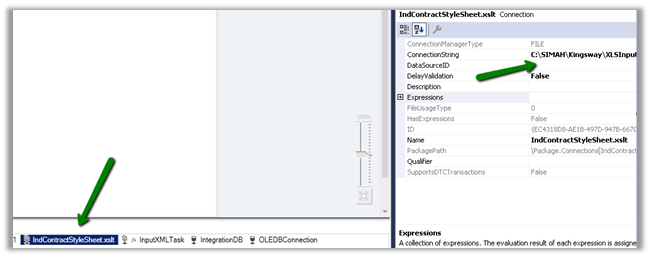
For InputXMLTask file connection, we need to specify the user-defined variable that reads the file in its connection string property for it to work properly.

Same for OutputXMLTask

And for the XSLT File Connection

Let us take a simple example to understand it better à

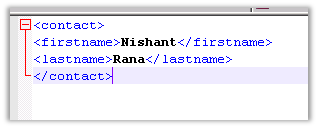
Suppose below is our source XML i.e. Contact.xml

We want to apply following XSLT transformation to it, which adds the fullname tag to it which is a combination of firstname and lastname tag. i.e. XlsTransform.xslt

Drag the XML task to the control flow of the package.

Specify the following properties for it as shown below

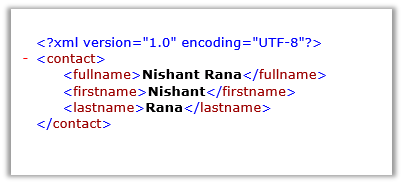
Run the package we will get the below output file, a fullname tag added which is combination of firstname and lastname tag as below i.e. ContactOutput.xml

Hope it helps..

Advertisements

Order of attributes in Alternate Key in Dynamics CRM Destination Component in SSIS (KingwaySoft)


Recently we got the below error in one of our SSIS Packages

error

The packages were working fine in one of the environments and were failing in another.

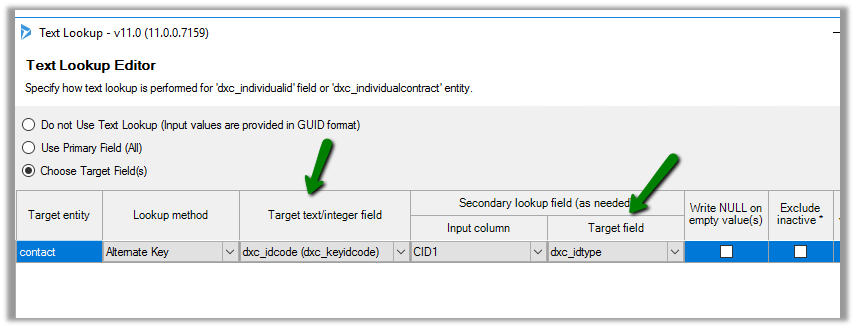
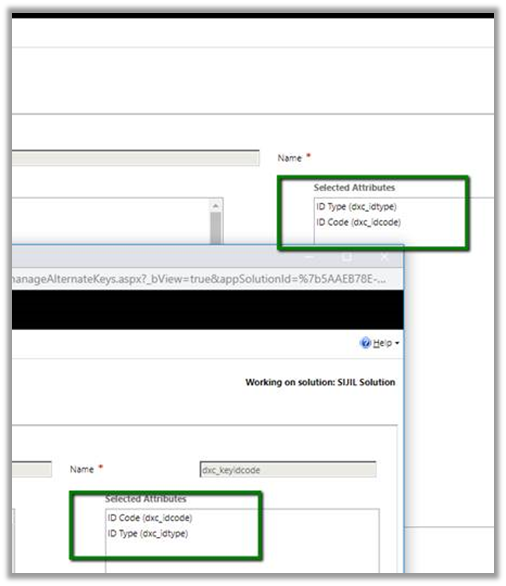
It was throwing an error in one of the lookup fields that was referring to the alternate key. Here the alternate was defined with 2 fields.

As it turned out in another environment the order of the fields was changed for the alternate key field.

We recreated the alternate key field in the proper order of the attributes to fix this.

Hope it helps..