Update: boxed view with one column only


Worked like a charm.

Christophe's avatarPath to SharePoint... and Beyond!

Last year, I published a sample script that changes the layout of boxed views from two columns to a single column.

Several readers reported that it didn’t work for them. Larry Pfaff investigated the issue, and came up with the following update:

To include the script in your page, use a CEWP placed below the boxed view.

The above script is written for wss v3. It identifies the Web Part by its id “WebPartWPQ1”. If you use MOSS, or if the boxed view is on a page along with other Web Parts (typically on the site home page), you’ll need to change the id to “WebPartWPQ2” or “WebPartWPQn“. Or you can modify the code to scroll through all the Web Parts on the page and grab the boxed views.

Larry’s update works for all boxed styles, while my initial code only worked against the “Boxed, no labels” style.

Remember that the…

View original post 170 more words

Showing current logged in user’s profile picture next to Welcome Menu in SharePoint 2013


Hi,

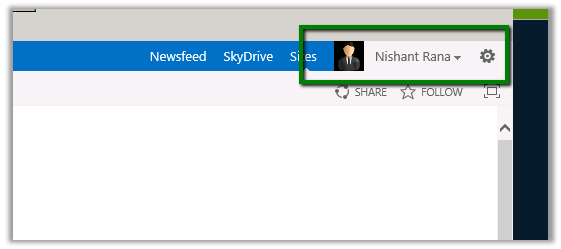
We recently got a requirement to show the logged in user’s profile picture along with the name on the Welcome Menu on the top right.

We followed these steps to implement it.

  1. Open the master page used by the Site (Site Settings àMaster Pages and page layouts à Select the master page file à right click and download a copy.
  2. Add the following tags in the master page.

<%@
Register
Tagprefix=”SPSWC”
Namespace=”Microsoft.SharePoint.Portal.WebControls”
Assembly=”Microsoft.SharePoint.Portal, Version=15.0.0.0, Culture=neutral, PublicKeyToken=71e9bce111e9429c”
%>

<SPSWC:ProfilePropertyLoader
runat=”server”
/>

<SPSWC:ProfilePropertyImage
PropertyName=”PictureUrl”
style=”float: left; height: 20px;
ShowPlaceholder=”true”
id=”PictureUrlImage”
runat=”server”/>

Saving and uploading the master page.

Hope it helps.

Using SharePoint CSOM (Client Side Object Model) in CRM 2011 On-Premise Plugin.


Hi,

We recently had a requirement to create List Item in SharePoint every time a case is resolved in CRM.

For this we decided to use SharePoint CSOM i.e.

Added reference to following assemblies in our plugin that will fire on Case Resolution

They can be found at

C:\Program Files\Common Files\Microsoft Shared\Web Server Extensions\15\ISAPI\

The plugin gets the content of the KB Article associated to the Case and creates a list item (for a Custom List) in SharePoint.

Sample Code


public void Execute(IServiceProvider serviceProvider)
 {
 IPluginExecutionContext context =
 (IPluginExecutionContext) serviceProvider.GetService(typeof (IPluginExecutionContext));
 if (context.InputParameters.Contains("Target") && context.InputParameters["Target"] is Entity)
 {

Entity entity = (Entity) context.InputParameters["Target"];

OptionSetValue serviceStage = (OptionSetValue) (entity.Attributes["statecode"]);
 if (serviceStage.Value == 1)
 {

IOrganizationServiceFactory serviceFactory =
 (IOrganizationServiceFactory)
 serviceProvider.GetService(typeof (IOrganizationServiceFactory));

IOrganizationService orgService = serviceFactory.CreateOrganizationService(context.UserId);

// Get the KB Article Associated
 ColumnSet cols = new ColumnSet();
 cols.AddColumn("kbarticleid");

// Get the content of the article
 Entity caseEntity = orgService.Retrieve("incident", context.PrimaryEntityId, cols);
 EntityReference entityRef = (EntityReference) caseEntity.Attributes["kbarticleid"];
 Guid kbId = entityRef.Id;
 Entity kbEntity = orgService.Retrieve("kbarticle", kbId, new ColumnSet(true));
 string title = kbEntity.Attributes["title"].ToString();
 string content = kbEntity.Attributes["content"].ToString();
 // create the custom list item in SharePoint using Client Side Object Model of SharePoint 2013

ClientContext clientContext = new ClientContext("http://sharepoint/sites/portal/");
 clientContext.Credentials = new System.Net.NetworkCredential("username", "password", "mydomain");
 List announcementsList = clientContext.Web.Lists.GetByTitle("Kb List");

ListItemCreationInformation itemCreateInfo = new ListItemCreationInformation();
 ListItem newItem = announcementsList.AddItem(itemCreateInfo);
 newItem["Title"] = title;
 newItem["Content"] = content;

newItem.Update();

clientContext.ExecuteQuery();

}
 }
 }

Hope it helps.

Changing font color of a column in jqGrid.


Hi,

We had a requirement to change the font color of a particular column in jqGrid. We achieved it in the following manner.

Using the formatter property


The fontColorFormat function


function fontColorFormat(cellvalue, options, rowObject) {
 var color = "blue";
 var cellHtml = "<span style='color:" + color + "' originalValue='" + cellvalue + "'>" + cellvalue + "</span>";
 return cellHtml;
 }

Hope it helps!

Implementing Marking Item as Read functionality for list item in SharePoint 2013.


Hi,

We recently had a requirement where we wanted to mark list item as read when they are opened (DispForm.aspx).

For this we added a Yes/No (checkbox) field to the List.

Opened the DispForm.aspx for editing and added a Content Editor web part there.

Uploaded a text file having following script in one of the document libraries.

</pre>
_spBodyOnLoadFunctionNames.push("updateListItem");

function updateListItem() {

var siteUrl = window.location.protocol + "//" + window.location.host;
 var clientContext = new SP.ClientContext(siteUrl);
 var oList = clientContext.get_web().get_lists().getByTitle('Notifications');

 JSRequest.EnsureSetup();

//Get a query string parameter called Id. i.e - "page.aspx?Id=11" will return 11
 var itemId = JSRequest.QueryString["ID"];
 this.oListItem = oList.getItemById(itemId);
 oListItem.set_item('MarkAsRead', true);
 oListItem.update();

clientContext.executeQueryAsync(
 Function.createDelegate(this, this.onQuerySucceeded),
 Function.createDelegate(this, this.onQueryFailed)
 );
 }

function onQuerySucceeded() {
 alert('Item updated!');
 }

function onQueryFailed(sender, args) {
 alert('Request failed. ' + args.get_message() + '\n' + args.get_stackTrace());
 }
<pre>

And refered that txt file in our content web editor web part.

Hope it helps.

Set AssignedToId for a ListItem using SharePoint 2013 Rest API.


Hi,

Was working on a requirement in which we had to create new listitems of task type and set the Assigned To field in it.

It wasn’t as straight forward as we thought. Finally this is what worked


var fieldUserValues = new Array();
 fieldUserValues.push(userIdForTask);

var item = {
 "__metadata": { "type": eventToSave.TaskTypeName },
 "Title": eventToSave.EventName,
 "StartDate": startDate,
 "DueDate": endDate,
 "Body" : eventToSave.Description,
 "Priority": eventToSave.TaskPriority,
 'AssignedToId': { "results": fieldUserValues },
 };
 executor.executeAsync(
 {
 url: appweburl + "/_api/SP.AppContextSite(@target)/web/lists/getbytitle('" + eventToSave.TaskName + "')/items?@target='" + hostweburl + "'",
 method: "POST",
 headers: {
 "accept": "application/json;odata=verbose",
 "content-type": "application/json;odata=verbose",
 "X-RequestDigest": $("#__REQUESTDIGEST").val()

 },
 body: JSON.stringify(item),
 success: function (data) { succeededInsert(data); },
 error: failedInsert
 }
 );

Hope it helps.